• Home
  • News
  • Software
  • Knowledge
  • MMO
  • Tips
  • Security
  • Network
  • Office
AnonyViet - English Version
  • Home
  • News
  • Software
  • Knowledge
  • MMO
  • Tips
  • Security
  • Network
  • Office
No Result
View All Result
  • Home
  • News
  • Software
  • Knowledge
  • MMO
  • Tips
  • Security
  • Network
  • Office
No Result
View All Result
AnonyViet - English Version
No Result
View All Result

Instructions to connect Windows 365 Cloud PC with Remote Desktop

AnonyViet by AnonyViet
January 25, 2023
in Network
0

In the article “How to sign up for Windows 365 Cloud PC for free for 1 monthAnonyviet showed you how to sign up for a 1-month trial of windows 365 Cloud PC, but using a browser to access Cloud PC is very difficult. And today, I will show you how to connect Windows 365 Cloud PC using RDP

Join the channel Telegram of the AnonyViet 👉 Link 👈

Should I use a browser or an App to connect?

That said, Microsoft is great when giving us 2 options to connect to Windows Cloud PC: Using a browser or RDP (Remote Desktop Protocol). For the browser, you don’t need to care about professional software to connect and all you need is your Browser. The way it does it is simply stream to your browser and what you do will be transferred to the server.

As for the app, although you have to install a special microsoft software to be able to access it, in return it has all the features on the browser and also has maximum support for connecting to Cloud PC. Specifically the features it can do are:

  • Cloud PC Control
  • Can Upload and Download files using . key CTRL + C and CTRL + V
  • Can make it smoother
  • Less ram consumption than the browser
  • Can use full screen like real machine

Instructions on how to connect Windows 365 Cloud PC using RDP

To be able to use it, follow the steps below to be able to connect Window Cloud PC using RDP!

Note: At the time of writing, AAG and AAE Optical Cables are having problems, if you can’t log in, don’t blame the app! This software is from Microsoft itself, so you don’t need to worry about malicious code.

Installation Instructions

Step 1: Access Windows 365 Cloud PC here

Step 2: After entering the homepage, your screen will display as shown below. You choose Download Remote Desktop as shown below
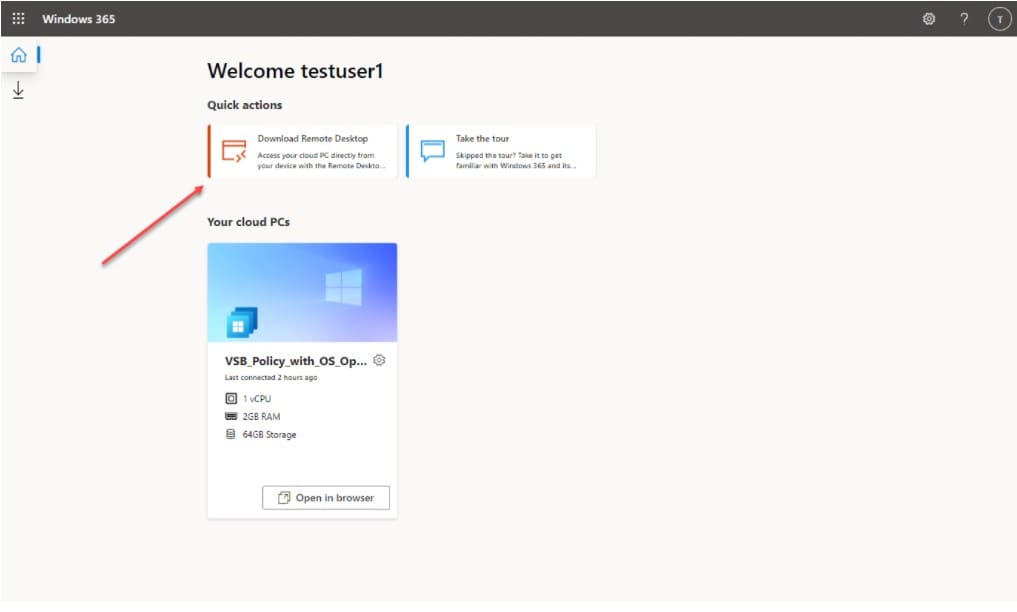
Select Download Remote Desktop

Step 3: When in the download page, you find the software that is compatible with your computer and select download. I use 64bit windows so I will choose 64 bit windows and in this tutorial I will go through each step with the windows operating system (other operating systems will be similar so you don’t need to worry too much)
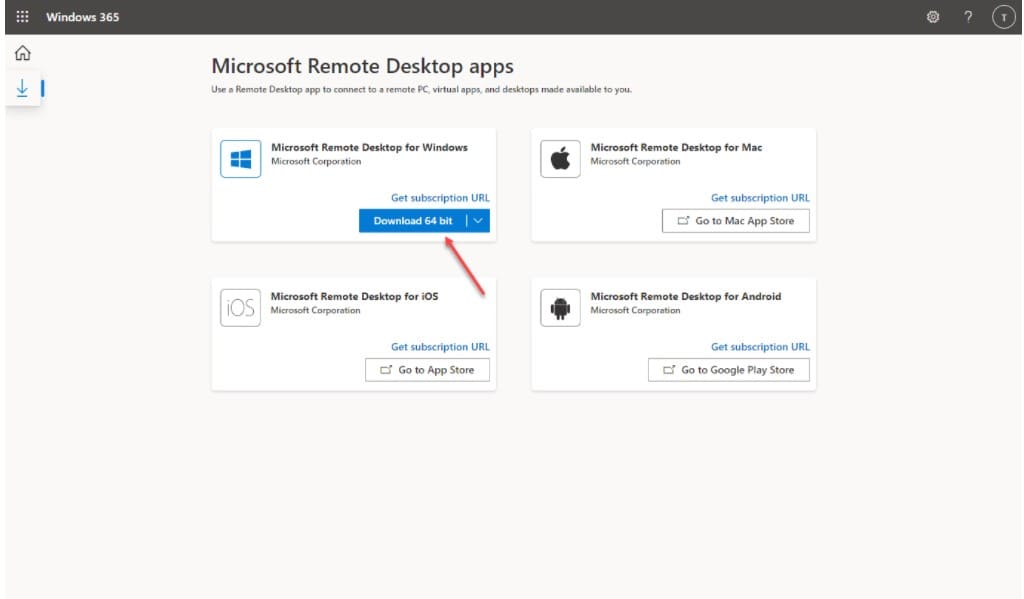
Select Download

Step 4: Run the downloaded setup file and proceed with the normal installation. You should specify the user that can access the application!
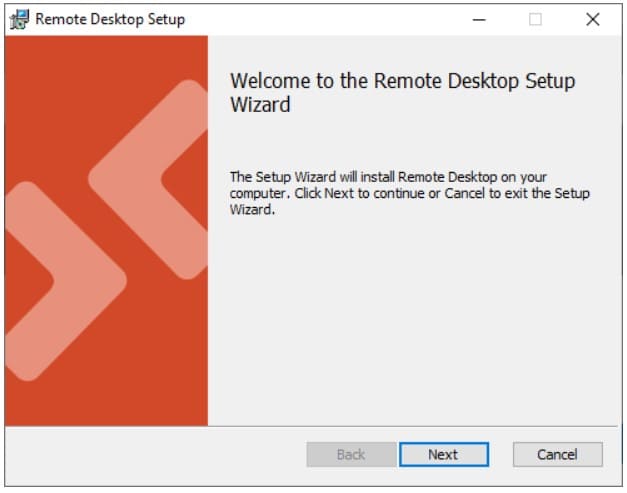
Run setup cloud pc

Instructions for config

Step 1: Go back to the Window RDP download page and select the Get subscription URL section as shown below
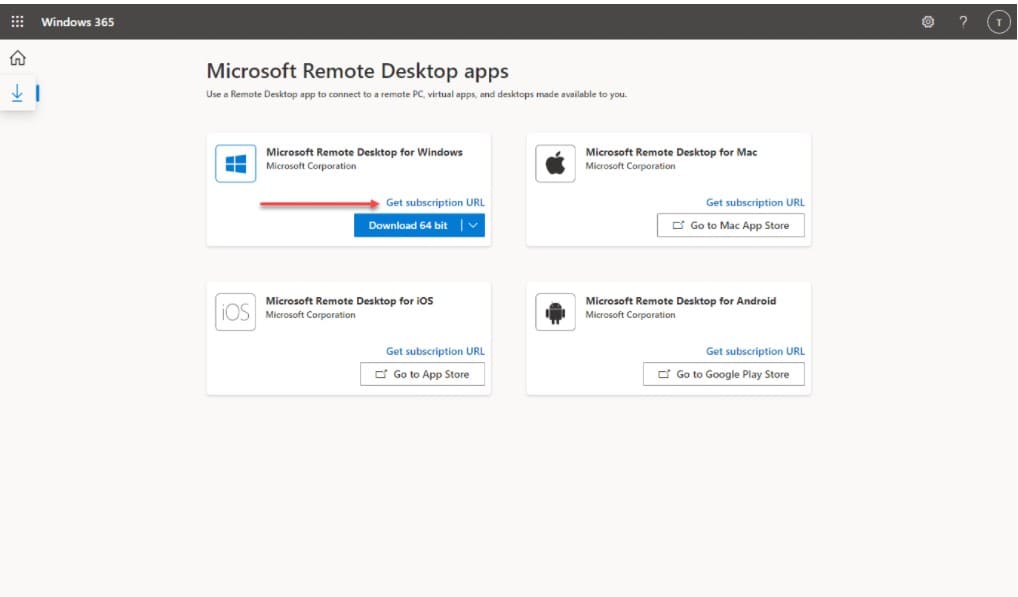
get subscription URL

Step 2: Copy it with CTRL + C or the Copy button on the side
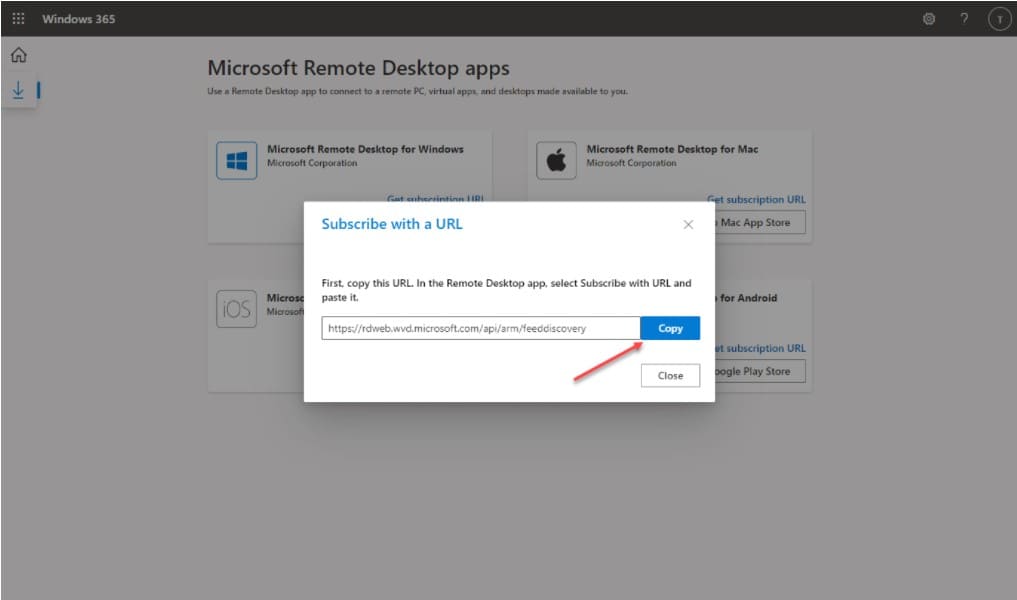
Copy subscription URL

Step 3: Start Remote Desktop and select Subscribe with URL
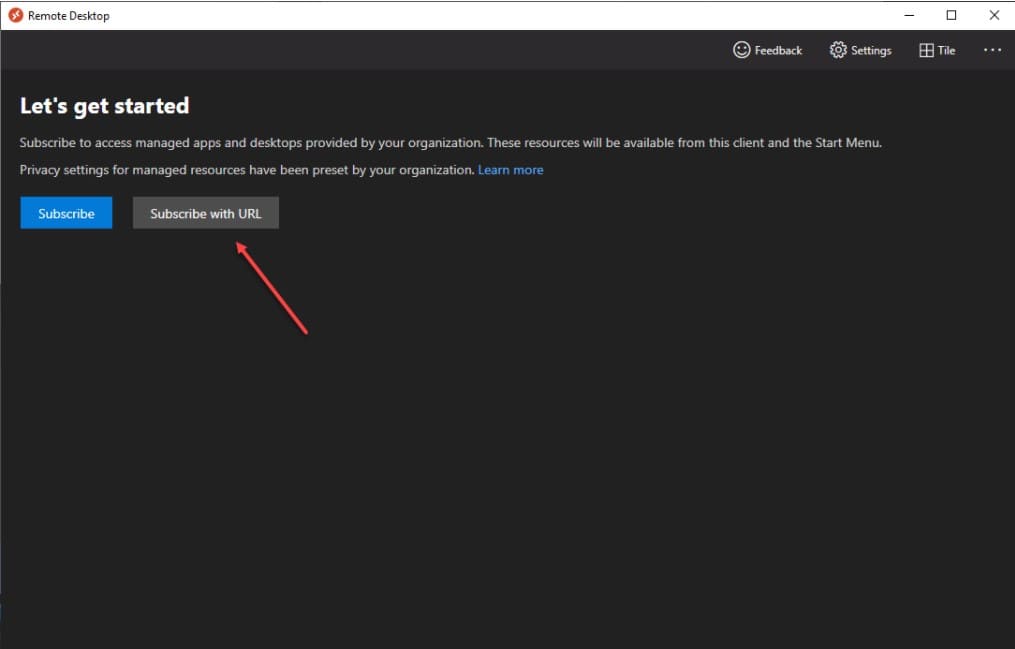
Select subscribe with URL

Step 4: In the Email or Workspace URL section, paste the part you just copied and select next
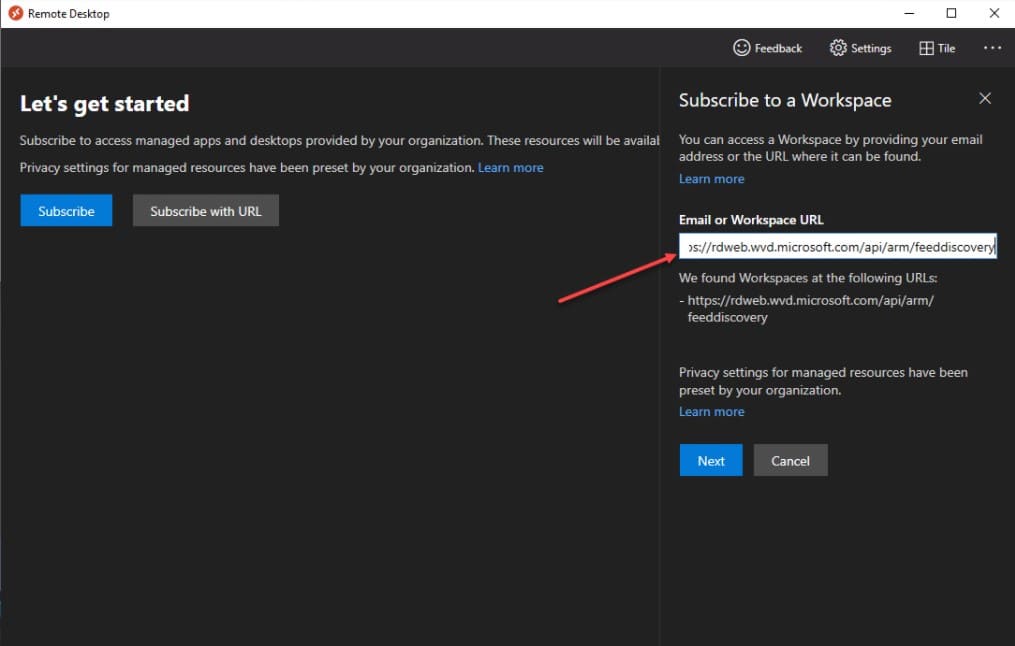
Enter the subscription URL

Step 5: Sign in with your Windows 365 Cloud PC account
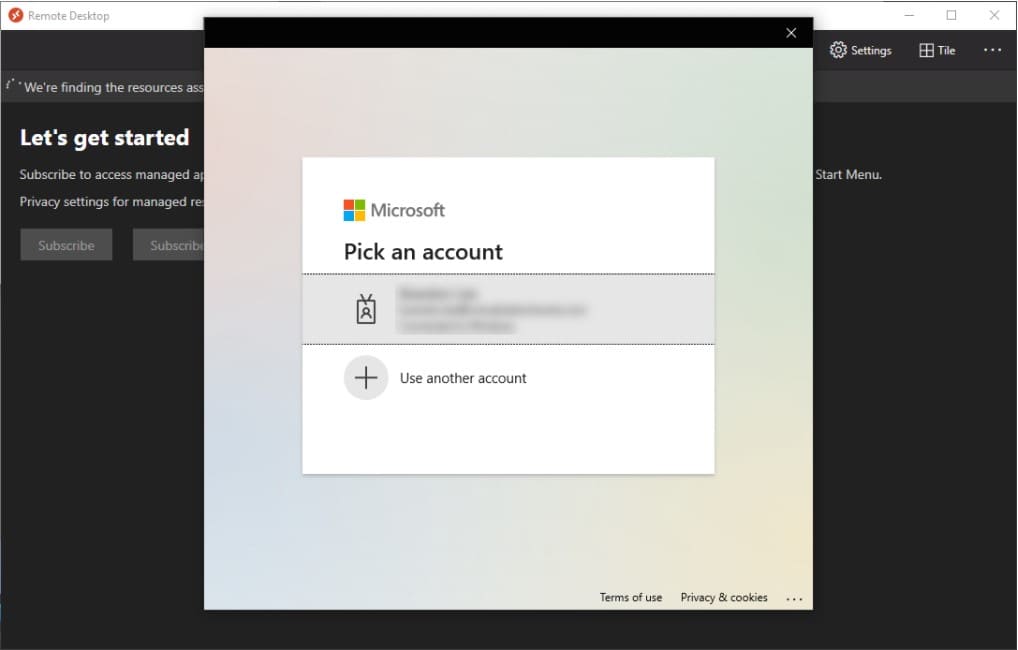
Sign in to your Windows 365 Cloud PC account

Step 6: You will now see Cloud PC displayed in the main interface. You double-click twice to be able to connect to Window Cloud PC already.
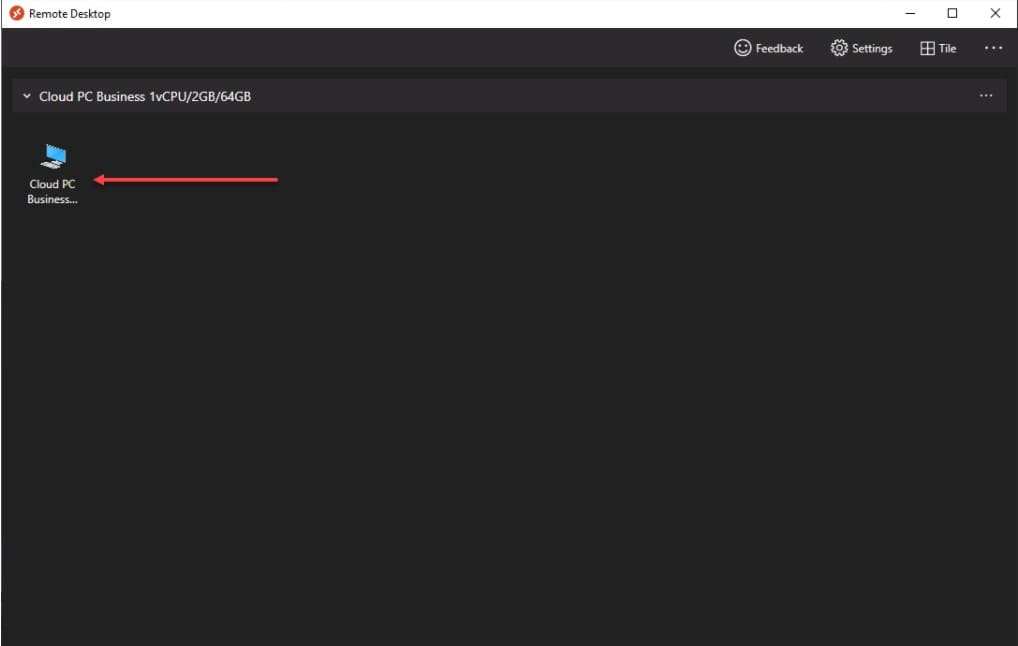

Cloud PC

The article achieved: 5/5 – (100 votes)

Tags: CloudconnectDesktopInstructionsRemoteWindows
Previous Post

KTDB.VN – The fastest way to create special character names

Next Post

How to download all Instagram users’ photos and videos

AnonyViet

AnonyViet

Related Posts

Save image as Type contains malicious code: Remove immediately before losing money unfairly!
Network

Save image as Type contains malicious code: Remove immediately before losing money unfairly!

March 19, 2026
Instructions on how to register a .co.uk domain name for free for 1 year
Network

Instructions on how to register a .co.uk domain name for free for 1 year

March 12, 2026
How to Setup Paperclip AI: Create a Company for AI Agent
Network

How to Setup Paperclip AI: Create a Company for AI Agent

March 12, 2026
Compilation of free and cheap APIs to run OpenClaw stably
Network

Compilation of free and cheap APIs to run OpenClaw stably

March 10, 2026
3 Services to Determine IP Location for Website (IP Geolocation API)
Network

3 Services to Determine IP Location for Website (IP Geolocation API)

March 10, 2026
How to buy a .STORE domain name for 1 USD (2026): Detailed instructions from A–Z
Network

How to buy a .STORE domain name for 1 USD (2026): Detailed instructions from A–Z

March 3, 2026
Next Post
How to download all Instagram users’ photos and videos

How to download all Instagram users' photos and videos

0 0 votes
Article Rating
Subscribe
Login
Notify of
guest

guest

0 Comments
Oldest
Newest Most Voted
Inline Feedbacks
View all comments

Recent News

How to install the cute Bongo Cat mouse pointer for Windows

How to install the cute Bongo Cat mouse pointer for Windows

April 29, 2026
Tips for pinning the step counter to the iPhone screen to monitor your health

Tips for pinning the step counter to the iPhone screen to monitor your health

April 28, 2026
How to turn off password suggestions on iPhone: Prevent Safari from auto-filling passwords

How to turn off password suggestions on iPhone: Prevent Safari from auto-filling passwords

April 27, 2026
Instructions for looking up prescriptions on VNeID instead of paper medical books

Instructions for looking up prescriptions on VNeID instead of paper medical books

April 26, 2026
How to install the cute Bongo Cat mouse pointer for Windows

How to install the cute Bongo Cat mouse pointer for Windows

April 29, 2026
Tips for pinning the step counter to the iPhone screen to monitor your health

Tips for pinning the step counter to the iPhone screen to monitor your health

April 28, 2026
How to turn off password suggestions on iPhone: Prevent Safari from auto-filling passwords

How to turn off password suggestions on iPhone: Prevent Safari from auto-filling passwords

April 27, 2026
AnonyViet - English Version

AnonyViet

AnonyViet is a website share knowledge that you have never learned in school!

We are ready to welcome your comments, as well as your articles sent to AnonyViet.

Follow Us

Contact:

Email: anonyviet.com[@]gmail.com

Main Website: https://anonyviet.com

Recent News

How to install the cute Bongo Cat mouse pointer for Windows

How to install the cute Bongo Cat mouse pointer for Windows

April 29, 2026
Tips for pinning the step counter to the iPhone screen to monitor your health

Tips for pinning the step counter to the iPhone screen to monitor your health

April 28, 2026
No Result
View All Result
  • Home
  • News
  • Software
  • Knowledge
  • MMO
  • Tips
  • Security
  • Network
  • Office

wpDiscuz
0
0
Would love your thoughts, please comment.x
()
x
| Reply