• Home
  • News
  • Software
  • Knowledge
  • MMO
  • Tips
  • Security
  • Network
  • Office
AnonyViet - English Version
  • Home
  • News
  • Software
  • Knowledge
  • MMO
  • Tips
  • Security
  • Network
  • Office
No Result
View All Result
  • Home
  • News
  • Software
  • Knowledge
  • MMO
  • Tips
  • Security
  • Network
  • Office
No Result
View All Result
AnonyViet - English Version
No Result
View All Result

Instructions to Block Strange Devices Connecting to Your Wifi

AnonyViet by AnonyViet
January 27, 2023
in Network
0

Now you can Wi-Fi network protection from others by block other devices connect to your Wifi. It’s very simple you just need Follow the steps below

Join the channel Telegram of the AnonyViet 👉 Link 👈

This method is very basic for computer users, when it works through a tool that allows to track every device connected to your WiFi network and then you can block selected devices from your WiFi. You just need to follow some instructions of AnonyViet down here

Steps to block unknown devices from connecting to your Wifi

Step 1: First, you need to Tool WifiGuard For Windows. Download and install it’s on the computer Windows yours, and you need Select your preferred language to get started.
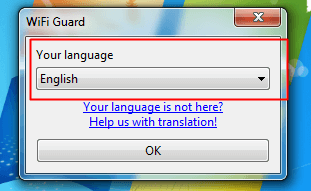
Block devices from your Wifi network

Step 2: Now you need take MAC address of all currently connected devices with your Wi-Fi network and you need to click File > Settings
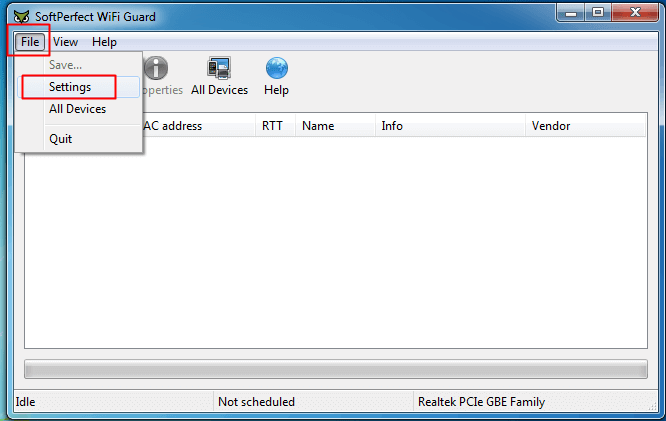
Block devices from your Wifi network

Step 3: Now from network adapters, you need to choose your WiFi network card (the machine you have a connection to)Usually from IP 192.168.1.1
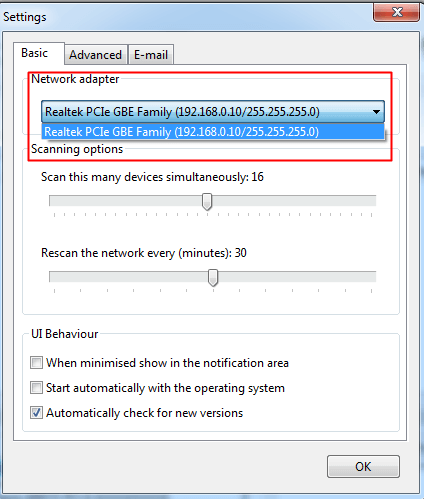
Block devices from your Wifi network

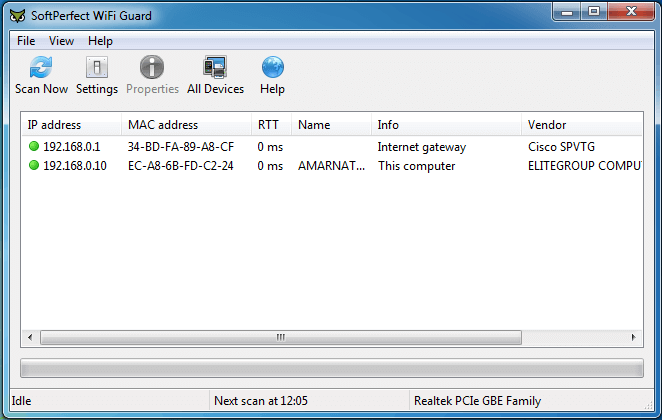
Step 3: Now press the button Scan Now and you will see list of all currently connected devices with your WiFi

Note

The MAC address of your home Wi-Fi connected devices will be displayed in the resulting box below
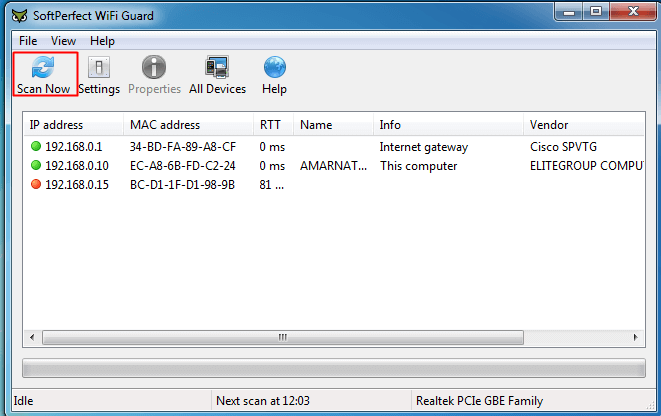
Instructions to Block Strange Devices Connecting to Your Wifi
Block devices from your Wifi network

Step 4: Take a look at Columns Name see if there are any suspicious device names, you Copy the MAC Address to proceed with its purification, Do not allow strange devices to connect to your home Wifi

Step 5: Access to Your home Wifi device management page, usually 192.168.1.1 or 192.168.0.1, I demo on the device TP LINK

Find function MAC Filterthen type Address MAC Address want to block your wifi connection

Note

If you can’t find it, go to Google and type Router + Mac Filter, there will be instructions

I will copy the Mac Address Suspects who are not in the group are allowed to access. Then we will proceed to the pointless Wireless Mac Filter like the picture below, choose Add more MAC address Come in and you’re done Instructions to Block Strange Devices Connecting to Your Wifi

Step 6: Now MAC filter will be activated, and only devices are listed in these router setup will have access to your WiFi network, and no body eles can connect to your WiFi.
Block devices from your Wifi network

AnonyViet wishes you success!

AnonyViet – Better and Better

The article achieved: 5/5 – (100 votes)

Tags: BlockConnectingdevicesInstructionsStrangeWiFi
Previous Post

What is Game Design? Should start where?

Next Post

How to access 3G, 4G Viettel network for free with unlimited data

AnonyViet

AnonyViet

Related Posts

Save image as Type contains malicious code: Remove immediately before losing money unfairly!
Network

Save image as Type contains malicious code: Remove immediately before losing money unfairly!

March 19, 2026
Instructions on how to register a .co.uk domain name for free for 1 year
Network

Instructions on how to register a .co.uk domain name for free for 1 year

March 12, 2026
How to Setup Paperclip AI: Create a Company for AI Agent
Network

How to Setup Paperclip AI: Create a Company for AI Agent

March 12, 2026
Compilation of free and cheap APIs to run OpenClaw stably
Network

Compilation of free and cheap APIs to run OpenClaw stably

March 10, 2026
3 Services to Determine IP Location for Website (IP Geolocation API)
Network

3 Services to Determine IP Location for Website (IP Geolocation API)

March 10, 2026
How to buy a .STORE domain name for 1 USD (2026): Detailed instructions from A–Z
Network

How to buy a .STORE domain name for 1 USD (2026): Detailed instructions from A–Z

March 3, 2026
Next Post
How to access 3G, 4G Viettel network for free with unlimited data

How to access 3G, 4G Viettel network for free with unlimited data

0 0 votes
Article Rating
Subscribe
Login
Notify of
guest

guest

0 Comments
Oldest
Newest Most Voted
Inline Feedbacks
View all comments

Recent News

Tips to completely turn off CAPTCHA codes on iPhone and Mac are super simple

Tips to completely turn off CAPTCHA codes on iPhone and Mac are super simple

April 25, 2026
Compare Poco X8 Pro and Poco X7 Pro: A new step for the “king” of mid-range performance

Compare Poco X8 Pro and Poco X7 Pro: A new step for the “king” of mid-range performance

April 24, 2026
How to compress online videos for free without losing quality

How to compress online videos for free without losing quality

April 24, 2026
Top 5 apps to view good days 2026 for free on iOS and Android

Top 5 apps to view good days 2026 for free on iOS and Android

April 23, 2026
Tips to completely turn off CAPTCHA codes on iPhone and Mac are super simple

Tips to completely turn off CAPTCHA codes on iPhone and Mac are super simple

April 25, 2026
Compare Poco X8 Pro and Poco X7 Pro: A new step for the “king” of mid-range performance

Compare Poco X8 Pro and Poco X7 Pro: A new step for the “king” of mid-range performance

April 24, 2026
How to compress online videos for free without losing quality

How to compress online videos for free without losing quality

April 24, 2026
AnonyViet - English Version

AnonyViet

AnonyViet is a website share knowledge that you have never learned in school!

We are ready to welcome your comments, as well as your articles sent to AnonyViet.

Follow Us

Contact:

Email: anonyviet.com[@]gmail.com

Main Website: https://anonyviet.com

Recent News

Tips to completely turn off CAPTCHA codes on iPhone and Mac are super simple

Tips to completely turn off CAPTCHA codes on iPhone and Mac are super simple

April 25, 2026
Compare Poco X8 Pro and Poco X7 Pro: A new step for the “king” of mid-range performance

Compare Poco X8 Pro and Poco X7 Pro: A new step for the “king” of mid-range performance

April 24, 2026
No Result
View All Result
  • Home
  • News
  • Software
  • Knowledge
  • MMO
  • Tips
  • Security
  • Network
  • Office

wpDiscuz
0
0
Would love your thoughts, please comment.x
()
x
| Reply