How to use Gemini Omni is the hottest topic after the Google I/O event, opening an era of extremely powerful AI video editing. This tool allows users to change effects and content using only natural language. Let’s learn more about this tool with AnonyViet.
📢 Join the channel Telegram belong to AnonyViet
Update new articles, cool tools and IT tips fastest
What is Gemini Omni? Why is it different?
During the recent Google I/O event, the appearance of Gemini Omni created a strong wave in the technology community. Not just one WHO Typically, this is an all-powerful video editing assistant that allows users to completely change the style of a video with just a few short lines of description.
Gemini Omni is a huge step forward in the field of natural language video editing. Its most outstanding feature is the ability to “understand” the user’s intentions and execute complex commands such as changing the background, adding objects or changing the style (like anime, cyberpunk, horror) while still maintaining the consistency of the character.

Instructions on how to use Gemini Omni
To start mastering this tool, you can apply it to creating new documents from scratch or editing existing documents.
New video creation process
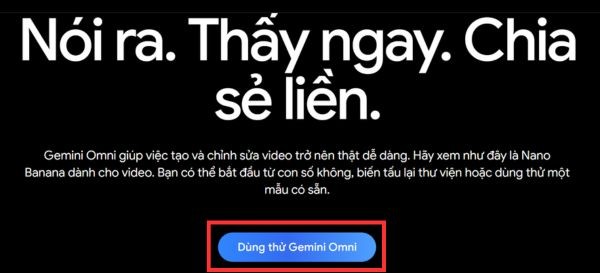
Step 1: Visit the official website of Gemini Omnithen click to select “Try it out” to start experiencing the working interface.
Step 2: Click on the sign icon “+” and select “Create videos” to open a creative space.
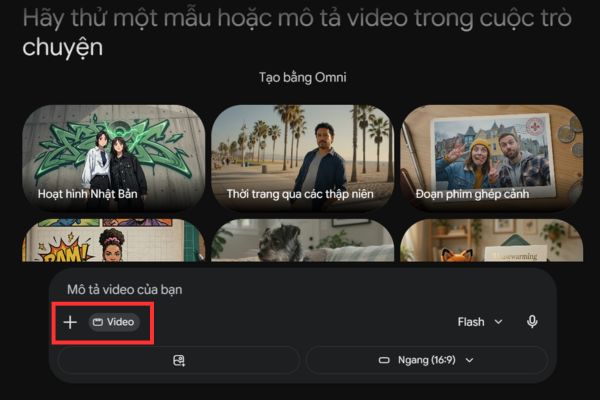
Step 3: Upload sample images and select available suggested features such as Japanese Animation, Fashion through the decades,…
For example, here I will choose the feature: Talking pets.
Step 4: Enter detailed content using commands. For example: “Create a video of my cat talking with the following content: Hello dear mom, I just came back from the market, will you buy me pate?”

Step 5: Click send and wait for the system to process for a moment.
Finally download the finished result. The good thing is that Omni supports creating videos of up to length 10 seconds.
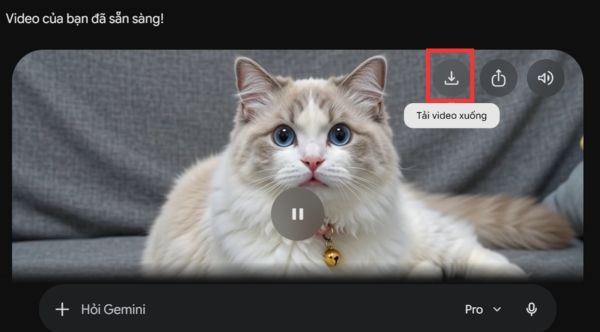
Video editing workflow available
Step 1: Click add video icon in the bottom corner of the screen to upload the original video from your device.
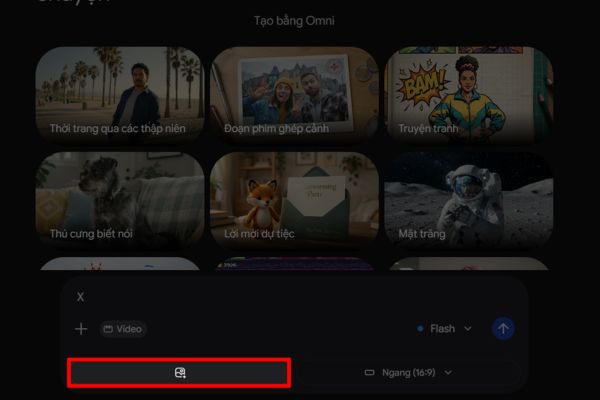
Step 2: Enter a description, for example: “Add fiery wings to the main character in this video.”
Step 3: The system will automatically analyze and create effects, you just need to follow the processing process on the screen.
Step 4: After receiving the completion notification, you can preview and download the video to your device to share.
Pros and cons of Gemini Omni
To better understand this tool, below is a summary of the advantages and limitations:
| Advantage | Disadvantages |
| Extremely fast processing speed, saves time. | Current video quality is still standard. |
| The cost of use is very cheap and flexible. | Errors may appear in redundant details. |
| The tagging feature helps control objects well. | The ability to simulate physics is not as perfect as Veo. |
| Supports a variety of input data (text, images, videos). | Sometimes it is necessary to “regenerate” to make it look the best. |

Notes when using Gemini Omni
To achieve the most professional results, users need to master some of the following experiences:
- If the created video is not sharp enough, you can combine it with external AI upscale tools to upgrade the resolution.
- Although powerful, don’t expect it to reach physical perfection like the dedicated Veo 2.0 model. Think of it as a great assistant for quick editing work.
- This model is currently available in Google’s paid plans at a very cheap price, please upgrade to try it out.
- The more detailed the command in terms of style, lighting and gestures, the more impressive the output.
- To maintain a consistent character image in a series, give specific character descriptions in the first sentence.
Conclusion
With the advent of powerful tools like Gemini Omni, the barrier between ideas and actual products has been completely erased. Hope this article has helped you understand How to use Gemini Omni to start your content creation journey. Let’s try it out today so you don’t miss out on the latest technology trends!
Frequently Asked Questions (Q&A)
1. Is using Gemini Omni complicated for non-experts?
It’s very simple, you just need to enter a text description as if you were chatting with a normal person and the AI will automatically process it.
2. Does the video created with this tool have a time limit?
Currently, the tool supports creating and editing videos with a duration of up to 10 seconds per publication.
3. How can I use the Tagging (@) feature?
You just need to type the @ character and then select the object in the command so that AI will focus on correct editing on that element in the video.