• Home
  • News
  • Software
  • Knowledge
  • MMO
  • Tips
  • Security
  • Network
  • Office
AnonyViet - English Version
  • Home
  • News
  • Software
  • Knowledge
  • MMO
  • Tips
  • Security
  • Network
  • Office
No Result
View All Result
  • Home
  • News
  • Software
  • Knowledge
  • MMO
  • Tips
  • Security
  • Network
  • Office
No Result
View All Result
AnonyViet - English Version
No Result
View All Result

Instructions on how to install Ubuntu on Windows 11 with WSL/WSL2

AnonyViet by AnonyViet
July 24, 2025
in Tips
0

How to install Ubuntu on Windows 11 Actually easier than you think. Many people used to think that they had to use a virtual, lumbering machine, but it turned out not to. If you are a code, or simply a curious person who wants to “play” Linux, then the integration of Ubuntu right on Windows 11 will be an “unimaginable” experience.

Join the channel Telegram belong to Anonyviet 👉 Link 👈

Conditions to be prepared before installation

Before going into the instructions, you need to ensure the computer Windows 11 My owned. There are two you have to check and activate.

1. Activate Windows Subsystem for Linux

  • Open Start menu, type “Turn Windows Features on or OffAnd click Enter.
  • In the window appears, scroll down and find items “Windows Subsystem for Linux“. OK.
  • Once completed, you must restart the computer to set the effect.
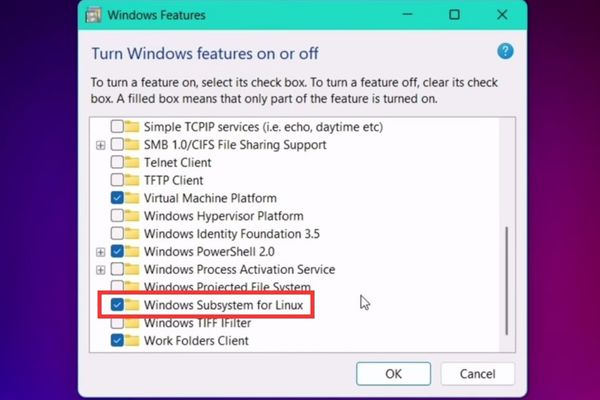
Activate Windows Subsystem for Linux

2. Turn on Virtualization

In order for the WSL to operate effectively, the Virtualization of the CPU should be turned on:

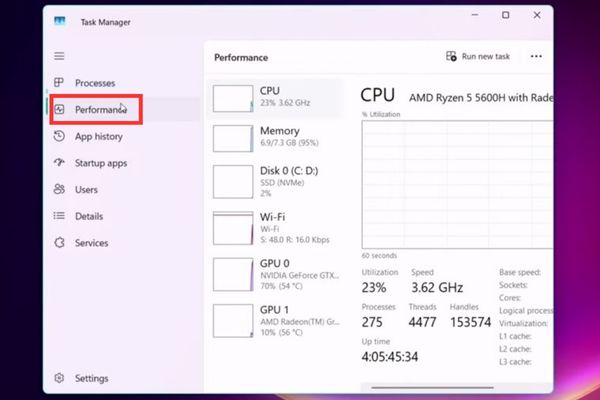
  • Right -click on the Taskbar and select Task Manager.
  • Switch to tab Performance.
Switch to the Performance tab
  • Select the CPU item. In the lower right corner, you will see information about Virtualization. If the state is “Enabled“You are ready.
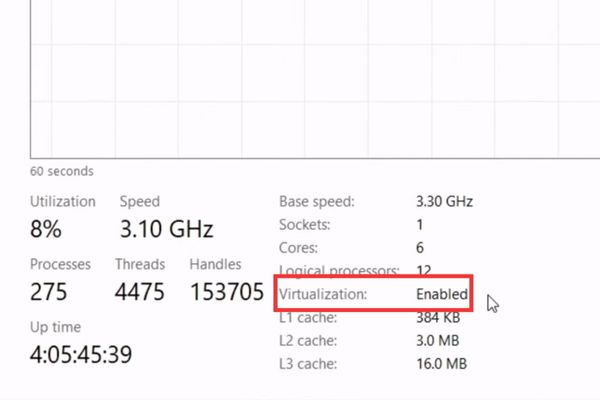
If the state is "Enabled" Then you are ready
If the state is “enabled”, you are ready
  • If the state is “Disabled“, You need to restart the computer and access the BIOS/UEFI to enable this feature (usually called Intel VT-X, AMD-V, or SVM Mode).
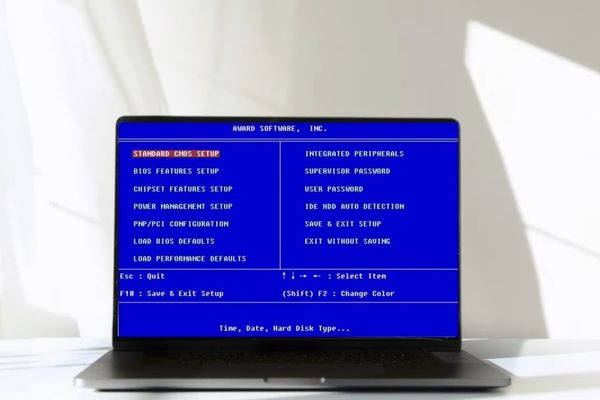
Visit BIOS/UEFI to enable this feature

Instructions on how to install Ubuntu on Windows 11

Once the preparation is completed, now we use the power of the command line to install Ubuntu.

  • Press the key simultaneously Windows + R To display the dialog box.
  • Enter “CMD“Then click Enter to open the Command Prompt window.
  • Paste the following command to list the installed Linux distribution and display whether they are using WSL 1 or WSL 2: WSL -L -V
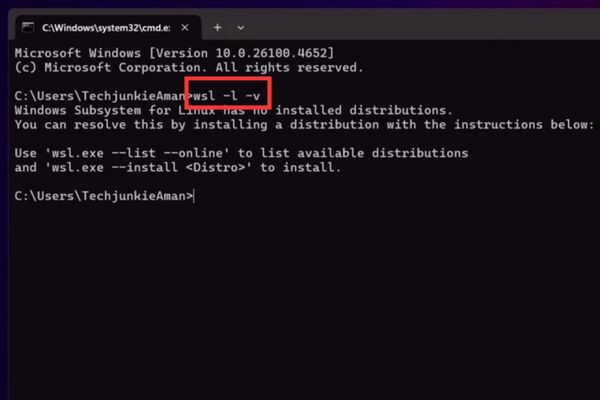
List the installed Linux distribution versions
  • To see the list of Linux distributions available to install, type the following command and press Enter:

WSL –List –Online

You will see a list of versions such as Ubuntu, Debian, Kali Linux, … Here, we will install Ubuntu-22.04 version.
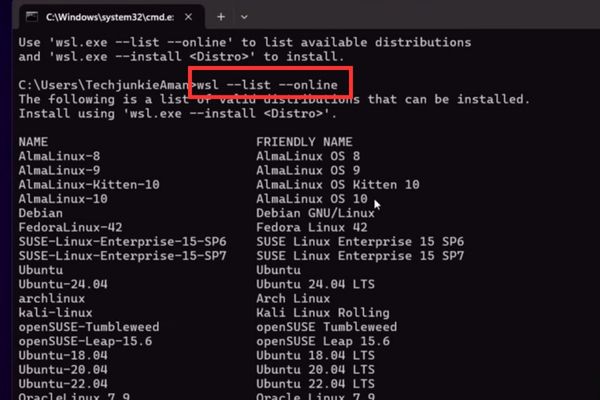
See the list of available Linux distribution
  • To start installing, using the following command (replacing Ubuntu-22.04 with the version you want if necessary):

WSL –Install (Name)

For example: WSL –Install Ubuntu-22.04

The system will automatically download and install Ubuntu. This process may last for a few minutes depending on the speed of your network connection.
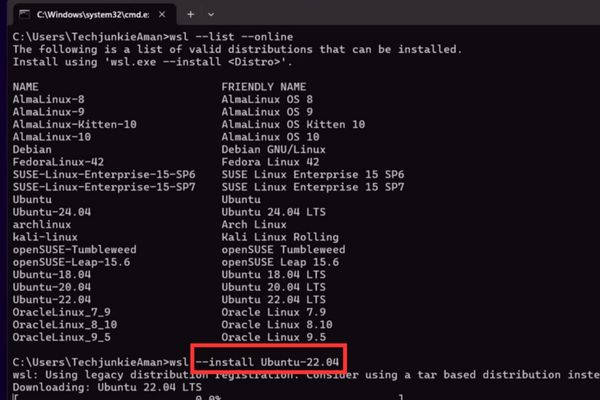
The system will automatically download and install Ubuntu

After the installation is completed, an Ubuntu’s Terminal window will automatically open and ask you to create a user account.

  • Enter New Unix Username: Enter the username you want (write instant, unsigned, no space).
  • New password: Enter the password for this account. Note, when you type the password there will be no character appear, this is a security feature of Linux.
  • Retype new password: Enter the password again to confirm.
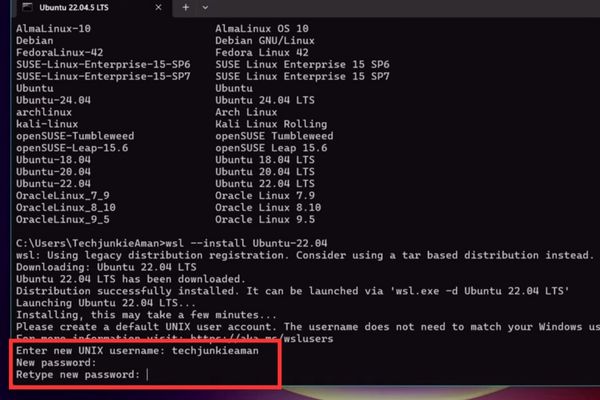
Create user account
Create user account

When you see the notice “Installation Successful!“, You have officially installed Ubuntu successfully!
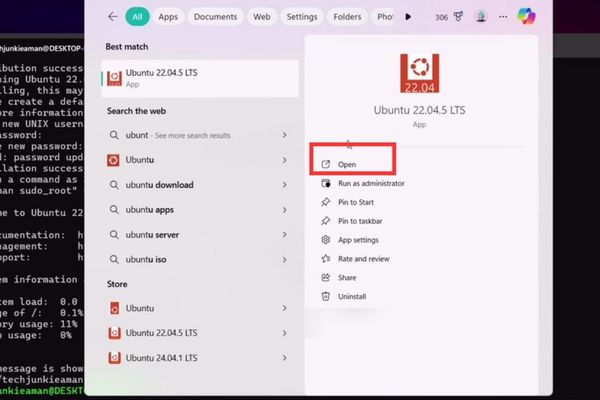
How to install Ubuntu on Windows 11

Steps to do after successful installation

To ensure the system operates stably and fully, you should take a few more updates:

In Terminal Ubuntu, type the following command to update the list of software packages:

Sudo APT Update

The system will ask you to enter the password created in the above step.
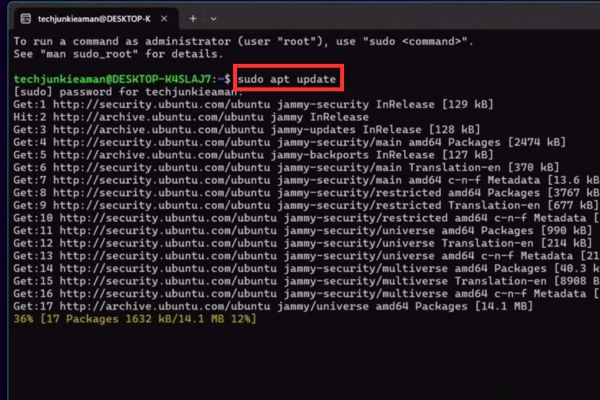
Update the list of software packages

Next, type this command to upgrade all the installed packages to the latest version:

Sudo Apt Upgrade -Y

Parameter -Y Will automatically agree with all the confirmation questions, helping the process to happen faster.
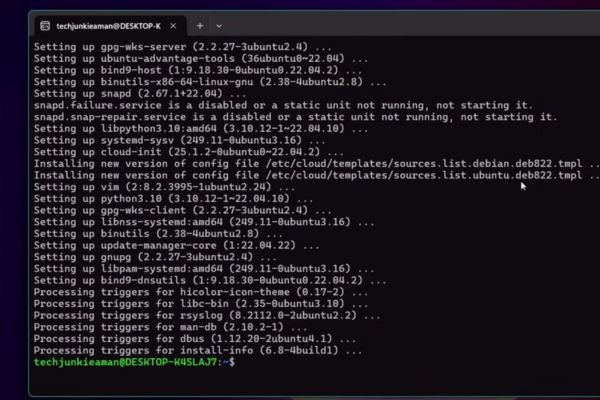
The parameter -Y will automatically agree with all confirmation questions

Now you can install whatever you like. For example, I often use the Gedit editor for light, installed it with the command:

Sudo Apt Install Gedit -Y

After installation, you can launch it by typing Gedit right in the Terminal, and an application window will appear.
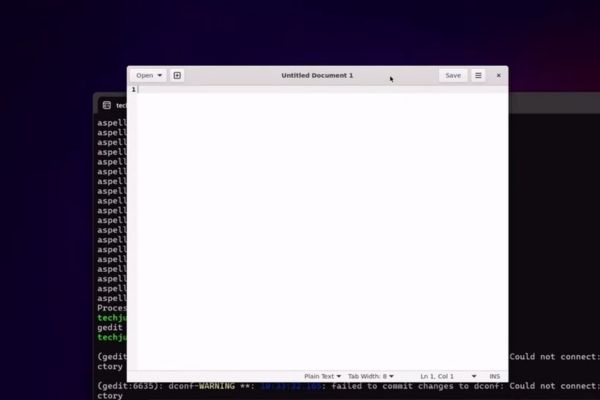
Gedit editor
Gedit editor

Conclusion

There, you see How to install Ubuntu on Windows 11 Is it easy? Just a few simple steps, you have an extremely powerful “hybrid” working environment. Now you are ready to code as a god and explore the end of the Linux world. Wish you successful!


Tags: installInstructionsUbuntuWindowsWSLWSL2
Previous Post

Which carrier can use Telegram in Vietnam?

Next Post

Share code Coinwink Matrix website

AnonyViet

AnonyViet

Related Posts

Instructions on how to create POV product review videos using Flow
Tips

Instructions on how to create POV product review videos using Flow

July 13, 2026
How to fix “This PC can’t run Windows 11” error This PC doesn’t meet the minimum system requirements
Tips

How to fix “This PC can’t run Windows 11” error This PC doesn’t meet the minimum system requirements

July 13, 2026
How to fix Windows 11 error of not being able to install .Net Framework 3.5
Tips

How to fix Windows 11 error of not being able to install .Net Framework 3.5

July 11, 2026
How to encrypt messages with GenZ’s smiley face icon
Tips

How to encrypt messages with GenZ’s smiley face icon

July 10, 2026
Download the Copyright-Free Music app for Cafes now
Tips

Download the Copyright-Free Music app for Cafes now

July 9, 2026
Multcloud – Manage, copy, and move data between Cloud Drives
Tips

Multcloud – Manage, copy, and move data between Cloud Drives

July 9, 2026
Next Post
Share code Coinwink Matrix website

Share code Coinwink Matrix website

0 0 votes
Article Rating
Subscribe
Login
Notify of
guest

guest

0 Comments
Oldest
Newest Most Voted

Recent News

Instructions on how to create POV product review videos using Flow

Instructions on how to create POV product review videos using Flow

July 13, 2026
How to fix “This PC can’t run Windows 11” error This PC doesn’t meet the minimum system requirements

How to fix “This PC can’t run Windows 11” error This PC doesn’t meet the minimum system requirements

July 13, 2026
Compact design, durable battery, excellent camera: Review of OPPO Reno 16 Pro 5G

Compact design, durable battery, excellent camera: Review of OPPO Reno 16 Pro 5G

July 12, 2026
Download the free 3D Pinball Space Cadet game on the App Store now

Download the free 3D Pinball Space Cadet game on the App Store now

July 12, 2026
Instructions on how to create POV product review videos using Flow

Instructions on how to create POV product review videos using Flow

July 13, 2026
How to fix “This PC can’t run Windows 11” error This PC doesn’t meet the minimum system requirements

How to fix “This PC can’t run Windows 11” error This PC doesn’t meet the minimum system requirements

July 13, 2026
Compact design, durable battery, excellent camera: Review of OPPO Reno 16 Pro 5G

Compact design, durable battery, excellent camera: Review of OPPO Reno 16 Pro 5G

July 12, 2026
AnonyViet - English Version

AnonyViet

AnonyViet is a website share knowledge that you have never learned in school!

We are ready to welcome your comments, as well as your articles sent to AnonyViet.

Follow Us

Contact:

Email: anonyviet.com[@]gmail.com

Main Website: https://anonyviet.com

Recent News

Instructions on how to create POV product review videos using Flow

Instructions on how to create POV product review videos using Flow

July 13, 2026
How to fix “This PC can’t run Windows 11” error This PC doesn’t meet the minimum system requirements

How to fix “This PC can’t run Windows 11” error This PC doesn’t meet the minimum system requirements

July 13, 2026
  • Home
  • Home 2
  • Home 3
  • Home 4
  • Home 5
  • Home 6
  • Next Dest Page
  • Sample Page

say88 tỷ lệ kèo nhà cái kèo nhà cái 5 febet

No Result
View All Result
  • Home
  • News
  • Software
  • Knowledge
  • MMO
  • Tips
  • Security
  • Network
  • Office

say88 tỷ lệ kèo nhà cái kèo nhà cái 5 febet

wpDiscuz
0
0
Would love your thoughts, please comment.x
()
x
| Reply