Instructions for using the MacBook Trackpad to weigh objects is a hotly discussed topic on technology forums and social networks recently. No need for specialized tools, with just a MacBook with Force Touch and a small application, users can perform interesting weight measurements right on their desk. Let’s explore how to turn a familiar touchpad into a unique mini scale through the article below.
📢 Join the channel Telegram belong to AnonyViet
Update new articles, cool tools and IT tips fastest
Instructions for using the MacBook Trackpad to weigh objects
To perform this procedure successfully and safely for the device, users need to follow the correct installation process as well as clearly understand the operating mechanism presented below.
Device and operating system requirements
Before starting, make sure your computer meets all hardware and software standards. TrackWeight Only works on models with Force Touch technology, including MacBook Pro (from 2015), 12-inch MacBook or new MacBook Air models (from 2018). In addition, the operating system must be macOS 13 (Ventura) or higher to be compatible with the source code libraries used by the application.
How to install the TrackWeight app
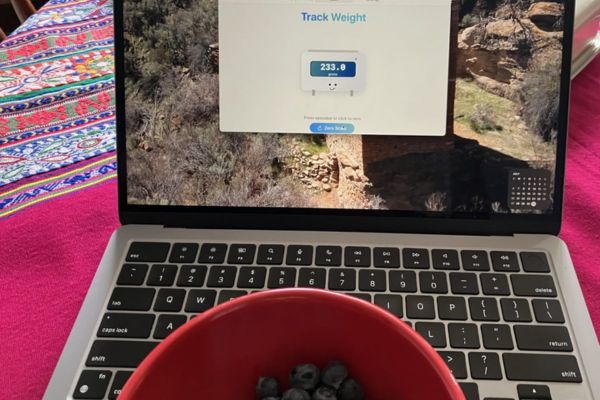
Users need to find and download TrackWeight application (often shared on Krish Shah’s GitHub). An important note during the installation process is that this application requires low-level access to the hardware to read sensor data.
Therefore, the system may require turning off App Sandbox mode or granting special privacy permissions in the system settings for the application to function properly.
Weigh items properly
The Trackpad’s mechanism is capacitive, meaning it requires contact with human skin (or a conductive object) for recognition. Therefore, the weighing process will be slightly different from conventional weighing:
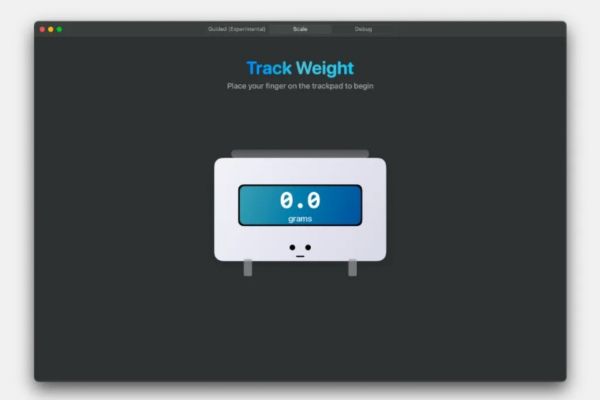
- Open the application TrackWeight go up.
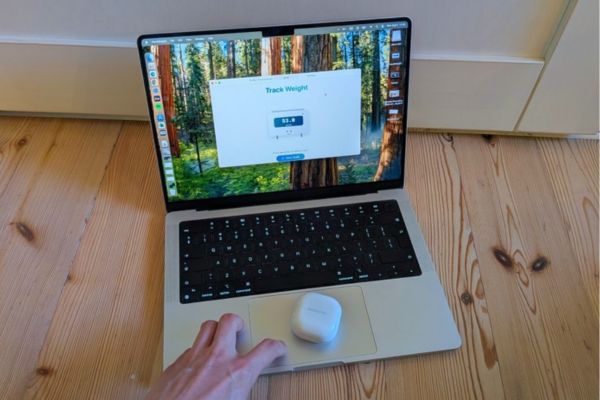
- Gently place a finger on the corner of the trackpad and hold it there (to activate the capacitive sensor).
- Gently place the item to be weighed on the center trackpad area.
- Observe the indicator displayed on the screen to know the weight.
Restrictions and safety notes
Although very interesting, users need to be careful because this is not the main function of the device.
- If you place a metal object directly on it, the trackpad may be mistaken for a touch operation. You should put a thin layer of paper or cloth under the object to be weighed for insulation.
- Because you have to keep your finger on the touchpad, the displayed results will sometimes include pressure from your hand. You need to keep your hands still and light to reduce errors.
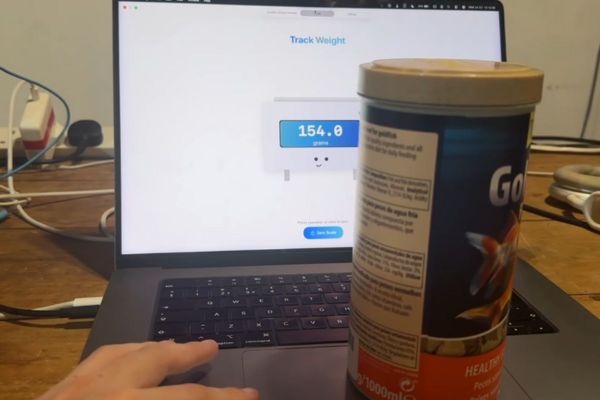
- Absolutely do not try with objects that are too heavy. Although the developer has tried with 3.5kg objects, to protect the expensive trackpad glass, you should only weigh very light items such as small jewelry, strawberries or coins.
- The results are for reference only and cannot replace specialized scales in transactions requiring absolute accuracy.
Conclusion
Hope with Instructions for using MacBook Trackpad To weigh the objects you just shared, you will have interesting and new technology experiences right on your computer. Although it cannot completely replace specialized scales, this is still a testament to the unlimited creativity of the programmer community on the platform. macOS. Try it out now but don’t forget to operate gently to protect the device!