

Midjourney is an artificial intelligence painting BOT, just enter the description words, Midjourney will create for you an extremely beautiful picture that no artist has ever painted. AnonyViet will guide you how to use Midjourney to draw pictures with AI.
| Join the channel Telegram of the AnonyViet 👉 Link 👈 |
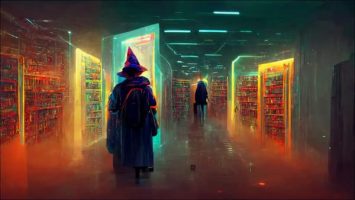
What is Midjourney?
Before we talk about Midjourney, let’s start with DALL-E 2, which you may have heard somewhere. DALL-E 2 lies at the core of these AI-based imaging engines. It can create completely new images from a plain text. You enter “robot eating cake” and it generates an image depicting the robot eating cake.
On a more basic level is the Craiyon, formerly known as the “DALL-E mini”. It’s a free web tool that anyone can use, but it’s not nearly as complicated as DALL-E 2. The results are often strange and a bit creepy, but still very interesting.
Midjourney is somewhere in between DALL-E 2 and Craiyon. It also uses AI and machine learning to create text-based images. The results are usually pretty amazing, but not quite as dramatic as DALL-E 2. The important thing is that anyone can try the beta version of Midjourney right now (as of August 2022,) unlike DALL-E 2. DALL-E 2.
How to use Midjourney to draw pictures with AI
The only thing you need to use Midjourney Beta is a Discord account. That’s where you’ll give the Midjourney bot the text. You can sign up for a free account on Discord’s website. You can then use Discord in a web browser or download apps for Windows, Mac, LinuxAndroid and iPhone.
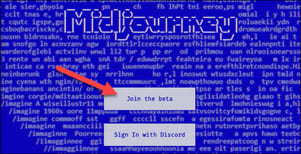
Once you’ve set up Discord, we’ll go to the page web Midjourney and select “Join the Beta”.
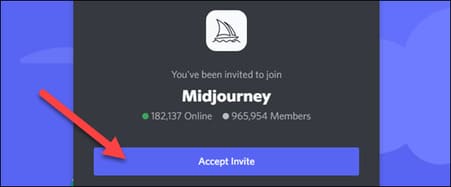
It will take you to Discord, where we can select “Accept Invite”.
There are a few things you need to know about the beta. You start with a free trial that includes about 25 texts. Then you can buy the full version if you want.
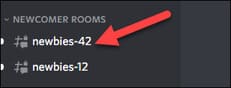
To get started, go to one of the “Newcomer Rooms” channels in the menu on the left. We will use “#newbies-42” but you can also choose some other rooms.
In the text box, type /imagine and then type the text you want. 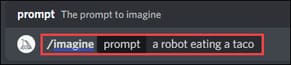
Eg: 1 complex drawing command on Midjourney: [foreground: soap bubbles, feathers, floating in the air, colorful] + [middle ground: robot character, full body, victorian white dress, steampunk accessoires, bokeh] + [background: steampunk mechanics, copper and glass, soft depth of field] Dark mood, Volumetric light, v-ray, octane, Ultra realistic, Fine details, 8k --ar 9:16 it will create a robot artist who is painting (the idea of Mr. Kien Le).
or a spaceman flying among flowers, hill, moutains, sparkles, cinematic, 4k, 8k, unreal engine, octane render, photorealistic, true photograph --testp (The idea of Mr. Manh Tuan – J2team)
You can see the progress of the four shots being created.
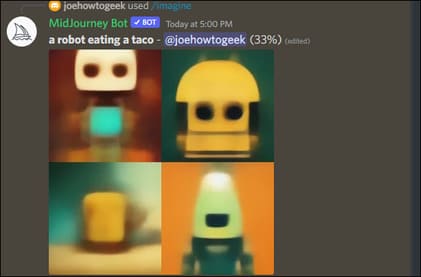
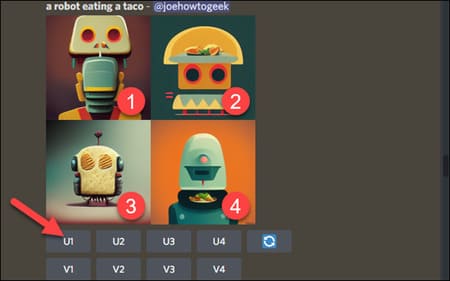
When the images are complete, they will be displayed in a new message. Now you have some additional options.
- U = Upscale: Create a larger version of the image.
- V = Variation: Create a new image based on the image you selected.
- Refresh: Create four new images from the same text.
The results will be sent in a new message just like before and you will have some new options to create more variations or upgrade it to the maximum.
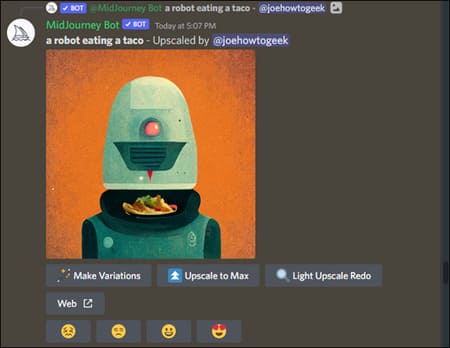
If at any time you want to save an image, simply select the image and tap the download icon on mobile or “Open Original” on desktop to view the image in full size to save.
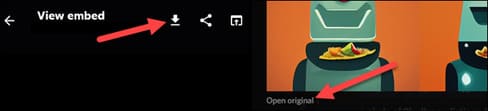
That’s all in the Midjourney Beta! Just type /imagine and write what you can imagine. Note that you are not allowed to use certain words.
How to Add Midjourney to Server Discord
Instead of joining a Midjourney Discord server, you can add bots to your own server. That way you won’t have to constantly scroll up and down to view your created images.
Step 1: Join Midjouney Discord server
First, you need to join the Midjourney Discord server here.
The Discord server contains a Midjourney bot that you can invite to your server.
You can find it in the members list.
Step 2: Invite the Midjourney bot to your server
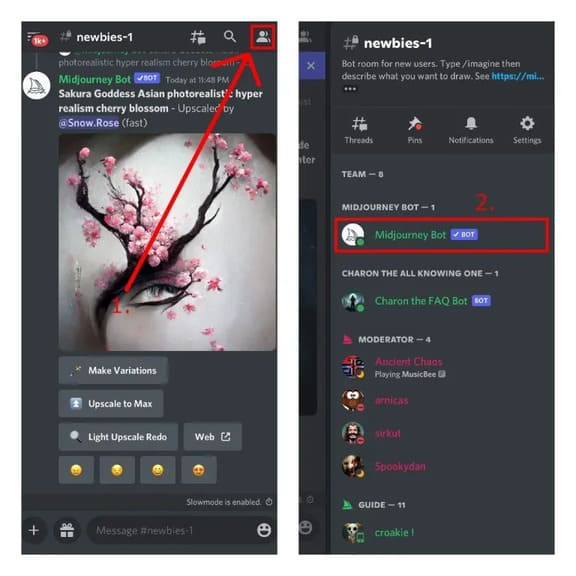
- Open the Midjourney Discord server.
- Visit the channel #newbies-1.
- Select the profile icon.
- Select the Midjourney Bot.
The Midjourney bot can be found in member lists on most channels, including #announcements, #status, #rules and many more.
Step 3: Add the Midjourney bot to your server
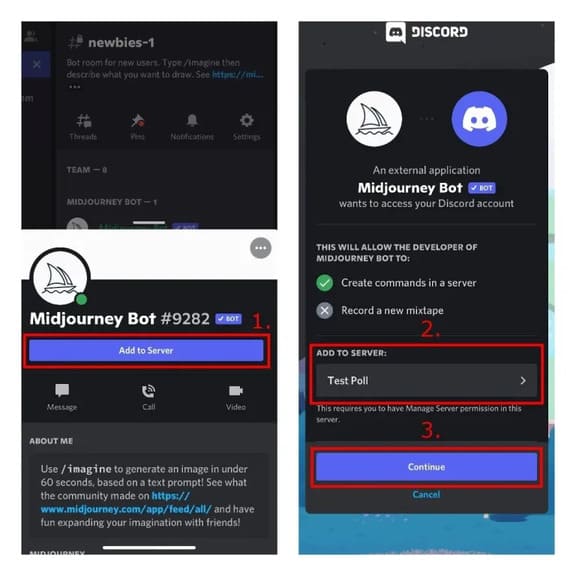
- Select “Add to Server”.
- Select the server you want to add the Midjourney bot to.
- Select “Continue”.
- Select “Authorize”.
Currently, bots can only be used on servers with less than 1000 members. Granting the bot permission will allow it to read and send messages.
Note that you can only add bots to the Discord server if you are an admin.
If you don’t have a server, you need to create one. Once created, you will be able to add the Midjourney bot to it.
Step 4: Use /image
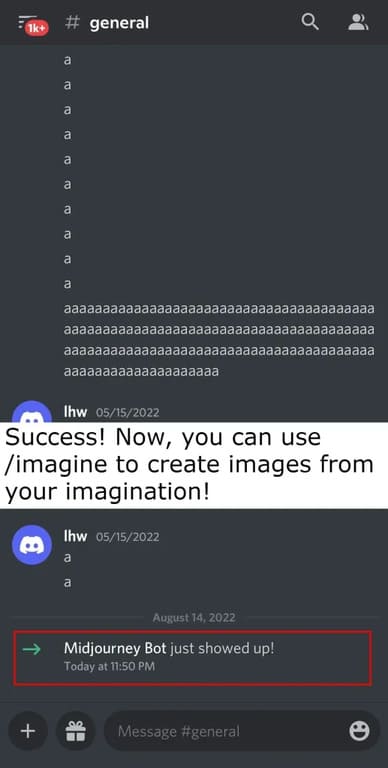
- Use the /image command.
- For example, /imagine pancakes and waffles.
- Wait 60 seconds.
If you see “Midjourney Bot just showed up!” , then you have successfully added the bot to your server.
Now you can use it to create interesting photos from your imagination.
To do so, you need to use the command /image followed by keywords.
After 60 seconds, the Midjourney bot will generate 4 images based on your keywords.
Each user has only 25 free trials. You can buy $10 for 200 queries or $30 for unlimited tries.
If you use the bot in the official Midjourney Discord server, you will have to constantly scroll up and down to see the generated images, due to too many people using the /imagine command. If you don’t want bots to be usable in a particular channel, you need to change the channel’s permissions by going to the channel > Edit Channel > Permissions > @everyone > Uncheck “Use Application Commands”.








