Microsoft revealed this week that it has completed Windows 10 Sun Valley version 21H1 and will soon begin releasing it to users. If you want to upgrade to Windows 10 version 21H1 immediately, but don’t want to wait, follow the instructions below.
📢 Join the channel Telegram belong to AnonyViet
Update new articles, cool tools and IT tips fastest
Windows 10 May 2021 Update, also known as 21H1, began rolling out in the Preview channel on April 28, 2021. Like the 20H2 update, this is a minor update that focuses on improvements and security fixes. Major features originally planned for 21H1 have been delayed to 21H2 later in 2021.
You can watch this article to know more about the latest changes of Windows 10 Insider build 19043.928 which Microsoft announced as the final build on April 28, 2021.
Early upgrades to some versions of Windows 10 may encounter many new errors, but I do not believe that version 21H1 will encounter such a situation. Like versions 1909, 2004, and 20H2 before it, Windows 10 version 21H1 is not a “real” feature update. Instead, it’s built on the same code base of 20H2 and is just a minor version with a few new features. Plus, if you’re already using 2004, it’s delivered as a cumulative update, so the whole process should take less than 30 minutes.
Summary of new features in Windows 10 21H1
As a quick summary, here’s what’s new in 21H1 in addition to general fixes, security, remote access, and quality updates:
- Supports Windows Hello multicamera to set up cameras outside and inside the Laptop using Windows Hello.
- Windows Defender Application Guard performance improvements include optimizing document open times.
- Windows Management Instrumentation (WMI) Group Policy Service(GPSVC) updates improve performance to support remote work scenarios.
How to upgrade Windows 10 Sun Valley Version 21H1
First, you need to open the Settings application by pressing Windows+ I and go to section Update & Security > Windows Insider Program.
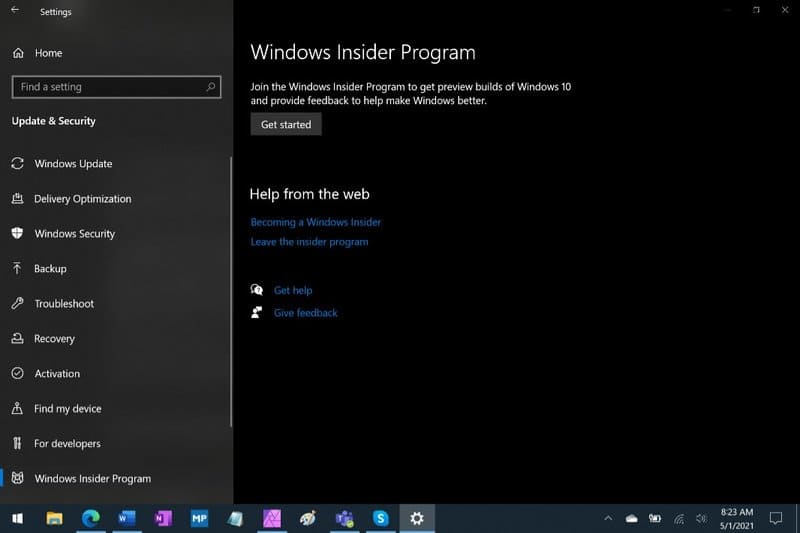
Next, click the “Get started” button. Select your Microsoft account.
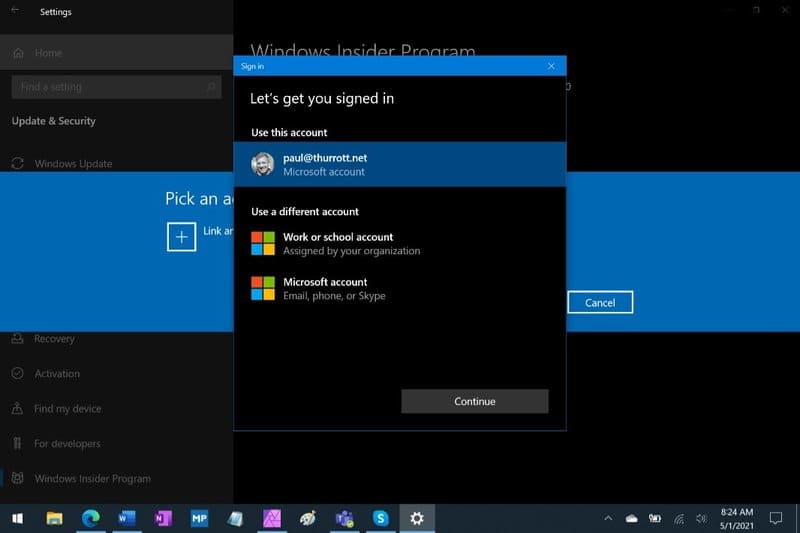
Select “Release Preview Channel” then click the Confirm button. Then, click Confirm and restart your PC when prompted.
When your PC restarts, go to Update & Security > Windows Update and click the Check for updates button. You will see the “Feature update to Windows 10, version 21H1” update offered as an optional installation. Install any previously pending updates. Then, click “Download and install”.
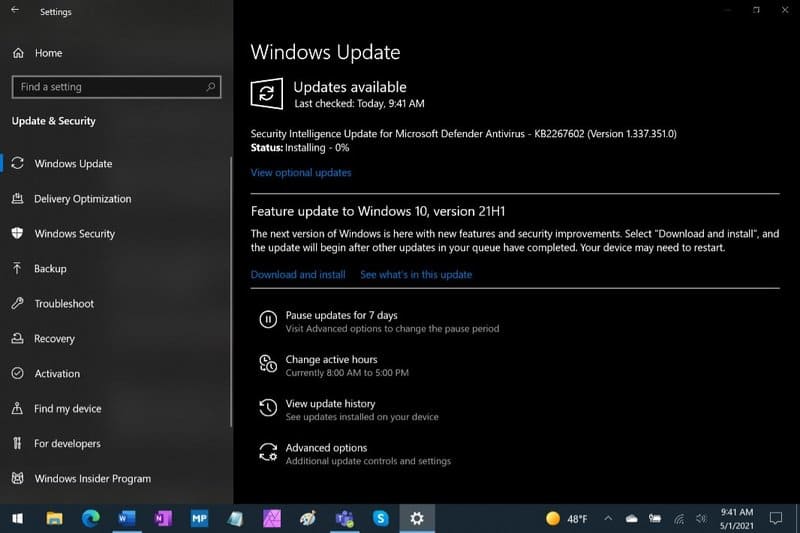
The feature update will be downloaded and installed. If you are already using Windows 10 version 2004, this process will only take a few minutes as this is not a true feature update. Click Restart now when prompted.
When your PC restarts, you’ll see that you’re now using Windows 10 version 21H1. Look in Settings > System > About or tap Windows + R and import winver.
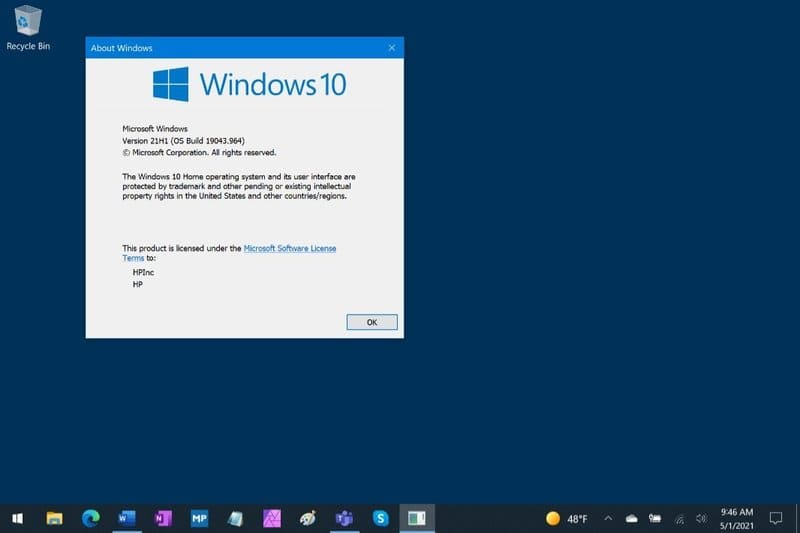
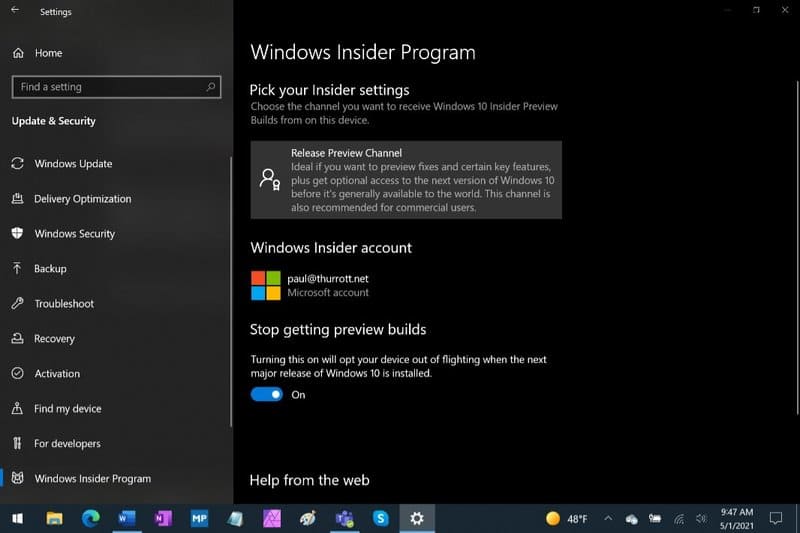
That’s it, you have completed the update to Windows 10 21H2, wait for Windows Update to download the file and automatically upgrade and you’re done.
Frequently asked questions
Do I need to wait to receive the Windows 10 21H1 update?
No, you can follow the instructions in the article to upgrade to Windows 10 21H1 now. However, keep in mind that this is a minor update, mainly focused on bug fixes and performance improvements.
Does upgrading to Windows 10 21H1 take a long time?
If you are using Windows 10 version 2004, the upgrade process will be very quick, taking less than 30 minutes. For other versions, the time may be a little longer.
After upgrading, do I need to do anything else?
After upgrading, you should exit the Windows Insider Program to continue receiving regular updates from Microsoft. You can also check your Windows version by going to Settings > System > About or pressing Windows + R and entering winver.