• Home
  • News
  • Software
  • Knowledge
  • MMO
  • Tips
  • Security
  • Network
  • Office
AnonyViet - English Version
  • Home
  • News
  • Software
  • Knowledge
  • MMO
  • Tips
  • Security
  • Network
  • Office
No Result
View All Result
  • Home
  • News
  • Software
  • Knowledge
  • MMO
  • Tips
  • Security
  • Network
  • Office
No Result
View All Result
AnonyViet - English Version
No Result
View All Result

Instructions for turning off Sticky Keys prompt on Windows 11

AnonyViet by AnonyViet
November 24, 2024
in Tips
0

Are you feeling annoyed by the Sticky Keys notification constantly appearing on Windows 11? Although it is a useful accessibility, it sometimes hinders users. Don't worry, AnonyViet will guide you how to do it. turn off the Sticky Key prompt quickly and easily through the article below!

Join the channel Telegram belong to AnonyViet 👉 Link 👈

What are Sticky Keys reminders?

Sticky Keys is a built-in accessibility feature in the Windows operating system. When enabled, it allows the user to keep the navigation keys (Start, Ctrl, Alt and Shift) active even after releasing them.
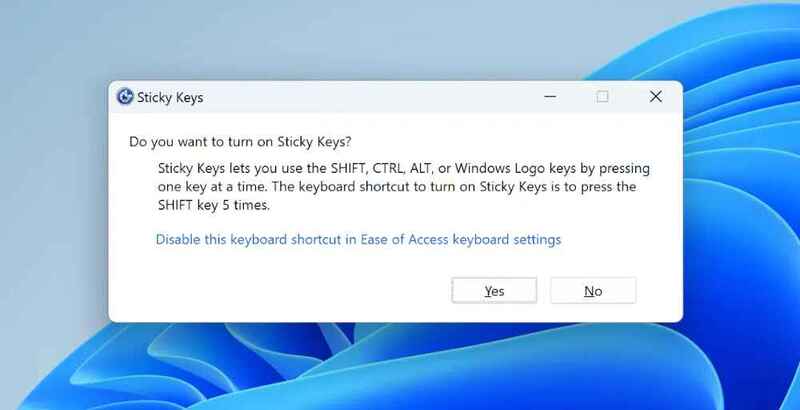
Sticky Keys reminder

The Sticky Keys prompt usually appears when you press the 'Shift' key five times in a row. It asks if you want to enable the Sticky Keys feature.

For example:

If you turn on Sticky Keys and press the Ctrl key, the Ctrl key will remain active even after you lift your finger off the key. To deactivate the Ctrl key, you need to press it again.

This feature is especially useful for users who have difficulty holding down multiple keys at the same time, for example when needing to use the key combination Ctrl + Alt + Delete. However, for most users, this reminder is annoying and disrupts work.
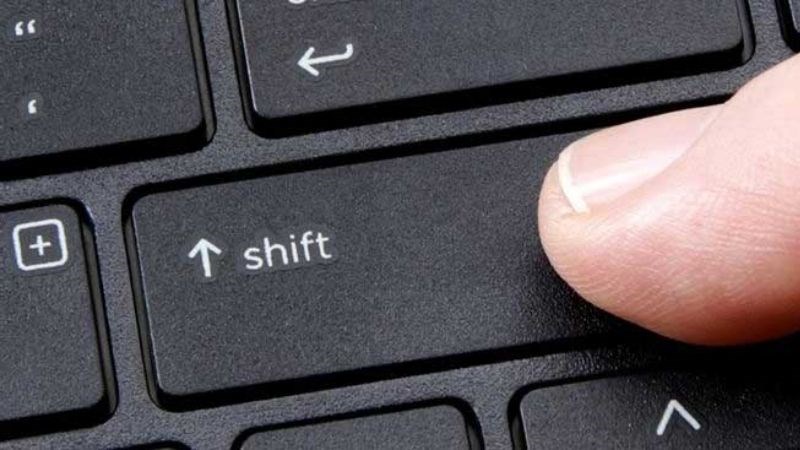
Sticky Keys is suitable for those who have difficulty holding many keys at the same time

See more: How to enable BitLocker to encrypt Windows 11 hard drive

Why should you turn off Sticky Keys reminders?

  • Distracting: Sudden reminders can disrupt your workflow, especially while playing games or typing.
  • Unnecessary: If you don't use the Sticky Keys feature, this reminder becomes redundant and annoying.
  • Avoid accidental activation: Pressing the 'Shift' key many times by mistake can accidentally activate Sticky Keys, causing difficulty while using the computer.
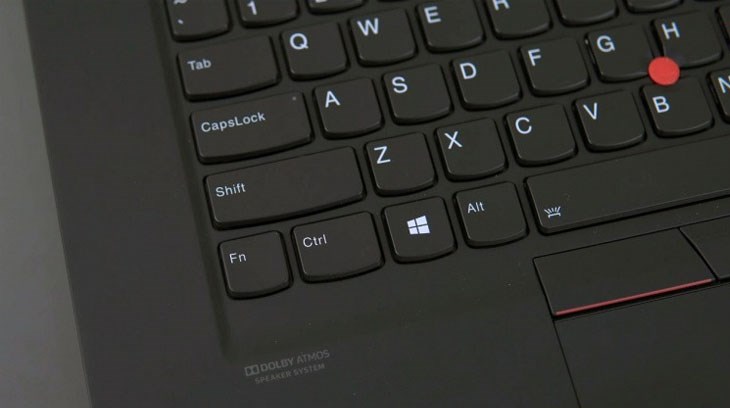
Why should you turn off Sticky Keys reminders?

Instructions on how to turn off Sticky Keys prompt on Windows 11

Step 1: First, open the Settings app on Windows 11. You can find it in the Start menu or use the keyboard shortcut 'Windows + I'.

Step 2: Once the Settings app is open, select 'Accessibility' in the sidebar. Because as mentioned, Sticky Keys is a feature that belongs to the accessibility section.

Step 3: Go forward to the 'Keyboard' section
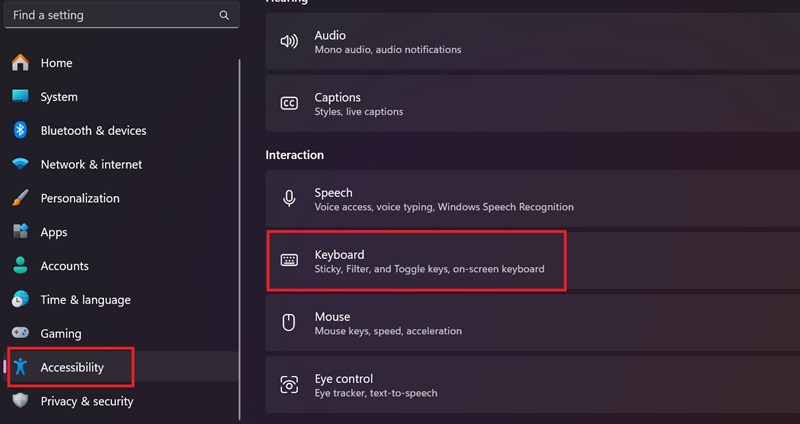
Go forward to the 'Keyboard' section

Step 4: Select 'Sticky key'
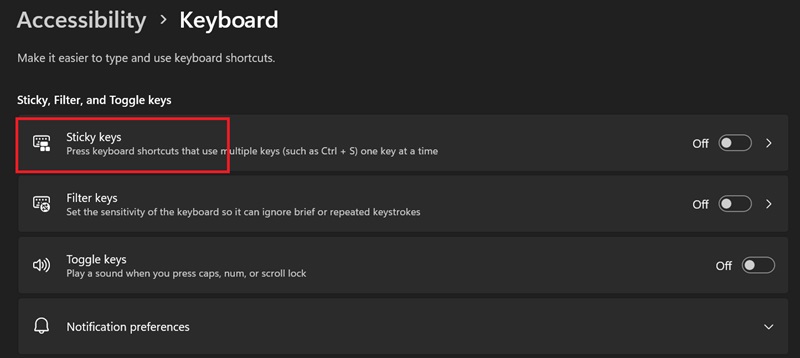
Select 'Sticky key'
Select 'Sticky key'

Step 5: Here, turn off the 'Keyboard shortcut for Sticky keys' option.
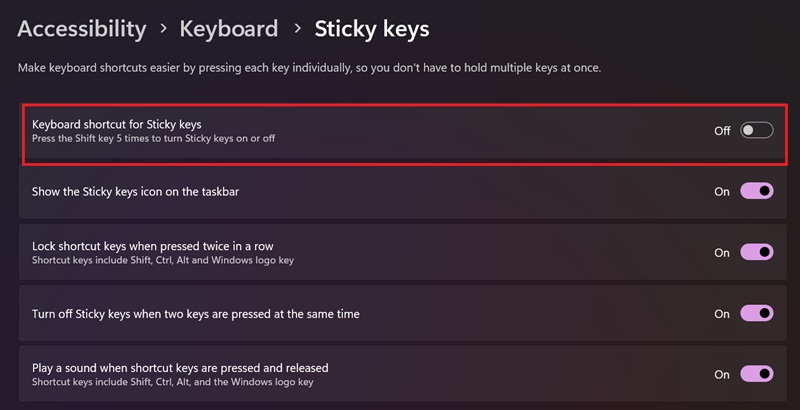
Turn off the 'Keyboard shortcut for Sticky keys' option.

Once this option is disabled, Sticky Keys will be completely turned off. From now on, the Sticky Keys notification will no longer appear when you press the Shift key multiple times.

That's it, turning off the Sticky Keys prompt on Windows 11 is very simple, right!

See more: How to hide gaming activity on Discord

Conclusion

So, with just a few simple steps, you can turn off the Sticky Keys prompt on Windows 11 and enjoy a smoother computing experience. Hope this article has provided you with useful information. Wishing you success!


Tags: InstructionsKeysPromptStickyturningWindows
Previous Post

Top 5+ free online random number dialing software

Next Post

How to completely uninstall OneDrive from Windows 11

AnonyViet

AnonyViet

Related Posts

The website helps you draw beautifully like TikToker Viet My
Tips

The website helps you draw beautifully like TikToker Viet My

October 21, 2026
Instructions on how to hard reset iPhone 18 Pro / iPhone 18 Pro Max
Tips

Instructions on how to hard reset iPhone 18 Pro / iPhone 18 Pro Max

October 21, 2026
Anyone can do how to increase Internet speed using CMD
Tips

Anyone can do how to increase Internet speed using CMD

October 20, 2026
How to report a fraudulent website on Weebly
Tips

How to report a fraudulent website on Weebly

October 19, 2026
How to view Facebook stories without others knowing
Tips

How to view Facebook stories without others knowing

October 18, 2026
Instructions for registering a .tech domain name for free for 1 year
Tips

Instructions for registering a .tech domain name for free for 1 year

October 18, 2026
Next Post
How to completely uninstall OneDrive from Windows 11

How to completely uninstall OneDrive from Windows 11

0 0 votes
Article Rating
Subscribe
Login
Notify of
guest

guest

0 Comments
Oldest
Newest Most Voted

Recent News

The website helps you draw beautifully like TikToker Viet My

The website helps you draw beautifully like TikToker Viet My

October 21, 2026
Instructions on how to hard reset iPhone 18 Pro / iPhone 18 Pro Max

Instructions on how to hard reset iPhone 18 Pro / iPhone 18 Pro Max

October 21, 2026
Warning: Serious PHP RCE vulnerability and how to fix it

Warning: Serious PHP RCE vulnerability and how to fix it

October 21, 2026
Anyone can do how to increase Internet speed using CMD

Anyone can do how to increase Internet speed using CMD

October 20, 2026
The website helps you draw beautifully like TikToker Viet My

The website helps you draw beautifully like TikToker Viet My

October 21, 2026
Instructions on how to hard reset iPhone 18 Pro / iPhone 18 Pro Max

Instructions on how to hard reset iPhone 18 Pro / iPhone 18 Pro Max

October 21, 2026
Warning: Serious PHP RCE vulnerability and how to fix it

Warning: Serious PHP RCE vulnerability and how to fix it

October 21, 2026
AnonyViet - English Version

AnonyViet

AnonyViet is a website share knowledge that you have never learned in school!

We are ready to welcome your comments, as well as your articles sent to AnonyViet.

Follow Us

Contact:

Email: anonyviet.com[@]gmail.com

Main Website: https://anonyviet.com

Recent News

The website helps you draw beautifully like TikToker Viet My

The website helps you draw beautifully like TikToker Viet My

October 21, 2026
Instructions on how to hard reset iPhone 18 Pro / iPhone 18 Pro Max

Instructions on how to hard reset iPhone 18 Pro / iPhone 18 Pro Max

October 21, 2026
  • Home
  • Home 2
  • Home 3
  • Home 4
  • Home 5
  • Home 6
  • Next Dest Page
  • Sample Page

say88 tỷ lệ kèo nhà cái kèo nhà cái 5 febet

No Result
View All Result
  • Home
  • News
  • Software
  • Knowledge
  • MMO
  • Tips
  • Security
  • Network
  • Office

say88 tỷ lệ kèo nhà cái kèo nhà cái 5 febet

wpDiscuz
0
0
Would love your thoughts, please comment.x
()
x
| Reply