• Home
  • News
  • Software
  • Knowledge
  • MMO
  • Tips
  • Security
  • Network
  • Office
AnonyViet - English Version
  • Home
  • News
  • Software
  • Knowledge
  • MMO
  • Tips
  • Security
  • Network
  • Office
No Result
View All Result
  • Home
  • News
  • Software
  • Knowledge
  • MMO
  • Tips
  • Security
  • Network
  • Office
No Result
View All Result
AnonyViet - English Version
No Result
View All Result

Instructions for self-passing hCaptcha without Click

AnonyViet by AnonyViet
January 25, 2023
in Tips
0

hCaptcha is a security solution to avoid spam login or website access from abnormal IPs. When you encounter hCaptcha you have to click on each image according to the suggestion of the main image. For example, you need to click on the correct image with “vehicle” as described by hCaptcha. However, if you encounter a lot of hCaptcha, it will cause inhibition and sometimes click the wrong one to have to click again. Today I will guide you to pass hCaptcha automatically, no need to click each image.

Join the channel Telegram of the AnonyViet 👉 Link 👈

What is hCaptcha?

Captcha is a simple test to distinguish humans from automated bots. Humans can solve it easily, but difficult for bots and other malware.

After the Google-owned reCAPTCHA changed its business model from free to paid, many were looking for a free alternative to hCaptcha.

hCaptcha (https://www.hcaptcha.com/) is currently the largest independent captcha service and runs on the Internet accounting for 15%.

hCaptcha helps protect user privacy and helps companies tag their data. It provides simple and reliable bot detection that can’t be solved by humans.

Instructions for self-passing hCaptcha without Click

How to bypass hCaptcha automatically without Click

However, nothing is impossible, now there is a script to help you pass the images of hCaptcha simply, just open the captcha and wait a bit, the images will be automatically selected and you just need to click OK done.

Method 1: Use userscript manager to overcome hCaptcha

Because the code beyond hCaptcha is written in javascript, so on the browser you need to have an extension that interferes with the code in the browser. You can install the following extensions:

Next turn on the hardware acceleration function of the Web browser according to the instructions below:

  1. Open chrome://settings in the browser address bar.
  2. Left window select Show Advanced settings
  3. Scroll down to find: System.
  4. Give it a check Use hardware acceleration when available is it turned on, if not, then open up and restart Chrome.

You can see the instructions with pictures in the article Hardware Acceleration in Chrome.

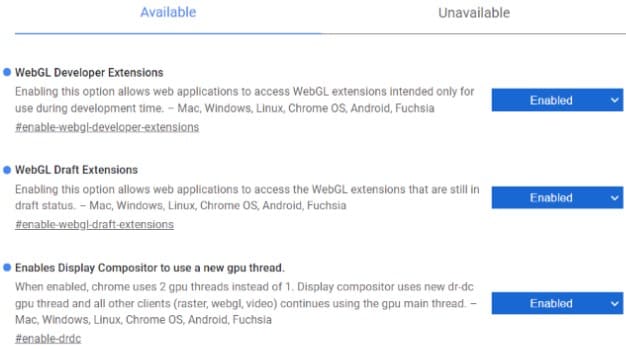
Now open the WebGL feature for Chrome:

  1. Open chrome://flags in the browser address bar.
  2. Press Ctrl + F to open the search dialog, press WebGL and Enable Anywhere with WebGL is fine.enable webgl
  3. Next press Ctrl + F to find Override software rendering list and enable it.
  4. Then press Relaunch Chrome to restart the browser

Now you access the page get script surpasses hcaptcha for the browser. Click install this script

install this script

Then press the . button Install on the browser.

Now try to go to a page with hcaptcha, click on Captcha in the question section wait 5 seconds , will see on the screen choose the correct captcha image for you. Now just press the button Verify done.

Method 2: Use Extension hCaptcha Solver to automatically solve Captcha

There is a simpler way on Chrome that you use hCaptcha Solver. This is an extension written specifically for Chrome, as well as using a script, the captcha solving will be completely automatic.

You just need to open hCaptcha and wait 5 seconds, this extension will automatically click the right image for you without having to manipulate the mouse to select each image.

Method 3: Use Cookies to authenticate as a real user

Previously, I had a tutorial on how to use it Cookie authentication so that the browser understands that you are a real person and not a Robot. Thus, Hcaptcha will let you pass easily without having to confirm the image. I think this is the safest way because I don’t have to use 3rd party scripts.

Hopefully through this article you will save more time when accessing websites that always ask for captcha confirmation.


The article achieved: 5/5 – (100 votes)

Tags: clickhCaptchaInstructionsselfpassing
Previous Post

How to find someone else’s IP address on Instagram

Next Post

Lesson 247: Thermometer chart in Excel

AnonyViet

AnonyViet

Related Posts

How to change the default font on Windows 10
Tips

How to change the default font on Windows 10

April 13, 2026
5 tips for using a Browser to replace an App (helps save RAM, time and money)
Tips

5 tips for using a Browser to replace an App (helps save RAM, time and money)

April 13, 2026
How to make funny MeMe photos without Photoshop within 10 seconds
Tips

How to make funny MeMe photos without Photoshop within 10 seconds

April 11, 2026
How to quickly design your own Logo without Photoshop
Tips

How to quickly design your own Logo without Photoshop

April 10, 2026
How to convert Website into App on Windows
Tips

How to convert Website into App on Windows

April 9, 2026
Instructions for getting 3 months of Adobe Express Pro for free
Tips

Instructions for getting 3 months of Adobe Express Pro for free

April 9, 2026
Next Post
Lesson 247: Thermometer chart in Excel

Lesson 247: Thermometer chart in Excel

0 0 votes
Article Rating
Subscribe
Login
Notify of
guest

guest

0 Comments
Oldest
Newest Most Voted
Inline Feedbacks
View all comments

Recent News

4K Video Downloader Plus – Tool to download YouTube videos on macOS

4K Video Downloader Plus – Tool to download YouTube videos on macOS

April 20, 2026
How to add Watermark to Google Docs to protect copyright

How to add Watermark to Google Docs to protect copyright

April 19, 2026
How to intercept traffic using Burp Suite to analyze HTTP/HTTPS

How to intercept traffic using Burp Suite to analyze HTTP/HTTPS

April 18, 2026
How to avoid Adblock detection on Youtube with 4 good tips

How to avoid Adblock detection on Youtube with 4 good tips

April 17, 2026
4K Video Downloader Plus – Tool to download YouTube videos on macOS

4K Video Downloader Plus – Tool to download YouTube videos on macOS

April 20, 2026
How to add Watermark to Google Docs to protect copyright

How to add Watermark to Google Docs to protect copyright

April 19, 2026
How to intercept traffic using Burp Suite to analyze HTTP/HTTPS

How to intercept traffic using Burp Suite to analyze HTTP/HTTPS

April 18, 2026
AnonyViet - English Version

AnonyViet

AnonyViet is a website share knowledge that you have never learned in school!

We are ready to welcome your comments, as well as your articles sent to AnonyViet.

Follow Us

Contact:

Email: anonyviet.com[@]gmail.com

Main Website: https://anonyviet.com

Recent News

4K Video Downloader Plus – Tool to download YouTube videos on macOS

4K Video Downloader Plus – Tool to download YouTube videos on macOS

April 20, 2026
How to add Watermark to Google Docs to protect copyright

How to add Watermark to Google Docs to protect copyright

April 19, 2026
No Result
View All Result
  • Home
  • News
  • Software
  • Knowledge
  • MMO
  • Tips
  • Security
  • Network
  • Office

wpDiscuz
0
0
Would love your thoughts, please comment.x
()
x
| Reply