• Home
  • News
  • Software
  • Knowledge
  • MMO
  • Tips
  • Security
  • Network
  • Office
AnonyViet - English Version
  • Home
  • News
  • Software
  • Knowledge
  • MMO
  • Tips
  • Security
  • Network
  • Office
No Result
View All Result
  • Home
  • News
  • Software
  • Knowledge
  • MMO
  • Tips
  • Security
  • Network
  • Office
No Result
View All Result
AnonyViet - English Version
No Result
View All Result

Instructions for installing and using Theme Windows 10

AnonyViet by AnonyViet
February 6, 2023
in Tips
0

Windows 10 supports users to customize Windows to look more beautiful. Although personal preferences, each person will have a different way of customization. Currently, Microsoft has developed a repository of Themes Windows 10 Large with many different interfaces. You can freely choose the Theme for free and suit your personal taste.

Join the channel Telegram belong to AnonyViet 👉 Link 👈

When you install the Theme directly from Microsoft’s official source, you don’t need to worry about your computer. Because the product is genuine, Microsoft has integrated and matched the parameters. So that when you change their new Theme, the performance and computer resources remain the same.

Install and use Theme Windows 10

Theme change function and Theme Online store link are built-in on Windows 10. You do not need to install any other third-party software. Now let’s click right click on the desktop and select Personalize.
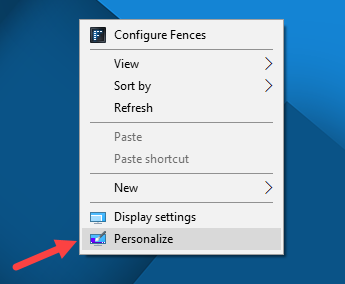
Instructions for installing and using Theme Windows 10 10

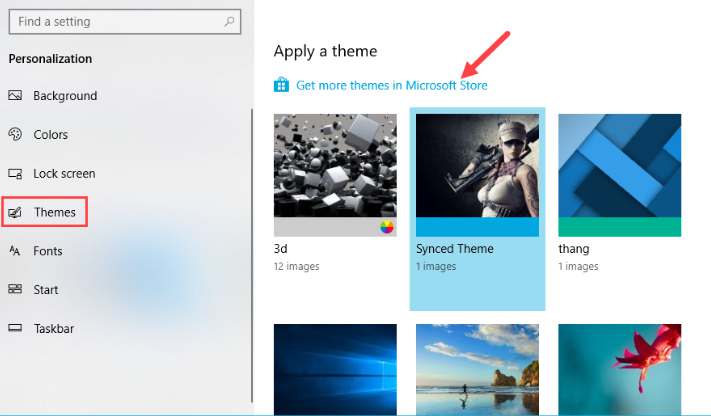
Display Personalize allows you to customize the interface according to your personal preferences. Here you see a window listing the things that Windows 10 allows customization. Select the item Themes to customize the interface!!
Instructions for installing and using Theme Windows 10 11

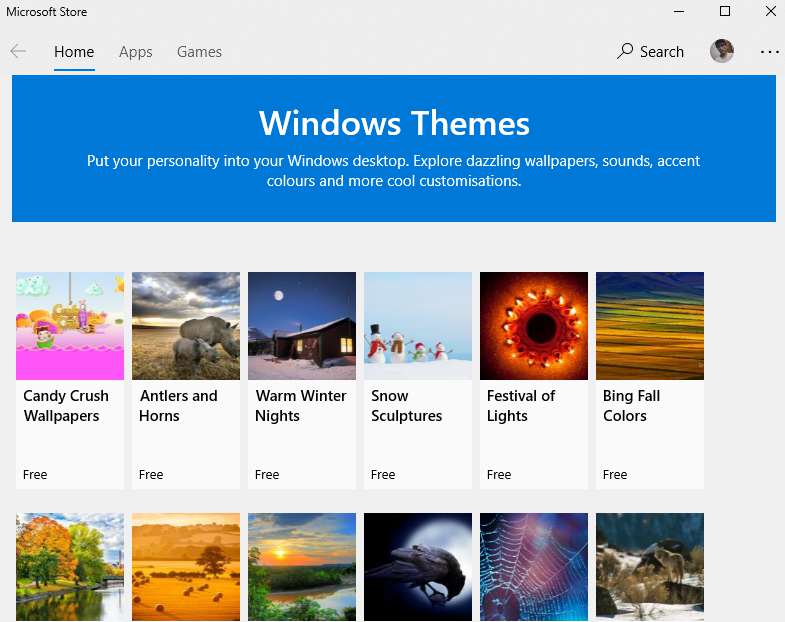
After clicking on Themes then the right side will display the available interfaces on the computer. You choose the line Get more themes in Microsoft Store (like the photo above) to enter the interface store. At this time, Microsoft’s Theme store is called Windows Themes will open.
Instructions for installing and using Theme Windows 10 12

In the bottom corner of each Theme you will see its price. Most are free!!
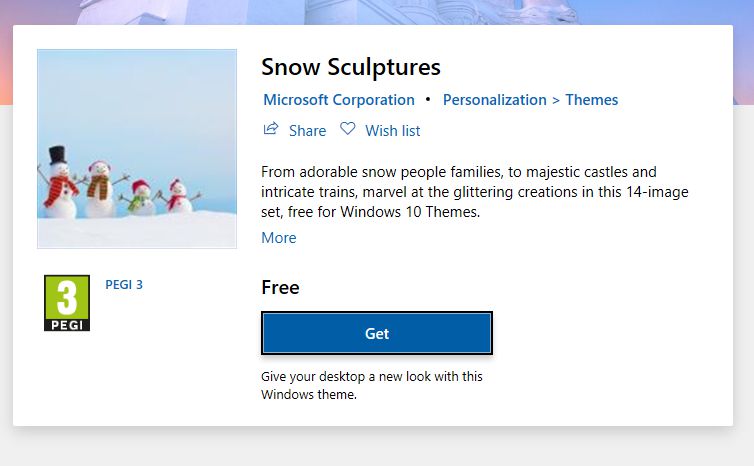
Now let’s click select Click on the Theme you want to download.
Instructions for installing and using Theme Windows 10 13

Push the button Get to download Theme to your computer. Loading will take a little while!!
Once completed, you will receive a message like the image below.
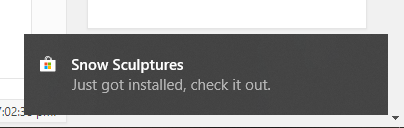
Instructions for installing and using Theme Windows 10 14

At this point, an installation window will appear. You just need to press the . button Apply to use the Windows 10 Theme now.
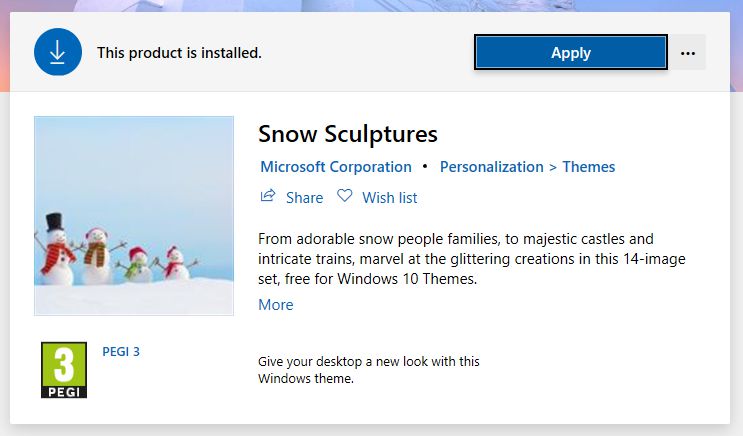

Instructions for installing and using Theme Windows 10

The article achieved: 5/5 – (100 votes)

Tags: installingInstructionsThemeWindows
Previous Post

EaseUS Data Recovery Wizard – recover lost data !

Next Post

Tut Facebook Unlock locked account 030 extremely quality

AnonyViet

AnonyViet

Related Posts

Instructions to Hide Secret Documents in Any Song
Tips

Instructions to Hide Secret Documents in Any Song

February 10, 2026
How to block Update to Windows 10 21H1 to avoid errors
Tips

How to block Update to Windows 10 21H1 to avoid errors

February 9, 2026
How to prioritize 5G Wifi reception on Laptop and PC
Tips

How to prioritize 5G Wifi reception on Laptop and PC

February 5, 2026
How to Get Grok AI for Free 7 Days
Tips

How to Get Grok AI for Free 7 Days

February 3, 2026
What are special characters? Learn from A to Z about hot trends of Gen Z and Gamers
Tips

What are special characters? Learn from A to Z about hot trends of Gen Z and Gamers

February 2, 2026
5 AI tools to make AI model videos – Create beautiful AI Tiktok female characters
Tips

5 AI tools to make AI model videos – Create beautiful AI Tiktok female characters

February 1, 2026
Next Post
Tut Facebook Unlock locked account 030 extremely quality

Tut Facebook Unlock locked account 030 extremely quality

0 0 votes
Article Rating
Subscribe
Login
Notify of
guest

guest

0 Comments
Oldest
Newest Most Voted
Inline Feedbacks
View all comments

Recent News

How to set up a private voice on iPhone that few people know

How to set up a private voice on iPhone that few people know

February 11, 2026
Instructions to Hide Secret Documents in Any Song

Instructions to Hide Secret Documents in Any Song

February 10, 2026
How to blur photos on iPhone after taking them is extremely simple

How to blur photos on iPhone after taking them is extremely simple

February 10, 2026
Dell SE2426: A “lifesaver” solution for office workers’ eyes.

Dell SE2426: A “lifesaver” solution for office workers’ eyes.

February 9, 2026
How to set up a private voice on iPhone that few people know

How to set up a private voice on iPhone that few people know

February 11, 2026
Instructions to Hide Secret Documents in Any Song

Instructions to Hide Secret Documents in Any Song

February 10, 2026
How to blur photos on iPhone after taking them is extremely simple

How to blur photos on iPhone after taking them is extremely simple

February 10, 2026
AnonyViet - English Version

AnonyViet

AnonyViet is a website share knowledge that you have never learned in school!

We are ready to welcome your comments, as well as your articles sent to AnonyViet.

Follow Us

Contact:

Email: anonyviet.com[@]gmail.com

Main Website: https://anonyviet.com

Recent News

How to set up a private voice on iPhone that few people know

How to set up a private voice on iPhone that few people know

February 11, 2026
Instructions to Hide Secret Documents in Any Song

Instructions to Hide Secret Documents in Any Song

February 10, 2026
  • Home
  • Home 2
  • Home 3
  • Home 4
  • Home 5
  • Home 6
  • Next Dest Page
  • Sample Page

https://sun52.network

No Result
View All Result
  • Home
  • News
  • Software
  • Knowledge
  • MMO
  • Tips
  • Security
  • Network
  • Office

https://sun52.network

wpDiscuz
0
0
Would love your thoughts, please comment.x
()
x
| Reply