Finally, the file “form_style_5.css” content will be as below. This code is simply inspired by the original page design to use for the extension.
.form-style-5{
max-width: 500px;
padding: 10px 20px;
background: #f4f7f8;
margin: 10px auto;
padding: 20px;
background: #f4f7f8;
border-radius: 8px;
font-family: Georgia, "Times New Roman", Times, serif;
}
.form-style-5 fieldset{
border: none;
}
.form-style-5 legend {
font-size: 1.4em;
margin-bottom: 10px;
}
.form-style-5 label {
display: block;
margin-bottom: 8px;
}
.form-style-5 input[type="text"],
.form-style-5 input[type="date"],
.form-style-5 input[type="datetime"],
.form-style-5 input[type="email"],
.form-style-5 input[type="number"],
.form-style-5 input[type="search"],
.form-style-5 input[type="time"],
.form-style-5 input[type="url"],
.form-style-5 textarea,
.form-style-5 select {
font-family: Georgia, "Times New Roman", Times, serif;
background: rgba(255,255,255,.1);
border: none;
border-radius: 4px;
font-size: 16px;
margin: 0;
outline: 0;
padding: 7px;
width: 100%;
box-sizing: border-box;
-webkit-box-sizing: border-box;
-moz-box-sizing: border-box;
background-color: #e8eeef;
color:#8a97a0;
-webkit-box-shadow: 0 1px 0 rgba(0,0,0,0.03) inset;
box-shadow: 0 1px 0 rgba(0,0,0,0.03) inset;
margin-bottom: 30px;
}
.form-style-5 input[type="text"]:focus,
.form-style-5 input[type="date"]:focus,
.form-style-5 input[type="datetime"]:focus,
.form-style-5 input[type="email"]:focus,
.form-style-5 input[type="number"]:focus,
.form-style-5 input[type="search"]:focus,
.form-style-5 input[type="time"]:focus,
.form-style-5 input[type="url"]:focus,
.form-style-5 textarea:focus,
.form-style-5 select:focus{
background: #d2d9dd;
}
.form-style-5 select{
-webkit-appearance: menulist-button;
height:35px;
}
.form-style-5 .number {
background: #1abc9c;
color: #fff;
height: 30px;
width: 30px;
display: inline-block;
font-size: 0.8em;
margin-right: 4px;
line-height: 30px;
text-align: center;
text-shadow: 0 1px 0 rgba(255,255,255,0.2);
border-radius: 15px 15px 15px 0px;
}
.form-style-5 input[type="submit"],
.form-style-5 input[type="button"]
{
position: relative;
display: block;
padding: 19px 39px 18px 39px;
color: #FFF;
margin: 0 auto;
background: #1abc9c;
font-size: 18px;
text-align: center;
font-style: normal;
width: 100%;
border: 1px solid #16a085;
border-width: 1px 1px 3px;
margin-bottom: 10px;
}
.form-style-5 input[type="submit"]:hover,
.form-style-5 input[type="button"]:hover
{
background: #109177;
}
After completing the extension’s interface, our next job is to write the logic for the extension. Extensions do two things: add to-dos and display them. So we need to code the extras and display them on the extension.
In the code below, I will use two functions sync.get() and sync.set()are functions of “chrome.storage“. Jaw sync.set() save to-dos in memory and sync.get() used to retrieve and display to-dos. I have a commnet on each feature of the code for your convenience.
function loadItems() { /* First get() the data from the storage */ chrome.storage.sync.get(['todo'], function(result) { var todo = []
if (result && result.todo && result.todo.trim() !== '') { /* Parse and get the array as it is saved as a string */ todo = JSON.parse(result.todo) }
console.log('todo.length=" + todo.length)
for (var i = 0; i < todo.length; i++) { item = todo[i]
if (item && item.trim() !== "') { /* Append the items in the #list for showing them */ var list = document.getElementById('list') var entry = document.createElement('li') var text = document.createTextNode(item)
entry.appendChild(text) list.appendChild(entry) } } })}
/* Load the to-do items upon popup load */document.addEventListener('DOMContentLoaded', function(){ console.log('Inside doc.loaded()')
loadItems()})
/* Save the to-do item upon button click */document.getElementById('btn').addEventListener('click', function (ev) { console.log('Inside btn.click()')
text = document.getElementById('txt').value
if (text && text.trim() !== '') {
/* First get() old data as calling set() will replace it */ chrome.storage.sync.get(['todo'], function(result) { var todo = []
if (result && result.todo && result.todo.trim() !== '') { /* Parse and get the array as it is saved as a string */ todo = JSON.parse(result.todo) }
todo.push(text)
chrome.storage.sync.set({'todo': JSON.stringify(todo)}, function() { /* Data is saved now */
var list = document.getElementById('list')
while (list.firstChild) { list.removeChild(list.firstChild) }
loadItems() }) }) }})
Step 3: Demo extension
After you’ve finished writing your extension, you need to check if it’s working properly by adding the extension to Chrome. First, you have to enable developer mode in Chrome: click the . button Options > More tools > Extensionsthen turn on “Developer mode”.
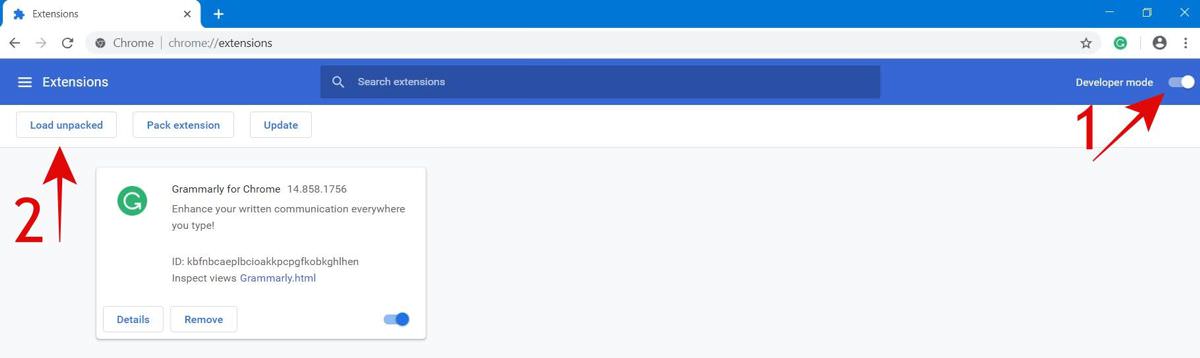
Next click the “Load unpacked” button. If you edit the code, Chrome will automatically reload the extension for you, a very useful “hot reload” feature.
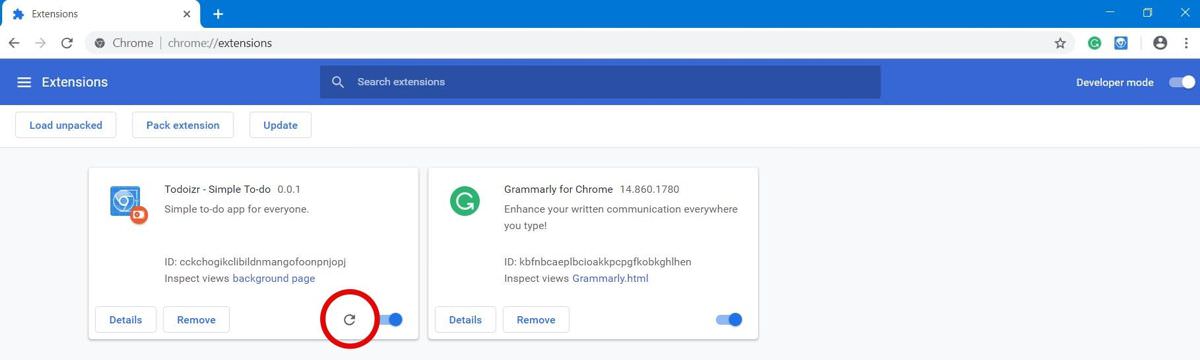
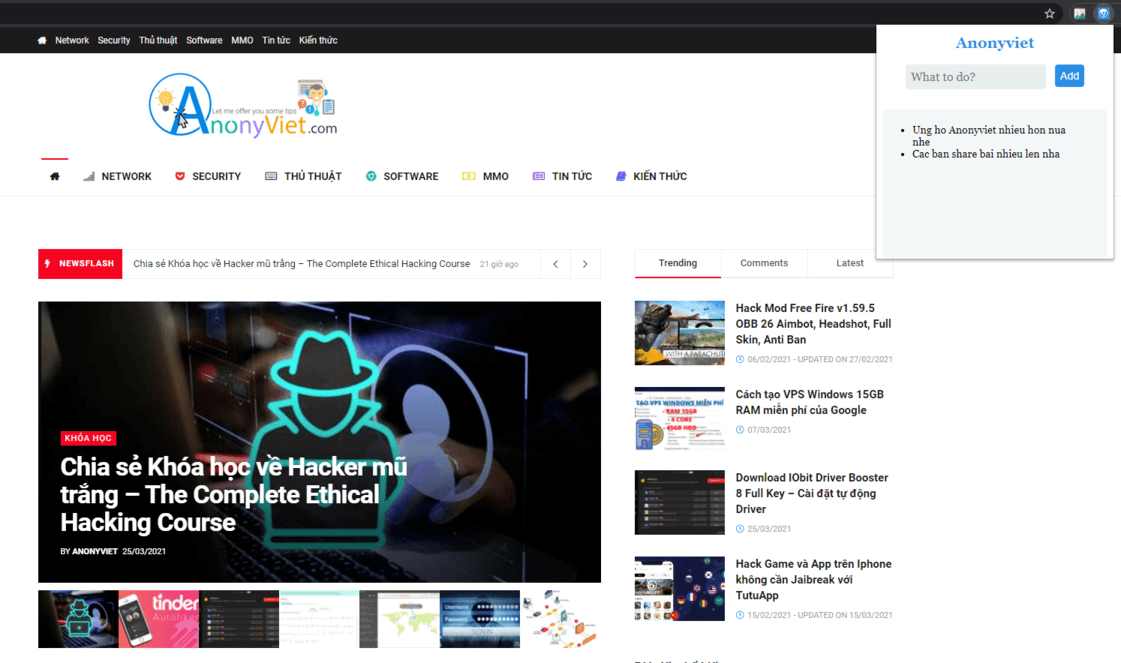
Now, you can use your self-written extension to record your to-dos on Chrome.
Post Extensions to Chrome Store
While publishing the extension to the Chrome Web Store online is fairly easy, the process is a bit complicated. In short, you have to create a developer account, package your extension, and then ship it along with the other components of the extension (like name, icon, screenshot, etc.); as listed in this paragraph.
Conclusion
As mentioned at the beginning of the article, this is not a detailed article that guides you to make an extension. So, if you want to go in the direction of extensions, here are some pretty good sources that you can refer to:
- All abilities, components, and features of extensions.
- Sample extensions of the Google Chrome development team.
You can also develop more features of the extension just done like:
- Added option to delete to-dos.
- To-do notification feature.
So, if you’re serious about this path, I wish you luck.