
• Home
  • News
  • Software
  • Knowledge
  • MMO
  • Tips
  • Security
  • Network
  • Office
AnonyViet - English Version
  • Home
  • News
  • Software
  • Knowledge
  • MMO
  • Tips
  • Security
  • Network
  • Office
No Result
View All Result
  • Home
  • News
  • Software
  • Knowledge
  • MMO
  • Tips
  • Security
  • Network
  • Office
No Result
View All Result
AnonyViet - English Version
No Result
View All Result

Instructions for Blocking Ads with Pi-Hole on Raspberry Pi

AnonyViet by AnonyViet
January 25, 2023
in Network
0

I’m pretty sure many of you who follow Anonyviet sometimes have to encounter a lot of ads while surfing the web or playing free games. These ads are annoying to users and you would love to get rid of them. So if you have VPS or Raspberry Pi then Pi-Hole is your choice to do Adblock. Let’s find out with us!

Join the channel Telegram of the AnonyViet 👉 Link 👈

What is AdBlock?

AdBlock is a software or Extension that allows them to remove or filter ads by changing the website structure and blocking traffic from advertising websites. Currently, Chrome Extension has tons of Adblockers such as ADblock, Poper Blocker and Stands Fair AdBlocker.

What is Pi-Hole?

Pi-hole is a tool that turns Linux into a DNS Server used to block ads that work on the entire home network. You don’t need to install adblock or extensions in the Chrome store and you can whitlist some Adblocks. Pi-holes are extremely useful even with devices that you cannot interfere with to block ads, like Smart TVs or Smart watches.
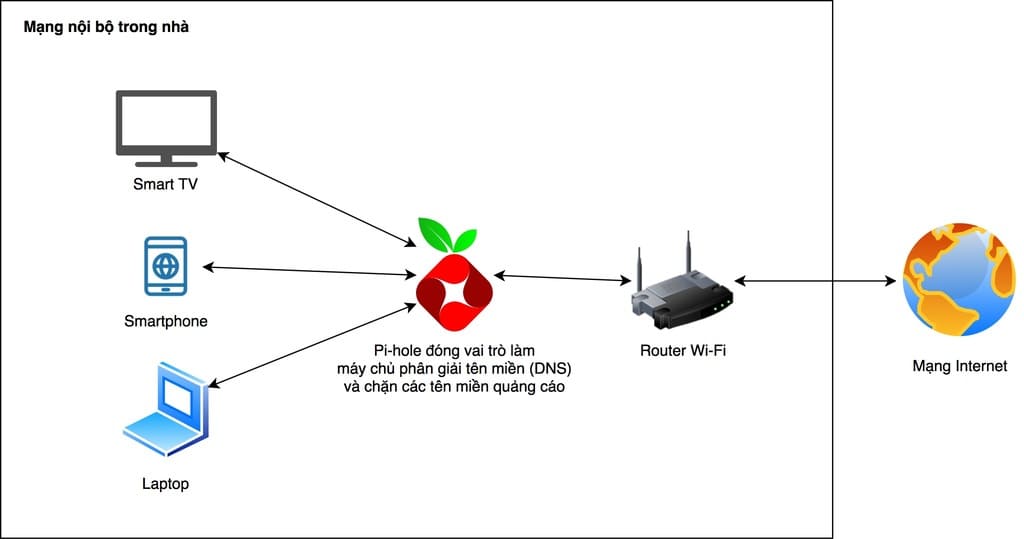
Pi-hole operation diagram

When you type the name of a website and press Enter, the computer will give that website to the Pi-Hole server via DNS. Pi-Hole will start looking for that page to run in the browser and it will also start checking the ad pages that will run with the website to block. And finally, no matter what website, Pi-Hole will remove ads.

Why Pi-Hole and Benefits of Pi-Hole

According to official information from Chrome, all Extensions built on the Manifest V2 extension license management system will no longer appear on the Chrome Web Store as of January 17, 2022 and will be completely disabled on January 17, 2022. January 2023. This invisibly turned all Adblock Extensions disabled by 2022.

At the same time, Pi-Hole also has some of the following benefits:

  • Easy to install with just a few commands
  • Block ads on any device, any application (including devices that do not allow adblock installation)
  • High speed, light
  • Easy control thanks to the graphical user interface using the browser
  • Can block both IPv4 and IPv6 of advertising sites
  • Totally free

Instructions for installing Pi-Hole to block ads

I will use Raspberry Pi 4 running Ubuntu 20.04 LTS operating system so that the software can be optimized! Ubuntu users can follow this tutorial!

Setup on Terminal

Step 1: Grant Root permission to Terminal

Sudo su

Step 2: Update apt-get library

apt-get update && apt-get upgrade

Step 3: install pi-hole using curl

curl -sSL https://install.pi-hole.net | sudo bash

It will ask DNS server, then you choose Google!
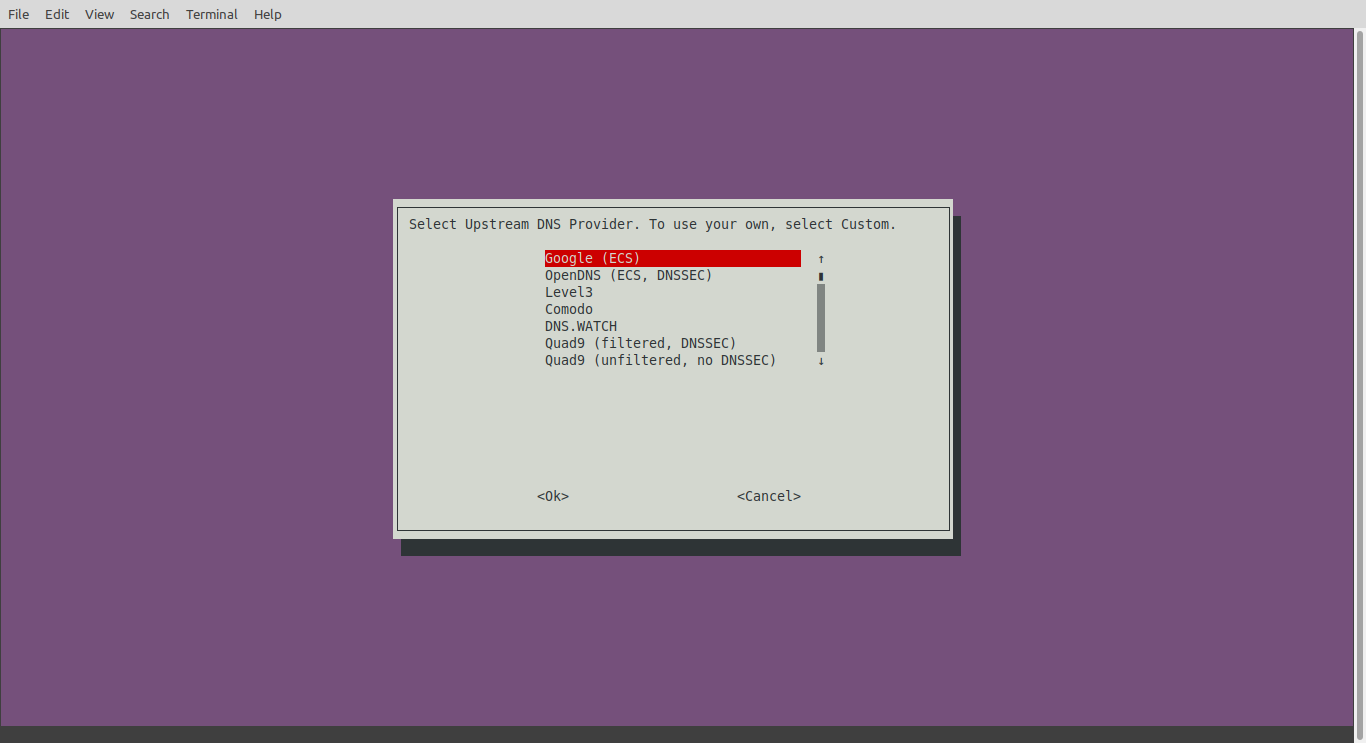
Google DNS

Now you wait a bit for the installation. When does it report? Installation Complete! done then!

To change the password for a user, enter the following command:

pihole -a -p

Access to the interface

In the browser, you enter the IP address of your server (my Raspberry Pi is 192.168.1.9)

Syntax: ipcuaban/admin

Eg: 192.168.1.9/admin

Pi-Hole’s interface
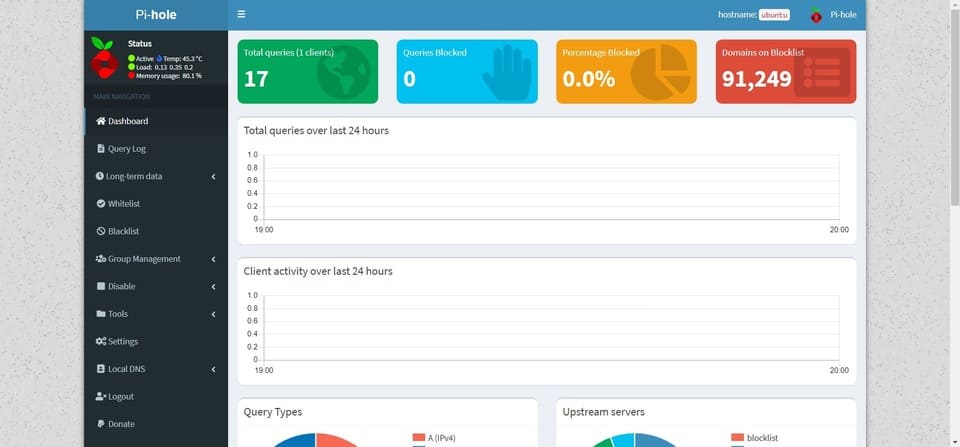
pi-hole interface

By default, it will give you 91,249 popular ad domains that have already been blocked!

How to add a domain to the whitelist

Step 1: In the toolbar, select whitelist
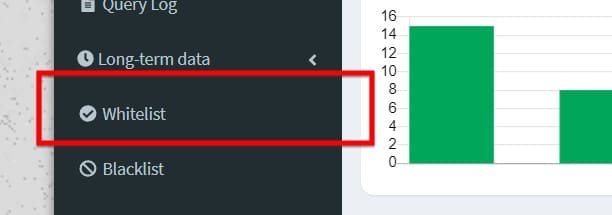
choose whitelist

Step 2: enter the domain name you want to whitelist in the domain section and select Add to Whitelist
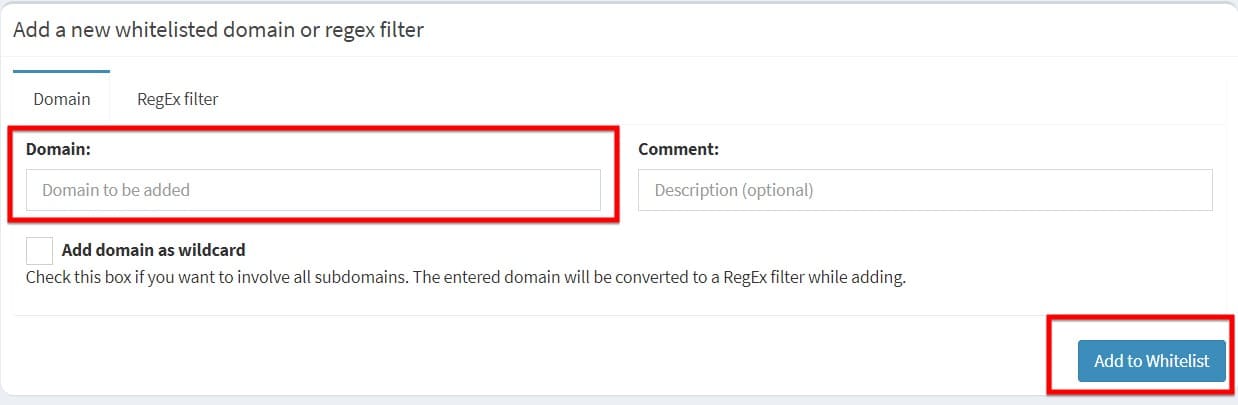
Add domain to whitelist

Add domain to BlackList

Step 1: In the toolbar, select blacklist
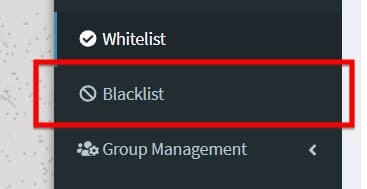
Add to Blacklist

Step 2: enter the domain name in the domain section and select Add to Blacklist
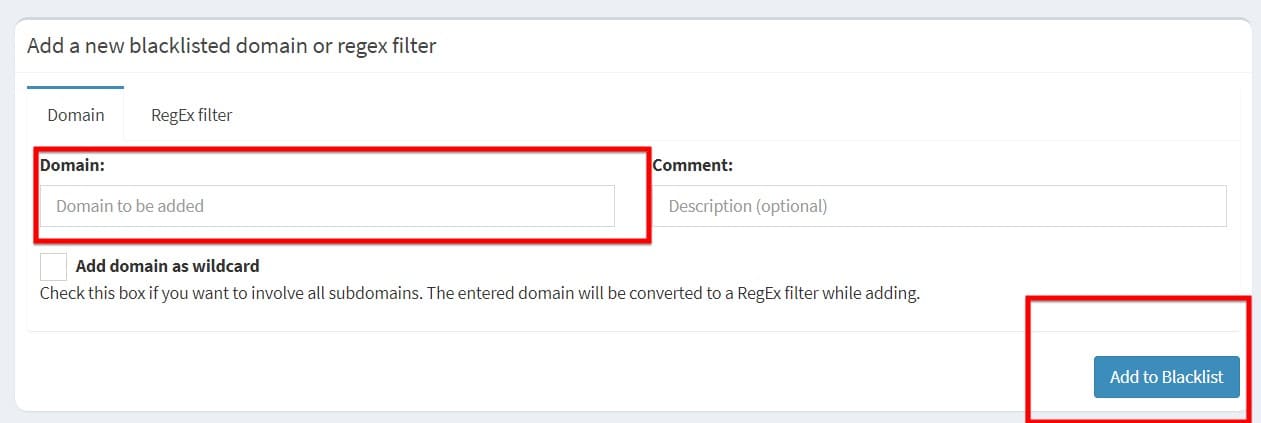
Add domain to Blacklist

Add DNS on the client

Step 1: Open Control Panel -> Network and Internet -> Network and Sharing Center -> Change adapter settings.
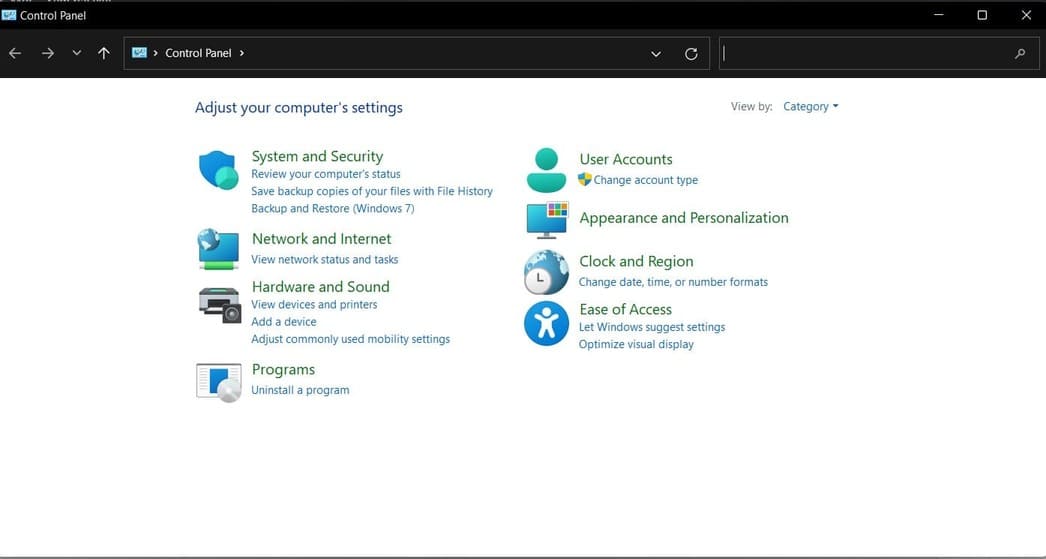
Go to control panel

Step 2: Right-click on Wifi > Properties and select the Networking tab.
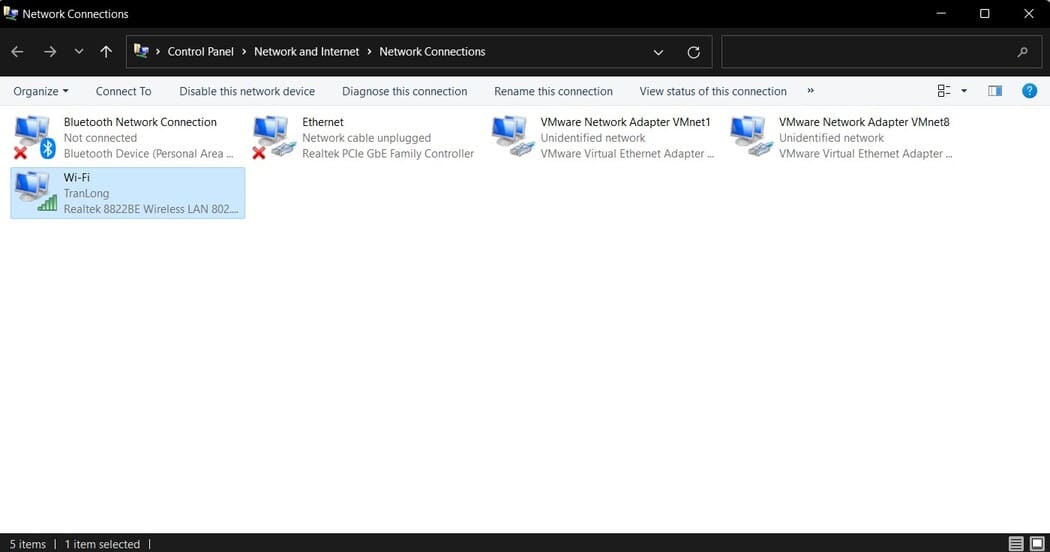
Go to change adapter option

Step 3: Select IPv4 and enter the address of the Server (Raspberry Pi) in the DNS
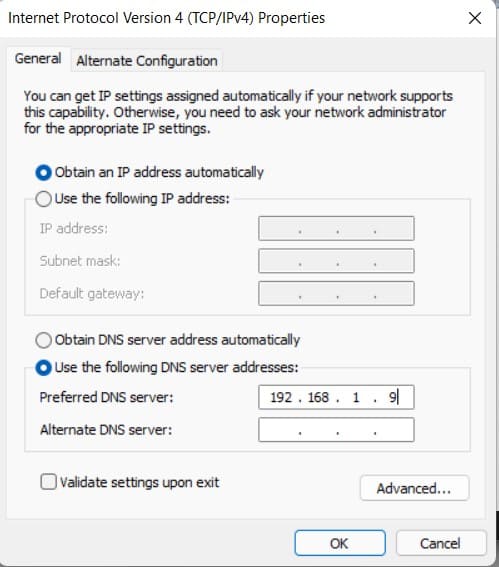
enter pi's dns

So from now on you can freely surf the web without fear of ads. If you have any trouble, please leave a comment below so I can help!


The article achieved: 5/5 – (100 votes)

Tags: AdsblockingInstructionsPiHoleRaspberry
Previous Post

Instructions for writing a simple DDoS Tool in Python

Next Post

Lesson 241: Chart table in Excel

AnonyViet

AnonyViet

Related Posts

Save image as Type contains malicious code: Remove immediately before losing money unfairly!
Network

Save image as Type contains malicious code: Remove immediately before losing money unfairly!

March 19, 2026
Instructions on how to register a .co.uk domain name for free for 1 year
Network

Instructions on how to register a .co.uk domain name for free for 1 year

March 12, 2026
How to Setup Paperclip AI: Create a Company for AI Agent
Network

How to Setup Paperclip AI: Create a Company for AI Agent

March 12, 2026
Compilation of free and cheap APIs to run OpenClaw stably
Network

Compilation of free and cheap APIs to run OpenClaw stably

March 10, 2026
3 Services to Determine IP Location for Website (IP Geolocation API)
Network

3 Services to Determine IP Location for Website (IP Geolocation API)

March 10, 2026
How to buy a .STORE domain name for 1 USD (2026): Detailed instructions from A–Z
Network

How to buy a .STORE domain name for 1 USD (2026): Detailed instructions from A–Z

March 3, 2026
Next Post
Lesson 241: Chart table in Excel

Lesson 241: Chart table in Excel

0 0 votes
Article Rating
Subscribe
Login
Notify of
guest

guest

0 Comments
Oldest
Newest Most Voted
Inline Feedbacks
View all comments

Recent News

Cách làm mờ khuôn mặt trên iPhone, không cần tải app

Cách làm mờ khuôn mặt trên iPhone, không cần tải app

June 11, 2026
Website to check the World Cup 2026 match schedule intuitively, with automatic calendar synchronization

Website to check the World Cup 2026 match schedule intuitively, with automatic calendar synchronization

June 11, 2026
PDF editing application on Android worth 199k is free

PDF editing application on Android worth 199k is free

June 10, 2026
Instructions for creating Minecraft-style food photos

Instructions for creating Minecraft-style food photos

June 9, 2026
Cách làm mờ khuôn mặt trên iPhone, không cần tải app

Cách làm mờ khuôn mặt trên iPhone, không cần tải app

June 11, 2026
Website to check the World Cup 2026 match schedule intuitively, with automatic calendar synchronization

Website to check the World Cup 2026 match schedule intuitively, with automatic calendar synchronization

June 11, 2026
PDF editing application on Android worth 199k is free

PDF editing application on Android worth 199k is free

June 10, 2026
AnonyViet - English Version

AnonyViet

AnonyViet is a website share knowledge that you have never learned in school!

We are ready to welcome your comments, as well as your articles sent to AnonyViet.

Follow Us

Contact:

Email: anonyviet.com[@]gmail.com

Main Website: https://anonyviet.com

Recent News

Cách làm mờ khuôn mặt trên iPhone, không cần tải app

Cách làm mờ khuôn mặt trên iPhone, không cần tải app

June 11, 2026
Website to check the World Cup 2026 match schedule intuitively, with automatic calendar synchronization

Website to check the World Cup 2026 match schedule intuitively, with automatic calendar synchronization

June 11, 2026
  • Home
  • Home 2
  • Home 3
  • Home 4
  • Home 5
  • Home 6
  • Next Dest Page
  • Sample Page

6789 kv999

No Result
View All Result
  • Home
  • News
  • Software
  • Knowledge
  • MMO
  • Tips
  • Security
  • Network
  • Office

6789 kv999

wpDiscuz
0
0
Would love your thoughts, please comment.x
()
x
| Reply







