How to install Windows 11 25H2 Is it a good idea at this time? Anonyviet will analyze the benefits and risks, and provide detailed instructions for you to make a decision.
|
Join the channel Telegram belong to Anonyviet 👉 Link 👈 |
Why should experience Windows 11 25H2 early?
The installation of an unofficial operating system version always comes with certain risks, but also brings undeniable benefits to technology lovers:
- You will experience the latest features, interface improvement and optimization of the latest performance that millions of other users have to wait for months to have.
- By participating in test programs, you can send a direct feedback to Microsoft, contributing to help them complete the product before the official launch.
- The process of installation and troubleshooting (if any) is a great opportunity for you to better understand the structure and operation of the Windows operating system.
Important notes before starting
Before we go into the installation steps, there are a few important warnings that you absolutely cannot ignore. Windows 11 25h2 is still in the early stage of development, which means:
- The system may encounter errors, hangers, or existing features and new features that can operate without expected.
- There is always a hidden risk of data loss due to system errors.
- Absolutely do not install Windows 11 25H2 on the computer you use for daily work or study. The best option is to install on an auxiliary computer or a virtual machine.
No matter which method you choose, please Backup all important data Your external hard drive or cloud storage service. This is the most important insurance step for you to return to the original state if any incident occurs.
Instructions 2 ways to install Windows 11 25H2
Method 1: Through the Windows Insider program
This is the simplest method, allowing you to upgrade directly from the current version of Windows 11 (e.g. 24h2) without losing data or applications.
Implementation steps:
- Press the key combination Windows + I To open the settings window.
- In the left menu, choose Windows Update > Click on the tab Windows Insider Program.
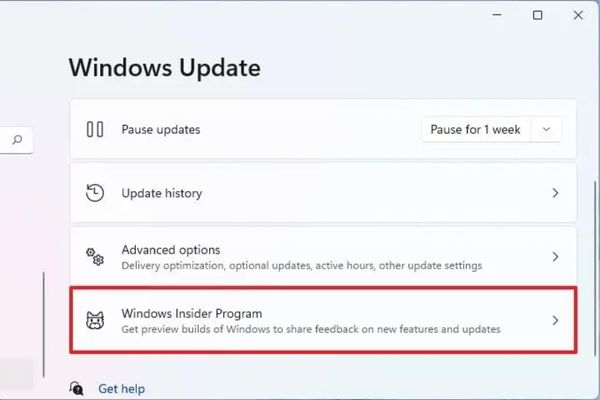
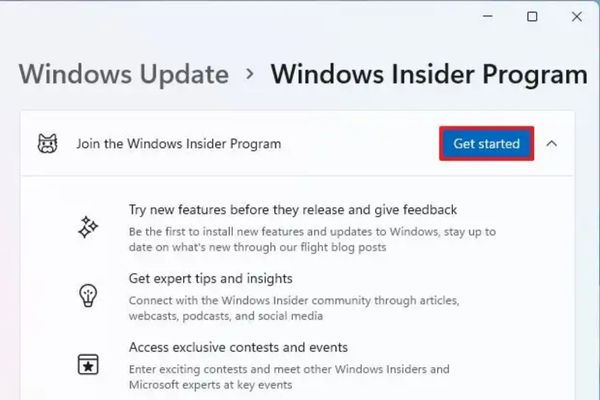
- Click the button Get Started.
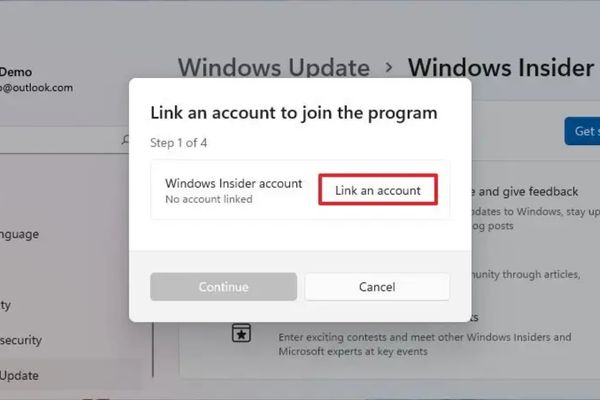
- A window will appear, asking you to link Microsoft accounts. Press Link an accountthen log in with your Microsoft account and click Continue.
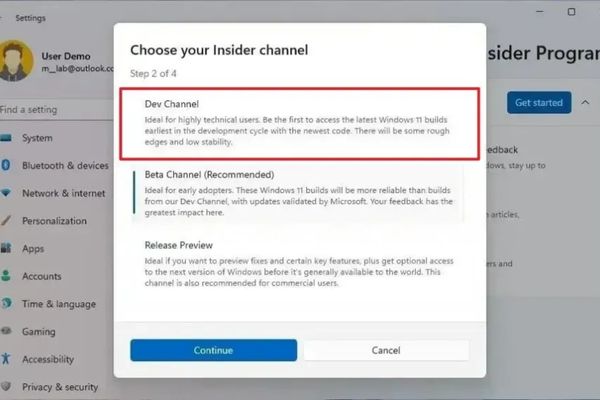
- In the “Pick Your Insider Settings” section, make sure you choose Dev Channel. This is the earliest channel of Windows building.
- Press Continue Two times to agree with the terms and conditions of the program.
- The system will ask you to restart to apply changes. Press Restart.
- After the computer restarts, come back Settings> Windows Update.
- Click the button Check for updates. The system will automatically find, download and install the Windows 11 25H2 update.
- After the installation process is completed, the computer will require a reboot again.
That’s it! You have successfully upgraded. From now on, your computer will continue to receive weekdays from Dev Channel with many new features and patches.
Method 2: Install by USB Boot
This method is suitable when you want to have a “clean” system from the beginning, there is no trash or error from the old version. You will need a minimum USB 8GB and file ISO of Windows 11 25H2.
Note: Before starting, you need to access the computer’s BIOS/UEFI to set up priority to start from USB. This is different depending on the manufacturer, so please refer to the support website of the computer company you are using.
Implementation steps:
- Plug the USB boot into the computer and restart. Press any key when required to start the installation process.
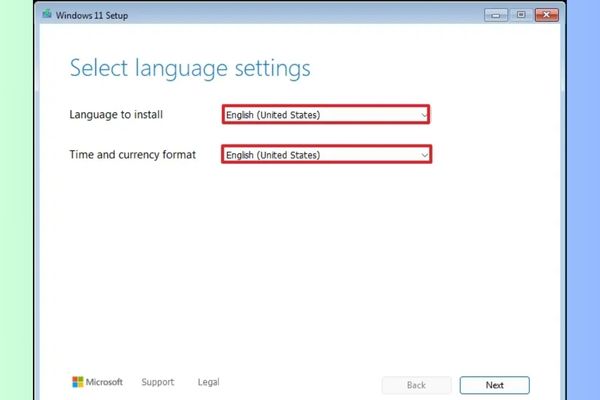
- Select language, time format and keyboard type, then press Next.
- Select “Install Windows 11“And accumulating in the box”I Agree Everything …”.
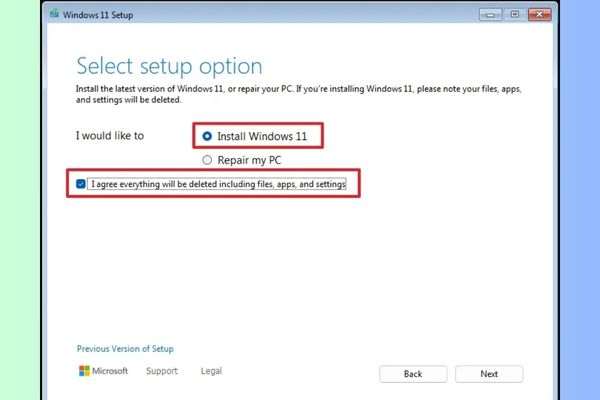
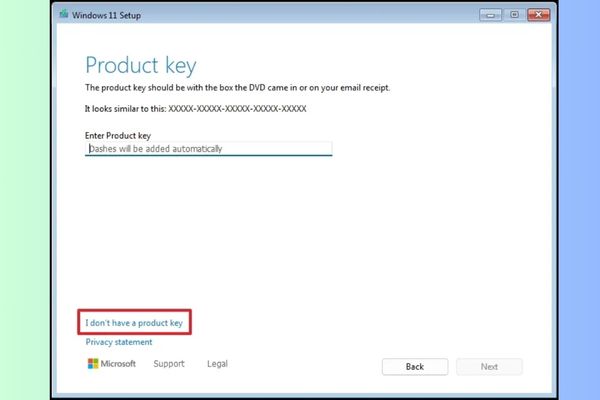
- If you reinstall on the computer, choose I don’t have a product key. Windows will automatically trigger it after installation. If it is a new machine, you need to enter the key.
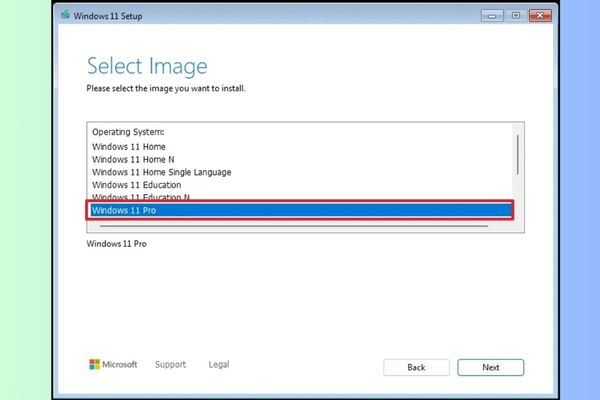
- Select the Windows 11 version (Home, Pro, …) corresponding to your copyright.
- Press Next> Accept. A list of drives and partitions will appear. Usually, the installation drive is Drive 0.
- Choose each partition on Drive 0 (for example: Drive 0 Partition 1, Drive 0 Partition 2, …) and press Delete.
WARNING: This operation will erase all data on those partitions. Make sure you back up and choose the right drive.
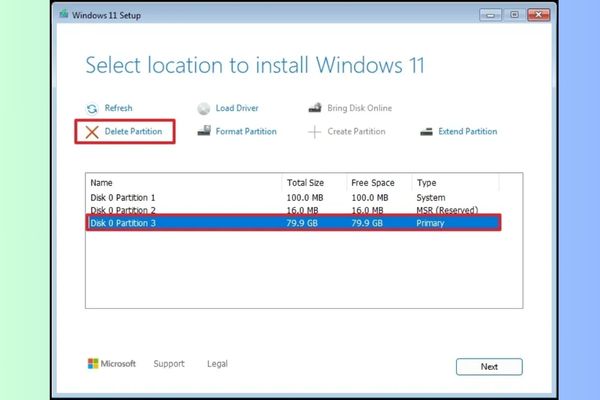
- After deletion, you will see a single empty area with a name Drive 0 Unallocated Space. Choose it and press Next.
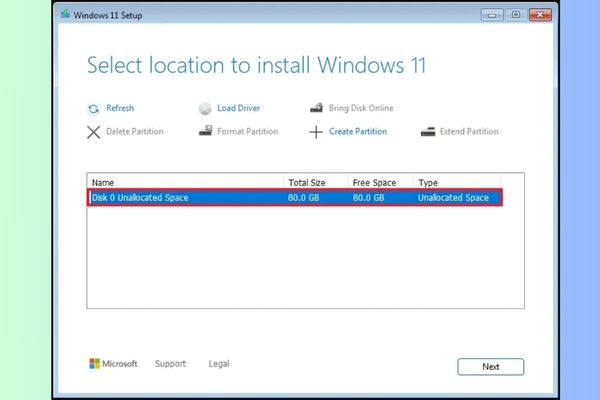
- Continue pressing Next> Install. Windows will start copying file and installing. This process takes a few minutes and the computer will reboot automatically.
- After the installation is complete, you will need to perform the OOBE settings (out-of-box Experience) initially such as selecting the area, keyboard type> click on the button Yes.
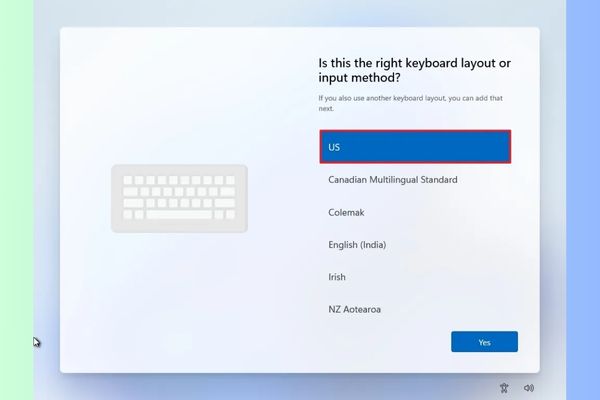
- Click the ignorance button (Skip) If you do not need a second keyboard configuration.
- The computer will automatically connect to the network by an Ethernet connection. You must set up a manual connection if you use a wireless network (may require security lock).
- Name the computer.
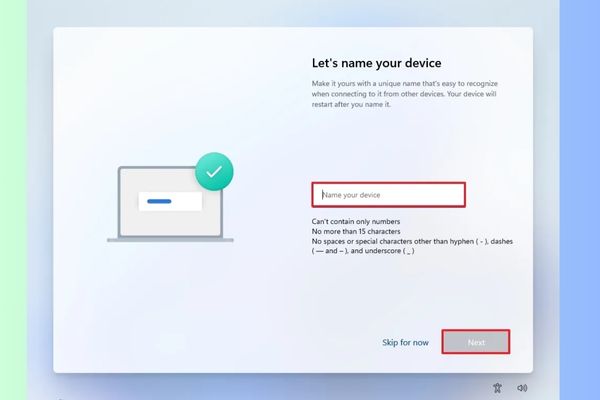
- Click the button Next. (The device will restart itself).
- Select Set up for personal use For Windows 11 Pro. Note: This option will not be available on the “Home” version.
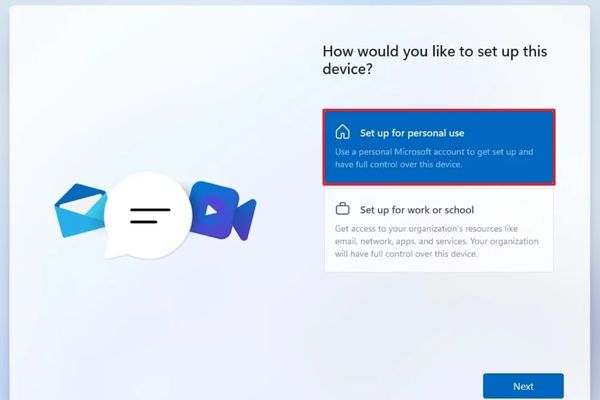
- Click Next> Sign in.
- Enter your Microsoft account email to create a Windows 11 account.
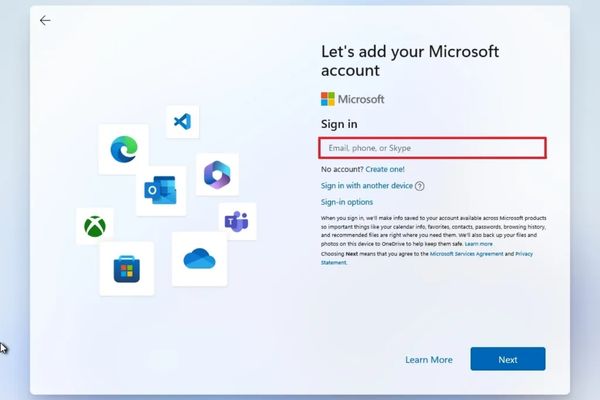
- Press Next > Confirm the Microsoft account password.
- Press Next > Click on the button Create battery > Create a new four -digit Windows Hello PIN.
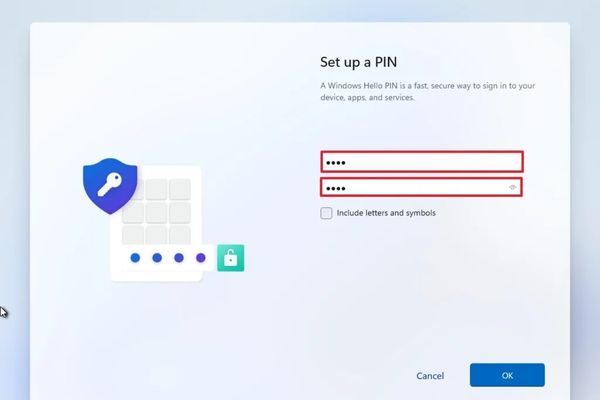
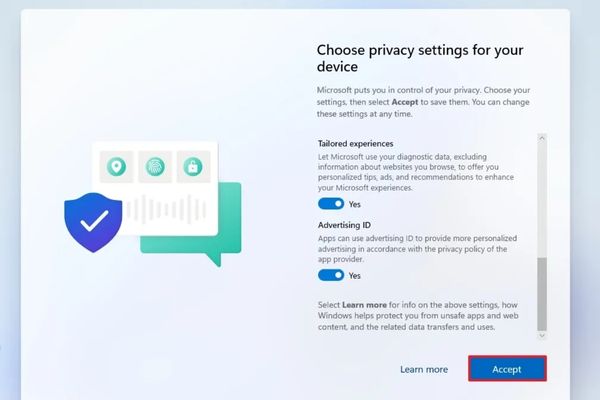
- Press OK > Choose privacy settings that best suit your preferences.
- Press Next> Next> Accept.
Tip: You can also click the “Restore from this PC” button to restore files, applications, install and login information from the system backup available in the OneDrive account.
- Click Set up as a new pc.
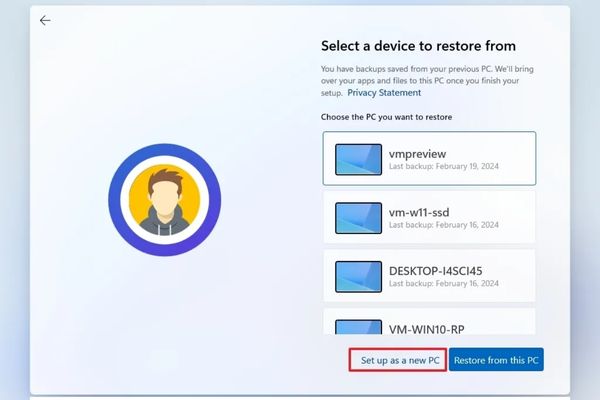
- Press Set up as a new pc once again.
- Click the button Accept To continue. Or click the Skip button to skip this set.
- (Optional) Use the code to link your Android phone or click on the skip.
- (Optional) Use the code to download OneDrive to your phone or click Skip.
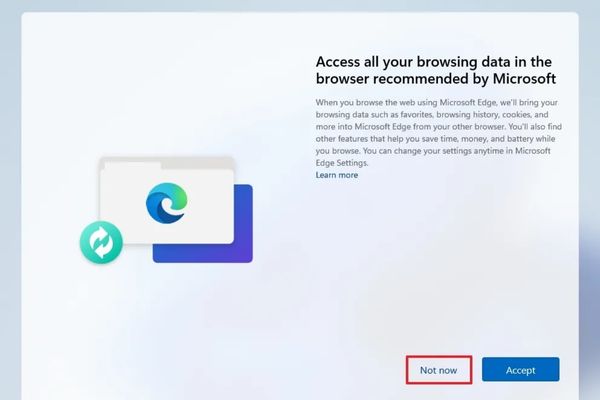
- Click the button Not now If you will use a browser other than Microsoft Edge.
After completing the above steps, you will be welcomed by the Desktop of Windows 11 25H2, a completely new and “clean” version.
Conclusion
How to install Windows 11 25H2 From now on is an interesting technology adventure, giving you the opportunity to experience the most quintessential Microsoft. Whether you choose a quick upgrade method via Windows Insider or install clean by USB Boot, remember carefulness and backup data is never redundant!