• Home
  • News
  • Software
  • Knowledge
  • MMO
  • Tips
  • Security
  • Network
  • Office
AnonyViet - English Version
  • Home
  • News
  • Software
  • Knowledge
  • MMO
  • Tips
  • Security
  • Network
  • Office
No Result
View All Result
  • Home
  • News
  • Software
  • Knowledge
  • MMO
  • Tips
  • Security
  • Network
  • Office
No Result
View All Result
AnonyViet - English Version
No Result
View All Result

How to use Virtual Desktop on Windows 10 to create multiple Desktops

AnonyViet by AnonyViet
February 1, 2023
in Tips
0

If you are dealing with a lot of software at the same time, opening multiple windows will make the Desktop cluttered. Every time Alt+Tab or find software on the taskbar is a torture. Don’t worry, show up on Windows 10 has Virtual Desktop function (virtual Desktop) to help you create more Desktop screens. With Virtual Desktop, you can expand your workspace infinitely without having to buy a bigger monitor, organize groups of related tasks together, and easily switch between them. When you want, you just need to press a few shortcuts and you’re done.

Join the channel Telegram of the AnonyViet 👉 Link 👈

How to open Virtual Desktop – Virtual Desktop Windows 10

Virtual Desktop Also known as virtual Desktops are sub-Desktop screens to contain working windows. Creating Virtual Desktop will help you manage programs more scientifically. Eg, Desktop 1 you will save the working windows, Desktop 2 will save the entertainment windows.

First, check if there is a Task View icon on the Taskbar? If not, right click on the taskbar and select Show Task View button

show task view button

On the taskbar, select the . icon Task View next to Windows Search.
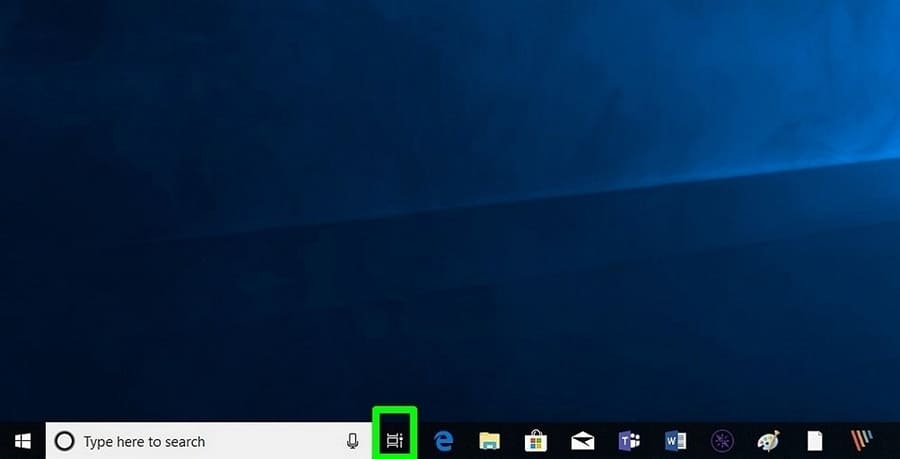
create virtual desktop windows 10

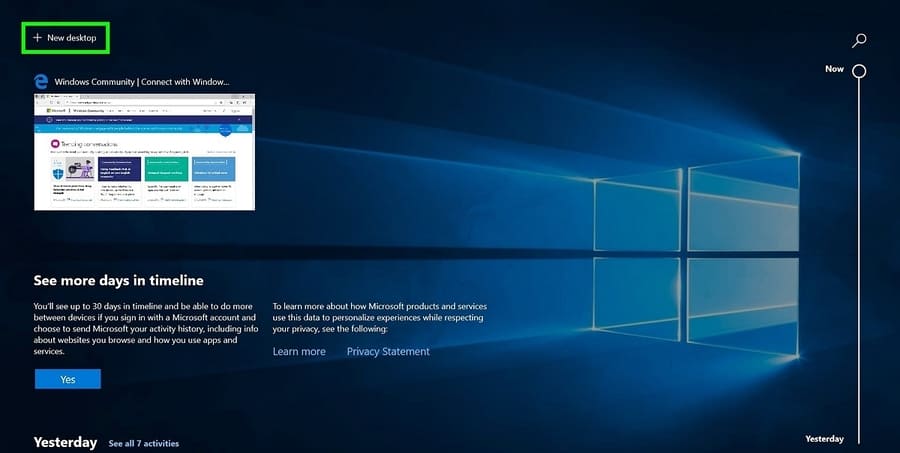
New Desktop will appear in the upper left corner of the screen.How to use Virtual Desktop on Windows 10 to create multiple Desktops
Below section New Desktop, you will see all the applications or windows you have open as well as your Timeline (history of recently opened files, projects).
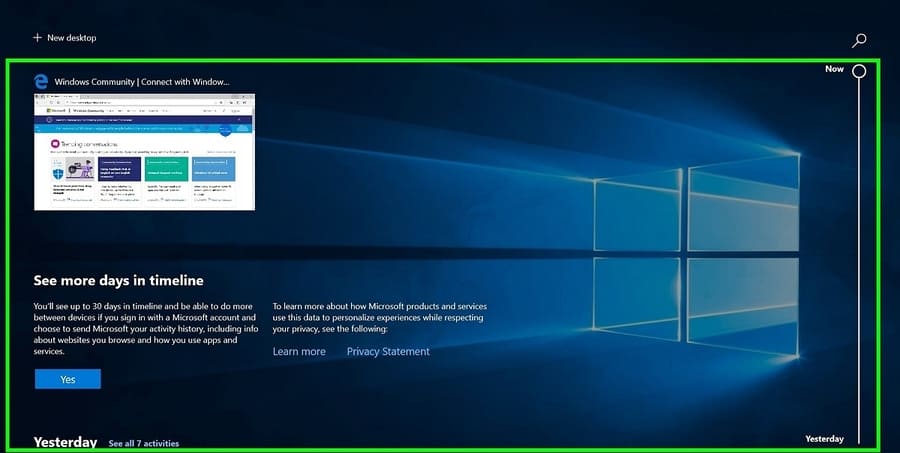
create virtual desktop windows 10

Create Virtual Desktop – Virtual Desktop

Windows 10 allows you to create unlimited virtual desktops, but make sure you have enough RAM to open multiple Desktops at the same time. Each time you create a new virtual desktop, you’ll see a scaled-down version of it TaskView. Select any virtual desktop to open or use the keyboard shortcuts that I will guide below.Instructions to create virtual desktop windows 10
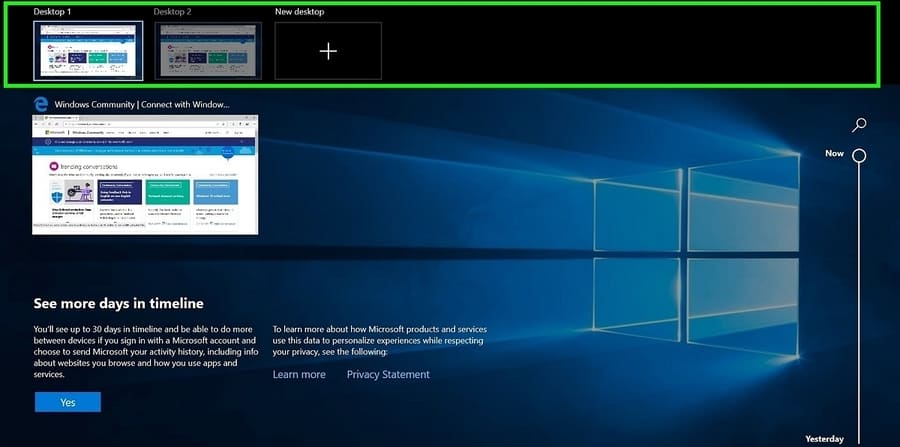
Add or remove Virtual Desktop

Select Task View on the taskbar then press + New Desktop to create a new virtual desktop. See which apps have opened with the Timeline by scrolling down. Click on the sign X at the top of each virtual desktop to delete it when you’re done using it. Any applications you have open on the virtual desktop will switch to the main screen if you delete that desktop. To avoid this, make sure you close all those windows before deleting that desktop.
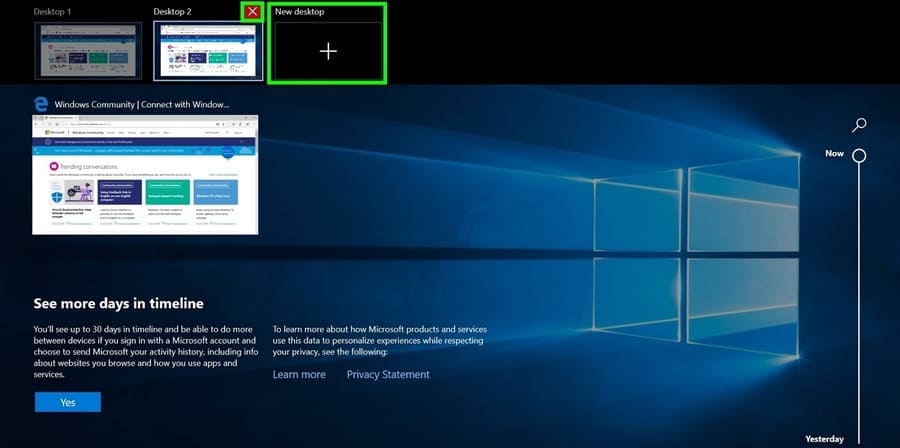
How to use Virtual Desktop on Windows 10 to create multiple Desktop 5 . screens Customize Virtual Desktop

Right-click any open window to manage the view on your virtual desktop.
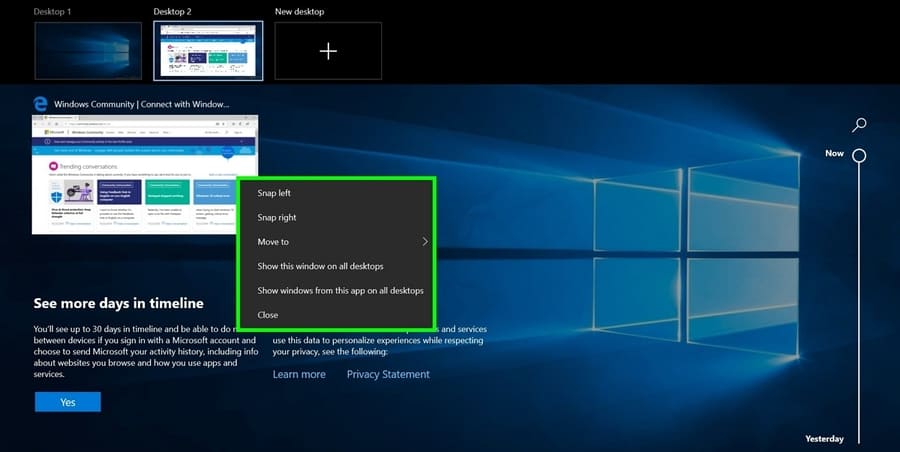
How to use Virtual Desktop on Windows 10 to create multiple Desktop 6 . screens

Use keyboard shortcuts snap to split your window across the screen.

Explore other options on this menu:

  • Move to: Move the selected application to the desktop in the menu
  • Show this windows on all desktops: Show this app on all desktops
  • Show windows from this app on all desktops: Show windows of this application on all your desktops.
  • Close: Close the software on the current Desktop.

Shortcuts in virtual desktops

Open Task View and move between virtual desktops with the keyboard shortcuts below:

  • Windows + Tabs: Open Task View
  • Alt + Tab: Show all open applications. Press Tab while holding Alt allows you to move between them (this is all too familiar, comrades)
  • Windows + Ctrl + Left/Right Arrow: Allows you to quickly move between virtual desktops
  • Windows + Ctrl + EASY: To create a new virtual desktop without Task View.
  • Windows + Tab: To turn on Task View.

Multitasking

There are two settings for virtual desktops on Windows 10. Click Windows + I to open Settings. Select Systems – > Multitasking, then scroll down to section Virtual Desktops.How to use Virtual Desktop on Windows 10 to create multiple Desktop 7 . screens
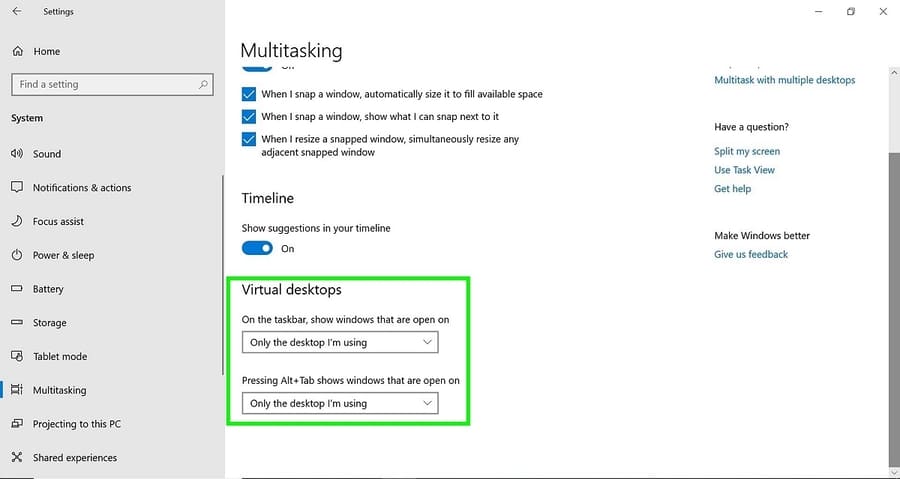
Default is Only the desktop I’m using, but depending on your preference you can set it to All Desktops.

Now you can create multiple Desktops, each Desktop will contain its own work window. For example Virtual Desktop 1 will contain programming windows, Virtual Desktop 2 contains entertainment windows. That way you won’t be distracted at work.


The article achieved: 5/5 – (100 votes)

Tags: createDesktopDesktopsMultiplevirtualWindows
Previous Post

Extension Friend Ranking – Create a ranking of friends interaction on Facebook

Next Post

Ban playing games and accessing software on Windows 10 with Microsoft Family Group

AnonyViet

AnonyViet

Related Posts

Instructions for receiving Lovable Pro 12 months for free
Tips

Instructions for receiving Lovable Pro 12 months for free

May 29, 2026
Instructions for receiving 1 month of ElevenLabs Creator for free worth
Tips

Instructions for receiving 1 month of ElevenLabs Creator for free worth $22

May 25, 2026
How to create beautiful studio-like preschool graduation photos for your child
Tips

How to create beautiful studio-like preschool graduation photos for your child

May 21, 2026
Instructions on how to change iPhone fonts beautifully with Lara
Tips

Instructions on how to change iPhone fonts beautifully with Lara

May 20, 2026
Create images of guardian mascots using AI according to year of birth
Tips

Create images of guardian mascots using AI according to year of birth

May 20, 2026
Try the Shopee Profit Calculator now, avoid the risk of selling at a loss
Tips

Try the Shopee Profit Calculator now, avoid the risk of selling at a loss

May 19, 2026
Next Post
Ban playing games and accessing software on Windows 10 with Microsoft Family Group

Ban playing games and accessing software on Windows 10 with Microsoft Family Group

0 0 votes
Article Rating
Subscribe
Login
Notify of
guest

guest

0 Comments
Oldest
Newest Most Voted
Inline Feedbacks
View all comments

Recent News

How to turn off Gemini Nano on Chrome to free up 4GB of memory

How to turn off Gemini Nano on Chrome to free up 4GB of memory

May 30, 2026
Instructions for receiving Lovable Pro 12 months for free

Instructions for receiving Lovable Pro 12 months for free

May 29, 2026
How to extract text from photos using Zalo is super simple

How to extract text from photos using Zalo is super simple

May 29, 2026
HONOR 600 in hand – High-end design, 200MP camera, not cheap price

HONOR 600 in hand – High-end design, 200MP camera, not cheap price

May 28, 2026
How to turn off Gemini Nano on Chrome to free up 4GB of memory

How to turn off Gemini Nano on Chrome to free up 4GB of memory

May 30, 2026
Instructions for receiving Lovable Pro 12 months for free

Instructions for receiving Lovable Pro 12 months for free

May 29, 2026
How to extract text from photos using Zalo is super simple

How to extract text from photos using Zalo is super simple

May 29, 2026
AnonyViet - English Version

AnonyViet

AnonyViet is a website share knowledge that you have never learned in school!

We are ready to welcome your comments, as well as your articles sent to AnonyViet.

Follow Us

Contact:

Email: anonyviet.com[@]gmail.com

Main Website: https://anonyviet.com

Recent News

How to turn off Gemini Nano on Chrome to free up 4GB of memory

How to turn off Gemini Nano on Chrome to free up 4GB of memory

May 30, 2026
Instructions for receiving Lovable Pro 12 months for free

Instructions for receiving Lovable Pro 12 months for free

May 29, 2026
No Result
View All Result
  • Home
  • News
  • Software
  • Knowledge
  • MMO
  • Tips
  • Security
  • Network
  • Office

wpDiscuz
0
0
Would love your thoughts, please comment.x
()
x
| Reply