• Home
  • News
  • Software
  • Knowledge
  • MMO
  • Tips
  • Security
  • Network
  • Office
AnonyViet - English Version
  • Home
  • News
  • Software
  • Knowledge
  • MMO
  • Tips
  • Security
  • Network
  • Office
No Result
View All Result
  • Home
  • News
  • Software
  • Knowledge
  • MMO
  • Tips
  • Security
  • Network
  • Office
No Result
View All Result
AnonyViet - English Version
No Result
View All Result

How to use Together mode in Microsoft Teams web version

AnonyViet by AnonyViet
January 24, 2023
in Tips
0

Using virtual backgrounds in Microsoft Teams brings variety to your online sessions, but the video grid layout remains the same. Change it up with Together mode, bringing everyone in the meeting into a single virtual screen.

Join the channel Telegram of the AnonyViet 👉 Link 👈

With Together mode, videos of Microsoft Teams meeting participants will appear in the same virtual background. At the time of writing, Together mode only provides a background for the web version of Microsoft Teams.

How to use Together mode in Microsoft Teams web version

Ditching the grid layout can help you make video calls a little more interesting or different. You get a uniform view of the environment, instead of a grid of custom backgrounds. Together mode is available with Microsoft Teams web version on Microsoft Edge and Google Chrome.

Note: At the time of this writing, Together mode in Microsoft Teams for the web is still in Preview and may crash or stop working randomly.

Enable Together mode on Edge and Chrome

Open the app Microsoft Teams web in Microsoft Edge or Google Chrome and sign in. Select “Meet Now” to start a new meeting or press the “Join” button to join an ongoing meeting.
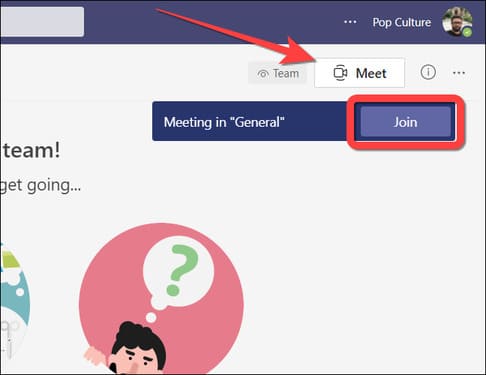
How to use Together mode in Microsoft Teams web version 6

When you join the meeting, select the ellipsis icon (three-dot menu) on the floating menu bar for more options.

How to use Together mode in Microsoft Teams web version 7

Select “Together Mode”. It may be written as “Together Mode (Preview)”.
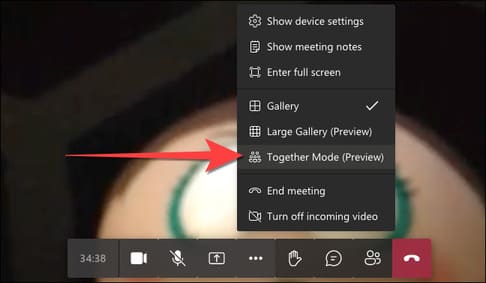
How to use Together mode in Microsoft Teams web version 8

Your default grid layout will switch to an auditorium-like background showing everyone involved as shown below.
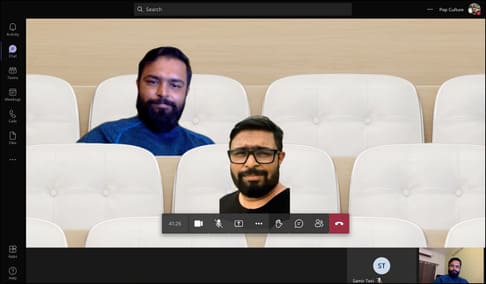
How to use Together mode in Microsoft Teams web version 9

Using Together mode changes the way you see others in a meeting without letting them know. Here’s how you can turn video calls into fun and intimate situations in Microsoft Teams on Edge or Chrome, at least for yourself.

In addition, you can also create virtual classrooms on Zoom using Immersive View here.

The article achieved: 5/5 – (100 votes)

Tags: MicrosoftModeTeamsversionweb
Previous Post

Lesson 127: How to use percentages in Excel

Next Post

Tips for Active Directory Administration with Multiple Domain Controllers

AnonyViet

AnonyViet

Related Posts

Get free Cambridge courses to prepare for IELTS, Starters, Movers
Tips

Get free Cambridge courses to prepare for IELTS, Starters, Movers

June 4, 2026
How to record reaction videos with Android phones, no app needed
Tips

How to record reaction videos with Android phones, no app needed

June 1, 2026
Instructions on how to get Google AI Pro 1 year for free for new accounts
Tips

Instructions on how to get Google AI Pro 1 year for free for new accounts

June 1, 2026
Top free AI tools to help write, test and optimize content
Tips

Top free AI tools to help write, test and optimize content

June 1, 2026
Instructions for receiving Lovable Pro 12 months for free
Tips

Instructions for receiving Lovable Pro 12 months for free

May 29, 2026
Instructions for receiving 1 month of ElevenLabs Creator for free worth
Tips

Instructions for receiving 1 month of ElevenLabs Creator for free worth $22

May 25, 2026
Next Post
Tips for Active Directory Administration with Multiple Domain Controllers

Tips for Active Directory Administration with Multiple Domain Controllers

0 0 votes
Article Rating
Subscribe
Login
Notify of
guest

guest

0 Comments
Oldest
Newest Most Voted
Inline Feedbacks
View all comments

Recent News

How to convert HEIC photos to JPG on iPhone without using an app

How to convert HEIC photos to JPG on iPhone without using an app

June 5, 2026
Get free Cambridge courses to prepare for IELTS, Starters, Movers

Get free Cambridge courses to prepare for IELTS, Starters, Movers

June 4, 2026
How to check network speed on Apple TV when the image is jerky or lagging

How to check network speed on Apple TV when the image is jerky or lagging

June 3, 2026
Instructions on how to prevent acquaintances from seeing your Tiktok

Instructions on how to prevent acquaintances from seeing your Tiktok

June 2, 2026
How to convert HEIC photos to JPG on iPhone without using an app

How to convert HEIC photos to JPG on iPhone without using an app

June 5, 2026
Get free Cambridge courses to prepare for IELTS, Starters, Movers

Get free Cambridge courses to prepare for IELTS, Starters, Movers

June 4, 2026
How to check network speed on Apple TV when the image is jerky or lagging

How to check network speed on Apple TV when the image is jerky or lagging

June 3, 2026
AnonyViet - English Version

AnonyViet

AnonyViet is a website share knowledge that you have never learned in school!

We are ready to welcome your comments, as well as your articles sent to AnonyViet.

Follow Us

Contact:

Email: anonyviet.com[@]gmail.com

Main Website: https://anonyviet.com

Recent News

How to convert HEIC photos to JPG on iPhone without using an app

How to convert HEIC photos to JPG on iPhone without using an app

June 5, 2026
Get free Cambridge courses to prepare for IELTS, Starters, Movers

Get free Cambridge courses to prepare for IELTS, Starters, Movers

June 4, 2026
  • Home
  • Home 2
  • Home 3
  • Home 4
  • Home 5
  • Home 6
  • Next Dest Page
  • Sample Page

6789 kv999

No Result
View All Result
  • Home
  • News
  • Software
  • Knowledge
  • MMO
  • Tips
  • Security
  • Network
  • Office

6789 kv999

wpDiscuz
0
0
Would love your thoughts, please comment.x
()
x
| Reply