How to use Clean Up on iPhone is the perfect solution for you to eliminate redundant details in commemorative photos. You don’t need to be a graphics expert to still create satisfactory photos. Let’s explore this interesting feature with AnonyViet now.
📢 Join the channel Telegram belong to AnonyViet
Update new articles, cool tools and IT tips fastest
Why should you use the Clean Up feature?
This feature does more than simply delete photos, it also uses AI algorithms to fill in the gaps in the most natural way. Below is a comparison table between using Clean Up and third-party apps:
| Criteria | Clean Up feature | 3rd party applications |
| Convenience | Built-in, no installation required | Need to download and register an account |
| Speed | Instant processing | Depends on network speed |
| Expense | Free (according to device) | Usually requires a fee |
| Naturalness | Very high (Apple AI) | Depending on the quality of the app |
How to use Clean Up on iPhone to delete objects on photos
To start the experience, make sure your device has been updated to the latest iOS version. Then, follow the detailed steps below:
Step 1: Please open the application Photos on iPhone and select the photo you want to edit.
Step 2: Click the button Edit located in the toolbar at the bottom of the screen.
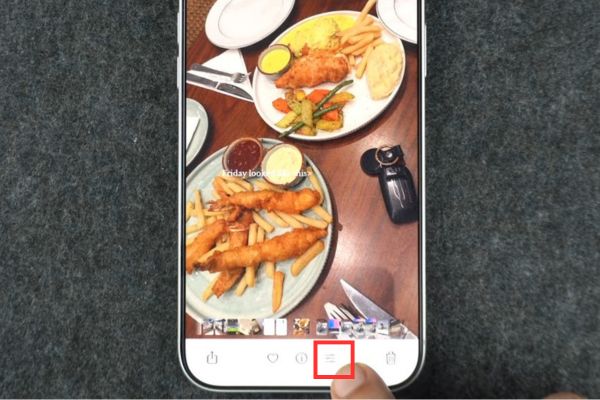
Step 3: Find and select the tool Clean Up from the editing toolbar that appears.
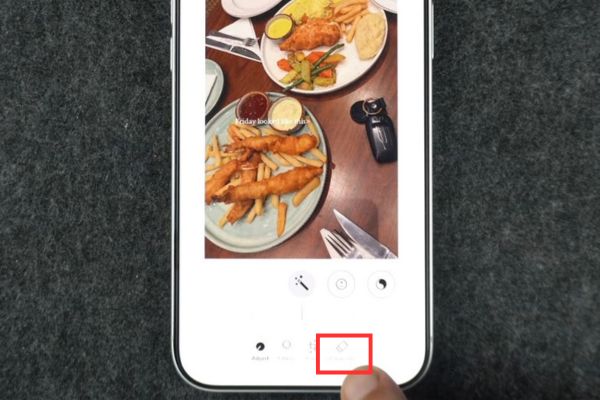
Step 4: Use your finger to touch, smear, or circle the object or person you want to remove from the photo.
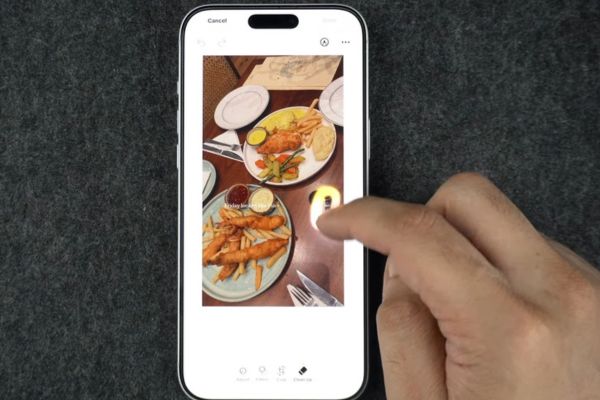
Step 5: The system will automatically analyze and delete that object. If you are not satisfied, you can do it again and again until the image area looks most natural.

Important notes when editing photos
When applying the above Clean Up method iPhoneyou should do it in small sections if the photo has too many intricate details. This helps AI identify and process image areas more accurately, avoiding distortion or blurring of the image.
If you accidentally delete it by mistake or are not satisfied with the results, don’t worry too much. You just need to click the button Edit and choose Revert (Undo) to quickly return the photo to its original state.

Conclusion
Thus, using Clean Up on iPhone is not as difficult as many people think. With just a few simple steps, you can transform your photos into more sparkling ones. Don’t forget to share this tip with your friends and relatives. Wishing you always have the most perfect photos.
Frequently Asked Questions (Q&A)
1. Does the Clean Up feature require payment?
No, this is a free feature built into the Photos app on iPhone models that support Apple Intelligence.
2. Why doesn’t my iPhone see the Clean Up tool?
This feature requires a new device (iPhone 15 Pro or later) and must be updated to iOS 18.1 or later.
3. Can I restore photos after using Clean Up?
Yes, you can completely restore the original image by clicking the Edit button and then selecting Revert to undo any changes made.