• Home
  • News
  • Software
  • Knowledge
  • MMO
  • Tips
  • Security
  • Network
  • Office
AnonyViet - English Version
  • Home
  • News
  • Software
  • Knowledge
  • MMO
  • Tips
  • Security
  • Network
  • Office
No Result
View All Result
  • Home
  • News
  • Software
  • Knowledge
  • MMO
  • Tips
  • Security
  • Network
  • Office
No Result
View All Result
AnonyViet - English Version
No Result
View All Result

How to turn Website into App on Windows

AnonyViet by AnonyViet
January 30, 2023
in Tips
0

If you regularly visit certain websites, you can turn Websites into Apps on Windows 10. This allows you to use websites as if they were normal applications. You can use Google Chrome or Microsoft Edge to create these apps.

Join the channel Telegram of the AnonyViet 👉 Link 👈

How to turn Website into App on Windows

How web apps work

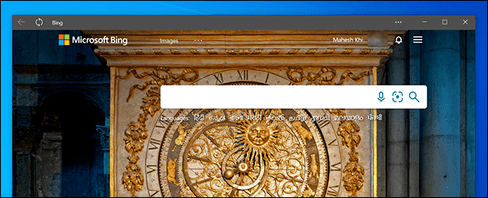
The website works exactly the same in your app as it does in your web browser. The only difference you will see is that there won’t be any browser elements in your application window such as bookmarks, address bar and other toolbars.

If you use Chrome, the web app will use the Chrome background. If you use Edge, the app will use Microsoft Edge. However, normal browser elements are removed so you get the most realistic app-like experience. These web applications have their own windows, taskbar icons, and shortcuts.
How web apps work

Convert Website into App with Google Chrome

You can use Chrome’s main menu to turn any website into a Windows app.

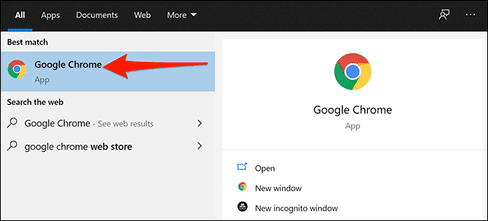
To start creating your web app, open the Start menu, search for “Google Chrome” and click on the first result.
Convert Website into App with Google Chrome

First, open any website that you want to turn into an app. Once the web page has finished loading, click the menu button (three dots) in the top right corner and choose More Tools > Create Shortcut.
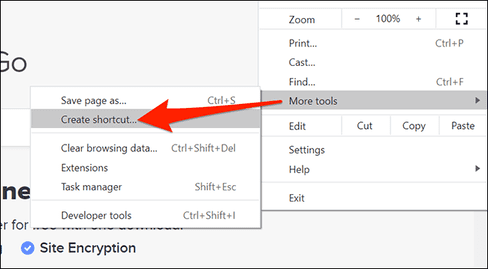
Create Shortcut

A prompt will appear asking to name your new app. After entering the name, enable the “Open as window” checkbox and click “Create”.
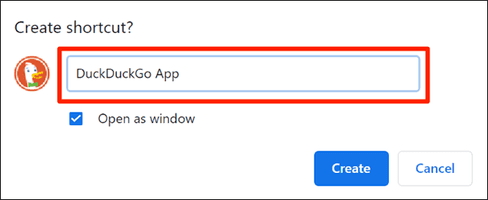
How to turn Website into App on Windows 3

Chrome will create an app for your website and add it to it Start Menu. You can now search and run your apps using the Start Menu.
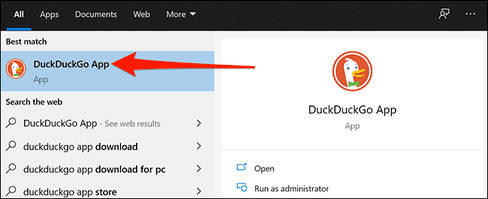
Open the website application from the Start Menu

Create web apps with Microsoft Edge

You can also use Microsoft Edge to turn a website into an app. It’s similar to how Chrome does. After all, Microsoft Edge and Chrome are both based on Chromium.

To create apps in this browser, open Microsoft Edge using the Start Menu.
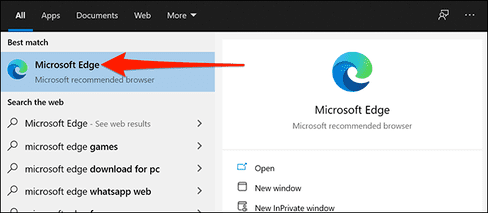
Create web apps with Microsoft Edge

Open the website you want to turn into an app. Then tap the top right 3-dot button and select Apps > Install this site as an app.
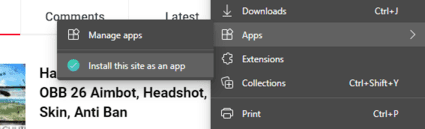
  Install this site as an app

Enter a new name for the application and press “Install”.
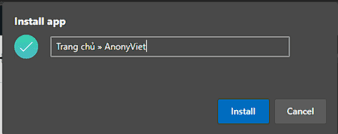
Turn your website into an app

Now, you can open the Anonyviet Website from the Start menu.

Create Shortcut for the application

Your web applications will have their own shortcuts in the Start Menu. You can also create Desktop Shortcuts for your applications to open quickly if you want.

If you use Chrome to create web apps, the Shortcuts are already created on your Desktop. But if you use Microsoft Edge, you will need to add the Shortcut to your Desktop manually.

To do that, open Start Menu, search for your app name, right click on the app and select “Pin to Start”.

You need to do this because Windows does not allow you to directly create Shortcuts for this type of application.
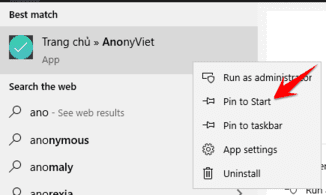
Pin to Start

Open the Start Menu again, you’ll see your apps on the right hand side. Drag it to the Desktop to create a new Shortcut.create new Shortcut
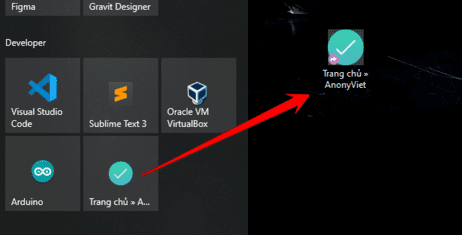
How to create Shortcut on Taskbar

You can also create taskbar shortcuts for your website applications.

First, you need to open the Start Menu, find the application name, right-click the application and select “Pin to Taskbar”.
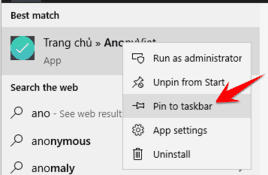
Pin to Taskbar

How to change the icon for the application

By default, Windows uses the site’s favorite icon as the icon for the application. But you can also change this icon if you want.

To change the icon for an application, you need to right-click on the application Shortcut and select “Properties”.
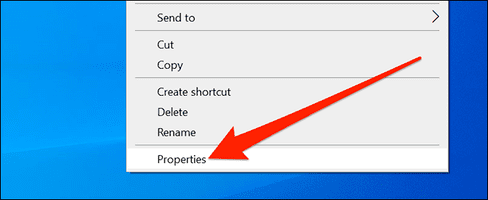
Properties

In the Properties window, select the “Shortcut” item and click the “Change icon” button.
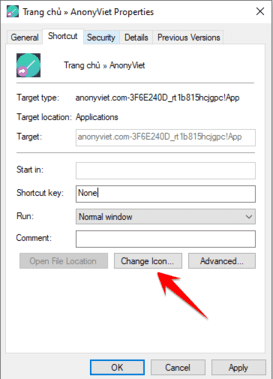
Change icon

Click “Browse” in the new window and select the icon you want to use for your application.

If you want to use one of Windows 10’s built-in icons, go to the C:\Windows\System32 folder and double-click the “imageres.dll” file in this folder.

You will see a list of Windows 10 built-in icons. Choose the one you want to use and click “OK”.
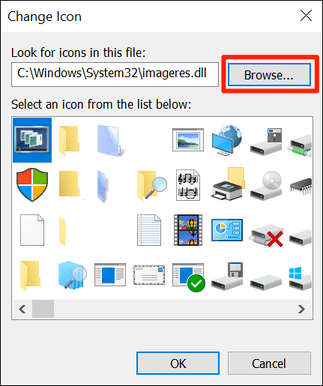
select windows application icon

To save your new settings, simply press “Apple” and select “OK.”

How to Uninstall Apps

Like with other regular apps, you can uninstall a web app if you no longer use it. This will not affect your account with the website and you will be able to continue using the website from your web browser.

To uninstall an app, you must first open it up.

Tap the top right three-dot button and select “Uninstall“.
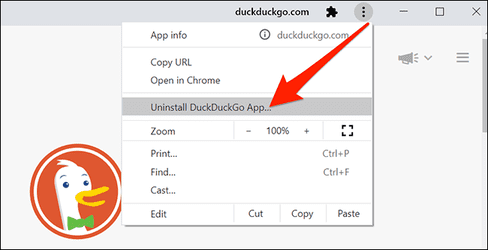
Uninstall

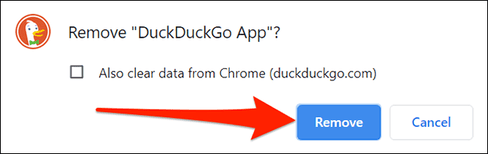
Click “Remove” to remove the app.

Remove

So that’s it then. This article has shown you how to turn Website into App, you can create as many applications as you like on Windows.


The article achieved: 5/5 – (100 votes)

Tags: AppturnWebsiteWindows
Previous Post

How to master Notification Manager apps on iPhone

Next Post

List of iOS 14 features borrowed from tweaks in Cydia

AnonyViet

AnonyViet

Related Posts

5+ prompts to create sparkling Christmas photos for mothers and babies at home
Tips

5+ prompts to create sparkling Christmas photos for mothers and babies at home

December 17, 2025
How to Clean Up Your Computer to Speed ​​Up Windows Faster
Tips

How to Clean Up Your Computer to Speed ​​Up Windows Faster

December 16, 2025
Share Snowfall Code for Website to celebrate Christmas
Tips

Share Snowfall Code for Website to celebrate Christmas

December 16, 2025
How to build web applications in just minutes with Youware
Tips

How to build web applications in just minutes with Youware

December 15, 2025
5 Free Adobe Illustrator Alternatives on Linux
Tips

5 Free Adobe Illustrator Alternatives on Linux

December 15, 2025
Review of Chongluadao utility – HieuPC’s new anti-fraud utility
Tips

Review of Chongluadao utility – HieuPC’s new anti-fraud utility

December 14, 2025
Next Post
List of iOS 14 features borrowed from tweaks in Cydia

List of iOS 14 features borrowed from tweaks in Cydia

0 0 votes
Article Rating
Subscribe
Login
Notify of
guest

guest

0 Comments
Oldest
Newest Most Voted
Inline Feedbacks
View all comments

Recent News

5+ prompts to create sparkling Christmas photos for mothers and babies at home

5+ prompts to create sparkling Christmas photos for mothers and babies at home

December 17, 2025
How to Clean Up Your Computer to Speed ​​Up Windows Faster

How to Clean Up Your Computer to Speed ​​Up Windows Faster

December 16, 2025
Share Snowfall Code for Website to celebrate Christmas

Share Snowfall Code for Website to celebrate Christmas

December 16, 2025
How to build web applications in just minutes with Youware

How to build web applications in just minutes with Youware

December 15, 2025
5+ prompts to create sparkling Christmas photos for mothers and babies at home

5+ prompts to create sparkling Christmas photos for mothers and babies at home

December 17, 2025
How to Clean Up Your Computer to Speed ​​Up Windows Faster

How to Clean Up Your Computer to Speed ​​Up Windows Faster

December 16, 2025
Share Snowfall Code for Website to celebrate Christmas

Share Snowfall Code for Website to celebrate Christmas

December 16, 2025
AnonyViet - English Version

AnonyViet

AnonyViet is a website share knowledge that you have never learned in school!

We are ready to welcome your comments, as well as your articles sent to AnonyViet.

Follow Us

Contact:

Email: anonyviet.com[@]gmail.com

Main Website: https://anonyviet.com

Recent News

5+ prompts to create sparkling Christmas photos for mothers and babies at home

5+ prompts to create sparkling Christmas photos for mothers and babies at home

December 17, 2025
How to Clean Up Your Computer to Speed ​​Up Windows Faster

How to Clean Up Your Computer to Speed ​​Up Windows Faster

December 16, 2025
  • Home
  • Home 2
  • Home 3
  • Home 4
  • Home 5
  • Home 6
  • Next Dest Page
  • Sample Page

trang chủ f168 nhà cái 78win https://www.qq8827.com/ https://go99.ae.org/ https://nohu90.bid/

No Result
View All Result
  • Home
  • News
  • Software
  • Knowledge
  • MMO
  • Tips
  • Security
  • Network
  • Office

trang chủ f168 nhà cái 78win https://www.qq8827.com/ https://go99.ae.org/ https://nohu90.bid/

wpDiscuz
0
0
Would love your thoughts, please comment.x
()
x
| Reply