• Home
  • News
  • Software
  • Knowledge
  • MMO
  • Tips
  • Security
  • Network
  • Office
AnonyViet - English Version
  • Home
  • News
  • Software
  • Knowledge
  • MMO
  • Tips
  • Security
  • Network
  • Office
No Result
View All Result
  • Home
  • News
  • Software
  • Knowledge
  • MMO
  • Tips
  • Security
  • Network
  • Office
No Result
View All Result
AnonyViet - English Version
No Result
View All Result

How to turn off Clipboard synchronization on Windows 10 to avoid data loss

AnonyViet by AnonyViet
February 3, 2023
in Tips
0

Windows 10 gives you access to clipboard history, pins frequently used data, and syncs across all devices. However, if you don’t want Microsoft to sync any sensitive data to the cloud, you can turn it off completely. You don’t want your links to be seen by Microsoft. Here’s how to turn off sync on Windows 10.

Join the channel Telegram of the AnonyViet 👉 Link 👈

How to turn off Clipboard synchronization on Windows 10 to avoid data loss

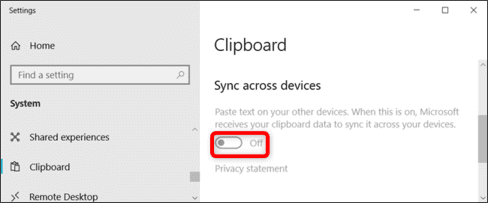
By default, Clipboard synchronization is disabled. If it’s already enabled, you can change clipboard features in Settings > System > Clipboard. But when you turn on the sync feature, it will automatically sync everything you copied.

Clipboard is the data you have copied or cut from the text without pasting it elsewhere, the copied data will be saved to the operating system’s clipboard. For example, if you type abc, then highlight the word abc and right-click and select copy, that action will save the word abc and the clipboard.

How to turn off Clipboard synchronization on Windows 10 to avoid data loss

To prevent any user on the computer from enabling this feature and accidentally syncing sensitive data like passwords with Microsoft’s servers, you can disable the feature entirely.

Windows 10 Home: Disable clipboard synchronization via Registry Editor

Before you start make sure you have a backup Registry. Because Registry Editor is a very powerful tool, and overusing it can make your system unstable or even inoperable. As long as you follow the steps below, your lover (PC) will be safe. It is recommended not to do this without the supervision of a loved one.

You should also create a System Restore before continuing. If there are any problems, you can go back to the time before creating that System Restore.

Oke, after completing the above steps, press Windows + R and type “regedit” to open the Registry Editor. Or type regedit at the Start button

open regedit

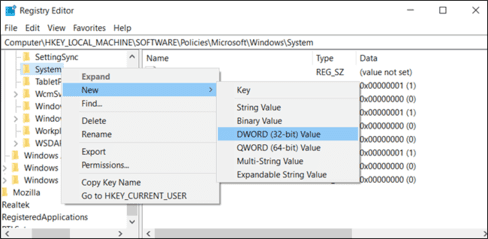
Go to this path:

HKEY_LOCAL_MACHINE\SOFTWARE\Policies\Microsoft\Windows\System

Here, right-click on the “System” folder, select New > DWORD (32bit) Value.
How to turn off Clipboard synchronization on Windows 10 to avoid data loss

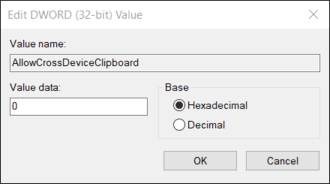
Name it “AllowCrossDeviceClipboard”. Double click and set the value to “0”.
How to turn off Clipboard synchronization on Windows 10 to avoid data loss

So that’s it then. To re-enable Clipboard sync, simply reset it to “1” or delete it.

Download the hack file

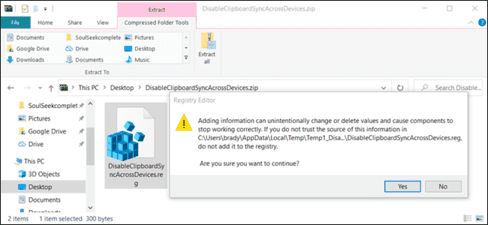
If you’re lazy and don’t want to edit it yourself or your loved ones aren’t really there, just download this file. Unzip the downloaded file, open the file “DisableClipboardSyncAcrossDevices.reg”, and agree to change the registry. If you want to turn it back on, open the file “EnableClipboardSyncAcrossDevices.reg” and do the same.
How to turn off Clipboard synchronization on Windows 10 to avoid data loss

You can also easily create your own registry hacks through this paragraph.

Windows 10 Pro and Enterprise: Disable clipboard sync via Group Policy

As above, create System Restore first and then do whatever you want.

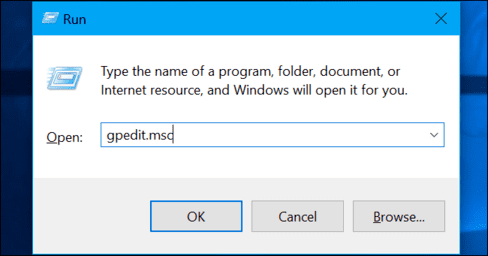
First, press Windows + R and type gpedit.msc, then press Enter.
How to turn off Clipboard synchronization on Windows 10 to avoid data loss

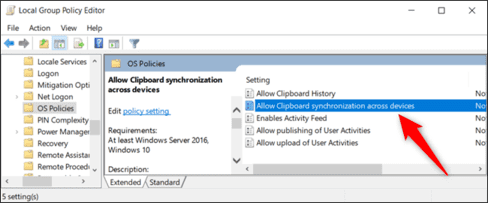
Go Computer Configuration > Administrative Templates > System > OS Policies.
How to turn off Clipboard synchronization on Windows 10 to avoid data loss

Open “Allow Synchronization across Devices”, select “Disabled” and click “OK” to save changes.

How to turn off Clipboard synchronization on Windows 10 to avoid data loss

That’s it, close the Group Policy Editor and you don’t need to restart your device.
disable clipboard sync windows 10

To re-enable clipboard sync, return to the link above. Double click on “Allow Synchronization across Devices” and switch it to “Not Configured” or “Enabled”.


The article achieved: 5/5 – (100 votes)

Tags: avoidClipboarddatalosssynchronizationturnWindows
Previous Post

How to Chat with Support Youtube to answer questions about the account

Next Post

How to activate the Google Assistant Vietnamese virtual assistant 100% success

AnonyViet

AnonyViet

Related Posts

Windows 7/8.1/10 users will be upgraded to Windows 11 for free
Tips

Windows 7/8.1/10 users will be upgraded to Windows 11 for free

July 30, 2026
Instructions for receiving ChatGPT Plus for 1 month for free in 2026
Tips

Instructions for receiving ChatGPT Plus for 1 month for free in 2026

July 28, 2026
Some reasons I don’t like Windows 11
Tips

Some reasons I don’t like Windows 11

July 27, 2026
Instructions on how to get free Facebook white ticks
Tips

Instructions on how to get free Facebook white ticks

July 27, 2026
Collection of Windows 11 wallpapers for computers and phones
Tips

Collection of Windows 11 wallpapers for computers and phones

July 26, 2026
Don’t install leaked Windows 11
Tips

Don’t install leaked Windows 11

July 25, 2026
Next Post
How to activate the Google Assistant Vietnamese virtual assistant 100% success

How to activate the Google Assistant Vietnamese virtual assistant 100% success

0 0 votes
Article Rating
Subscribe
Login
Notify of
guest

guest

0 Comments
Oldest
Newest Most Voted

Recent News

Windows 7/8.1/10 users will be upgraded to Windows 11 for free

Windows 7/8.1/10 users will be upgraded to Windows 11 for free

July 30, 2026
Instructions for receiving the free Certified LLM Security Expert certificate

Instructions for receiving the free Certified LLM Security Expert certificate

July 30, 2026
MSI laptops are not just for gamers: Which line is suitable for students, office workers and creative people?

MSI laptops are not just for gamers: Which line is suitable for students, office workers and creative people?

July 29, 2026
What is quantum resistant cryptography? Why must the Internet change?

What is quantum resistant cryptography? Why must the Internet change?

July 29, 2026
Windows 7/8.1/10 users will be upgraded to Windows 11 for free

Windows 7/8.1/10 users will be upgraded to Windows 11 for free

July 30, 2026
Instructions for receiving the free Certified LLM Security Expert certificate

Instructions for receiving the free Certified LLM Security Expert certificate

July 30, 2026
MSI laptops are not just for gamers: Which line is suitable for students, office workers and creative people?

MSI laptops are not just for gamers: Which line is suitable for students, office workers and creative people?

July 29, 2026
AnonyViet - English Version

AnonyViet

AnonyViet is a website share knowledge that you have never learned in school!

We are ready to welcome your comments, as well as your articles sent to AnonyViet.

Follow Us

Contact:

Email: anonyviet.com[@]gmail.com

Main Website: https://anonyviet.com

Recent News

Windows 7/8.1/10 users will be upgraded to Windows 11 for free

Windows 7/8.1/10 users will be upgraded to Windows 11 for free

July 30, 2026
Instructions for receiving the free Certified LLM Security Expert certificate

Instructions for receiving the free Certified LLM Security Expert certificate

July 30, 2026
  • Home
  • Home 2
  • Home 3
  • Home 4
  • Home 5
  • Home 6
  • Next Dest Page
  • Sample Page

say88 tỷ lệ kèo nhà cái kèo nhà cái 5 febet

No Result
View All Result
  • Home
  • News
  • Software
  • Knowledge
  • MMO
  • Tips
  • Security
  • Network
  • Office

say88 tỷ lệ kèo nhà cái kèo nhà cái 5 febet

wpDiscuz
0
0
Would love your thoughts, please comment.x
()
x
| Reply