• Home
  • News
  • Software
  • Knowledge
  • MMO
  • Tips
  • Security
  • Network
  • Office
AnonyViet - English Version
  • Home
  • News
  • Software
  • Knowledge
  • MMO
  • Tips
  • Security
  • Network
  • Office
No Result
View All Result
  • Home
  • News
  • Software
  • Knowledge
  • MMO
  • Tips
  • Security
  • Network
  • Office
No Result
View All Result
AnonyViet - English Version
No Result
View All Result

How to turn off AI on Gmail to absolutely protect personal data

AnonyViet by AnonyViet
April 8, 2026
in Software
0

How to turn off AI on Gmail is a topic of interest to many people as “smart” features increasingly invade the user experience. Not everyone likes the fact that Google automatically reads and suggests email content. If you want to find privacy again, follow the steps below.

📢 Join the channel Telegram belong to AnonyViet


👉 Go to Telegram AnonyViet

Update new articles, cool tools and IT tips fastest

Why do many people look to turn off AI features?

Although artificial intelligence (AI) is creeping into every corner of technology, not everyone is excited to receive it in their personal inbox. Many people feel uncomfortable when AI constantly “puts words into their mouths” through automatic editing features or answer suggestions.

Furthermore, the core issue lies in privacy. Users are concerned that sensitive emails will be used as data to train AI Google. Although technology companies are always committed to data protection, proactively turning off these features on the part of users still provides a greater sense of security and control.
How to turn off AI on Gmail to absolutely protect personal data
Why do many people look to turn off AI features?

Instructions on how to turn off AI on Gmail to secure data

Changing this setting will apply to the entire account. This means you only need to make it on one device, the changes will automatically sync to other devices. Below is the detailed process for each platform for you to apply the above method of turning off AI Gmail most accurately.

Operation on iPhone application

Step 1: Open the Gmail app on your iPhone or iPad. Select the three-line icon (Menu) in the upper left corner, then select Settings.

Step 2: Click on the item Smart replyturn the switch to off and then press Done. Return to the settings menu, select continue Smart compose and turn it off.
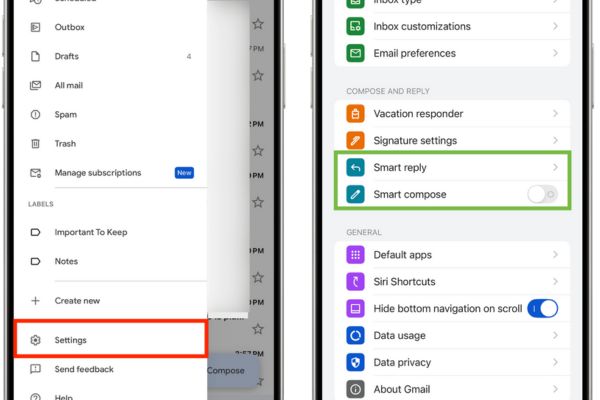
Turn off Smart reply and Smart compose

Step 3: To turn it off completely, at the main settings menu, select Data privacy (Data privacy). Here, turn off the item Smart features (Smart feature).
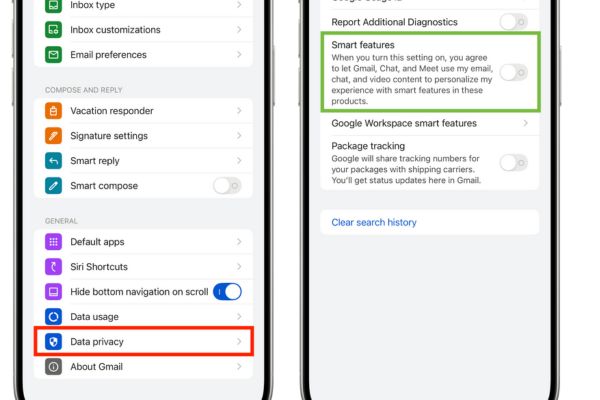
Turn off Smart features

Step 4: Also at this screen, click Google Workspace smart features (Google Workspace smart feature). Turn both off: Smart features in Google Workspace (Smart features in Google Workspace) and Smart features in other Google products (Smart features in other Google products). Press Done to save.
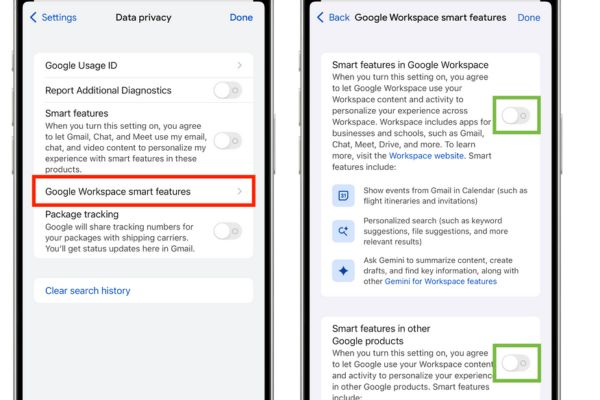
Click Google Workspace smart features

Operations on Android phones

Above Androidthe options are more compact in the account settings, helping to operate more quickly.

Step 1: Open the Gmail application, click on the three-line icon (Menu), select Settings and tap the email address you want to change.
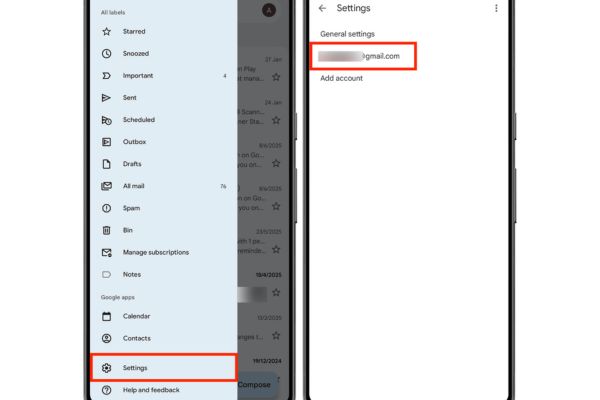
Select Settings
Select Settings

Step 2: Scroll down the list, find and uncheck (uncheck) the boxes: Smart features, Smart Compose and Smart Reply.

Step 3: Continue searching for Google Workspace Smart Features. Click on it and uncheck both subsections: “Smart features in Google Workspace” and “Smart features in other Google products”.
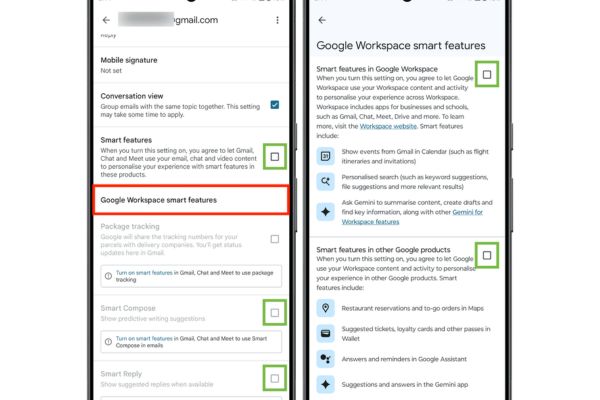
Find Google Workspace Smart Features

Operations on web browser

If you often work on your computer, turning off this feature on your web browser will be most intuitive and complete.

Step 1: Access your Gmail mailbox on the browser. Click the gear icon (Settings) in the upper right corner, select See all Settings (See all settings).

Step 2: At the card Generalscroll down and make the following changes:

  • Smart Compose section: Choose to turn off writing suggestions.
  • Smart Compose personalization section: Choose to turn off personalization.
  • Smart Reply section: Choose to turn off smart replies.
  • Smart features section: Uncheck the boxes in Gmail, Chat, and Meet.
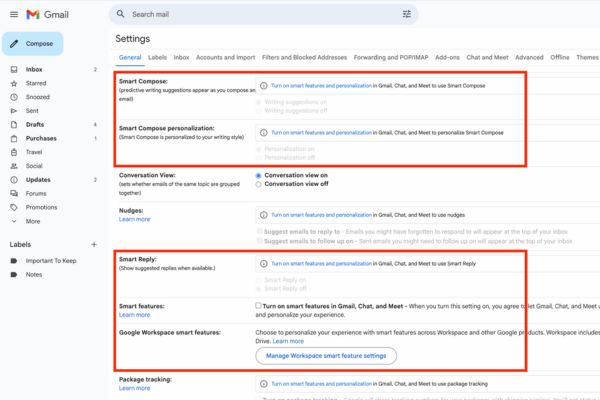
How to turn off AI on Gmail

Step 3: Click the button Manage Workspace smart feature settings. Select to turn off two smart features in Workspace and other products, then tap Save.
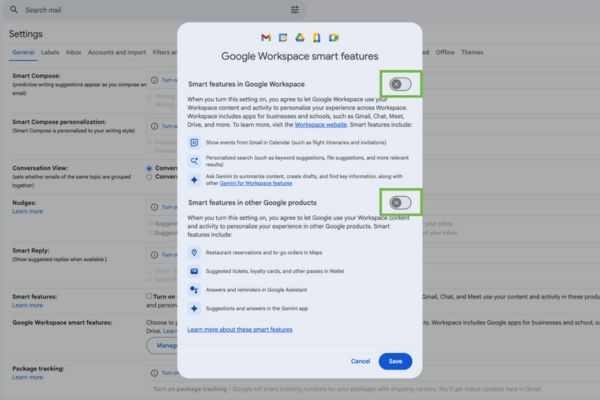
Turn off two smart feature options in Workspace

Step 4: Scroll to the bottom of the settings page and press the button Save Changes to complete the process.
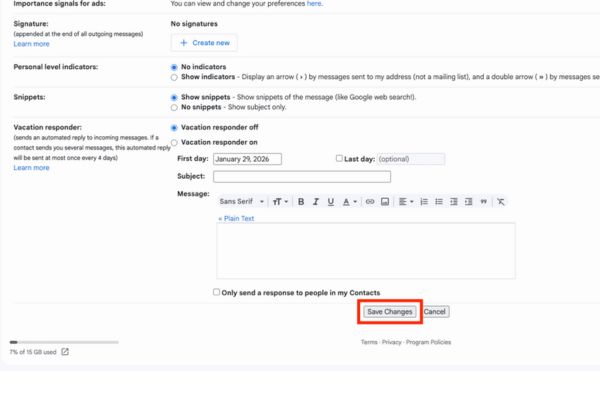
Click the Save Changes button

Conclusion

After implementation How to turn off AI on Gmailyou will no longer be bothered by mechanical suggestions. Enjoy the freedom to compose emails according to your own style and wishes. Wish you success!


Tags: absolutelydataGmailpersonalProtectturn
Previous Post

[Godot RPG]#5: Autotile

Next Post

How to Copy multiple times without overwriting old data on Windows 10

AnonyViet

AnonyViet

Related Posts

Is Xiaomi Redmi A7 a valuable choice in the popular smartphone segment?
Software

Is Xiaomi Redmi A7 a valuable choice in the popular smartphone segment?

July 14, 2026
Compact design, durable battery, excellent camera: Review of OPPO Reno 16 Pro 5G
Software

Compact design, durable battery, excellent camera: Review of OPPO Reno 16 Pro 5G

July 12, 2026
Download the free 3D Pinball Space Cadet game on the App Store now
Software

Download the free 3D Pinball Space Cadet game on the App Store now

July 12, 2026
Learn new skills with iPad 11 (A16) 128GB: when is enough, when should you upgrade to a higher level?
Software

Learn new skills with iPad 11 (A16) 128GB: when is enough, when should you upgrade to a higher level?

July 10, 2026
Instructions for taking free buses in Ho Chi Minh City from July 2026
Software

Instructions for taking free buses in Ho Chi Minh City from July 2026

July 9, 2026
3 steps to change Zalo number when sim is revoked
Software

3 steps to change Zalo number when sim is revoked

July 8, 2026
Next Post
How to Copy multiple times without overwriting old data on Windows 10

How to Copy multiple times without overwriting old data on Windows 10

0 0 votes
Article Rating
Subscribe
Login
Notify of
guest

guest

0 Comments
Oldest
Newest Most Voted

Recent News

Who leaked Windows 11?

Who leaked Windows 11?

July 18, 2026
Instructions for Getting Netflix 30 Days Free to Watch Movies

Instructions for Getting Netflix 30 Days Free to Watch Movies

July 18, 2026
How to create a website introducing yourself using Bio Link for free

How to create a website introducing yourself using Bio Link for free

July 17, 2026
Hippie OSINT Toolkit: The ultimate information investigation toolkit

Hippie OSINT Toolkit: The ultimate information investigation toolkit

July 17, 2026
Who leaked Windows 11?

Who leaked Windows 11?

July 18, 2026
Instructions for Getting Netflix 30 Days Free to Watch Movies

Instructions for Getting Netflix 30 Days Free to Watch Movies

July 18, 2026
How to create a website introducing yourself using Bio Link for free

How to create a website introducing yourself using Bio Link for free

July 17, 2026
AnonyViet - English Version

AnonyViet

AnonyViet is a website share knowledge that you have never learned in school!

We are ready to welcome your comments, as well as your articles sent to AnonyViet.

Follow Us

Contact:

Email: anonyviet.com[@]gmail.com

Main Website: https://anonyviet.com

Recent News

Who leaked Windows 11?

Who leaked Windows 11?

July 18, 2026
Instructions for Getting Netflix 30 Days Free to Watch Movies

Instructions for Getting Netflix 30 Days Free to Watch Movies

July 18, 2026
  • Home
  • Home 2
  • Home 3
  • Home 4
  • Home 5
  • Home 6
  • Next Dest Page
  • Sample Page

say88 tỷ lệ kèo nhà cái kèo nhà cái 5 febet

No Result
View All Result
  • Home
  • News
  • Software
  • Knowledge
  • MMO
  • Tips
  • Security
  • Network
  • Office

say88 tỷ lệ kèo nhà cái kèo nhà cái 5 febet

wpDiscuz
0
0
Would love your thoughts, please comment.x
()
x
| Reply