• Home
  • News
  • Software
  • Knowledge
  • MMO
  • Tips
  • Security
  • Network
  • Office
AnonyViet - English Version
  • Home
  • News
  • Software
  • Knowledge
  • MMO
  • Tips
  • Security
  • Network
  • Office
No Result
View All Result
  • Home
  • News
  • Software
  • Knowledge
  • MMO
  • Tips
  • Security
  • Network
  • Office
No Result
View All Result
AnonyViet - English Version
No Result
View All Result

How to split your MacBook screen in half to work more efficiently

AnonyViet by AnonyViet
December 11, 2023
in Tips
0

Do you know How to split MacBook screen in half to be able to work with multiple applications at the same time? This is a very convenient and useful feature for people who often face many different tasks on the computer. By splitting the screen in half, you can take advantage of maximum display space, easily switch between applications and increase productivity.

Join the channel Telegram belong to AnonyViet 👉 Link 👈

How to split MacBook screen in half

Use the Split View feature

Split View is a feature built into the macOS operating system, allowing you to split the screen in half MacBook into two equal parts or different proportions, depending on your preference. To use this feature, you need to follow these steps:

Step 1: Start the applications that you need to use to split the MacBook screen in half.

Step 2: Click the green button in the upper left corner of the application window. You will see two options: Tile Window to Left of Screen (Place the window to the left side of the screen) and Tile Window to Right of Screen (Place the window to the right side of the screen). You choose which position is right for your job.
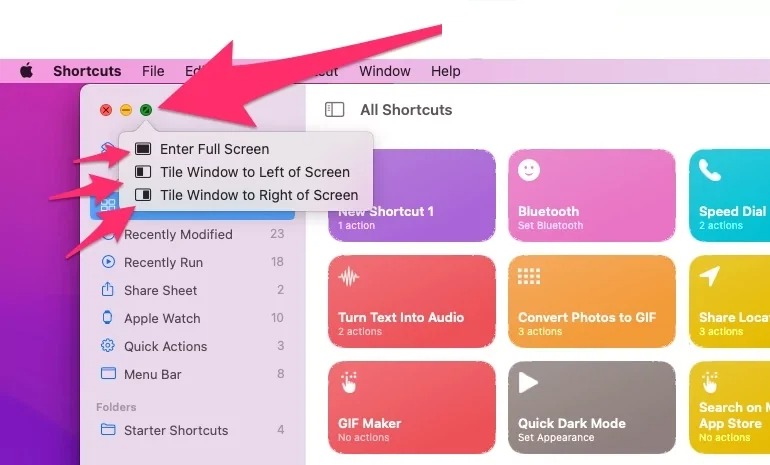
How to split MacBook screen in half
Click the green button

Step 3: The screen will be divided into two halves, one half displaying a different application.

Step 4: You can change the size of each half by dragging the screen separation bar in the middle.
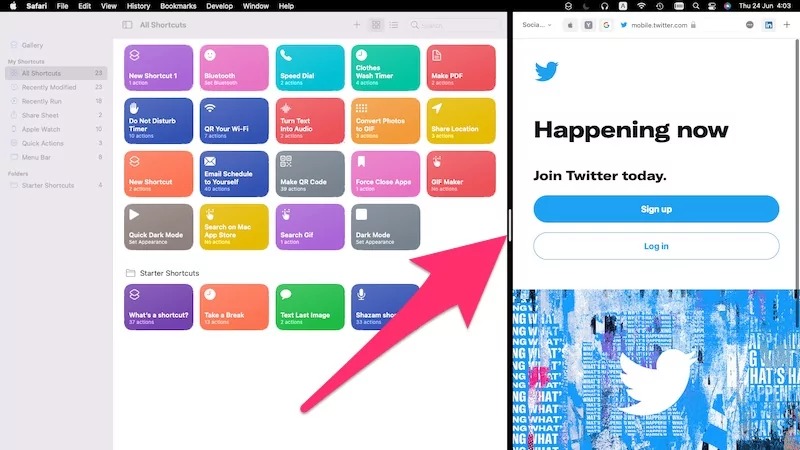
How to split MacBook screen in half
Drag the screen separation bar to change the ratio

Step 5: To exit Split View mode, simply drag the application window out of the screen split or press the Esc key.

Use Mission Control

You can resize application windows on your MacBook screen using Mission Control, a feature of Apple's macOS operating system. Mission Control helps you manage and control multiple application windows effectively on the screen.

You can also quickly switch between apps and see all the open windows on the MacBook screen because they are clearly categorized.

Here's how:

Step 1: Turn on the applications you want to display on the screen.

Step 2: Press the F3 key or tap four fingers on the trackpad to activate Mission Control.
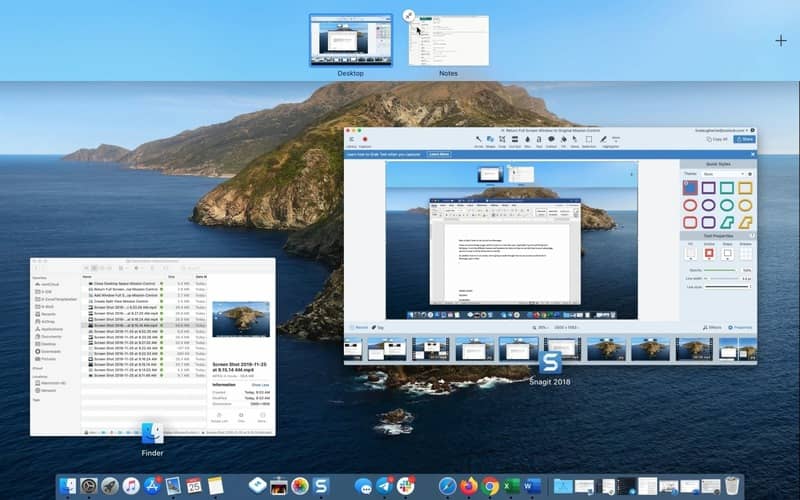
How to split MacBook screen in half
Activate Mission Control.

Step 3: In the Mission Control screen, drag application windows to the screen areas you like.
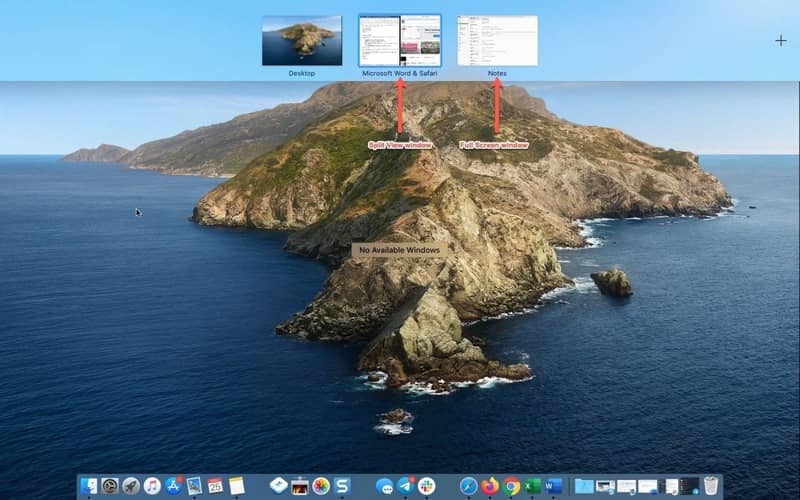
How to split MacBook screen in half
Drag application windows to screen areas

Step 4: Mission Control will automatically resize windows to fit the screen you have selected.

What is the effect of splitting the MacBook screen in half?

When you split your MacBook screen in half, you'll find that you can work with multiple programs more easily, instead of using just one window for each program and having to switch constantly. Specifically, you will get the following benefits:

More efficient at work

You can conveniently multitask, such as browsing the web in one window to find relevant information for a document you're editing in another window on the screen.

The space of the MacBook screen is optimally utilized

MacBooks have smaller screens than desktops, so when you split the screen in half, you won't waste space in case you're not using an external monitor.

Productivity is enhanced

When you use multiple apps at once, you get work done faster and more efficiently.

Learning is more convenient

If you are taking online courses and want to refer to more information while still watching the video of that course, you can split the MacBook screen in half very quickly.

Epilogue

How to split MacBook screen in half is a useful trick that helps you work more efficiently with multiple applications at the same time. Splitting your screen not only saves time and workspace, but also helps you focus and improve productivity. Try applying the MacBook split screen method to your work and feel the difference!


The article scored: 5/5 – (100 votes)

Tags: efficientlyMacBookscreensplitwork
Previous Post

How to get 2TB Google Drive for 6 months without spending any money

Next Post

Super easy instructions for creating GTA V style photos online

AnonyViet

AnonyViet

Related Posts

How to change the default font on Windows 10
Tips

How to change the default font on Windows 10

April 13, 2026
5 tips for using a Browser to replace an App (helps save RAM, time and money)
Tips

5 tips for using a Browser to replace an App (helps save RAM, time and money)

April 13, 2026
How to make funny MeMe photos without Photoshop within 10 seconds
Tips

How to make funny MeMe photos without Photoshop within 10 seconds

April 11, 2026
How to quickly design your own Logo without Photoshop
Tips

How to quickly design your own Logo without Photoshop

April 10, 2026
How to convert Website into App on Windows
Tips

How to convert Website into App on Windows

April 9, 2026
Instructions for getting 3 months of Adobe Express Pro for free
Tips

Instructions for getting 3 months of Adobe Express Pro for free

April 9, 2026
Next Post
Super easy instructions for creating GTA V style photos online

Super easy instructions for creating GTA V style photos online

0 0 votes
Article Rating
Subscribe
Login
Notify of
guest

guest

0 Comments
Oldest
Newest Most Voted
Inline Feedbacks
View all comments

Recent News

Reputable LG repair service in Hanoi & Ho Chi Minh City with LGservicecenter

Reputable LG repair service in Hanoi & Ho Chi Minh City with LGservicecenter

April 21, 2026
Japanese Watch Week: Choose the color that suits your destiny, start the new year well at Mobile World

Japanese Watch Week: Choose the color that suits your destiny, start the new year well at Mobile World

April 20, 2026
4K Video Downloader Plus – Tool to download YouTube videos on macOS

4K Video Downloader Plus – Tool to download YouTube videos on macOS

April 20, 2026
How to add Watermark to Google Docs to protect copyright

How to add Watermark to Google Docs to protect copyright

April 19, 2026
Reputable LG repair service in Hanoi & Ho Chi Minh City with LGservicecenter

Reputable LG repair service in Hanoi & Ho Chi Minh City with LGservicecenter

April 21, 2026
Japanese Watch Week: Choose the color that suits your destiny, start the new year well at Mobile World

Japanese Watch Week: Choose the color that suits your destiny, start the new year well at Mobile World

April 20, 2026
4K Video Downloader Plus – Tool to download YouTube videos on macOS

4K Video Downloader Plus – Tool to download YouTube videos on macOS

April 20, 2026
AnonyViet - English Version

AnonyViet

AnonyViet is a website share knowledge that you have never learned in school!

We are ready to welcome your comments, as well as your articles sent to AnonyViet.

Follow Us

Contact:

Email: anonyviet.com[@]gmail.com

Main Website: https://anonyviet.com

Recent News

Reputable LG repair service in Hanoi & Ho Chi Minh City with LGservicecenter

Reputable LG repair service in Hanoi & Ho Chi Minh City with LGservicecenter

April 21, 2026
Japanese Watch Week: Choose the color that suits your destiny, start the new year well at Mobile World

Japanese Watch Week: Choose the color that suits your destiny, start the new year well at Mobile World

April 20, 2026
No Result
View All Result
  • Home
  • News
  • Software
  • Knowledge
  • MMO
  • Tips
  • Security
  • Network
  • Office

wpDiscuz
0
0
Would love your thoughts, please comment.x
()
x
| Reply