• Home
  • News
  • Software
  • Knowledge
  • MMO
  • Tips
  • Security
  • Network
  • Office
AnonyViet - English Version
  • Home
  • News
  • Software
  • Knowledge
  • MMO
  • Tips
  • Security
  • Network
  • Office
No Result
View All Result
  • Home
  • News
  • Software
  • Knowledge
  • MMO
  • Tips
  • Security
  • Network
  • Office
No Result
View All Result
AnonyViet - English Version
No Result
View All Result

How to set Password expiration date in Windows for more security

AnonyViet by AnonyViet
February 3, 2023
in Tips
0

Changing your password regularly is one of the things you need to do to secure your account. Microsoft has integrated the feature to set the “lifetime” for Passwords for a long time. If it is time to expire Password, you must change to a new Password. This article will guide you to set an expiration date for your Windows password in the simplest way.

Join the channel Telegram belong to AnonyViet 👉 Link 👈

Depending on whether you’re using a local account or a Microsoft account to sign in to your PC, the steps will vary.

Set Password expiration date for Microsoft account

On Windows 10, you may have noticed that Microsoft wants you to use a Microsoft account to sign in instead of a local account.

Therefore, you can set a Password expiration date for your Microsoft account. You will be prompted to reset your Password every 72 days. You must set a new password before you can enable or disable this setting.

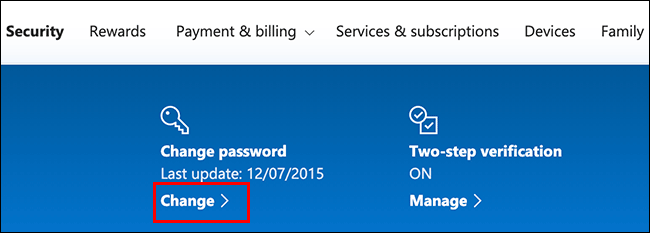
To do that, go to account protection section and login. In the “Change password” section at the top, select “Change”.
How to set Password expiration date in Windows for more security

You will be prompted to provide your current password, as well as a new password.

To set a password expiration date, click “Make Me Change My Password Every 72 Days” to enable this feature.

Press “Save” to apply new password and expiration date.How to set Windows password expiration dateIf the change is successful, you will return to the Microsoft account security page. Sign back in to Microsoft and sign out of Windows to use the new password.
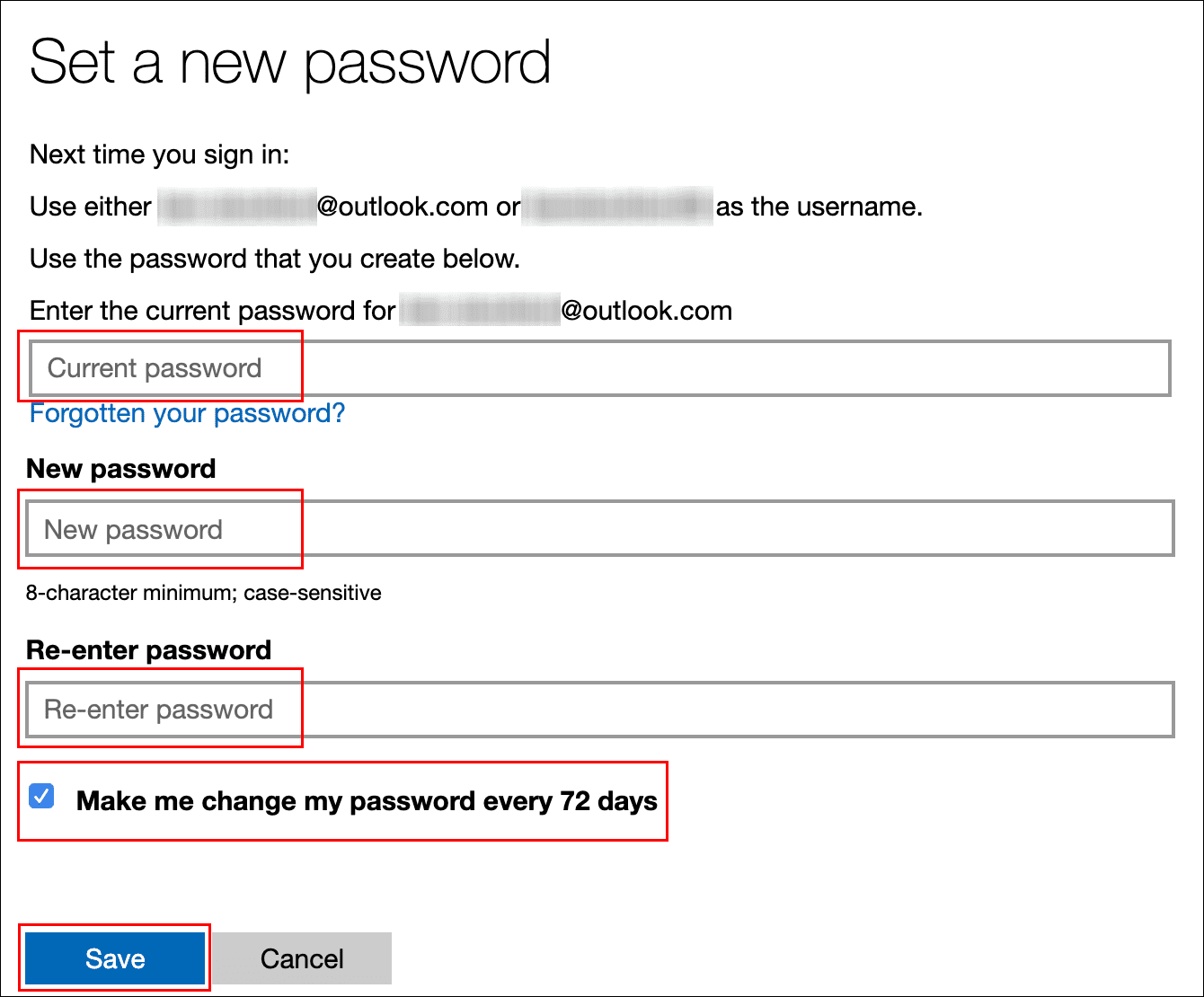
The password for your Microsoft account will expire later 72 days and you will be prompted to change your password the next time you log in.

Set password expiration for Local account

If you use a local account on your PC and not Microsoft, you can still do this.

Activate password reset date limit

First, you must disable feature “password never expires”

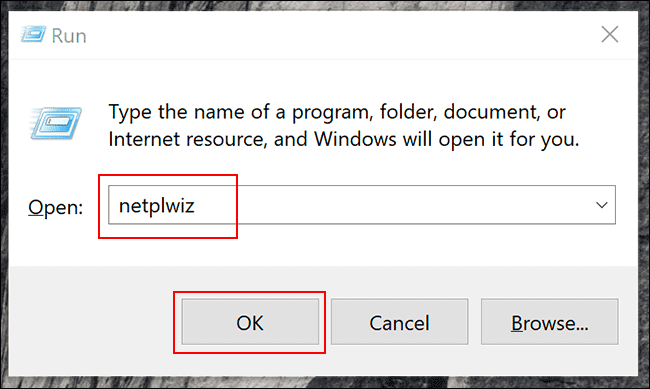
Click How to set Password expiration date in Windows 10 to open the dialog box “Run”. Import “netplwiz”and press “Ok” or Enter to open User Accounts.
netplwiz

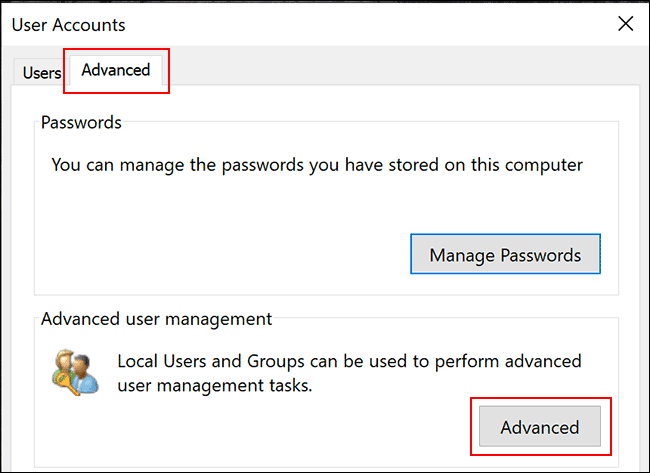
In the Advanced tab, press “Advanced” open “Advanced User Management”.
Advanced

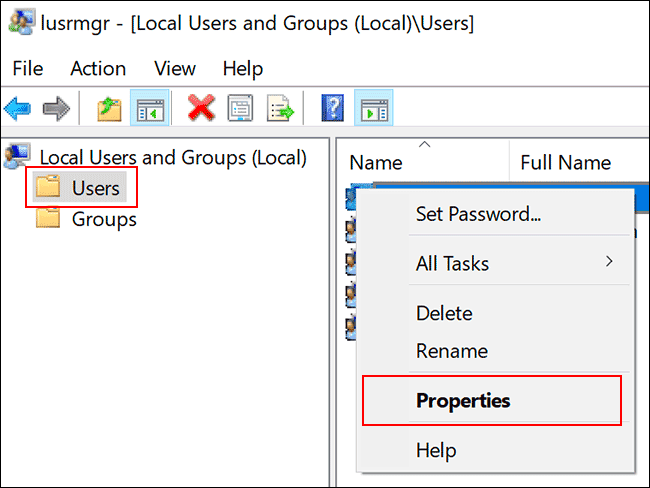
Here, click “User” in the menu on the left, and right-click your account. Press “Properties” to enter advanced user settings.
How to set Password expiration date in Windows for more security

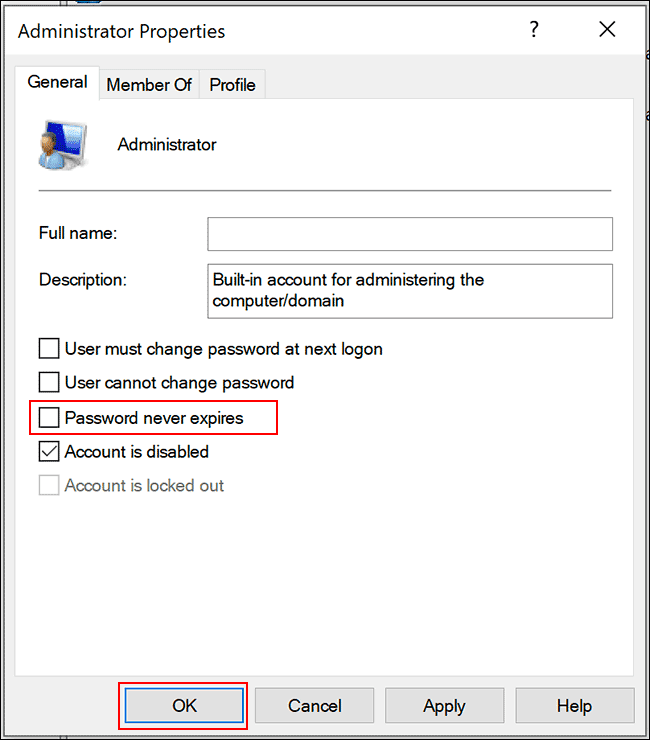
In the “Properties” menu, uncheck “Password Never Expires”, and click “Ok”.
Password Never Expires

Using Local Group Policy Editor

Unlike a Microsoft account, you can set your password to expire anytime you want.

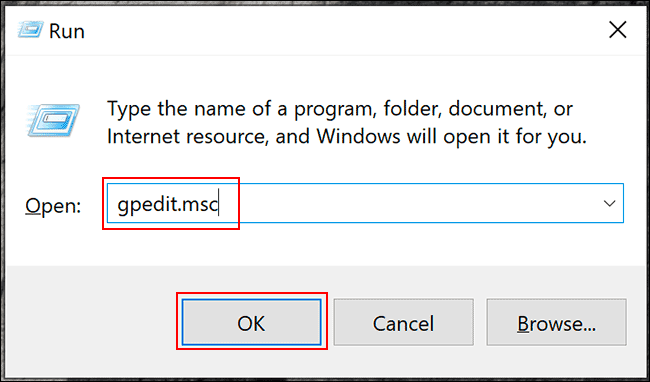
The default on Windows 10 is 42 days. If your PC is running Windows 10 Pro, Education, or Enterprise, press Windows + R and type gpedit.msc to open the Local Group Policy Editor.
Use Local Group Policy Editor to set password expiration

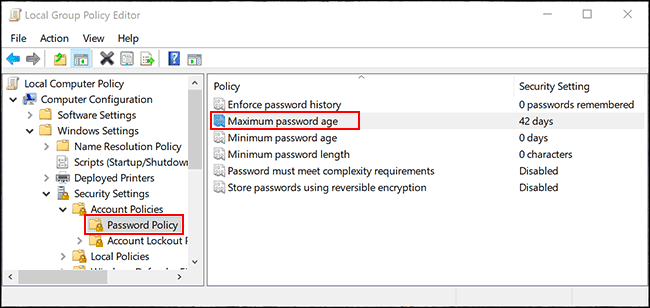
In the menu on the left, go to Coputer Configuration > Windows Settings > Security > Settings > Account Policies > Password Policyand double-tap “Maximum Password Age”.
Maximum Password Age

Change number “42” into as many days as you want, and press “Ok” to save settings.
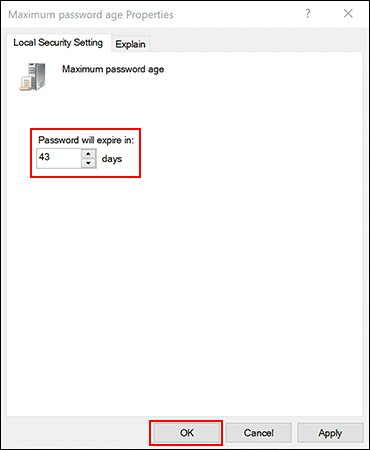
Maximum Password Age windows

After this time has elapsed, Windows will prompt you to reset your password.

Using Windows PowerShell

If you are using Windows 10 Home, you must use PowerShell or Command Prompt to set the age for the password. You can also use it instead of the Local Group Policy Editor.

Right-click the Start menu, press “Windows PowerShell (Admin)” or “Command Prompt (Admin)”depending on your version of Windows.
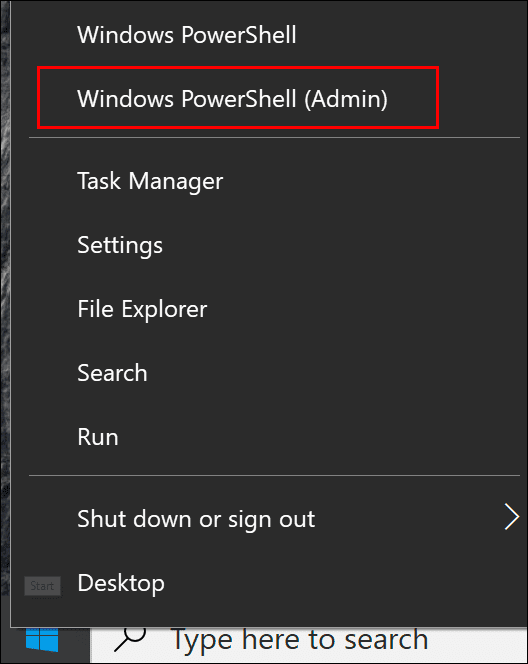
Windows PowerShell

In the PowerShell window, type “net accounts” to find the current password age for your account.

If you want to change it, enter “net accounts /maxpwage:00”replace 00 with the date you want.
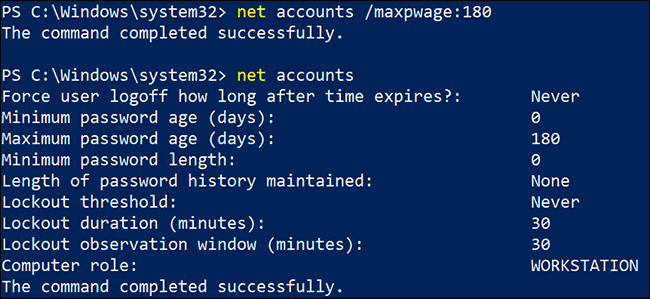
net accounts

It will apply to all local accounts on your PC. If in the process of changing your password you forget it, please enter this paragraph to reset.


The article achieved: 5/5 – (100 votes)

Tags: DateexpirationPasswordsecuritysetWindows
Previous Post

Why should you delete Office 2003 on your computer right now?

Next Post

PUBG Mobile – 10 game tips you may not know

AnonyViet

AnonyViet

Related Posts

How to write Shell Script in Linux/Unix
Tips

How to write Shell Script in Linux/Unix

December 6, 2025
How to completely uninstall WSL on Windows 11?
Tips

How to completely uninstall WSL on Windows 11?

December 6, 2025
Kinh nghiệm mua Laptop cho sinh viĂȘn nhĂłm ngĂ nh káșż toĂĄn, kinh táșż, xĂŁ hội

Tips

Kinh nghiệm mua Laptop cho sinh viĂȘn nhĂłm ngĂ nh káșż toĂĄn, kinh táșż, xĂŁ hội


December 5, 2025
8 tips for more successful PowerPoint presentations
Tips

8 tips for more successful PowerPoint presentations

December 4, 2025
Chrome extensions to improve productivity in 2021
Tips

Chrome extensions to improve productivity in 2021

December 2, 2025
How to create photos that run KPIs while crying using Gemini for the 12 zodiac animals
Tips

How to create photos that run KPIs while crying using Gemini for the 12 zodiac animals

December 1, 2025
Next Post
PUBG Mobile – 10 game tips you may not know

PUBG Mobile - 10 game tips you may not know

0 0 votes
Article Rating
Subscribe
Login
Notify of
guest

guest

0 Comments
Oldest
Newest Most Voted
Inline Feedbacks
View all comments

Recent News

How to create Mind Map and Flowchart using ChatGPT is super simple

How to create Mind Map and Flowchart using ChatGPT is super simple

December 7, 2025
Free Gemini Google certification exam guide and Answers

Free Gemini Google certification exam guide and Answers

December 6, 2025
How to write Shell Script in Linux/Unix

How to write Shell Script in Linux/Unix

December 6, 2025
How to completely uninstall WSL on Windows 11?

How to completely uninstall WSL on Windows 11?

December 6, 2025
How to create Mind Map and Flowchart using ChatGPT is super simple

How to create Mind Map and Flowchart using ChatGPT is super simple

December 7, 2025
Free Gemini Google certification exam guide and Answers

Free Gemini Google certification exam guide and Answers

December 6, 2025
How to write Shell Script in Linux/Unix

How to write Shell Script in Linux/Unix

December 6, 2025
AnonyViet - English Version

AnonyViet

AnonyViet is a website share knowledge that you have never learned in school!

We are ready to welcome your comments, as well as your articles sent to AnonyViet.

Follow Us

Contact:

Email: anonyviet.com[@]gmail.com

Main Website: https://anonyviet.com

Recent News

How to create Mind Map and Flowchart using ChatGPT is super simple

How to create Mind Map and Flowchart using ChatGPT is super simple

December 7, 2025
Free Gemini Google certification exam guide and Answers

Free Gemini Google certification exam guide and Answers

December 6, 2025
  • Home
  • Home 2
  • Home 3
  • Home 4
  • Home 5
  • Home 6
  • Next Dest Page
  • Sample Page

trang chá»§ f168 nhĂ  cĂĄi 78win https://www.qq8827.com/

No Result
View All Result
  • Home
  • News
  • Software
  • Knowledge
  • MMO
  • Tips
  • Security
  • Network
  • Office

trang chá»§ f168 nhĂ  cĂĄi 78win https://www.qq8827.com/

wpDiscuz
0
0
Would love your thoughts, please comment.x
()
x
| Reply