

You want to hang up the computer to play games or download and want to schedule the computer to turn off automatically after 3 hours. Very simply, WINdows has a built-in computer shutdown timer or you can use 3rd party software. In this article, I will show you how to schedule sleep mode in Windows.
| Join the channel Telegram of the AnonyViet 👉 Link 👈 |

How to schedule a computer shutdown in Windows
You can schedule shutdown mode in Windows to shut down your computer after a certain amount of time. The simplest way to do that is through the Command Prompt, using the command shutdown of Windows.
First, launch Command Prompt by pressing Windows + R and typing cmd then Enter.
Now enter the following command:
Shutdown -s -t 3600
The -s parameter is shutdown and the -t 3600 parameter is to wait 3600 seconds, which is equivalent to one hour. Just by typing this command, you can quickly schedule a shutdown.
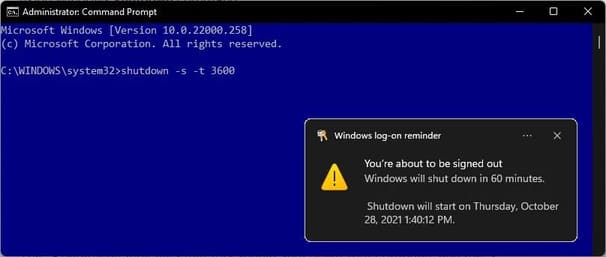
Create timer shortcut
If you want to use the timer frequently, you can create a shortcut to quickly turn on the timer. You can create a timer shortcut without having to open the Command Prompt.
You can also create a shortcut to cancel the timer.
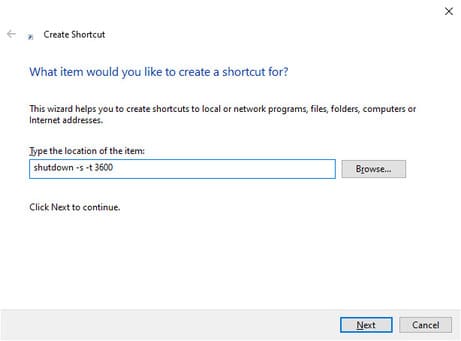
First, let’s create a new shortcut. Right click on your desktop and select New > Shortcuts. Copy and paste the following command:
Shutdown -s -t 3600
Name the shortcut and click finish.
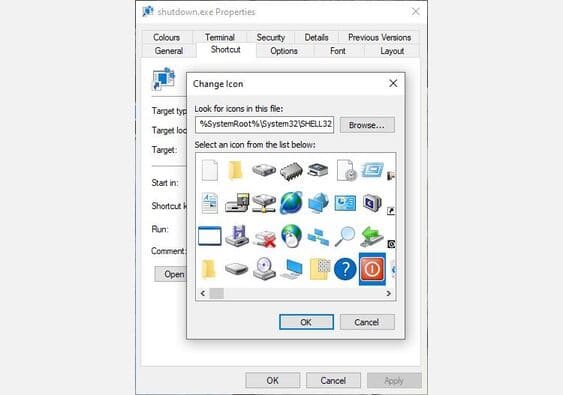
To change the icon, right click on the shortcut, select Propertiesthen click Change Icon. Choose the icon you like.
Create a shortcut to turn off the timer
You can create a shortcut to cancel the sleep timer.
Right click on your desktop and select New > Shortcuts. Copy and paste the following command:
Shutdown -a
Name the shortcut then click finish. Like the shortcut above, you can change the icon to easily distinguish 2 different shortcuts.
Dedicated shutdown timer app for Windows 10
If you do not want to use shortcuts or simply prefer a graphical user interface, then you can use some of the following specialized software.
1. SleepTimer Ultimate
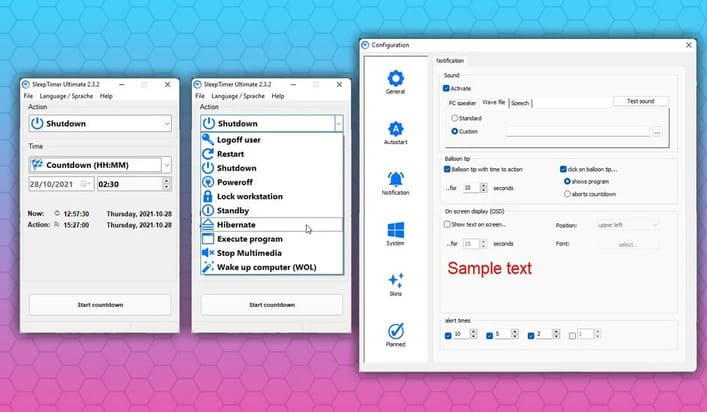
SleepTimer Ultimate is a free timer program with tons of functions.
You can use SleepTimer Ultimate to set multiple timers, each with different tasks. For example, you can set a specific date and time in the future for your computer to shut down or log out of your Windows account if the CPU reaches a certain level.
Another cool feature of SleepTimer Ultimate is the timer program launcher. You can set the program to launch after a specific amount of time. Plus, you can add a customizable timer overlay (like a widget) to your screen to keep track of the timer, making sure you know when the time is up.
Download: SleepTimer Ultimate for Windows (Free of charge)
2. Sleep Timer
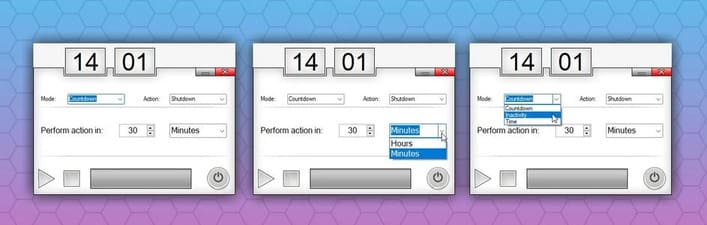
Sleep Timer takes a more basic approach than SleepTimer Ultimate. However, Sleep Timer has what you want: you set a timer, leave the computer, and it will turn off at the appropriate time.
The app’s developer originally envisioned Sleep Timer as the perfect tool for people who wanted to listen to music while they slept, but didn’t want to leave it on all night.
There are also timed reboot or hibernate options, and you can manually shutdown it after a period of inactivity.
Download: Sleep Timer for Windows (Free of charge)
3. Adios
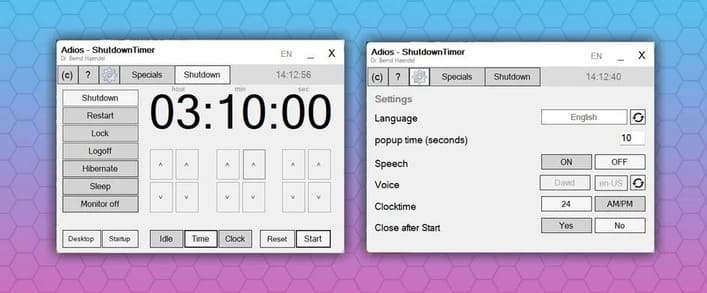
Adios is a free timer for Windows with a handy and easy to use user interface. There are options for timer shutdown, reboot, user logout and screen off. You use the up and down arrows to set the time.
You’ll also find an option to enable voice notifications for the shutdown timer, which is a pretty cool option.
Like SleepTimer Ultimate, you can use Adios to schedule programs to run.
Download: Adios for Windows (Free of charge)
Change sleep mode timer on Laptop
Windows 10 has a sleep timer and you probably already use it. When you are not using your computer, laptop, it will automatically go to sleep mode after a certain period of time.
To edit the amount of time before going to sleep, type sleep go to the Start Menu and select the first one. You can edit the sleep timer from this menu.
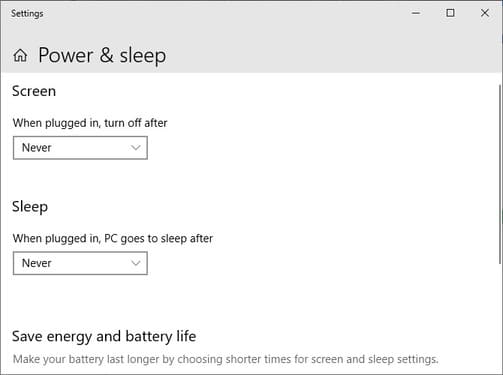
There are two things to know about these options:
- Screen: Set screen off time
- Sleep: Set time to sleep
The first option does not put your entire computer to sleep. Instead, only the screen turns off. You can use the “Sleep” option to specify a specific amount of time before the system goes into hibernation.
The sleep settings are similar in Windows 11, although the settings menu is different from Windows 10.
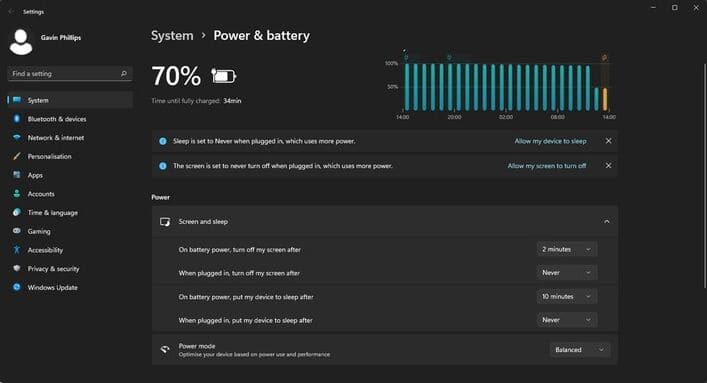
In addition, you can also set the Windows 10 screen off time here.








