• Home
  • News
  • Software
  • Knowledge
  • MMO
  • Tips
  • Security
  • Network
  • Office
AnonyViet - English Version
  • Home
  • News
  • Software
  • Knowledge
  • MMO
  • Tips
  • Security
  • Network
  • Office
No Result
View All Result
  • Home
  • News
  • Software
  • Knowledge
  • MMO
  • Tips
  • Security
  • Network
  • Office
No Result
View All Result
AnonyViet - English Version
No Result
View All Result

How to remove all formatting in Microsoft Word

AnonyViet by AnonyViet
January 13, 2023
in Office
0

If you’ve applied different formats to the content in your document, but it’s not what you want, you can easily remove the formatting from the selected content in your document. Microsoft Word.

Join the channel Telegram of the AnonyViet 👉 Link 👈

How to remove all formatting in Microsoft Word

How to remove all formatting in Microsoft Word

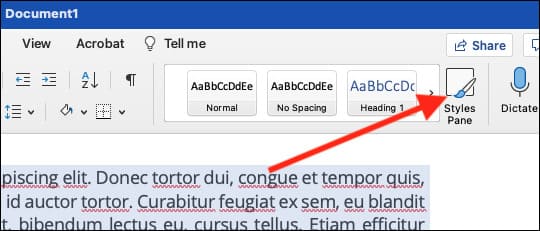
To remove text formatting, select the text that you want to remove formatting from. To select all the text in your document, press the keyboard shortcut Ctrl + A on Windows or Command + A on Mac. Next access the tab Homein section StylesPress the button “Styles Pane“.
How to remove all formatting in Microsoft Word 5

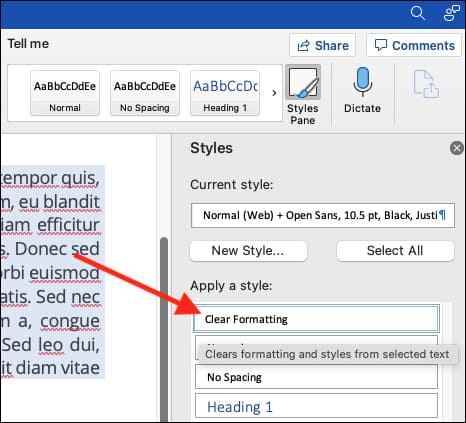
The Styles menu will pop up on the right side of your screen. Select “Clear Formatting“at the top of the list”Apply a style“.
How to remove all formatting in Microsoft Word 6

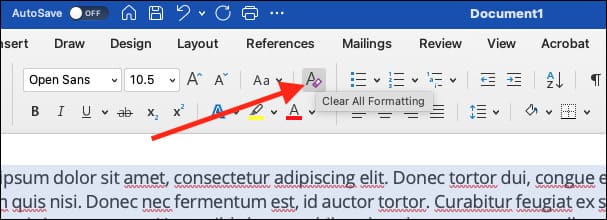
You can also select the content that you want to remove the formatting and click the button Clear All Formatting in section Font of tab Home.
How to remove all formatting in Microsoft Word 7

Even if you press Ctrl + A on Windows or Command + A on Mac to select all content in your document, the content in the Text Box, headers and footers must all be de-formatted separately.

If you can’t remove formatting from anything in your document, the document may already be protected from formatting changes. In that case, you cannot clear the formatting or reformat the document until the password is removed.

In addition, you can also read this post to know how to attach a Virus file to Microsoft Word. If you do not want to use the above method, I will show you one more way. When you copy text content to the buffer, instead of using Ctrl + V to paste the content, use Ctrl + Shift + V.


The article achieved: 5/5 – (100 votes)

Tags: formattingMicrosoftremoveword
Previous Post

Download Tool to create safe USB to avoid USB Virus

Next Post

Wi-Fi network jamming tool

AnonyViet

AnonyViet

Related Posts

How to add Watermark to Google Docs to protect copyright
Office

How to add Watermark to Google Docs to protect copyright

April 19, 2026
Instructions on how to hide formulas in Excel to secure data
Office

Instructions on how to hide formulas in Excel to secure data

February 6, 2026
Top who creates the most beautiful presentation slide today
Office

Top who creates the most beautiful presentation slide today

September 23, 2025
Automatically check and correct spelling errors on Google Docs
Office

Automatically check and correct spelling errors on Google Docs

February 23, 2025
Instructions for downloading Google Docs files easily on any device
Office

Instructions for downloading Google Docs files easily on any device

December 18, 2024
Launching AI image creation feature on Google Docs
Office

Launching AI image creation feature on Google Docs

November 20, 2024
Next Post
Wi-Fi network jamming tool

Wi-Fi network jamming tool

0 0 votes
Article Rating
Subscribe
Login
Notify of
guest

guest

0 Comments
Oldest
Newest Most Voted
Inline Feedbacks
View all comments

Recent News

Tips for pinning the step counter to the iPhone screen to monitor your health

Tips for pinning the step counter to the iPhone screen to monitor your health

April 28, 2026
How to turn off password suggestions on iPhone: Prevent Safari from auto-filling passwords

How to turn off password suggestions on iPhone: Prevent Safari from auto-filling passwords

April 27, 2026
Instructions for looking up prescriptions on VNeID instead of paper medical books

Instructions for looking up prescriptions on VNeID instead of paper medical books

April 26, 2026
Tips to completely turn off CAPTCHA codes on iPhone and Mac are super simple

Tips to completely turn off CAPTCHA codes on iPhone and Mac are super simple

April 25, 2026
Tips for pinning the step counter to the iPhone screen to monitor your health

Tips for pinning the step counter to the iPhone screen to monitor your health

April 28, 2026
How to turn off password suggestions on iPhone: Prevent Safari from auto-filling passwords

How to turn off password suggestions on iPhone: Prevent Safari from auto-filling passwords

April 27, 2026
Instructions for looking up prescriptions on VNeID instead of paper medical books

Instructions for looking up prescriptions on VNeID instead of paper medical books

April 26, 2026
AnonyViet - English Version

AnonyViet

AnonyViet is a website share knowledge that you have never learned in school!

We are ready to welcome your comments, as well as your articles sent to AnonyViet.

Follow Us

Contact:

Email: anonyviet.com[@]gmail.com

Main Website: https://anonyviet.com

Recent News

Tips for pinning the step counter to the iPhone screen to monitor your health

Tips for pinning the step counter to the iPhone screen to monitor your health

April 28, 2026
How to turn off password suggestions on iPhone: Prevent Safari from auto-filling passwords

How to turn off password suggestions on iPhone: Prevent Safari from auto-filling passwords

April 27, 2026
No Result
View All Result
  • Home
  • News
  • Software
  • Knowledge
  • MMO
  • Tips
  • Security
  • Network
  • Office

wpDiscuz
0
0
Would love your thoughts, please comment.x
()
x
| Reply