• Home
  • News
  • Software
  • Knowledge
  • MMO
  • Tips
  • Security
  • Network
  • Office
AnonyViet - English Version
  • Home
  • News
  • Software
  • Knowledge
  • MMO
  • Tips
  • Security
  • Network
  • Office
No Result
View All Result
  • Home
  • News
  • Software
  • Knowledge
  • MMO
  • Tips
  • Security
  • Network
  • Office
No Result
View All Result
AnonyViet - English Version
No Result
View All Result

How to record Chromebook screen – ChromeOS

AnonyViet by AnonyViet
January 30, 2023
in Tips
0

Screen recording helps you record what happens on the computer screen. There are plenty of third-party screen recorders on Windows. Fortunately, ChromeOS has a built-in tool that makes it easy to record your Chromebook screen without additional software.

Join the channel Telegram of the AnonyViet 👉 Link 👈

How to record Chromebook screen – ChromeOS

Chromebooks are laptops and run on Google’s Chrome operating system. The hardware may look like any other laptop, but the minimalist, web-browser Chrome OS is a different experience from the Windows and MacOS laptops you’re using.

Introduced in Chrome OS 89, the Chromebook screen recorder is available in the Quick Settings panel. This tool can be used to take screenshots and record videos. It is very powerful and easy to use. I will show you how this tool works.

How to record Chromebook screen

First, click on the clock on Shelf in the bottom right corner to open Quick Settings.
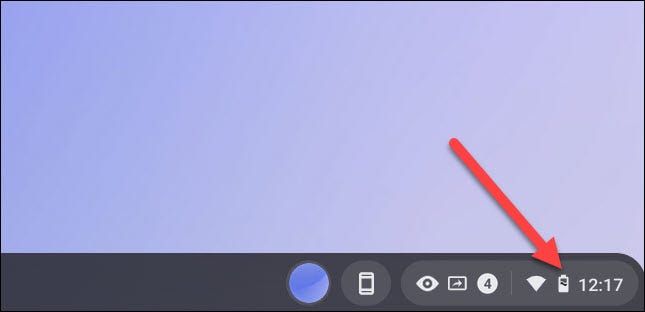
Quick Settings

Select the arrow at the top right of the menu if it is not fully expanded.
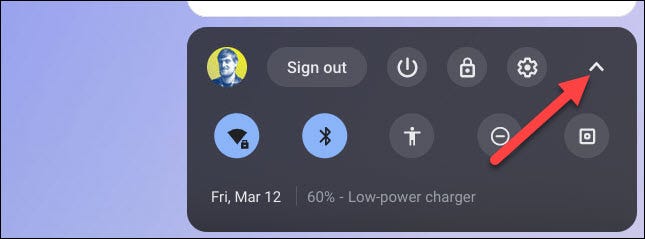
arrow at the top right

Next, click the “Screen Capture” button.
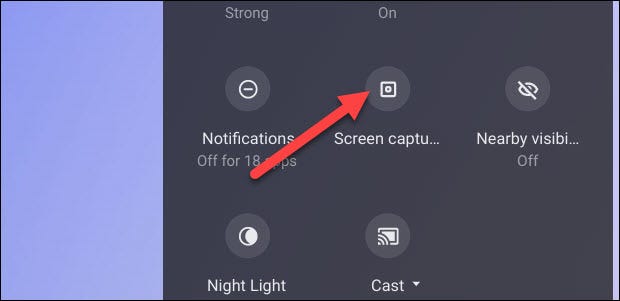
Screen Capture

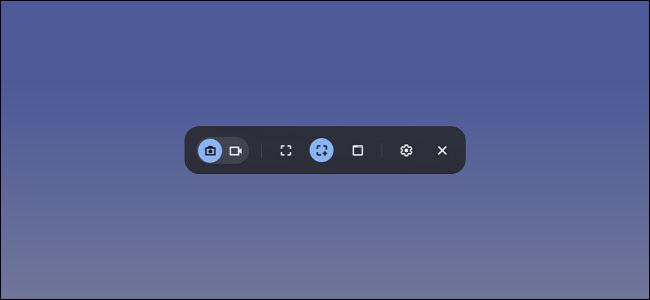
The Screen Capture toolbar will appear at the bottom of the screen. You must select the video icon to record the screen. The camera icon will only take screenshots on Chromebooks.
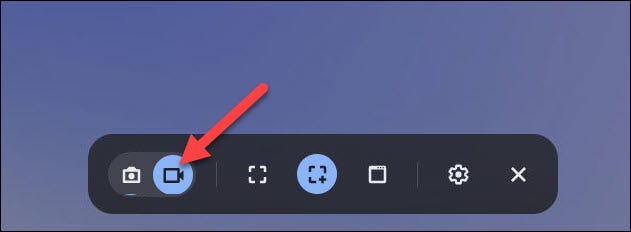
camera icon

There are several different ways you can return to the screen. You can choose to record full screen, part of the screen, or a specific window. Select an option to continue.
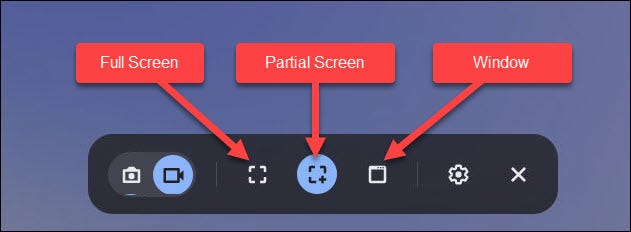
screen recording on ChromeOS

Before we start recording the screen, let’s click on the settings icon. Here, you can choose to record via the built-in Microphone during screen recording.
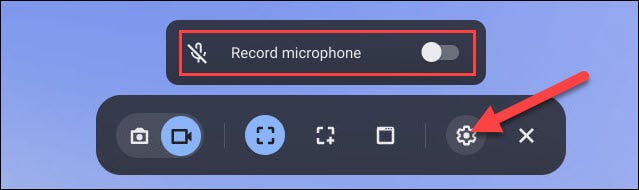
Recording via Microphone

The way to start screen recording will be slightly different depending on the mode you have selected.

  • Full Screen: Click anywhere on the screen to start recording.
  • Partial: Drag to select the area you want to record and then click the “Record” button.
  • Window: Click the window or area of ​​the screen you want to record to start recording.

As noted above, with full screen recording, just click anywhere on your Chromebook screen.
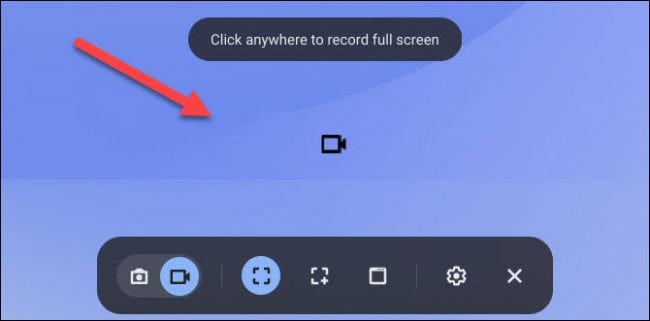
full screen recording

And with window recording, start recording a video of your screen by selecting the specific window you want to record.
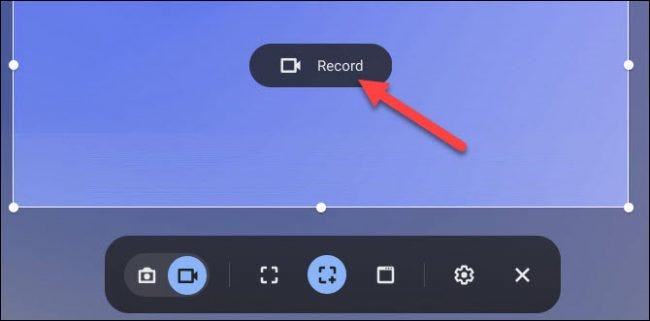
record chromebook

A three-second countdown will appear on the screen and then the recording will begin. When you’re done spinning, click the red stop button on the Shelf.
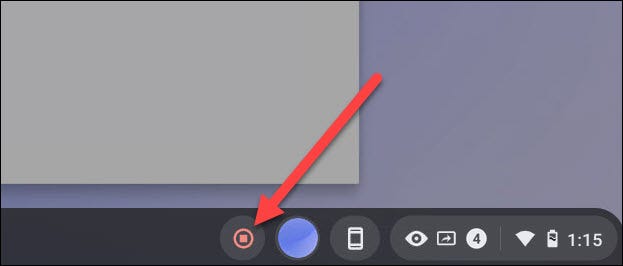
three seconds will appear

A message will appear stating that “Screen Recording Taken” has been completed. Click on it to go to the video file in your “Download” folder.
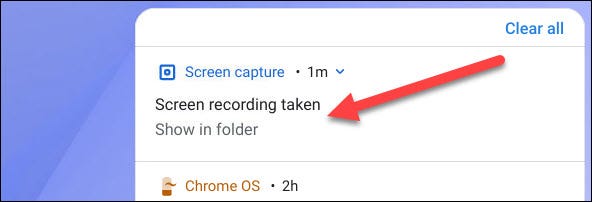
Screen Recording Taken

The folder will open and you can select the video file to watch, share, save to Google Drive, or delete the video.
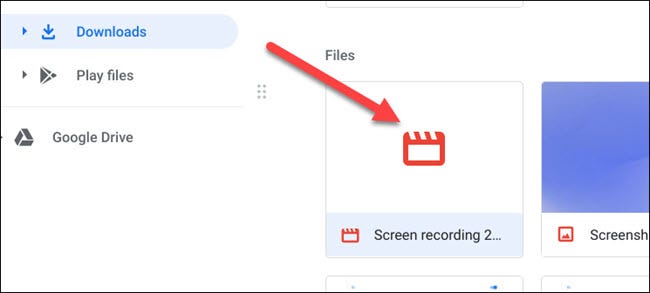

save to Google Drive
The built-in screen recorder is the coolest and easiest way to record your screen on a Chromebook. The only annoying thing is that these videos will be saved as files WEBMORE. I think you will also use online conversion sites to convert WEBM to mp4 soon. By the way, do you know? Why Chromebooks never get viruses?

The article achieved: 5/5 – (100 votes)

Tags: ChromebookChromeOSrecordscreen
Previous Post

TOP good tweaks on iOS 13 to install on Jailbroken IPhone

Next Post

Instructions to Cancel the purchased iCloud storage plan on IPhone, MAC

AnonyViet

AnonyViet

Related Posts

How to record reaction videos with Android phones, no app needed
Tips

How to record reaction videos with Android phones, no app needed

June 1, 2026
Instructions on how to get Google AI Pro 1 year for free for new accounts
Tips

Instructions on how to get Google AI Pro 1 year for free for new accounts

June 1, 2026
Top free AI tools to help write, test and optimize content
Tips

Top free AI tools to help write, test and optimize content

June 1, 2026
Instructions for receiving Lovable Pro 12 months for free
Tips

Instructions for receiving Lovable Pro 12 months for free

May 29, 2026
Instructions for receiving 1 month of ElevenLabs Creator for free worth
Tips

Instructions for receiving 1 month of ElevenLabs Creator for free worth $22

May 25, 2026
How to create beautiful studio-like preschool graduation photos for your child
Tips

How to create beautiful studio-like preschool graduation photos for your child

May 21, 2026
Next Post
Instructions to Cancel the purchased iCloud storage plan on IPhone, MAC

Instructions to Cancel the purchased iCloud storage plan on IPhone, MAC

0 0 votes
Article Rating
Subscribe
Login
Notify of
guest

guest

0 Comments
Oldest
Newest Most Voted
Inline Feedbacks
View all comments

Recent News

How to check network speed on Apple TV when the image is jerky or lagging

How to check network speed on Apple TV when the image is jerky or lagging

June 3, 2026
Instructions on how to prevent acquaintances from seeing your Tiktok

Instructions on how to prevent acquaintances from seeing your Tiktok

June 2, 2026
How to record reaction videos with Android phones, no app needed

How to record reaction videos with Android phones, no app needed

June 1, 2026
Instructions on how to get Google AI Pro 1 year for free for new accounts

Instructions on how to get Google AI Pro 1 year for free for new accounts

June 1, 2026
How to check network speed on Apple TV when the image is jerky or lagging

How to check network speed on Apple TV when the image is jerky or lagging

June 3, 2026
Instructions on how to prevent acquaintances from seeing your Tiktok

Instructions on how to prevent acquaintances from seeing your Tiktok

June 2, 2026
How to record reaction videos with Android phones, no app needed

How to record reaction videos with Android phones, no app needed

June 1, 2026
AnonyViet - English Version

AnonyViet

AnonyViet is a website share knowledge that you have never learned in school!

We are ready to welcome your comments, as well as your articles sent to AnonyViet.

Follow Us

Contact:

Email: anonyviet.com[@]gmail.com

Main Website: https://anonyviet.com

Recent News

How to check network speed on Apple TV when the image is jerky or lagging

How to check network speed on Apple TV when the image is jerky or lagging

June 3, 2026
Instructions on how to prevent acquaintances from seeing your Tiktok

Instructions on how to prevent acquaintances from seeing your Tiktok

June 2, 2026
No Result
View All Result
  • Home
  • News
  • Software
  • Knowledge
  • MMO
  • Tips
  • Security
  • Network
  • Office

wpDiscuz
0
0
Would love your thoughts, please comment.x
()
x
| Reply