• Home
  • News
  • Software
  • Knowledge
  • MMO
  • Tips
  • Security
  • Network
  • Office
AnonyViet - English Version
  • Home
  • News
  • Software
  • Knowledge
  • MMO
  • Tips
  • Security
  • Network
  • Office
No Result
View All Result
  • Home
  • News
  • Software
  • Knowledge
  • MMO
  • Tips
  • Security
  • Network
  • Office
No Result
View All Result
AnonyViet - English Version
No Result
View All Result

How to pin music on Apple Music to access the playlist immediately

AnonyViet by AnonyViet
September 10, 2025
in Software
0

How to pin music on Apple Music Is the perfect solution for your messy music library. If you are tired of scrolling for a favorite playlist, this article will show you how to put them first. Let’s explore Anonyviet with this simple but extremely effective trick!

Join the channel Telegram belong to Anonyviet 👉 Link 👈

Benefits of pinning music on Apple Music

Instant access

Instead of rolling and searching, the most favorite melodies will always appear in the “golden” position as soon as you open the library tab.

Your library will no longer be an endless list. The way to pin music on Apple Music allows you to arrange and prioritize content in accordance with your taste and habits, turning the application into a real music space of your own.
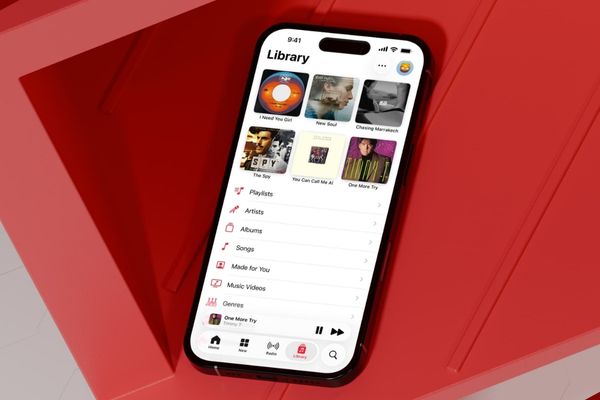
Benefits of pinning music on Apple Music

Always ready for all moods

Do you have a “burning” playlist for the gym? A melodious album to focus on working? Or some ballads to relax? Pin them. Just one touch is that you have the right music suitable for all circumstances.

Smart synchronization

The great thing is that you just need to perform a pin on a device. Thanks to iCloud, the pins will automatically appear on iPhoneiPad, Mac and Apple Watch, as long as they share an Apple account and have turned on “the library synchronization”.

Instructions on how to pin music on Apple Music

The pinsing process is extremely easy to perform. The only condition is that the songs, albums or playlists must have been added to your library.

How to pin music on iPhone and iPad

  1. Open Music application and choose tab Library (Library) In the bottom toolbar.
  2. Determine the layout of the song, album, playlist or the artist you want to pin.
  3. Press and hold on to that item until an optional menu appears.
  4. In this menu, choose Pin Song, Album Pin… respectively.

Tip: You can also click on the three -dot icon (…) next to the item name to find the battery option.
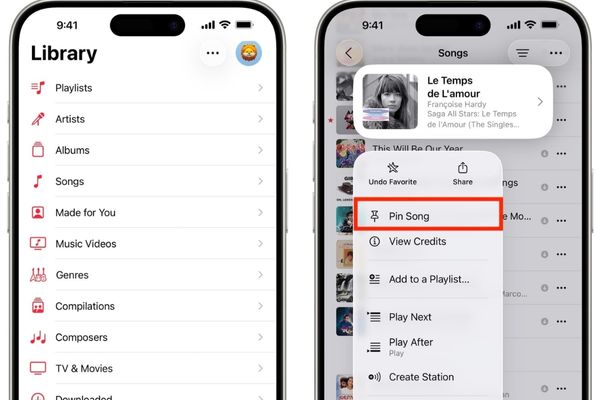
How to pin music on iPhone and iPad

How to pin music on Mac

  1. Run the application Music (Music) On Mac> navigate in the library to find the item you want to prioritize.
  2. Right -click (or hold the Control key and left click) on that item.
  3. A context menu will appear, you just need to choose Battery.
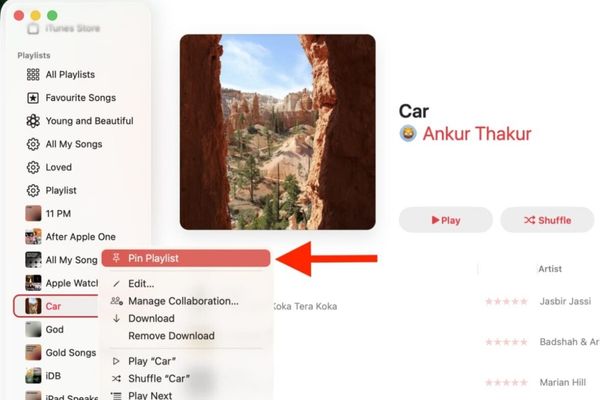
How to pin music on Mac

How to pin music on Apple Watch

  1. Open Music application (Music) on Apple Watch.
  2. Go Library (Library), then select one of the categories such as songs, albums, playlists.
  3. Find the item you want to pin, swipe the item to the left.
  4. Click The three -dot symbol (…) Just appeared and selected Pin (battery) From the menu.
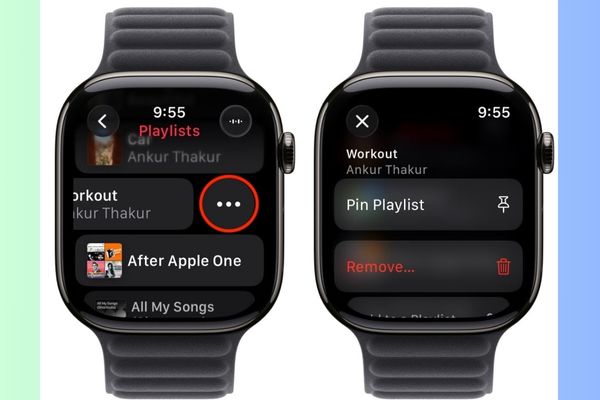
How to pin music on Apple Watch

How to pin music on Apple TV

  1. Open music application (music) on Apple TV > Select items Library On the navigation bar.
  2. In the side bar, select the category containing the content you want to pin (for example: Playlists).
  3. Move the cursor to the item to be pin, then press and hold on the touch surface of the Siri Remote control.
  4. Select Battery From the menu just displayed.
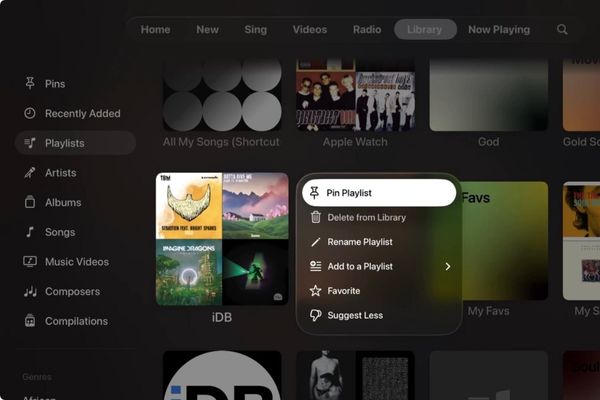
How to pin music on Apple TV

How to access and manage pinsed items

After performing how to pin music on Apple Music, these items will be put to the prominent position.

On iPhone, iPad and Apple Watch: The pins will display in the form of large, visual symbols right at the top of the library tab.
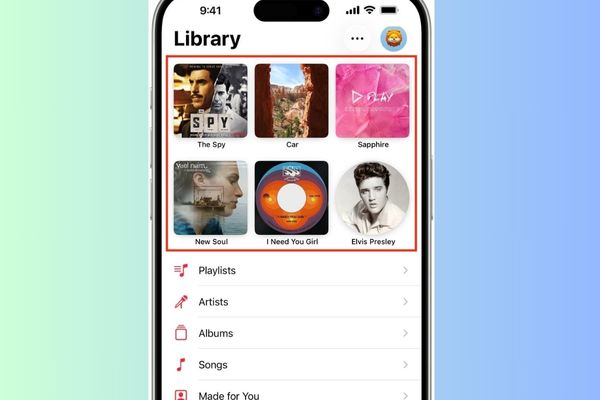
The pins will display in the form of large icons

On Mac and Apple TV: A new category called “Pin” (PINS) will be created and located in the left bar, just under the “Library” section. All the items you pin will be gathered neatly here.
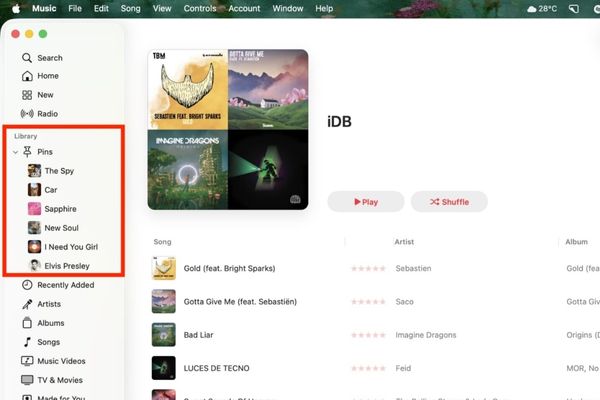
How to access and manage pinsed items

How to pinch a song or playlist?

  • The fastest way (iPhone, iPad, Apple Watch): Press and hold into a pin item, then select to remove the pin (UNPIN) from the menu.
  • On Mac: In the “pin” (Pins) section, right -click on the item you want to remove and select the pin (UNPIN).
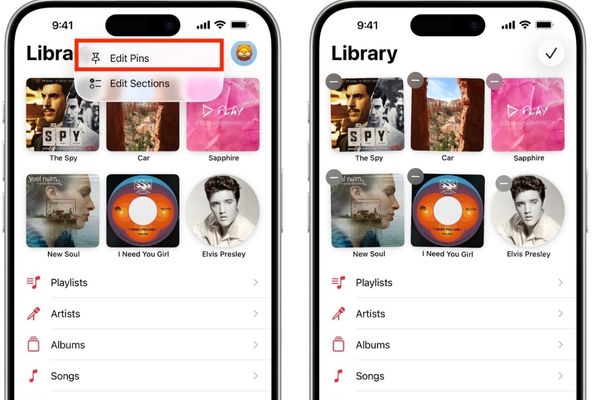
  • Mass editing (iPhone/iPad): In the area of ​​the pins, you can click the edit button (Edit Pins) in the upper corner, then click the red (-) icon to remove multiple items at the same time.
  • How to pinch a song or playlist?
    How to pinch a song or playlist?

Tips to make the most of the pin feature

Pins directly while listening

Are you in a great melody and want to pin it right away? Do not escape. On the existing screen, just click the three -dot icon (…) and you will immediately see the pin option.
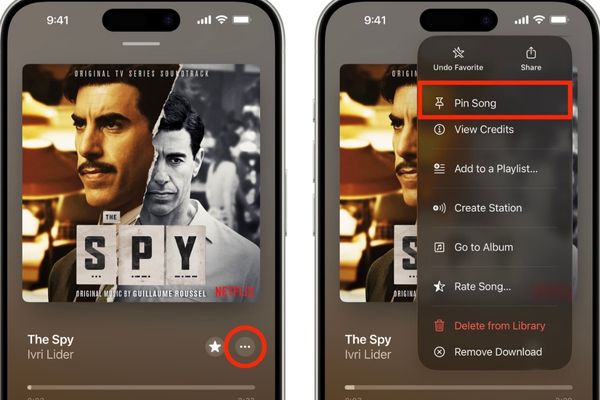
Pins directly while listening

Note about music player

Currently, clicking on a pins will open its detailed page instead of immediately playing. You need to press one more time to hear. Hopefully Apple will soon update to make this operation faster.
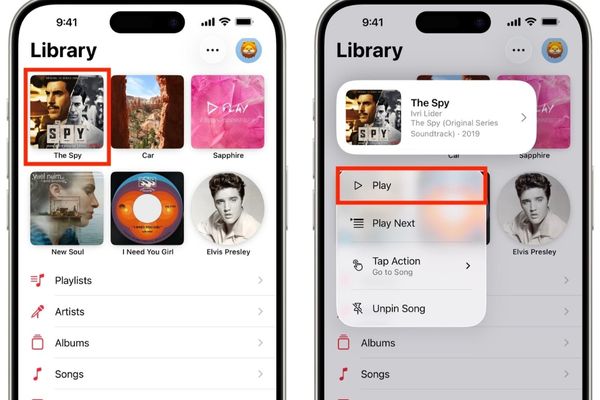
You need to click one more time to hear

Temporarily without “all”

The pin feature does not support all the items that have been pinned into a continuous list. This is an improvement that many users expect in the future.

Conclusion

How to pin music on Apple Musicas you see, extremely intuitive and effective. The rearrangement of the library is now only a small thing with a few touches. No matter which device you are using in the Apple ecosystem, take a few minutes to try today!


Tags: accessAppleImmediatelymusicPINplaylist
Previous Post

Guide to create the latest team drive – Google Drive Unlimited

Next Post

Đánh giá iPhone 17, Apple Watch Series 11, Ultra 3, AirPods Pro 3

AnonyViet

AnonyViet

Related Posts

How to install Anh Hai’s Pho Shop on MacBook is super easy
Software

How to install Anh Hai’s Pho Shop on MacBook is super easy

November 11, 2025
How to turn off ads on Yoosee app in just 1 minute
Software

How to turn off ads on Yoosee app in just 1 minute

November 11, 2025
Master Photoshop’s Harmonize feature to combine photos
Software

Master Photoshop’s Harmonize feature to combine photos

November 10, 2025
Flyoobe: Install Windows 11 on incompatible PC, no USB needed
Software

Flyoobe: Install Windows 11 on incompatible PC, no USB needed

November 9, 2025
Instructions for downloading Anh Hai’s Pho Shop game on Android
Software

Instructions for downloading Anh Hai’s Pho Shop game on Android

November 8, 2025
How to pay health insurance on Momo online right at home
Software

How to pay health insurance on Momo online right at home

November 8, 2025
Next Post
Đánh giá iPhone 17, Apple Watch Series 11, Ultra 3, AirPods Pro 3

Đánh giá iPhone 17, Apple Watch Series 11, Ultra 3, AirPods Pro 3

0 0 votes
Article Rating
Subscribe
Login
Notify of
guest

guest

0 Comments
Oldest
Newest Most Voted
Inline Feedbacks
View all comments

Recent News

How to install Anh Hai’s Pho Shop on MacBook is super easy

How to install Anh Hai’s Pho Shop on MacBook is super easy

November 11, 2025
How to turn off ads on Yoosee app in just 1 minute

How to turn off ads on Yoosee app in just 1 minute

November 11, 2025
Windows 11 and MS Office 2021 lifetime license, genuine from  during Keysoff’s 11.11 sale

Windows 11 and MS Office 2021 lifetime license, genuine from $14 during Keysoff’s 11.11 sale

November 11, 2025
How to see your email account creation date

How to see your email account creation date

November 11, 2025
How to install Anh Hai’s Pho Shop on MacBook is super easy

How to install Anh Hai’s Pho Shop on MacBook is super easy

November 11, 2025
How to turn off ads on Yoosee app in just 1 minute

How to turn off ads on Yoosee app in just 1 minute

November 11, 2025
Windows 11 and MS Office 2021 lifetime license, genuine from  during Keysoff’s 11.11 sale

Windows 11 and MS Office 2021 lifetime license, genuine from $14 during Keysoff’s 11.11 sale

November 11, 2025
AnonyViet - English Version

AnonyViet

AnonyViet is a website share knowledge that you have never learned in school!

We are ready to welcome your comments, as well as your articles sent to AnonyViet.

Follow Us

Contact:

Email: anonyviet.com[@]gmail.com

Main Website: https://anonyviet.com

Recent News

How to install Anh Hai’s Pho Shop on MacBook is super easy

How to install Anh Hai’s Pho Shop on MacBook is super easy

November 11, 2025
How to turn off ads on Yoosee app in just 1 minute

How to turn off ads on Yoosee app in just 1 minute

November 11, 2025
  • Home
  • Home 2
  • Home 3
  • Home 4
  • Home 5
  • Home 6
  • Next Dest Page
  • Sample Page

new88 trang chủ shbet trang chủ f168 trang chủ qq88 nhà cái 78win

No Result
View All Result
  • Home
  • News
  • Software
  • Knowledge
  • MMO
  • Tips
  • Security
  • Network
  • Office

new88 trang chủ shbet trang chủ f168 trang chủ qq88 nhà cái 78win

wpDiscuz
0
0
Would love your thoughts, please comment.x
()
x
| Reply