• Home
  • News
  • Software
  • Knowledge
  • MMO
  • Tips
  • Security
  • Network
  • Office
AnonyViet - English Version
  • Home
  • News
  • Software
  • Knowledge
  • MMO
  • Tips
  • Security
  • Network
  • Office
No Result
View All Result
  • Home
  • News
  • Software
  • Knowledge
  • MMO
  • Tips
  • Security
  • Network
  • Office
No Result
View All Result
AnonyViet - English Version
No Result
View All Result

How to keep the phone screen always on when looking at the screen

AnonyViet by AnonyViet
January 27, 2023
in Software
0

A phone number Android can keep the phone screen on while you are looking at the phone screen. But Phone saves battery by turning off screen when not in use. However, not touching the screen doesn’t always mean you’re not using it.

Join the channel Telegram of the AnonyViet 👉 Link 👈

How to keep the phone screen always on when looking at the screen

The ability to keep the phone’s screen on while you’re watching was first introduced by Samsung, but since then it’s made its way to other devices. Along with Samsung Galaxy phones, Google Pixel phones also have this feature. So in this article, I will guide you to enable this feature on both phones.

How to keep the phone screen always on on Android

Google Pixcel “Screen Attention”

Google Pixel phones call this feature “Screen Attention”. It uses the front camera to see if you are looking at the screen.

First, swipe down twice from the top of the screen to reveal the Quick Settings toggles, then tap the gear icon.
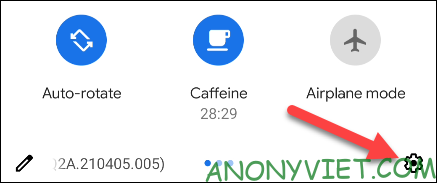
How to keep the phone screen always on on Android

Next, go to the “Display” section in Settings.
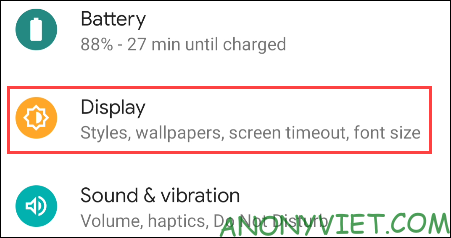
display

Expand the “Advanced” section and select “Screen Attention”.
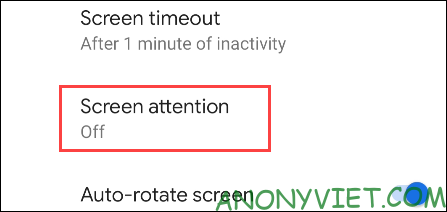
Screen Attention

Toggle the switch to the right to enable this feature.
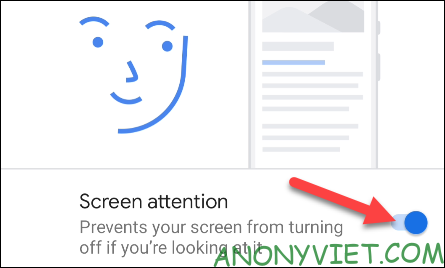
turn on look at screen auto-bright android

This feature will affect your battery life because it is using the front camera. If you find this feature eating too much battery then you can always turn it off and use a longer screen timeout.

Samsung Galaxy “Smart Stay”

Samsung calls this feature “Smart Stay”. It uses the front camera to detect someone looking at the screen.

First, swipe down once from the top of the screen and tap the gear icon.
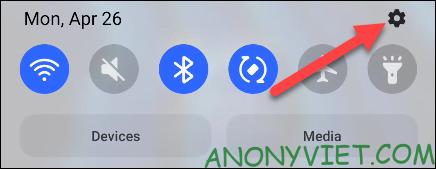
Turn on looking at Samsung Galaxy “Smart Stay” self-lit phone screen

Next, go to the “Advanced Features” section in Settings.
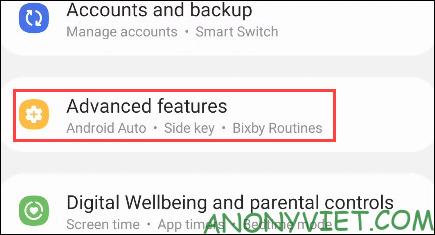
Advanced Features

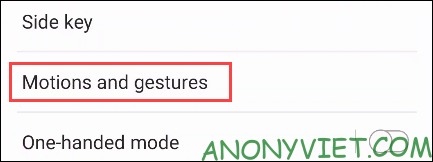
Next, select “Motions and Gestures”.

Movements and gestures

Finally, enable the “Keep Screen On While Viewing” feature.
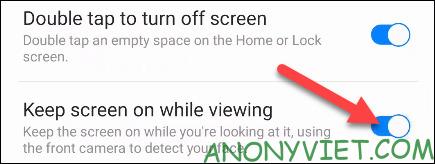
Keep the screen always on while watching

Since this feature uses the front camera, it may have a small effect on your battery life. Therefore, consider using this feature if your phone has low battery power or the battery capacity is not large.


The article achieved: 5/5 – (100 votes)

Tags: phonescreen
Previous Post

What is Hosting? How to use Host to Up Code Website

Next Post

Impulse – Black Hat Hacker’s DDOS, Spam Email, SMS Toolkit

AnonyViet

AnonyViet

Related Posts

Instructions for setting up fake location on Zalo
Software

Instructions for setting up fake location on Zalo

February 8, 2026
Instructions for cloning Zalo groups super quickly
Software

Instructions for cloning Zalo groups super quickly

February 7, 2026
Share the latest iTop Easy Desktop PRO free key for 6 months
Software

Share the latest iTop Easy Desktop PRO free key for 6 months

February 6, 2026
Instructions for viewing lyrics without internet on Apple Music
Software

Instructions for viewing lyrics without internet on Apple Music

February 4, 2026
How to effectively blur messages on Zalo web to prevent peeping
Software

How to effectively blur messages on Zalo web to prevent peeping

January 31, 2026
Share the SwifDoo PDF Pro key for free of copyright for up to 1 year
Software

Share the SwifDoo PDF Pro key for free of copyright for up to 1 year

January 27, 2026
Next Post
Impulse – Black Hat Hacker’s DDOS, Spam Email, SMS Toolkit

Impulse - Black Hat Hacker's DDOS, Spam Email, SMS Toolkit

0 0 votes
Article Rating
Subscribe
Login
Notify of
guest

guest

0 Comments
Oldest
Newest Most Voted
Inline Feedbacks
View all comments

Recent News

How to set up a private voice on iPhone that few people know

How to set up a private voice on iPhone that few people know

February 11, 2026
Instructions to Hide Secret Documents in Any Song

Instructions to Hide Secret Documents in Any Song

February 10, 2026
How to blur photos on iPhone after taking them is extremely simple

How to blur photos on iPhone after taking them is extremely simple

February 10, 2026
Dell SE2426: A “lifesaver” solution for office workers’ eyes.

Dell SE2426: A “lifesaver” solution for office workers’ eyes.

February 9, 2026
How to set up a private voice on iPhone that few people know

How to set up a private voice on iPhone that few people know

February 11, 2026
Instructions to Hide Secret Documents in Any Song

Instructions to Hide Secret Documents in Any Song

February 10, 2026
How to blur photos on iPhone after taking them is extremely simple

How to blur photos on iPhone after taking them is extremely simple

February 10, 2026
AnonyViet - English Version

AnonyViet

AnonyViet is a website share knowledge that you have never learned in school!

We are ready to welcome your comments, as well as your articles sent to AnonyViet.

Follow Us

Contact:

Email: anonyviet.com[@]gmail.com

Main Website: https://anonyviet.com

Recent News

How to set up a private voice on iPhone that few people know

How to set up a private voice on iPhone that few people know

February 11, 2026
Instructions to Hide Secret Documents in Any Song

Instructions to Hide Secret Documents in Any Song

February 10, 2026
  • Home
  • Home 2
  • Home 3
  • Home 4
  • Home 5
  • Home 6
  • Next Dest Page
  • Sample Page

https://sun52.network

No Result
View All Result
  • Home
  • News
  • Software
  • Knowledge
  • MMO
  • Tips
  • Security
  • Network
  • Office

https://sun52.network

wpDiscuz
0
0
Would love your thoughts, please comment.x
()
x
| Reply