Windows 10 has invaded Linux with the card WSL – Windows Subsystem for Linux (Windows subsystem for Linux). With the launch of WSL2, an updated version of WSL, users can now use the Linux kernel to execute Linux tasks from Windows. With the introduction of the latest version of Windows 20H1, WSL2 is set for official release. Therefore, in this article, I will guide you to install Windws Subsystem for Linux on Windows 10.
| Join the channel Telegram belong to AnonyViet 👉 Link 👈 |

First of all, if you want to learn about Windows Subsystem for Linux on Windows 10, the following article will introduce to you what WSL and WSL2 are? Let's grasp the basics before continuing.
WSL2 or Window Subsystem for Linux 2 provides users console environment Linux in Windows 10. So you will be able to run Linux binaries from Windows 10 without using a virtual machine. Furthermore, WSL can be used for services and tools in the Linux kernel. on the command-line interface. But the most important thing is still bash shell.
In this tutorial, I will show you how to install Windows Subsystem for Linux in 2 ways.
- Using a graphical interface (GUI)
- Use PowerShell and Command line on Windows 10
In addition, I will show you how to install different Linux distros from the MIcrosoft Store. But, if you want to install those distros, you must install WSL first.
Install Windows Subsystem for Linux using the graphical interface
Request:
- Stable internet connection.
- Windows 10 Aniniversary version 1607 for WSL.
- Windows 10 insider version 18917 for WSL2.
- Hyper-V support.
Setting WSL by software Settings and Control Panel is the most chosen method, because it is very easy to use. Below are the steps to install WSL in Windows 10:

- Press Windows + R and type Control.
- Continue clicking on the item Programs.
- Below the seat Programs and Features. Press Turn Windows Features on or off.
Alternatively, you can also open the application Settings on Windows 10 and then go to place Apps > Programs and Features > Turn Windows features on or off.
- Now, the Windows Features window appears. Here, you can turn Windows features on and off using checkboxes.
- In the list of checkboxes, scroll down and find the option Windows Subsystem for Linux.
- Tick go to those checkboxes.
- Press OK to install WSL on Windows 10.
- Finally, press Restart Now.
Install Windows Subsystem for Linux using Windows 10 Powershell
If you have ever used Linux, you are no longer unfamiliar with using commands. For these people, typing commands is much more fun than using a GUI (admittedly, using commands is fun).
Other than installing WSL2 using GUI, we can also use Powershell to enable WSL in Windows 10. To install WSL using Powershell, follow these steps:
- Press Start menu and type Powershell.
- Right mouse Go to the first result and select run the application as an administrator.
- Please type the command below and Enter:
Enable-WindowsOptionalFeature -Online -FeatureName Microsoft-Windows-Subsystem-Linux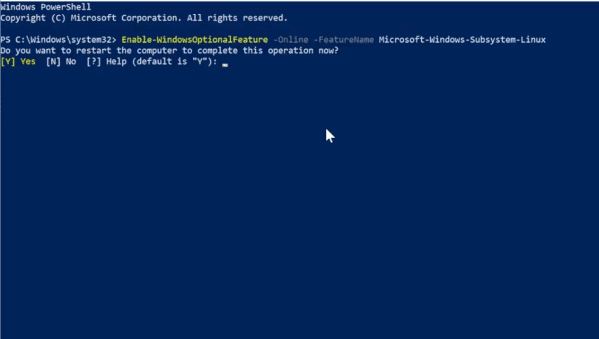
- After running the command, PowerShell will ask you to restart your computer to apply the changes.
- So you guys click “Y” to complete and confirm restart the computer.
After rebooting, your Windows 10 has the Windows Subsystem installed.
Install Linux Distros on Windows 10
After installing Windows Subsystem for Linux, we can proceed to install Linux distros in the Microsoft Store.
- Press Start and then select Microsoft Store.
- Search the distro you like best to install on Windows 10.
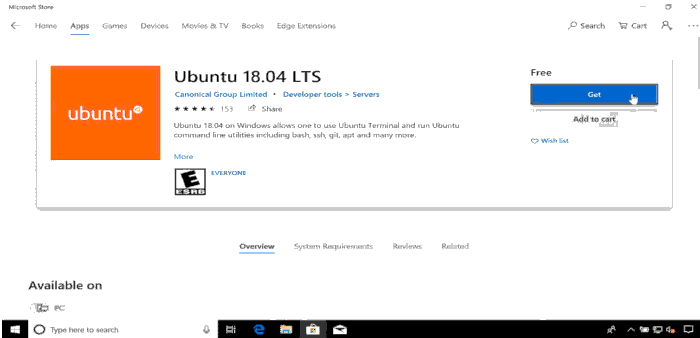
- If you want to see all the Linux distros on the Microsoft Store, you can search for keywords Linux and press Enter.
- Finally, press Install or Get.
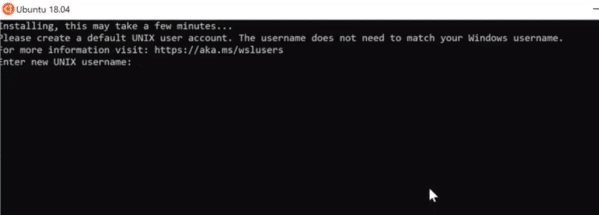
Once installed, the distro will be inside Start Menu. When you run the distro for the first time, a short setup process will take place. It will basically ask for the username and password you want to set for Linux.
WSL2 Settings: Change from WSL to WSL2
After you have successfully installed the Linux distro with WSL, you must change from WSL to WSL2. Until you make the change successfully, the distro will still run in a WSL environment.
- Open PowerShell with Admin rights.
- Check if Linux is installed with the command:
wsl -l - Next you run the command:
wsl --set-version2 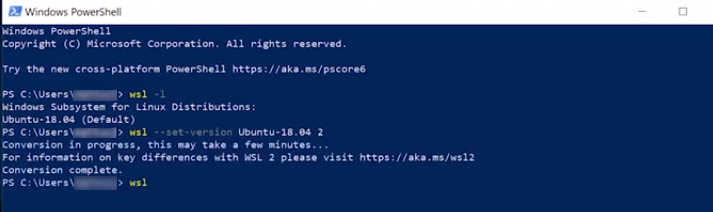 Replace “
” to the name of the Linux distro you installed - You can use the command below to set WSL2 as the default architecture for all Linux distros.
wsl --set-default-version 2
Uninstall Linux distro on Windows 10
You can uninstall Linux distros as follows:
- Open the app Settings.
- Select item Apps, then press Apps & Features.
- Select distro and press Uninstall.

And so that Linux distro has been completely removed from your computer.
Uninstall or disable Windows Subsystem for Linux
Uninstalling or disabling WSL on Windows 10 is also very simple. To uninstall WSL on Windows 10, follow the steps below.
- Open the software Settings.
- Select Apps Settings.
- Go to Apps > Programs and Features > Turn Windows Features on of off.
- Scroll down to options Windows Subsystem for Linux.
- Uncheck that item.
- Click OK and reboot the computer.
Uninstall or disable WSL on Windows 10 using PowerShell
- Open PowerShell with admin rights and enter the command below:
Disable-WindowsOptionalFeature -Online -FeatureName Microsoft-Windows-Subsystem-Linux - Press Y to restart the device.
You have successfully disabled Windows Subsystem for Linux on your device.