After creating VPS with ARM chip, you can start creating Webserver or Hosting to Upload Web or install network services. Because ARM chips are picky about some Linux installation packages, the optimal solution is to install Virtualmin on Ubuntu to manage VPS on the Web interface. It’s easy for users to do and there’s no need to remember every Linux command.
| Join the channel Telegram of the AnonyViet 👉 Link 👈 |
What is Virtualmin?
Virtualmin is a hosting management system on VPS using a Web interface.
Virtualmin function, also known as Webmin, helps create, modify, and delete users on VPS with just one click. With Hosting management features, you can quickly and easily create a new website with Apache VirtualHost configurations, home directory, user accounts to manage it, Email server configuration, disk space , email addresses, create databases, and configure Webalizer for each domain.
Install Virtualmin on Ubuntu with VPS Orcale
Switch to Root privileges: sudo -i
Download the VirtualMin installation file on Ubuntu: wget http://software.virtualmin.com/gpl/scripts/install.sh
Grant execute permission to FIle: chmod +x install.sh
Start installing VirtuaMin on Ubuntu: ./install.sh
The program asks whether to continue, then press: y
Set hostname for VPS: you type anonyviet.deptrai (or anything similar to domain, with . in between)
▣□□ Phase 1 of 3: Setup
[ERROR] Your system hostname 12core-72gbran-anonyviet is not fully qualified.
Please enter a fully qualified hostname (e.g.: host.example.com):  anonyviet.deptrai
You wait about 5 minutes for it to finish installing the necessary packages of Virtualmin. Watch out for Suc
▣□□ Phase 1 of 3: Setup
[ERROR] Your system hostname 12core-72gbran-anonyviet is not fully qualified.
Please enter a fully qualified hostname (e.g.: host.example.com): anonyviet.dept                                                                                                           rai
Downloading RPM-GPG-KEY-virtualmin-6                                    [  ✔  ]
Downloading RPM-GPG-KEY-webmin                                          [  ✔  ]
Installing Virtualmin 6 key                                             [  ✔  ]
Installing Webmin key                                                   [  ✔  ]
Updating apt metadata                                                   [  ✔  ]
Downloading repository metadata                                         [  ✔  ]
Enabling universe repositories, if not already available                [  ✔  ]
Disabling cdrom: repositories                                           [  ✔  ]
Cleaning out old metadata                                               [  ✔  ]

▣▣□ Phase 2 of 3: Installation
Installing Webmin                                                       [  ✔  ]
Installing Usermin                                                      [  ✔  ]
Installing fail2ban                                                     [  ✔  ]
Removing nginx (if installed) before LAMP installation.                 [  ✔  ]
Removing unneeded packages that could conflict with LAMP stack.         [  ✔  ]
Installing postfix                                                      [  ✔  ]
Installing virtualmin-lamp-stack                                        [  ✔  ]
Installing Virtualmin and plugins                                       [  ✔  ]
11 Aug 07:32:48 ntpdate[46936]: adjust time server 91.189.91.157 offset -0.02594                                                                                                           1 sec
Installing updates to Virtualmin-related packages                       [  ✔  ]

▣▣▣ Phase 3 of 3: Configuration
[1/23] Configuring AWStats                                              [  ✔  ]
[2/23] Configuring Apache                                               [  ✔  ]
[3/23] Configuring Bind                                                 [  ✔  ]
[4/23] Configuring ClamAV                                               [  ✔  ]
[5/23] Configuring Dovecot                                              [  ✔  ]
[6/23] Configuring Firewalld                                            [  ✔  ]
[7/23] Configuring MySQL                                                [  ✔  ]
[8/23] Configuring NTP                                                  [  ✔  ]
[9/23] Configuring Net                                                  [  ✔  ]
[10/23] Configuring ProFTPd                                             [  ✔  ]
[11/23] Configuring Procmail                                            [  ✔  ]
[12/23] Configuring Quotas                                              [  ✔  ]
[13/23] Configuring SASL                                                [  ✔  ]
[14/23] Configuring Shells                                              [  ✔  ]
[15/23] Configuring SpamAssassin                                        [  ✔  ]
[16/23] Configuring Status                                              [  ✔  ]
[17/23] Configuring Upgrade                                             [  ✔  ]
[18/23] Configuring Usermin                                             [  ✔  ]
[19/23] Configuring Webalizer                                           [  ✔  ]
[20/23] Configuring Webmin                                              [  ✔  ]
[21/23] Configuring Fail2banFirewalld                                   [  ✔  ]
[22/23] Configuring Postfix                                             [  ✔  ]
[23/23] Configuring Virtualmin                                          [  ✔  ]
▣▣▣ Cleaning up

[SUCCESS] Installation Complete!
[SUCCESS] If there were no errors above, Virtualmin should be ready
[SUCCESS] to configure at https://anonyviet.deptrai:10000 (or https://10.0.0.241                                                                                                           :10000).
[SUCCESS] You'll receive a security warning in your browser on your first visit.
Now notice the line below, anonyviet.deptrai is the hostname of the VPS you set up this time, and 10.0.0.241 is the LAN IP of VPS Orcale (ignore it, don’t mind it). And Virualmin will use Port: 10000 to manage.
[SUCCESS] to configure at https://anonyviet.deptrai:10000 (or https://10.0.0.241:10000). To access the Virualmin management page, you will use the Public IP (which is the IP that you Remote with Mobaxterm). If you don’t remember what the Public IP is, please review the article how to create VPS 4 Core – 24 Gb RAM Please.
If the message is blocked, then proceed to open Port 10000 on Ubuntu. Use the command:
iptables -I INPUT 6 -m state --state NEW -p tcp --dport 10000 -j ACCEPT
Also don’t forget to open the Port on Orcale too this guide.
How to login to Virtualmin
Since Virtualmin on Ubuntu defaults to SSL Mode, you need to use https:// to access. Now open your browser and access the following:
https://IP-Public-VPS:10000
Eg: https://192.9.178.10:10000/
If you see the login page as below, it is successful:
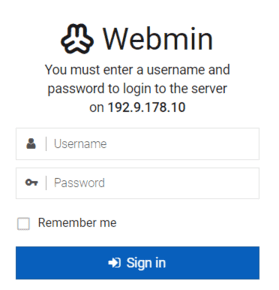
Because Virualmin uses VPS’s account to log in, you need to set up VPS to log in with User instead of SSH Key.
In the Mobaxterm Terminal, type the following command:
nano /etc/ssh/sshd_config
Press the down arrow button ↓ on your keyboard, navigate to the line: PasswordAuthentication no replace no Fort yes

Then press: Ctrl + X then press y then press Enter to save and exit.
Continue, now we will set the password for the account root.
Type command: passwd
- Enter new Pass: 123456@@@ (example)
- Re-enter the new Pass: 123456@@@ (example)
Now go back to Virtualmin login page https://IP-Public-VPS:10000
- Username: root
- Password: 123456@@@
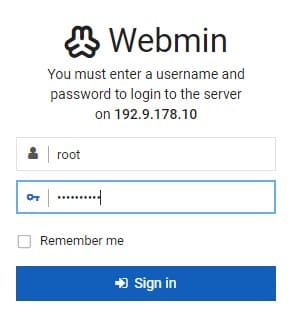
Setting up Hosting on Virtualmin
Now on VPS you have a management interface. Next we will set up Hosting on VPS to point the Domain to your Orcale VPS.
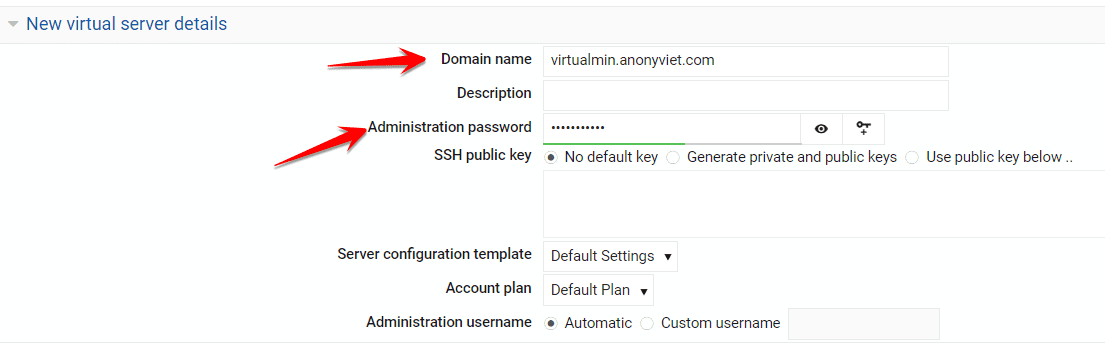
Go to Tab Virtualmin select Create Virtual Server

Enter your Domain in the Domain Name box and password to manage.
As shown in the picture, I will create a Website called virtualmin.anonyviet.com
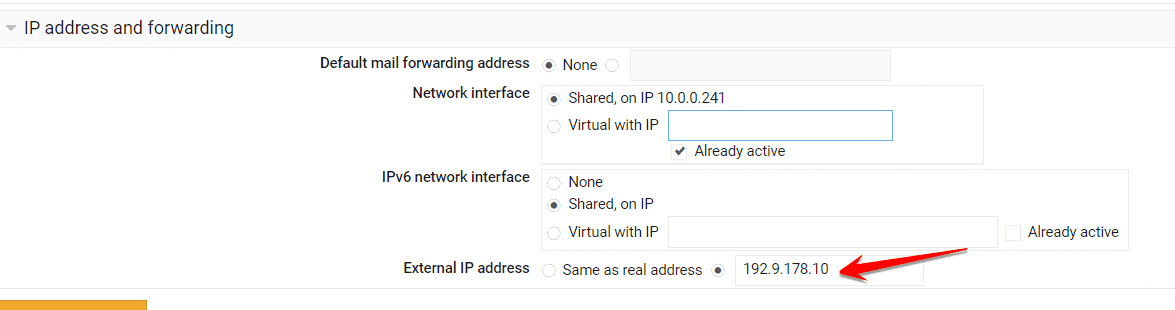
In the External IP address section, check the 2nd box and enter the Public IP on your Ubuntu VPS
Then press Create Server, wait for Virtualmin setup for about 1 minute to finish. Don’t forget to go to your Domain management page and point the Domain to the Public IP of VPS Orcale.
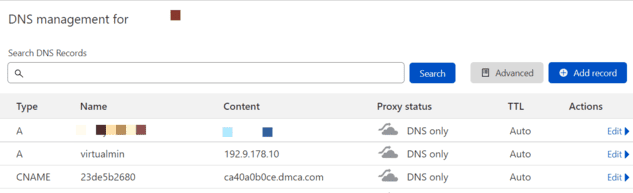
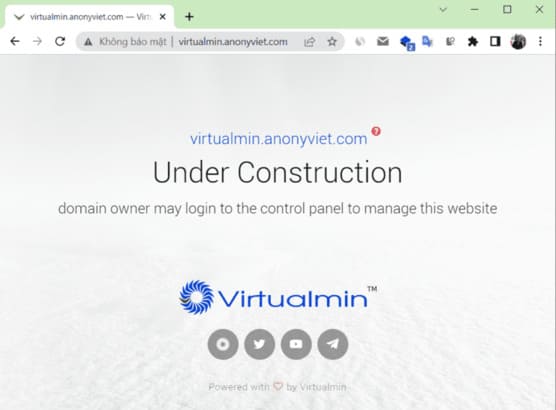
Ok, now try to visit http://virtualmin.anonyviet.com/ and see. Seeing the interface as below is that Domain and Hosting have been successfully set up on Virtualmin of Ubuntu.
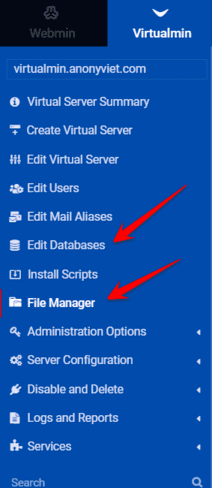
To Upload Source Code, create Database… you use the Menu bar on the left, and start creating your own Website. In addition, you can create more Hosting on VPS and decentralize other accounts to use the same VPS with you.
If you have any questions, please comment below for support.