Job install WSL 2 on Windows 10 and 11 is easier than ever, and when you want to add a distribution, you can simply download the app from the Microsoft Store. But it doesn’t just stop there. The Microsoft Store is a good choice, but it’s limited on Linux distributions, and in the case of Ubuntu, you can essentially get LTS versions, not the latest releases.
| Join the channel Telegram of the AnonyViet 👉 Link 👈 |
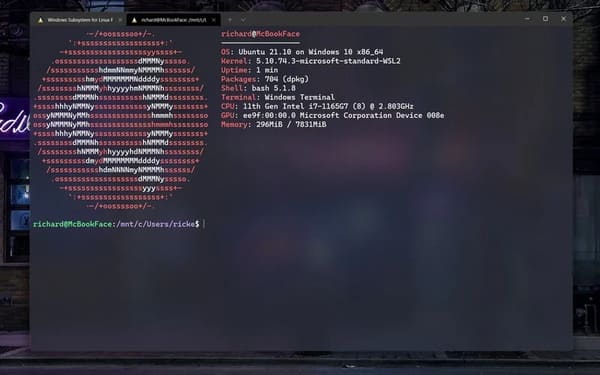
This is perfectly fine for many people, but there’s always a good reason you’d want to use the latest version, especially during development. If you need Ubuntu 21.10, and don’t want to have to reboot or create virtual machines; then you can easily install it on Windows 10 or 11.
How to get Ubuntu 21.10 for WSL
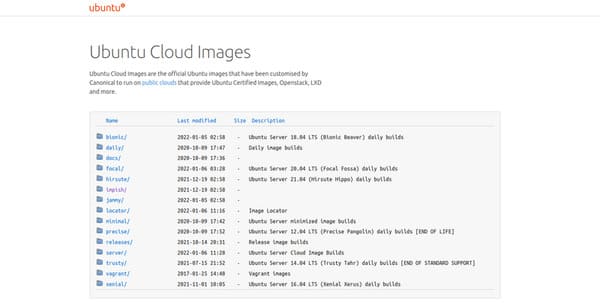
Getting Ubuntu 21.10 for WSL isn’t difficult, but it doesn’t have an obvious place to download either. You can upgrade inside WSL to the latest version, but in the case of 21.10 you need to use 21.04.
But here I will download the image file and install a brand new build of Ubuntu 21.10.
To get the files you need, go to Ubuntu website and follow these steps.
1. Click the option labeled impish.
2. Next, click current.
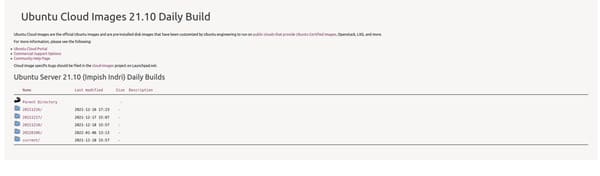
3. Find the files labeled wsl.rootfs.tar.gz.
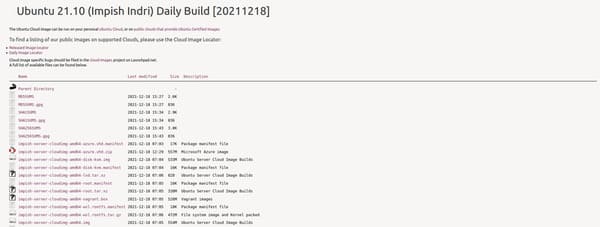
There will be many files, but those that are labeled with the file manifest you can skip. You also need to choose the right version for your PC. If you are using a machine supported by Intel or AMD, choose the amd64 version. If you are using an ARM-based machine, choose the arm64 version.
Download the relevant files, and then install.
How to Install Ubuntu 21.10 on WSL for Windows 10 and 11

From now on, you’ll be in your PowerShell. Make a note of where you downloaded the tar file from the steps above as you will need the file location for the installation.
The installation starts with importing the downloaded image from Ubuntu into your WSL.
Inside PowerShell, you will need to enter the following command to import and install Ubuntu 21.10:
wsl --import <name> <location to unpack> <location of download>On my system, the command would look like this:
wsl --import Ubuntu-2110 c:/WSL/Ubuntu-2110 c:/Downloads/impish-server-cloudimg-amd64-wsl.rootfs.tar.gzIt doesn’t really matter where you extract and install the image, but it’s a good idea to create a dedicated folder, especially if you’re going to install multiple distributions this way.
Alternatively, you can specify a WSL version at the end with the –version flag. It will install to any version of WSL that your system recognizes as default, but you can change that version during installation to avoid having to switch it later. Just add 1 or 2 after the flag to specify the version you require.
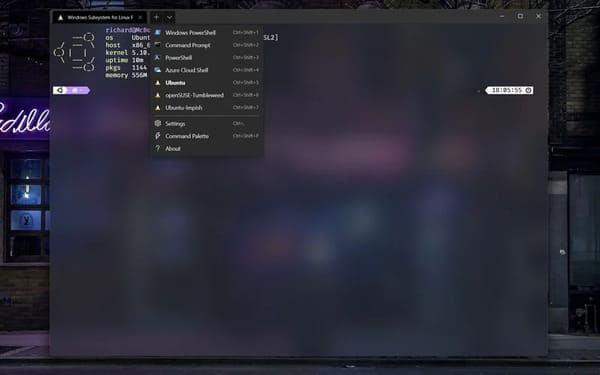
It will take a few minutes, but once it’s done, you can move on to setup. Since this feature has not been installed from the Microsoft Store, there is no application shortcut created in the Start Menu. You will need to launch it manually with the command:
wsl -d <distroname>However, if you use Windows Terminal and you do, WSL will automatically add it to the drop-down menu along with all the other shells you can open.
Basic Setup of Ubuntu 21.10
When you install Ubuntu 21.10, it basically doesn’t run through the initial setup process you get when you install Ubuntu from the Microsoft Store. So you won’t have a user set up, there will only be root. So you need to create a new user and add it to the sudo group:
adduser <yourusername>
usermod -aG sudo <yourusername>
And switch to that user with:
su <yourusername>To launch into Ubuntu 21.10 as your new user, from PowerShell, type:
wsl -d <distroname> -u <yourusername>While it shouldn’t be a long process to switch to or enter your new settings as your user instead of root, it’s always better to automate the process. Configuring the default user for a distro installed this way is slightly different from one downloaded from the Store.
There are a few different ways you can deal with this, but the easiest and safest way is to edit the wsl.conf file on your distribution to require WSL to log in with a user account instead of root. Open Ubuntu 21.10 and navigate to the file like below. The file might not exist on first install, so set it up and since you’ll want to log in as root and not your user account.
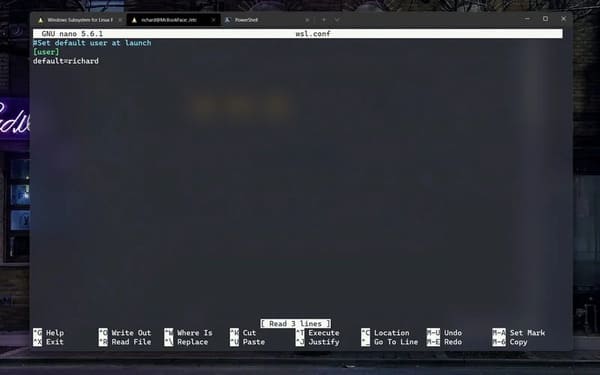
- In terminal, type cd /etc/
- Import ls to list files. If you don’t have wsl.confwe can create file wsl.conf.
- Import
touch wsl.conf. - Open the wsl.conf file with
nano wsl.conf.
You will now need to enter the necessary information to tell Ubuntu 21.10 to launch as user and not as root. Enter the following command in the document.
# Set the user when launching a distribution with WSL.
[user]
default=YourUserName
The first line is optional, but you should keep comments throughout your wsl.conf file to remind you of the functionality of each section.
Exit nano by pressing Ctrl + Xthen press Y and Enter to save the file. Close WSL completely, leave it alone for a few seconds, then the next time you reboot Ubuntu 21.10 you will be the user, not the root.
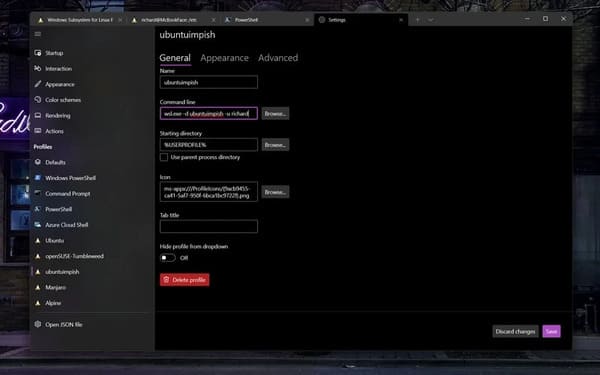
Alternatively, if you’re using Windows Terminal, open Settingsfind your Ubuntu 21.10 installation in the sidebar and in command linemake sure this command is cached:
wsl.exe -d <distroname> -u <yourusername>It’s a bit more step-by-step than installing from the Microsoft Store, but not too difficult.