• Home
  • News
  • Software
  • Knowledge
  • MMO
  • Tips
  • Security
  • Network
  • Office
AnonyViet - English Version
  • Home
  • News
  • Software
  • Knowledge
  • MMO
  • Tips
  • Security
  • Network
  • Office
No Result
View All Result
  • Home
  • News
  • Software
  • Knowledge
  • MMO
  • Tips
  • Security
  • Network
  • Office
No Result
View All Result
AnonyViet - English Version
No Result
View All Result

How to increase the length of the PIN on Windows to improve security

AnonyViet by AnonyViet
February 15, 2025
in Tips
0

PIN is a quick and convenient way to log in to Windows. However, the default length of only 4 characters can make your account easily attacked. This article Anonyviet will guide you on how Increase the PIN On Windows 11/10, enhances the security of its system.

Join the channel Telegram belong to Anonyviet 👉 Link 👈

Instructions to increase the PIN length on Windows 11/10

Method 1: Edit Registry

Registry is a database that stores Windows system configurations. You can change some settings, including the PIN length, by editing the Registry.

Step 1: Press the Win + S key combination to open the search engine.

Step 2: Enter the Regedit keyword in the search box and select the results to access the Registry Editor.

Step 3: Copy and paste the following link into the address bar of the Registry Editor and press Enter:

HKEY_LOCAL_MACHINE\SOFTWARE\Policies\Microsoft\

Step 4: If the Microsoft key does not have Subkey PassportFores, you will need to create a new one.

Step 5: Right -click on Microsoft key, select New, then select the key.
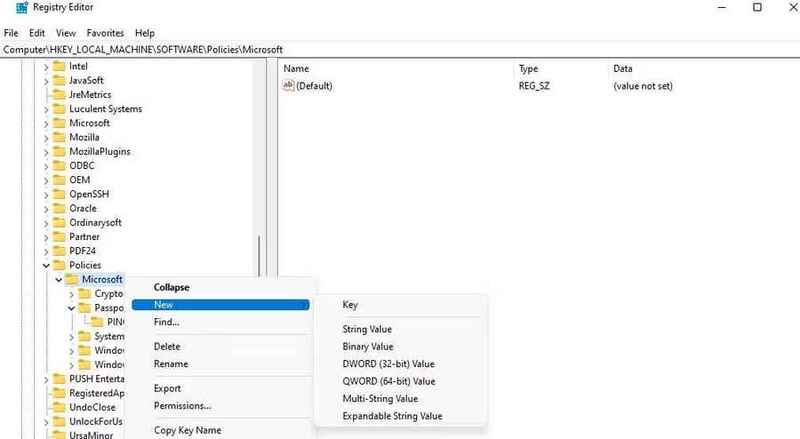
Right -click on Microsoft Key, select New and select Key

Step 6: Name the new key is PassportForwork.

Step 7: Right -click on key PassportForork, select New, then select the key from the context menu.

Step 8: Name the new key is Pincomplexity.

Step 9: Right-click PinComplexity, select New, then select Dword (32-bit) Value.

Step 10: Name the new Dword is MinimumpinLength.
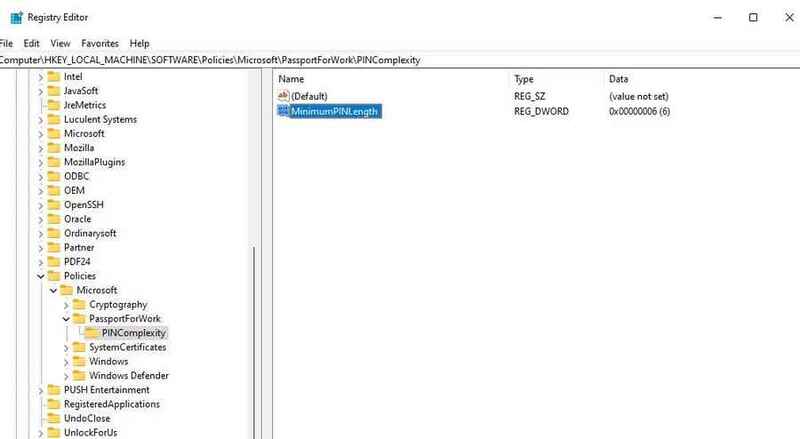
Name Minimumpinlength

Step 11: Double click on Dword Minimumpinlength has just created.

Step 12: Select Decimal, then enter a value greater than 4 into the Value Data box and click OK.
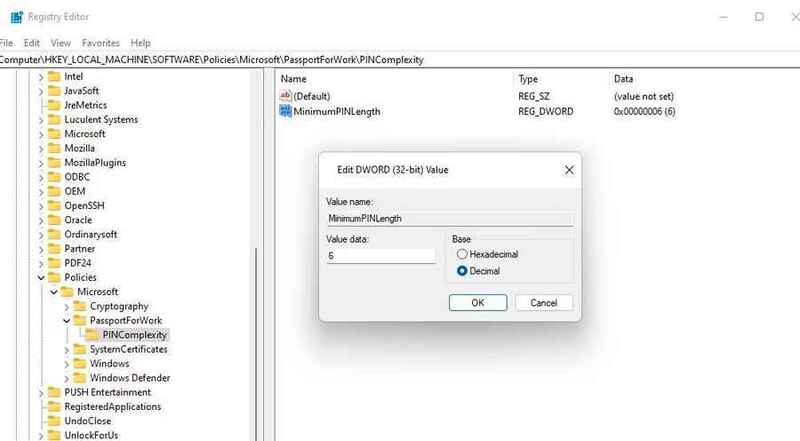
Enter a value greater than 4

Finally, exit the Registry Editor and restart the computer. When the computer restarts, you will be asked to change the PIN. Please check the settings and create a new PIN.

See also: Screenshot Remote: Take a super simple remote PC screen

Method 2: Use Group Policy Editor

Group Policy Editor is a tool that allows you to manage and configure system settings on Windows. You can use it to change the length of the PIN.

Step 1: Press the Windows + R key combination and enter GPEDIT.MSC into the Run dialog box.

Step 2: Click OK to open Group Policy Editor.

Step 3: In the left frame, double -click the Computer Configuration.

Step 4: Select Administrative Templates and expand this section.
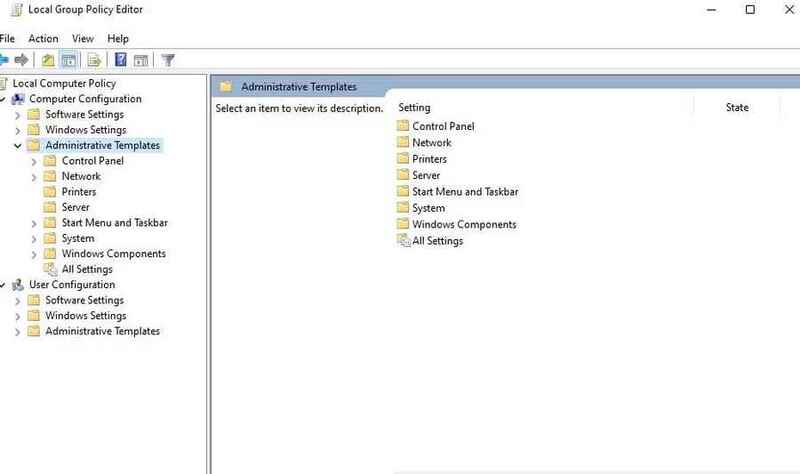
Select Administrative Templates

Step 5: Select System section, then click the Complexity battery.

Step 6: Double click at the Length Minimum battery.
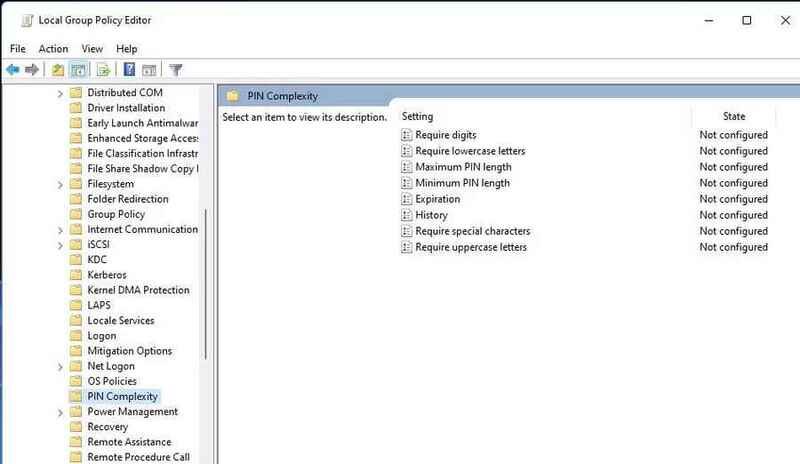
Double click at Minimum Battery Length

Step 7: Select Enabled to activate the minimum PIN length setup feature.
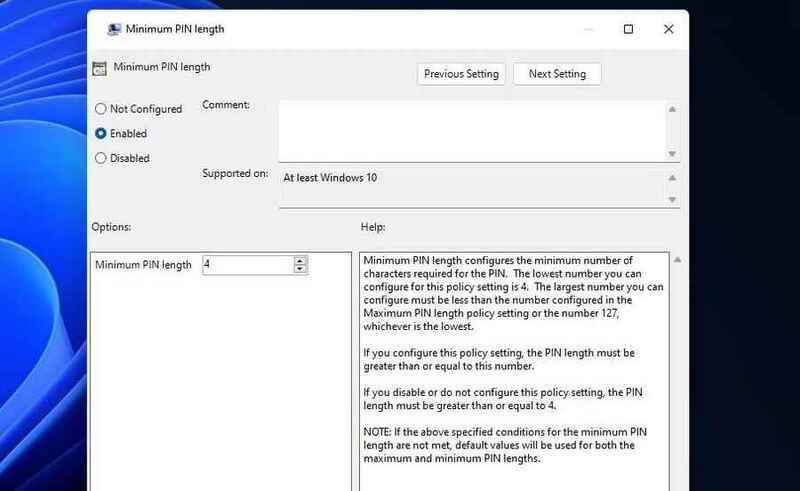
Select Enabled
Select Enabled

Step 8: Enter the desired value into the Length minimum box.

Step 9: Click Apply and click OK to complete the installation.

Step 10: To set the maximum length of the PIN, click Maximum Pin Length, select Enabled, enter the value and click Apply, then select OK.
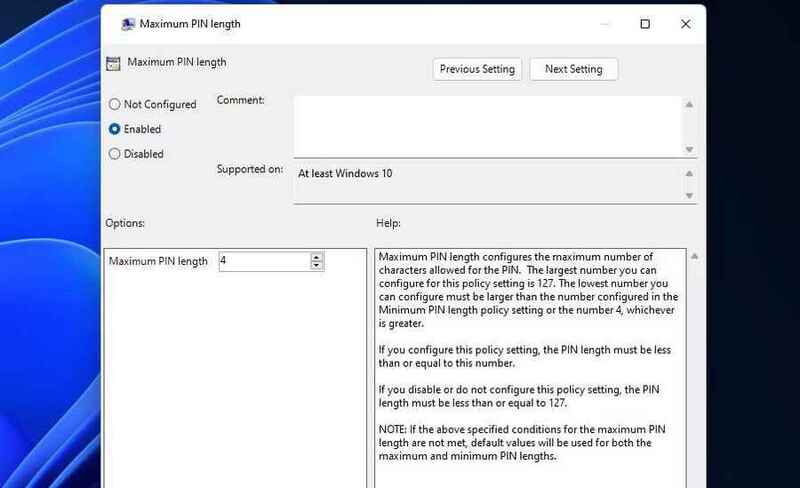
Set the maximum length of the PIN

See also: Summary of 4 ways to delete cache of Microsoft Store On Windows 11

Conclusion

Job Increase the PIN is a simple but effective step to improve security for Windows accounts. By applying the methods presented in this article, you can be more secure when using your computer and protect your personal data from potential threats. Wish you success!


Tags: improveincreaselengthPINsecurityWindows
Previous Post

Instructions for running DeepSeeK R1 Offline on Android and iPhone

Next Post

Những việc cần làm để bảo vệ quyền riêng tư trên Windows 10

AnonyViet

AnonyViet

Related Posts

How to add sliders to Facebook Stories to easily rewind videos
Tips

How to add sliders to Facebook Stories to easily rewind videos

April 21, 2026
How to change the default font on Windows 10
Tips

How to change the default font on Windows 10

April 13, 2026
5 tips for using a Browser to replace an App (helps save RAM, time and money)
Tips

5 tips for using a Browser to replace an App (helps save RAM, time and money)

April 13, 2026
How to make funny MeMe photos without Photoshop within 10 seconds
Tips

How to make funny MeMe photos without Photoshop within 10 seconds

April 11, 2026
How to quickly design your own Logo without Photoshop
Tips

How to quickly design your own Logo without Photoshop

April 10, 2026
How to convert Website into App on Windows
Tips

How to convert Website into App on Windows

April 9, 2026
Next Post
Những việc cần làm để bảo vệ quyền riêng tư trên Windows 10

Những việc cần làm để bảo vệ quyền riêng tư trên Windows 10

0 0 votes
Article Rating
Subscribe
Login
Notify of
guest

guest

0 Comments
Oldest
Newest Most Voted
Inline Feedbacks
View all comments

Recent News

Create an avatar to celebrate April 30 with a beautiful red flag shirt with yellow stars

Create an avatar to celebrate April 30 with a beautiful red flag shirt with yellow stars

April 30, 2026
How to get 2 months of Super Duolingo for free worth 300k

How to get 2 months of Super Duolingo for free worth 300k

April 30, 2026
How to create a Face Sticker Collection using ChatGPT

How to create a Face Sticker Collection using ChatGPT

April 29, 2026
How to install the cute Bongo Cat mouse pointer for Windows

How to install the cute Bongo Cat mouse pointer for Windows

April 29, 2026
Create an avatar to celebrate April 30 with a beautiful red flag shirt with yellow stars

Create an avatar to celebrate April 30 with a beautiful red flag shirt with yellow stars

April 30, 2026
How to get 2 months of Super Duolingo for free worth 300k

How to get 2 months of Super Duolingo for free worth 300k

April 30, 2026
How to create a Face Sticker Collection using ChatGPT

How to create a Face Sticker Collection using ChatGPT

April 29, 2026
AnonyViet - English Version

AnonyViet

AnonyViet is a website share knowledge that you have never learned in school!

We are ready to welcome your comments, as well as your articles sent to AnonyViet.

Follow Us

Contact:

Email: anonyviet.com[@]gmail.com

Main Website: https://anonyviet.com

Recent News

Create an avatar to celebrate April 30 with a beautiful red flag shirt with yellow stars

Create an avatar to celebrate April 30 with a beautiful red flag shirt with yellow stars

April 30, 2026
How to get 2 months of Super Duolingo for free worth 300k

How to get 2 months of Super Duolingo for free worth 300k

April 30, 2026
No Result
View All Result
  • Home
  • News
  • Software
  • Knowledge
  • MMO
  • Tips
  • Security
  • Network
  • Office

wpDiscuz
0
0
Would love your thoughts, please comment.x
()
x
| Reply