• Home
  • News
  • Software
  • Knowledge
  • MMO
  • Tips
  • Security
  • Network
  • Office
AnonyViet - English Version
  • Home
  • News
  • Software
  • Knowledge
  • MMO
  • Tips
  • Security
  • Network
  • Office
No Result
View All Result
  • Home
  • News
  • Software
  • Knowledge
  • MMO
  • Tips
  • Security
  • Network
  • Office
No Result
View All Result
AnonyViet - English Version
No Result
View All Result

How to get data from photos into Excel on mobile phones and computers

AnonyViet by AnonyViet
January 28, 2023
in Tips
0

You have a picture with data of rows and columns but don’t want to manually re-enter the Excel file, don’t worry Excel has a Data From Picture feature to help you Extract text in pictures with Excel on your phone very quickly. So, I will guide you to insert data from images, save time, and reduce the risk of making mistakes with the Data From Picture feature.

Join the channel Telegram of the AnonyViet 👉 Link 👈

How to insert data from photos in Microsoft Excel on the phone

Feature Data From Picture of Excel scans a photograph (for example, a table of values ​​printed in a newspaper, a printout of financial transactions, or even a screenshot from a web page) and analyzes it to find relevant data. After letting you edit any data it finds, it will import everything into your Excel spreadsheet.

Currently, the feature is available in Excel for Mac, iPhone, and Android. Currently, I have not seen any information about this feature on Windows.

Step 1: Access the option Data From Picture

Open Microsoft Excel on your phone and access the spreadsheet you want. Then select the cell where you want to insert data.

Next, click on the Data From Picture icon at the bottom of the screen.
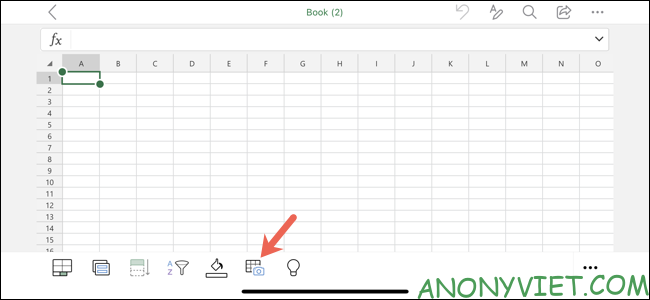
Access Data From Picture option

If you don’t see this icon but the names of your sheets, click the Sheets tab to display the toolbar.
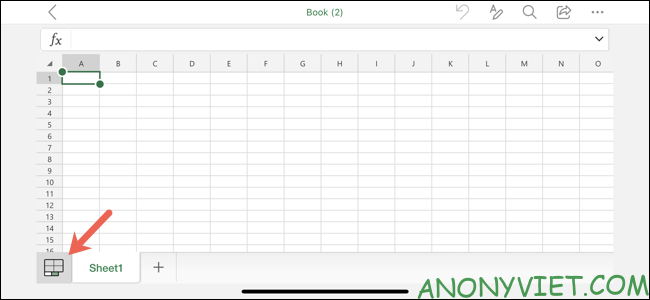
Sheets tab

You can also use the Ribbon. Click the Edit icon at the top, select “Insert” in the menu and select “Data From Picture”.
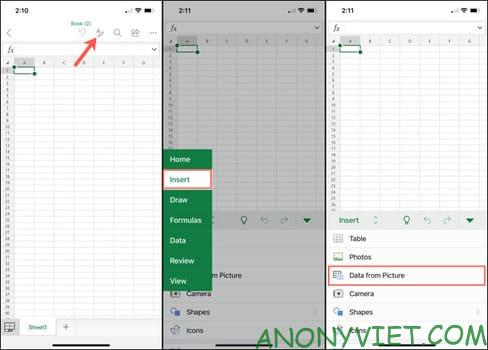
use the Ribbon

If you are using a tablet, use the Insert tab at the top and select “Data From Picture”.

Step 2: Insert data

You have two options for inserting data using Excel’s Data From Picture feature. The first is to take a photo with your phone’s camera. The second is to insert data from photos stored on the phone.

Extract data with phone camera

When you tap on the Data From Picture option, your phone will access the camera. Adjust the camera so that the data is clearly visible, and tap the shutter button at the bottom to take a photo.

Insert data with phone camera

Next, you can crop the image by dragging the edges or corners. Crop the excess parts of the image and focus on the data you want. When done, tap “Continue” on Android or “Confirm” on iPhone and iPad to use the image.
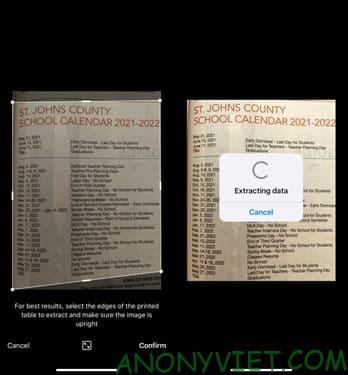
Confirm

Note: To start over, tap “Retake” on Android or “Cancel” on iPhone or iPad and take the photo again.

Insert data from saved images

If you have a photo saved to your phone and want to use it, follow these steps. On the camera screen, select the album icon as shown below.
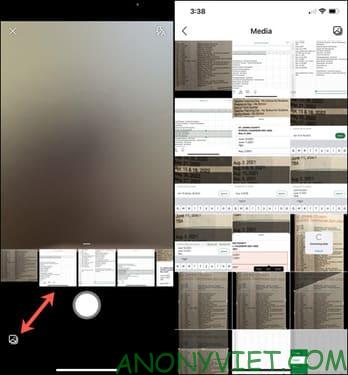
Insert data from saved images

Select the photo you want and you can also crop it, just like taking a photo with the camera above. Click “Continue” or “Confirm” to use the image.
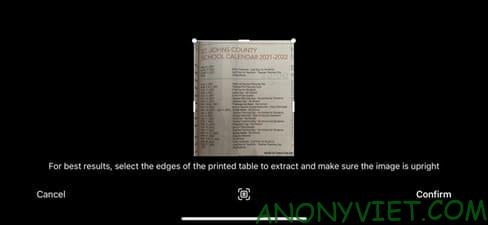
tiếp tục

Step 3: Review and Insert data from photos

When the process is complete, you will see a two-part screen in Excel. The top section shows the image, while the bottom section contains the data that Excel has extracted.

Depending on the quality of the original image and content, you may need to adjust some text. In addition, you will notice that some characters such as bullets and symbols or images do not display correctly.

Excel will highlight all the items that need your review at the bottom of the screen. You can select each highlighted data piece and then click “Edit” to make changes or “Ignore” to accept Excel’s extracted data.
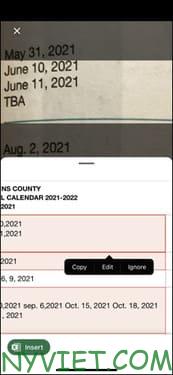
Review and Insert data from photos

You can also review all items in a clearer view. Select a highlighted item, click “Edit”, then select “Review All”. You’ll also see the total number of items that Excel wants you to review.
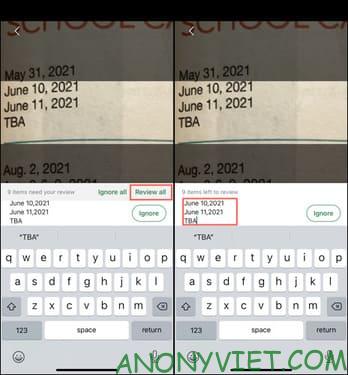
Review All

To edit the data, tap inside the text box and make the changes. Then, press “Done”. To accept the data without changes, tap “Ignore”.
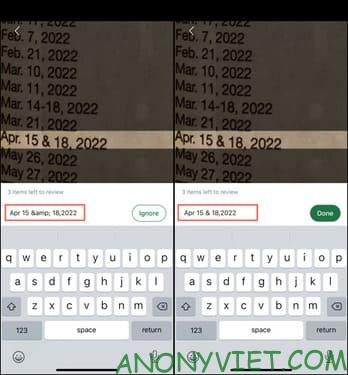
Extract data from photos and excel

When you’re done, the data will no longer contain featured items. You can then tap “Open” on Android or “Insert” on iPhone and iPad to insert data from the photo into the spreadsheet.
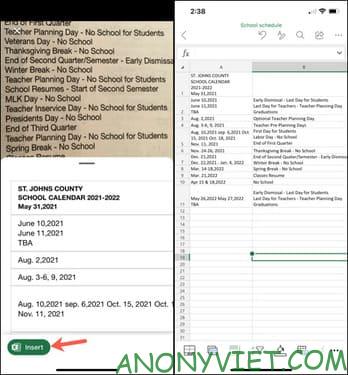
get data from image into excel

Once the data is in your Excel sheet, you can work with it like you would with other data types.

So you have inserted data from the image into Excel already. In addition, you can also Quickly compare 2 Excel files here.


The article achieved: 5/5 – (100 votes)

Tags: computersdataExcelMobilephonesphotos
Previous Post

How to block Youtube channel with Channel Blocker

Next Post

How to turn on Dark mode when it’s dark on Android

AnonyViet

AnonyViet

Related Posts

How to change the default font on Windows 10
Tips

How to change the default font on Windows 10

April 13, 2026
5 tips for using a Browser to replace an App (helps save RAM, time and money)
Tips

5 tips for using a Browser to replace an App (helps save RAM, time and money)

April 13, 2026
How to make funny MeMe photos without Photoshop within 10 seconds
Tips

How to make funny MeMe photos without Photoshop within 10 seconds

April 11, 2026
How to quickly design your own Logo without Photoshop
Tips

How to quickly design your own Logo without Photoshop

April 10, 2026
How to convert Website into App on Windows
Tips

How to convert Website into App on Windows

April 9, 2026
Instructions for getting 3 months of Adobe Express Pro for free
Tips

Instructions for getting 3 months of Adobe Express Pro for free

April 9, 2026
Next Post
How to turn on Dark mode when it’s dark on Android

How to turn on Dark mode when it's dark on Android

0 0 votes
Article Rating
Subscribe
Login
Notify of
guest

guest

0 Comments
Oldest
Newest Most Voted
Inline Feedbacks
View all comments

Recent News

4K Video Downloader Plus – Tool to download YouTube videos on macOS

4K Video Downloader Plus – Tool to download YouTube videos on macOS

April 20, 2026
How to add Watermark to Google Docs to protect copyright

How to add Watermark to Google Docs to protect copyright

April 19, 2026
How to intercept traffic using Burp Suite to analyze HTTP/HTTPS

How to intercept traffic using Burp Suite to analyze HTTP/HTTPS

April 18, 2026
How to avoid Adblock detection on Youtube with 4 good tips

How to avoid Adblock detection on Youtube with 4 good tips

April 17, 2026
4K Video Downloader Plus – Tool to download YouTube videos on macOS

4K Video Downloader Plus – Tool to download YouTube videos on macOS

April 20, 2026
How to add Watermark to Google Docs to protect copyright

How to add Watermark to Google Docs to protect copyright

April 19, 2026
How to intercept traffic using Burp Suite to analyze HTTP/HTTPS

How to intercept traffic using Burp Suite to analyze HTTP/HTTPS

April 18, 2026
AnonyViet - English Version

AnonyViet

AnonyViet is a website share knowledge that you have never learned in school!

We are ready to welcome your comments, as well as your articles sent to AnonyViet.

Follow Us

Contact:

Email: anonyviet.com[@]gmail.com

Main Website: https://anonyviet.com

Recent News

4K Video Downloader Plus – Tool to download YouTube videos on macOS

4K Video Downloader Plus – Tool to download YouTube videos on macOS

April 20, 2026
How to add Watermark to Google Docs to protect copyright

How to add Watermark to Google Docs to protect copyright

April 19, 2026
No Result
View All Result
  • Home
  • News
  • Software
  • Knowledge
  • MMO
  • Tips
  • Security
  • Network
  • Office

wpDiscuz
0
0
Would love your thoughts, please comment.x
()
x
| Reply