• Home
  • News
  • Software
  • Knowledge
  • MMO
  • Tips
  • Security
  • Network
  • Office
AnonyViet - English Version
  • Home
  • News
  • Software
  • Knowledge
  • MMO
  • Tips
  • Security
  • Network
  • Office
No Result
View All Result
  • Home
  • News
  • Software
  • Knowledge
  • MMO
  • Tips
  • Security
  • Network
  • Office
No Result
View All Result
AnonyViet - English Version
No Result
View All Result

How to draw online with the Google Chrome Canvas application

AnonyViet by AnonyViet
February 3, 2023
in Tips
0

If you are looking for a cross-platform, lightweight and lazy to install drawing tool, look no further than the Google Chrome Canvas app. It links to your Google account, allowing you to save and edit your drawings online.

Join the channel Telegram of the AnonyViet 👉 Link 👈

Google has quietly released a web app called Chrome Canvas that allows you to quickly create doodles that automatically save to your Google account, via Chrome Unboxed. You just need to go to the Chrome browser and open the drawing application without having to download any programs or applications. Chrome Canvas first appeared as an app in a Chrome OS Dev build. Now this application supports on browsers and Smartphones.

Currently the features of the application are quite simple and easy to use. A basic toolbar includes pencil, pen, marker, chalk and eraser, palette. You can export your drawing as a PNG file when you’re done, or drag up the same drawing on your phone and vice versa. To install apps on your Chromebook, simply tap the three-dot button and press ‘install Canvas’ and the app will show up as a palette icon on the Chrome OS launcher. It will also prompt you to add Chrome Canvas if you visit the site from your Android phone.

How to draw online with the Google Chrome Canvas application

Open, create, or delete a Chrome Canvas drawing

First, you need to go to this link Google Chrome Canvas. Press “Get started” and sign in to your Google account.

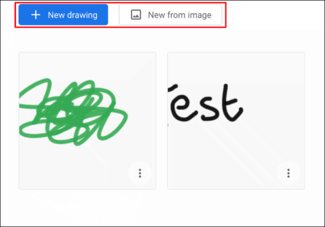
When you first log in, Canvas will create a new drawing for you. You can also press the . button “New Drawing” to create a new drawing, or “New from Image” to upload images from your PC.
How to draw online with the Google Chrome Canvas application 16

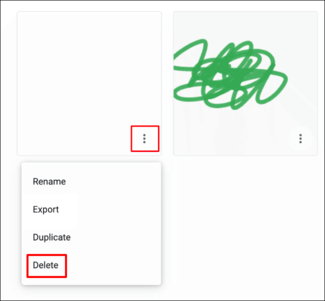
If you want to delete the created drawing, return to the main screen by pressing the home button (house icon) in the top left corner. Then tap the three-dot menu button in the lower right corner of the drawing and press Delete.
How to draw online with the Google Chrome Canvas application 17

Add a name to the Canvas drawing

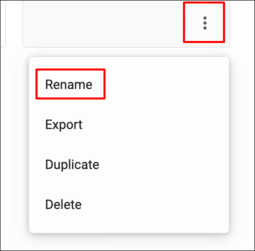
When first created, your drawing will not have a name. To add a name to the drawing, tap the three-dot icon and press Rename.
How to draw online with the Google Chrome Canvas application 18

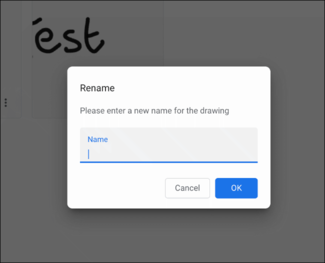
Enter the name you want and press OK.
How to draw online with the Google Chrome Canvas application 19

The name you just gave will be displayed under your drawing.
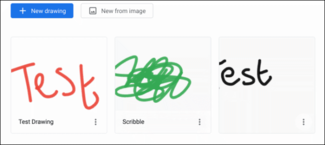
How to draw online with Google Chrome Canvas application 20

Change tools and paint colors

The Google Chrome Canvas tools are displayed in the menu on the left side of the screen.
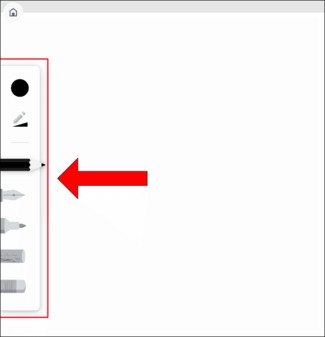
How to draw online with the Google Chrome Canvas application 21

Available drawing tools include pencil, fountain pen, marker, chalk, and eraser. Enough playing.
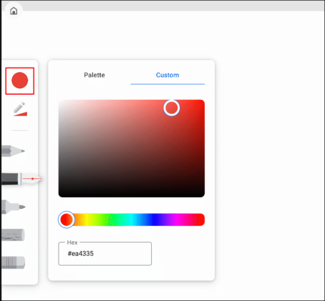
How to draw online with the Google Chrome Canvas application 22

To edit the drawing tool size and opacity, click the triangular pencil icon below the circle.

Use YOUR MOUSE to move the sliders left or right to decrease or increase the size or opacity of the tool.
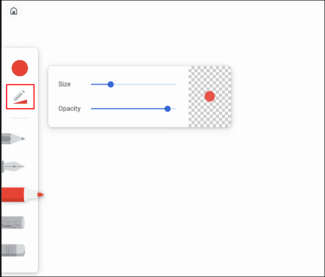
How to draw online with the Google Chrome Canvas application 23

If you want to undo or redo (undo or redo) any changes, you can use the left and right arrows in the top center of the screen..
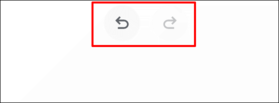
How to draw online with Google Chrome Canvas application 24

Add or remove Layers

Google Chrome Canvas allows you to use multiple Layers. You will have more flexibility in creating complex drawings and easily edit them.

The layers menu allows you to view existing layers. You can add, hide or remove layers from this menu. To access it, click the diamond icon in the upper-right corner, next to the three-dot menu icon.
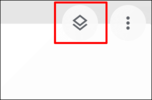
How to draw online with the Google Chrome Canvas application 25

To add a new layer, click the plus sign in the upper right corner of the menu. Click the trash can icon next to each layer to delete or the eye icon to hide.
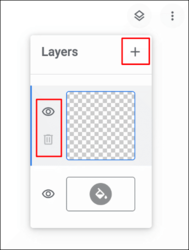
How to draw online with the Google Chrome Canvas application 26

By default, the drawing will have a white background. You can change the color by tapping the paint bucket icon at the bottom of the menu.
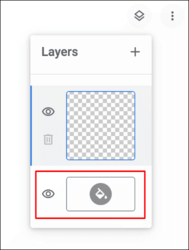
How to draw online with the Google Chrome Canvas application 27

The color you choose will be applied automatically. You can also hide the background layer by clicking the eye icon to make the background transparent.

Export Google Chrome Canvas drawing

If you want to export the drawing for printing or further editing, there are 2 ways to do it.

In the edit screen, tap the three-dot icon in the upper right corner. From there, click “Export Drawing” to export the drawing.
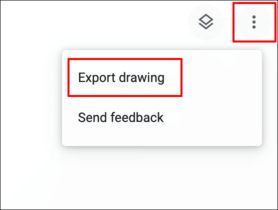
How to draw online with the Google Chrome Canvas application 28

Alternatively, in the drawing selection screen, tap the three-dot icon of the drawing you want to export. And click “Export”.
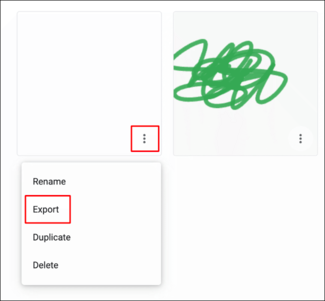
How to draw online with Google Chrome Canvas application 29

Both methods allow you to export drawings as images in PNG file format.

The article achieved: 5/5 – (100 votes)

Tags: applicationCanvasChromedrawGoogleonline
Previous Post

Zenly – Free GPS navigation application

Next Post

How to Chat with Support Youtube to answer questions about the account

AnonyViet

AnonyViet

Related Posts

How to see your email account creation date
Tips

How to see your email account creation date

November 11, 2025
Microsoft’s ranking of the 10 best Windows versions
Tips

Microsoft’s ranking of the 10 best Windows versions

November 11, 2025
Recover deleted data on Windows 10 with Windows File Recovery
Tips

Recover deleted data on Windows 10 with Windows File Recovery

November 10, 2025
Tips

Why hasn’t your computer been updated to Windows 10 2004?

November 9, 2025
3 OCR Tools Extract Text from Images without Retyping
Tips

3 OCR Tools Extract Text from Images without Retyping

November 8, 2025
Ways hackers use to hack your Facebook and how to fix it
Tips

Ways hackers use to hack your Facebook and how to fix it

November 7, 2025
Next Post
How to Chat with Support Youtube to answer questions about the account

How to Chat with Support Youtube to answer questions about the account

0 0 votes
Article Rating
Subscribe
Login
Notify of
guest

guest

0 Comments
Oldest
Newest Most Voted
Inline Feedbacks
View all comments

Recent News

How to install Anh Hai’s Pho Shop on MacBook is super easy

How to install Anh Hai’s Pho Shop on MacBook is super easy

November 11, 2025
How to turn off ads on Yoosee app in just 1 minute

How to turn off ads on Yoosee app in just 1 minute

November 11, 2025
Windows 11 and MS Office 2021 lifetime license, genuine from  during Keysoff’s 11.11 sale

Windows 11 and MS Office 2021 lifetime license, genuine from $14 during Keysoff’s 11.11 sale

November 11, 2025
How to see your email account creation date

How to see your email account creation date

November 11, 2025
How to install Anh Hai’s Pho Shop on MacBook is super easy

How to install Anh Hai’s Pho Shop on MacBook is super easy

November 11, 2025
How to turn off ads on Yoosee app in just 1 minute

How to turn off ads on Yoosee app in just 1 minute

November 11, 2025
Windows 11 and MS Office 2021 lifetime license, genuine from  during Keysoff’s 11.11 sale

Windows 11 and MS Office 2021 lifetime license, genuine from $14 during Keysoff’s 11.11 sale

November 11, 2025
AnonyViet - English Version

AnonyViet

AnonyViet is a website share knowledge that you have never learned in school!

We are ready to welcome your comments, as well as your articles sent to AnonyViet.

Follow Us

Contact:

Email: anonyviet.com[@]gmail.com

Main Website: https://anonyviet.com

Recent News

How to install Anh Hai’s Pho Shop on MacBook is super easy

How to install Anh Hai’s Pho Shop on MacBook is super easy

November 11, 2025
How to turn off ads on Yoosee app in just 1 minute

How to turn off ads on Yoosee app in just 1 minute

November 11, 2025
  • Home
  • Home 2
  • Home 3
  • Home 4
  • Home 5
  • Home 6
  • Next Dest Page
  • Sample Page

new88 trang chủ shbet trang chủ f168 trang chủ qq88 nhà cái 78win

No Result
View All Result
  • Home
  • News
  • Software
  • Knowledge
  • MMO
  • Tips
  • Security
  • Network
  • Office

new88 trang chủ shbet trang chủ f168 trang chủ qq88 nhà cái 78win

wpDiscuz
0
0
Would love your thoughts, please comment.x
()
x
| Reply