• Home
  • News
  • Software
  • Knowledge
  • MMO
  • Tips
  • Security
  • Network
  • Office
AnonyViet - English Version
  • Home
  • News
  • Software
  • Knowledge
  • MMO
  • Tips
  • Security
  • Network
  • Office
No Result
View All Result
  • Home
  • News
  • Software
  • Knowledge
  • MMO
  • Tips
  • Security
  • Network
  • Office
No Result
View All Result
AnonyViet - English Version
No Result
View All Result

How to create USB Reset Password Windows 10

AnonyViet by AnonyViet
January 30, 2023
in Tips
0

In this technology era, everyone owns a desktop or laptop computer, to protect privacy and avoid data theft, people often set a Password when logging in to Windows. However, many of you have a “goldfish brain” that sometimes forgets what your password is? Microsoft has calculated that case, so it has integrated the USB password reset feature for users. Today we will create a USB to recover Windows 10 password for self-defense.

Join the channel Telegram of the AnonyViet 👉 Link 👈

How to create USB Reset Password Windows 10

In this tutorial, we will create a password resettable USB for Windows 10 and will use this usb to log in to Windows no matter what you forgot the password. But before we start, make sure you have a USB stick.

How to create USB Reset Password Windows 10

Note: After creating the USB Reset Password Window to recover the password, the USB will not be used for other purposes. So use unnecessary USB to create. Also, make sure to keep this USB safe because if someone else has it, they will have access to your computer.

Small tips: You can also use “SD Card” instead of USB.

First, plug the USB into your machine. Then in the search (Search) enter Control Panel and Enter then Control Panel will open

Open Control Panel

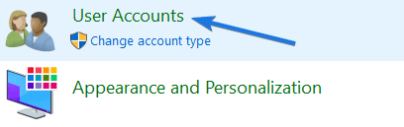
Then you click User Accounts.

User Accounts

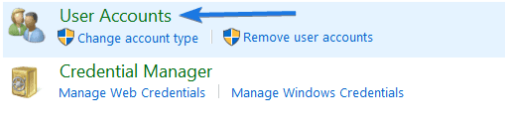
Then click again User Accounts.

User Accounts

Then in the upper left you find and select “Create a password reset disk”.
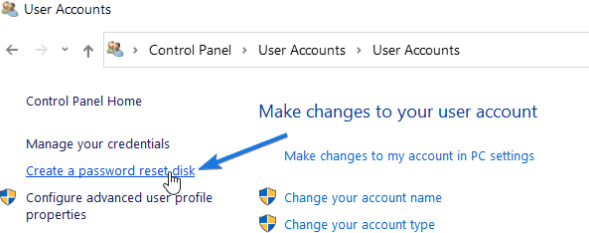
Create a password reset disk

And then the Forgotten Password Wizard will be opened. And you click Next.
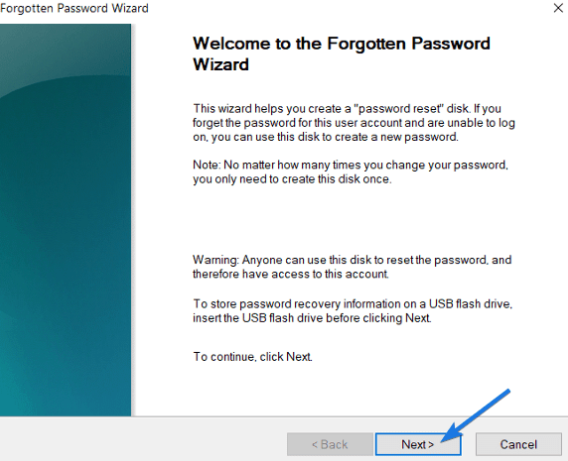
Forgotten Password Wizard

Now you select your USB drive, select Next.
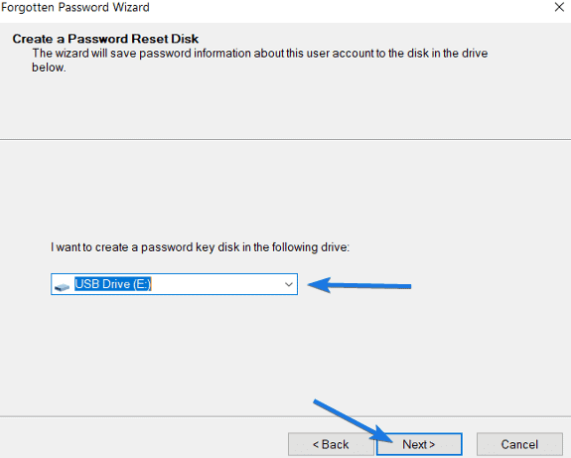
select USB drive to reset Password Windows 10

Windows will then ask what your current User’s password is. If your account has a password, enter it, otherwise leave it blank. And press next
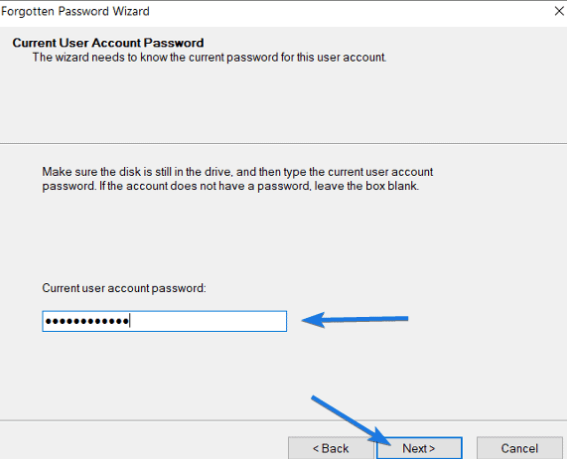
enter current password

Wait a moment for the process of creating USB Reset Password Windows to complete. Finally press Close to turn off.

How to create USB Reset Password Windows 10 3

Go to “This PC” and select the USB drive you just created to reset to see if there is a file “userkey.psw” or not, if yes, it has been created successfully. If there is no word redo from the beginning.
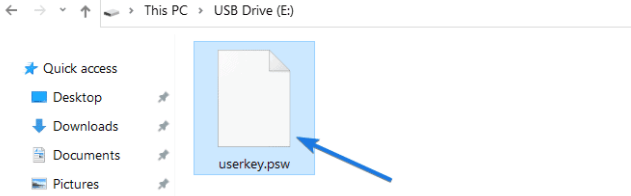
userkey.psw

How to Use USB to retrieve Windows password

First, plug the Windows Password Reset USB into the computer.

Press the Power button to start the machine up, wait until the Windows login screen appears, enter the wrong password until Windows shows the Reset Password .

After pressing Reset Password then what? Password reset wizard will appear. Press Next.

Reset Password Windows 10

Then select the USB that contains the file “userkey.psw” Please.
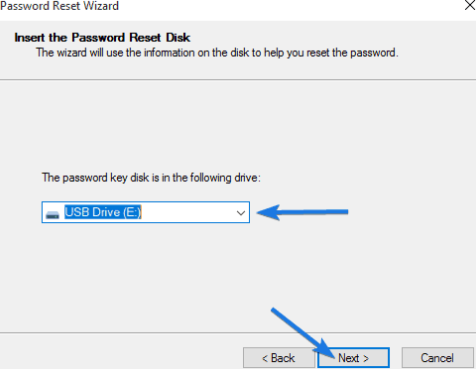
select usb reset pass

And now it will go to the reset password section “Reset the User Account Password”.

Enter the new password in the box Type a new passwordand re-enter the new Password in the box below.

The last box is a password hint, when you forget, there will be a password hint message for you.

For example, if you set the password as “suez”, then Type a new password hint maybe to be “in what channel the ship is stuck”?

Then click Next.
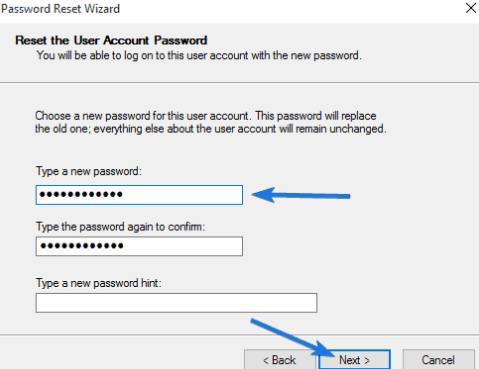
Reset the User Account Password

Wait for the Finish message to finish, now you can log in to Windows with the newly created Password.
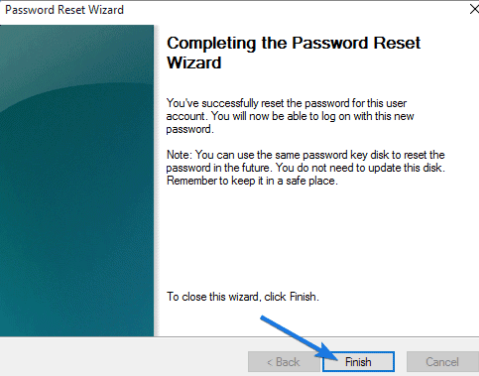
How to create USB Reset Password Windows 10 4

Summary

So I guide you to create USB Reset Password Windows 10 already. You can still use Password Hack Tool or Reset the password of rescue USBs like Hirent Boot, but it’s not a genuine tool, if you want absolute security, you should use Microsoft products. Hopefully, through this article, you will have one more method to protect your computer.


The article achieved: 5/5 – (100 votes)

Tags: createPasswordResetUSBWindows
Previous Post

How to attach a virus file to another .exe file?

Next Post

Instructions to increase Instagram Follow with GetInsta

AnonyViet

AnonyViet

Related Posts

How to write Shell Script in Linux/Unix
Tips

How to write Shell Script in Linux/Unix

December 6, 2025
How to completely uninstall WSL on Windows 11?
Tips

How to completely uninstall WSL on Windows 11?

December 6, 2025
Kinh nghiệm mua Laptop cho sinh viĂȘn nhĂłm ngĂ nh káșż toĂĄn, kinh táșż, xĂŁ hội

Tips

Kinh nghiệm mua Laptop cho sinh viĂȘn nhĂłm ngĂ nh káșż toĂĄn, kinh táșż, xĂŁ hội


December 5, 2025
8 tips for more successful PowerPoint presentations
Tips

8 tips for more successful PowerPoint presentations

December 4, 2025
Chrome extensions to improve productivity in 2021
Tips

Chrome extensions to improve productivity in 2021

December 2, 2025
How to create photos that run KPIs while crying using Gemini for the 12 zodiac animals
Tips

How to create photos that run KPIs while crying using Gemini for the 12 zodiac animals

December 1, 2025
Next Post
Instructions to increase Instagram Follow with GetInsta

Instructions to increase Instagram Follow with GetInsta

0 0 votes
Article Rating
Subscribe
Login
Notify of
guest

guest

0 Comments
Oldest
Newest Most Voted
Inline Feedbacks
View all comments

Recent News

How to transfer music from other services to Apple Music, no app required

How to transfer music from other services to Apple Music, no app required

December 8, 2025
How to create Mind Map and Flowchart using ChatGPT is super simple

How to create Mind Map and Flowchart using ChatGPT is super simple

December 7, 2025
Free Gemini Google certification exam guide and Answers

Free Gemini Google certification exam guide and Answers

December 6, 2025
How to write Shell Script in Linux/Unix

How to write Shell Script in Linux/Unix

December 6, 2025
How to transfer music from other services to Apple Music, no app required

How to transfer music from other services to Apple Music, no app required

December 8, 2025
How to create Mind Map and Flowchart using ChatGPT is super simple

How to create Mind Map and Flowchart using ChatGPT is super simple

December 7, 2025
Free Gemini Google certification exam guide and Answers

Free Gemini Google certification exam guide and Answers

December 6, 2025
AnonyViet - English Version

AnonyViet

AnonyViet is a website share knowledge that you have never learned in school!

We are ready to welcome your comments, as well as your articles sent to AnonyViet.

Follow Us

Contact:

Email: anonyviet.com[@]gmail.com

Main Website: https://anonyviet.com

Recent News

How to transfer music from other services to Apple Music, no app required

How to transfer music from other services to Apple Music, no app required

December 8, 2025
How to create Mind Map and Flowchart using ChatGPT is super simple

How to create Mind Map and Flowchart using ChatGPT is super simple

December 7, 2025
  • Home
  • Home 2
  • Home 3
  • Home 4
  • Home 5
  • Home 6
  • Next Dest Page
  • Sample Page

trang chá»§ f168 nhĂ  cĂĄi 78win https://www.qq8827.com/

No Result
View All Result
  • Home
  • News
  • Software
  • Knowledge
  • MMO
  • Tips
  • Security
  • Network
  • Office

trang chá»§ f168 nhĂ  cĂĄi 78win https://www.qq8827.com/

wpDiscuz
0
0
Would love your thoughts, please comment.x
()
x
| Reply