On Windows 10, PowerShell is a tool designed to run commands and scripts to change settings, automate tasks, and other actions. It is similar to Command Prompt. However, PowerShell is a more feature-rich command-line interface (CLI) that provides an expanded toolkit as well as more control and flexibility. Also, unlike Command Prompt, PowerShell is available on multiple platforms, including Windows, macOS, and Linux.
| Join the channel Telegram of the AnonyViet 👉 Link 👈 |

A script is a set of commands saved to a text file (using the “.ps1” extension) that PowerShell understands and executes in sequence to perform various actions.
The only caveat is that the default security protocol always blocks scripts from running on your computer. This means that when double-clicking the “.ps1” file on Windows 10, nothing will happen and if you try to run the script in PowerShell you will see the message “cannot be loaded because running scripts is disabled on” this system”. However, running scripts on Laptop or PC is not impossible. You just need to enable the correct enforcement policy.
In this article, I will guide you through the steps to successfully write and run a script on PowerShell using Visual Studio Code, Notepad, and the PowerShell Integrated Scripting Environment (ISE) console.
How to Create a PowerShell File on Windows 10
You can create PowerShell scripts using virtually any text editor or the ISE console. However, the best way to write scripts is to use Visual Studio Code with the PowerShell extension.
Creating scripts with Visual Studio Code
Visual Studio Code (VS Code) is a free and extensible cross-platform code editor that allows you to edit virtually any programming language. And when you add the PowerShell extension, you’ll be able to generate PowerShell scripts, even with IntelliSense (code autocomplete).
The PowerShell ISE app still has the same functionality, but Visual Studio Code with the PowerShell extension offers a better experience. In addition, PowerShell ISE will not receive any new features and does not support PowerShell 7 and later releases.
Install Visual Studio Code
To install Visual Studio Code on Windows 10, follow these steps:
1. Open the page Download Visual Studio.
2. Click the Windows button to download the installer.
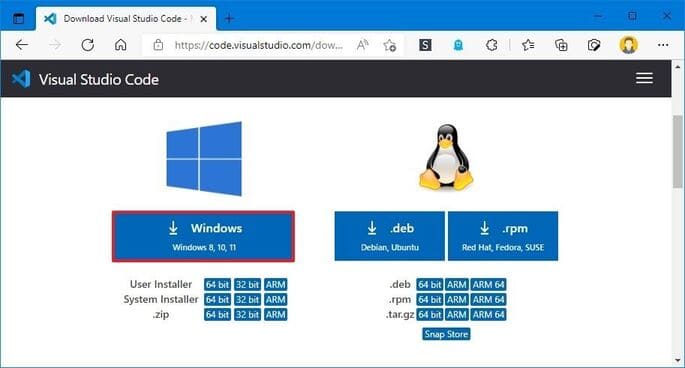
3. Double-click the installer to start the installation process.
4. Confirm the terms of the agreement.
5. Click the button next.
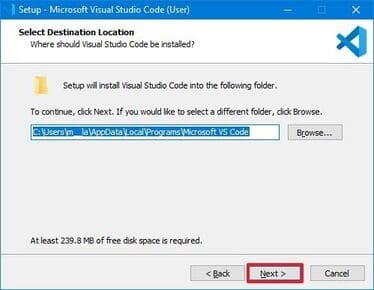
6. Click the button next once again.
7. Click the button next once again.
8. Select the required options.
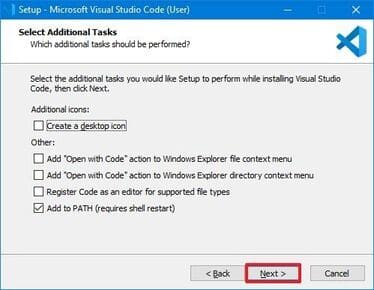
9. Click the button next.
10. Click the button Install.
11. Click the button finish.
After completing the above steps, you can continue to install the PowerShell extension.
Install PowerShell Extensions
To install the PowerShell extension on VS Code, follow these steps:
1. Open VS Code.
2. Click the tab Extensions (Ctrl + Shift + X) from the menu on the left.
3. Find PowerShell and select the first result.
4. Click the button Install.
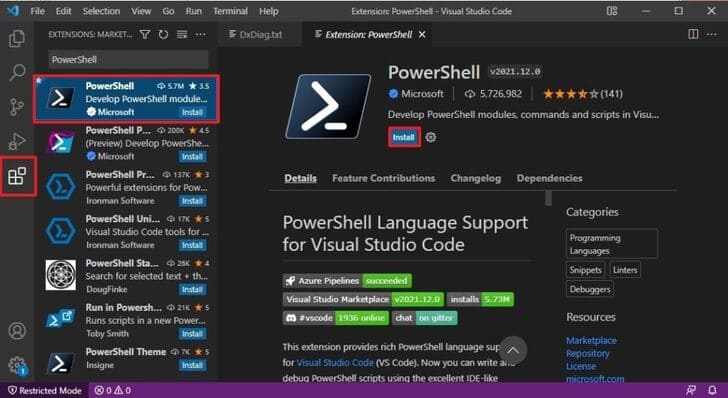
5. Click the button Trust Workspace & Install.
After completing the above steps, you can start writing PowerShell scripts using Visual Studio Code on Windows 10.
Create PowerShell Scripts with Visual Studio Code
1. Open VS Code.
2. Click File and choose New File.
3. Click File and choose Save As.
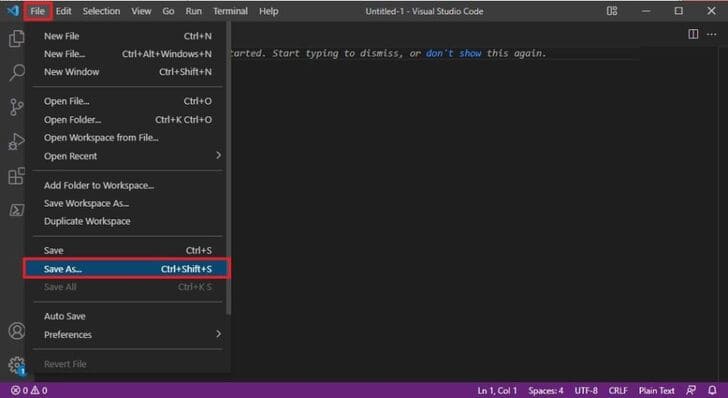
4. In the “File name” field, set the file extension to .ps1 – for example, first_script.ps1.
5. Click the button Save.
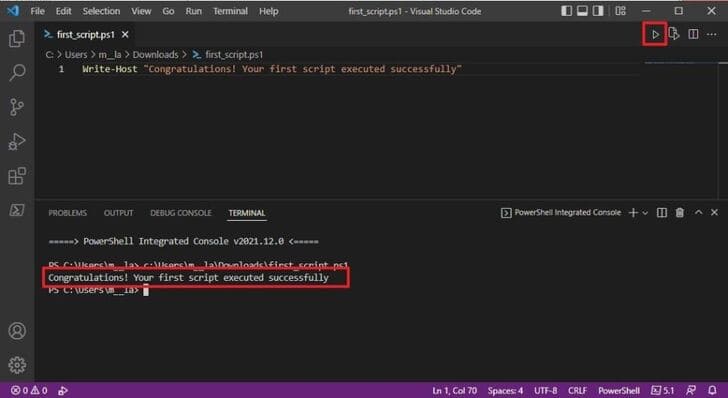
6. Write the command you want to run – for example: Write-Host "Congratulations! Your first script executed successfully Quick note: The above script will output the phrase “Congratulations! Your first script executed successfully” on the screen.
7. (Optional) Click the button Run from the top right (or press the F5 key) to run the script.
8. Click File .
9. Click Save.
Create PowerShell Scripts with Notepad
1. Open Start.
2. Search for Notepad and click on the top result to open the application.
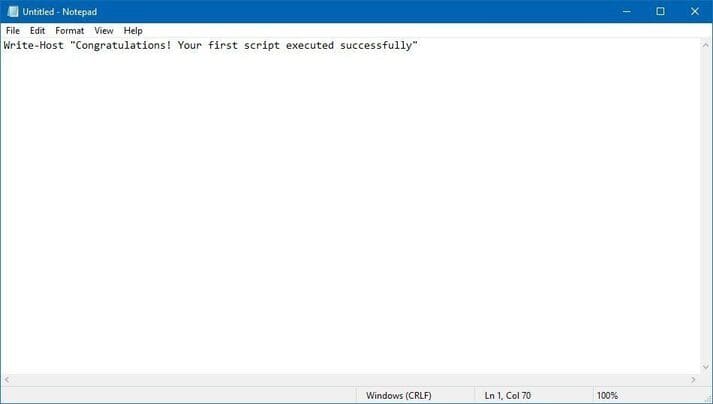
3. Write your command – for example: Write-Host "Congratulations! Your first script executed successfully"
4. Click File .
5. Select Save As.
6. Name the script – for example, first_script.ps1.
7. Click the button Save.
Generate PowerShell scripts with Integrated Scripting Environment
Alternatively, you can use the built-in PowerShell ISE console to write scripts on Windows 10.
The Integrated Scripting Environment is an advanced tool, but you can start using it with these steps:
1. Open Start.
2. Search for Windows PowerShell ISE, right click on the top result and select Run as administrator.
3. Click File .
4. Select new to create a new .ps1 file.

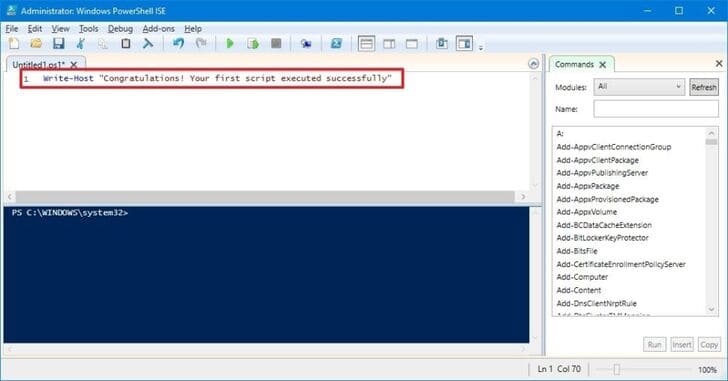
5. Write the command you want to run – for example: Write-Host "Congratulations! Your first script executed successfully"
6. Click File.
7. Click Save.
8. Enter a script name – for example, first_script.ps1.
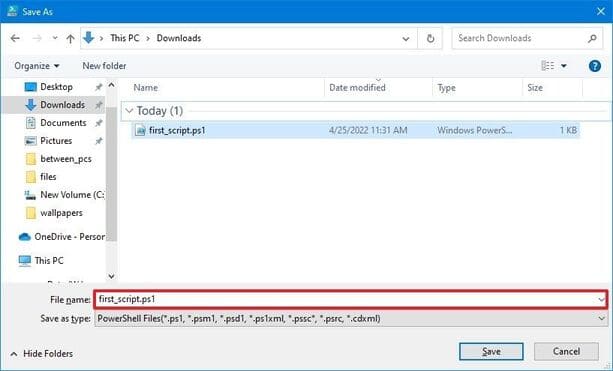
9. Choose a folder location to save the script file.
10. Click the button Save.
11. (Optional) Click the button Run from the top right (or press the F5 key) to run the script.
After you complete the above steps using Notepad, Visual Studio Code, or PowerShell ISE, the script is ready to run, but will fail using the default system settings. The reason is that the default PowerShell settings are configured to block the execution of any scripts. (The only exception is if you run the contents of the script in Visual Studio Code or PowerShell ISE.)
How to run a PowerShell script file on Windows 10
On Windows 10, to run a script file using PowerShell, you must change the execution policy.
To change the execution policy to run PowerShell scripts on Windows 10, use these steps:
1. Open Start.
2. Search for PowerShell, right click on the top result and select Run as administrator.
3. Type the following command to allow the scripts to run and press Enter: Set-ExecutionPolicy RemoteSigned
4. Type A and press Enter (if available).
5. Type the following command to run the script and press Enter: & “C:\PATH\TO\SCRIPT\first_script.ps1”
In the above command, change “PATH\TO\SCRIPT” to the location of your script. For example, this command runs a script stored in the Downloads folder: & "C:\Users\username\Downloads\first_script.ps1"
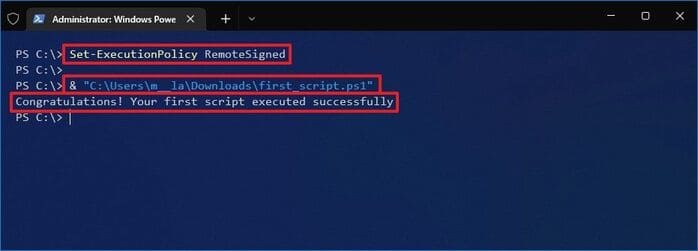
After you complete the above steps, the script will run and if it is written correctly you should see its output on the screen with no problem.
On Windows 10, PowerShell includes four enforcement policies:
- Restricted – Stop running any scripts.
- RemoteSigned – Scripts created on the device are allowed, but scripts created on other computers will not run unless they include a trusted publisher’s signature.
- AllSigned – All scripts will run, but only if a trusted publisher has signed them.
- Unrestricted – Run any script without any restrictions.
In addition, you can also learn more about PowerShell programming here.