• Home
  • News
  • Software
  • Knowledge
  • MMO
  • Tips
  • Security
  • Network
  • Office
AnonyViet - English Version
  • Home
  • News
  • Software
  • Knowledge
  • MMO
  • Tips
  • Security
  • Network
  • Office
No Result
View All Result
  • Home
  • News
  • Software
  • Knowledge
  • MMO
  • Tips
  • Security
  • Network
  • Office
No Result
View All Result
AnonyViet - English Version
No Result
View All Result

How to create AI images in Paint on Windows 11 very easily

AnonyViet by AnonyViet
January 21, 2024
in Tips
0

How to create AI photos in Paint is something that many people are interested in and want to know. You can create unique and creative artistic photos with this tool. Paint Cocreator is an application that allows you to combine the help of artificial intelligence (AI) and your own creativity to paint. You don't need to have drawing skills or art knowledge, just ideas and passion.

Join the channel Telegram belong to AnonyViet 👉 Link 👈

Introducing the Cocreator feature in Paint

The Cocreator feature allows you to create AI photos within the app Paint on Windows 11 using OpenAI's DALL-E model. This feature is currently only available to Windows Insider users (Dev Build 23560 and above) and only supports English language.

You will have to join the waitlist and wait for your account to be approved to use this new tool. Microsoft says the feature will roll out to stable users over the next few months.

How to create AI images in Paint

Step 1: To experience the Cocreator feature, you need to switch to the Windows Insider Dev channel from Settings
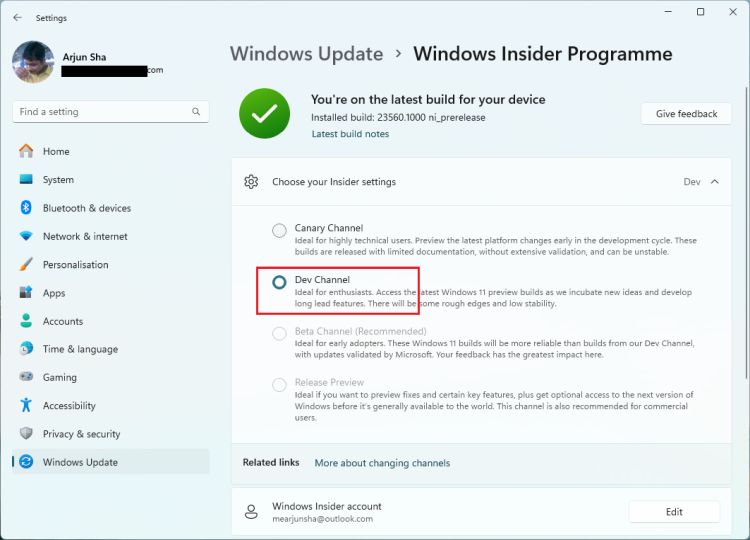
How to create AI images in Paint
You must switch to the Windows Insider Dev channel

Step 2: After switching to the Dev channel, open Microsoft Store and search for Paint and update the application to the latest version (version 11.2309.24.0 or higher).
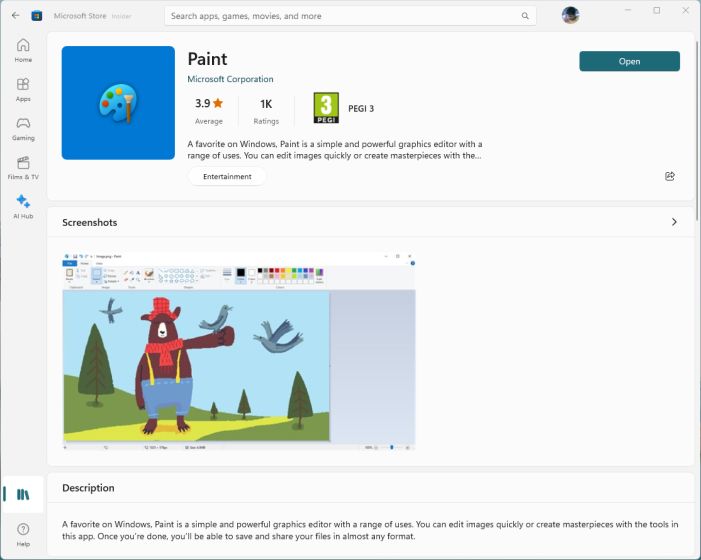
How to create AI images in Paint
Update Paint to the latest version

Step 3: Open the Paint application on your computer and log in with your Microsoft account
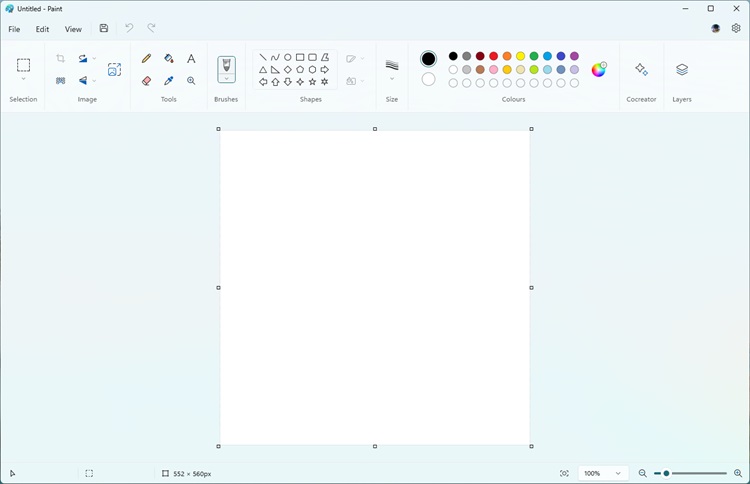
How to create AI images in Paint
Open the Paint application

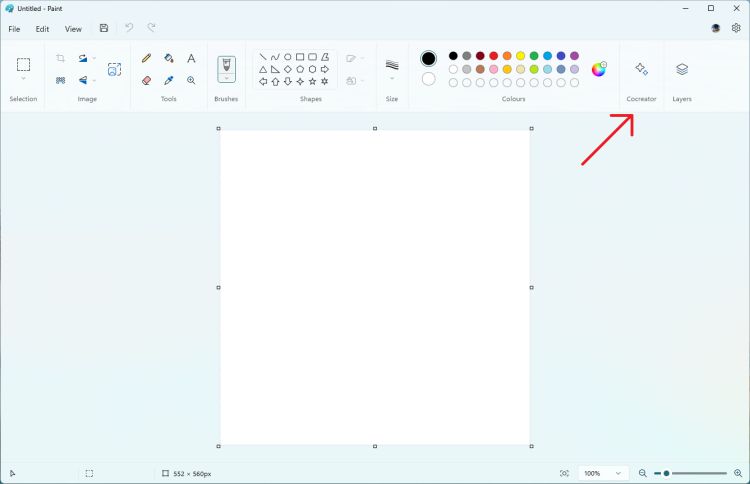
Step 4: Click the “Cocreator” button

How to create AI photos in Paint
Click the “Cocreator” button

Step 5: Click “Join waitlist” and you will receive an email when your account is approved.
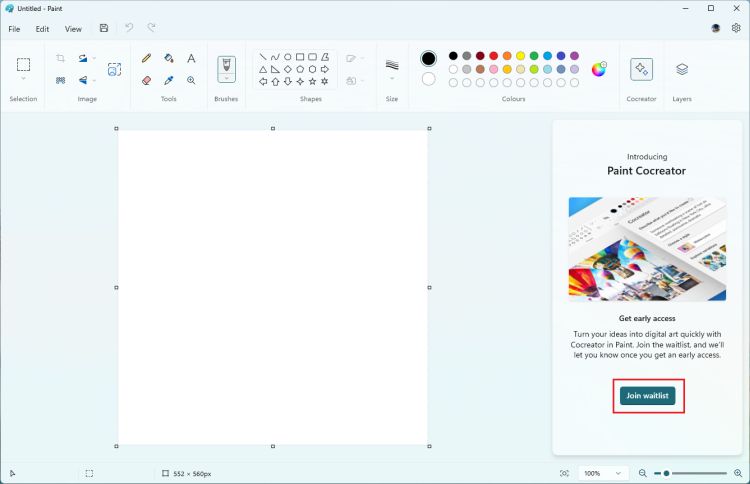
How to create AI images in Paint
Click “Join waitlist”

Step 6: Once your account is approved, reopen Paint and enter the prompt to create the AI ​​image using the DALL-E model. You can also choose different styles and variations when creating photos.

Note, you only have 50 credits to create images in the Paint application.
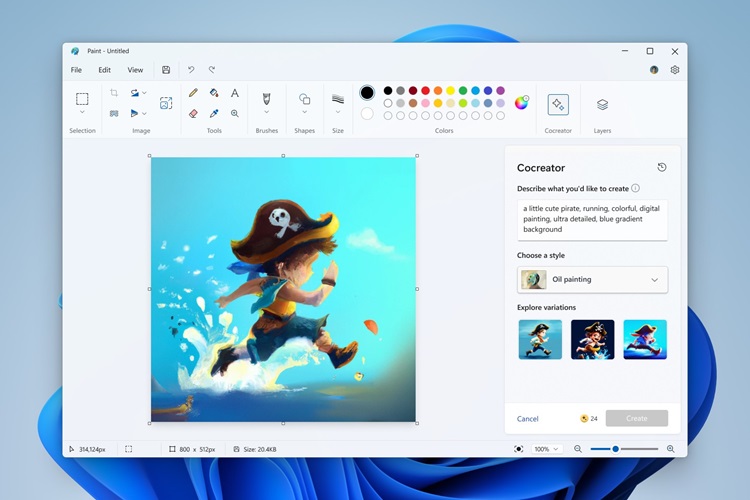
How to create AI images in Paint

Epilogue

How to create AI photos in Paint Cocreator is a fun and easy way for you to express your personality and interests through art. You are free to be creative and experiment with different styles and themes. Start your trial today and discover the fun things that Paint Cocreator has to offer!


The article scored: 5/5 – (100 votes)

Tags: createeasilyimagesPaintWindows
Previous Post

AI has appeared that translates calls in real time – Eliminates all language barriers

Next Post

How to check iPhone battery with quick shortcuts

AnonyViet

AnonyViet

Related Posts

New features of Windows 10 21H1 are coming soon
Tips

New features of Windows 10 21H1 are coming soon

March 16, 2026
How to convert normal music into 8D music with Audioalter
Tips

How to convert normal music into 8D music with Audioalter

March 14, 2026
How to prevent your family’s Security Camera from being hacked
Tips

How to prevent your family’s Security Camera from being hacked

March 13, 2026
Pixel Agents: Turn VS Code into a Pixel Art Office for AI
Tips

Pixel Agents: Turn VS Code into a Pixel Art Office for AI

March 12, 2026
English learning app Memrise is offering a lifetime discount of only 21,000 VND
Tips

English learning app Memrise is offering a lifetime discount of only 21,000 VND

March 11, 2026
Instructions for upgrading to Windows 10 Sun Valley (February 21)
Tips

Instructions for upgrading to Windows 10 Sun Valley (February 21)

March 11, 2026
Next Post
How to check iPhone battery with quick shortcuts

How to check iPhone battery with quick shortcuts

0 0 votes
Article Rating
Subscribe
Login
Notify of
guest

guest

0 Comments
Oldest
Newest Most Voted
Inline Feedbacks
View all comments

Recent News

Why are iPhones and MacBooks still the number 1 “weapons” of the technology world?

Why are iPhones and MacBooks still the number 1 “weapons” of the technology world?

March 16, 2026
New features of Windows 10 21H1 are coming soon

New features of Windows 10 21H1 are coming soon

March 16, 2026
Receive Advanced SystemCare 19 Pro key for free for 6 months

Receive Advanced SystemCare 19 Pro key for free for 6 months

March 16, 2026
How to install Siri to read application notifications on iPhone 17 is extremely simple

How to install Siri to read application notifications on iPhone 17 is extremely simple

March 16, 2026
Why are iPhones and MacBooks still the number 1 “weapons” of the technology world?

Why are iPhones and MacBooks still the number 1 “weapons” of the technology world?

March 16, 2026
New features of Windows 10 21H1 are coming soon

New features of Windows 10 21H1 are coming soon

March 16, 2026
Receive Advanced SystemCare 19 Pro key for free for 6 months

Receive Advanced SystemCare 19 Pro key for free for 6 months

March 16, 2026
AnonyViet - English Version

AnonyViet

AnonyViet is a website share knowledge that you have never learned in school!

We are ready to welcome your comments, as well as your articles sent to AnonyViet.

Follow Us

Contact:

Email: anonyviet.com[@]gmail.com

Main Website: https://anonyviet.com

Recent News

Why are iPhones and MacBooks still the number 1 “weapons” of the technology world?

Why are iPhones and MacBooks still the number 1 “weapons” of the technology world?

March 16, 2026
New features of Windows 10 21H1 are coming soon

New features of Windows 10 21H1 are coming soon

March 16, 2026
No Result
View All Result
  • Home
  • News
  • Software
  • Knowledge
  • MMO
  • Tips
  • Security
  • Network
  • Office

wpDiscuz
0
0
Would love your thoughts, please comment.x
()
x
| Reply