• Home
  • News
  • Software
  • Knowledge
  • MMO
  • Tips
  • Security
  • Network
  • Office
AnonyViet - English Version
  • Home
  • News
  • Software
  • Knowledge
  • MMO
  • Tips
  • Security
  • Network
  • Office
No Result
View All Result
  • Home
  • News
  • Software
  • Knowledge
  • MMO
  • Tips
  • Security
  • Network
  • Office
No Result
View All Result
AnonyViet - English Version
No Result
View All Result

How to Create a Guest Mode Shortcut for Chrome and Edge

AnonyViet by AnonyViet
January 29, 2023
in Tips
0

Both Chrome and Edge offer a guest mode that keeps your browsing separate from the main browser profile. If you often let others use your computer to browse the web, you can add a guest mode shortcut to the Desktop. This makes opening guest mode faster and doesn’t save user information.

Join the channel Telegram of the AnonyViet 👉 Link 👈

How to Create a Guest Mode Shortcut for Chrome and Edge

What is Guest Mode in Chrome and Edge?

Guest Mode in Google Chrome and Microsoft Edge is basically a separate user profile for your browsing sessions. When you use guest mode, the browser does not load other profile profiles (configurations like browsing history, your browser personalization settings, etc.).

What is Guest Mode in Chrome and Edge?

When you leave guest mode, all browsing activity you’ve done in it will be deleted from history. Your downloaded files list is also deleted, even though the files still exist on your computer.

If you share a computer with others, you give them guest access so their browsing history doesn’t affect yours.

Create Guest Mode Shortcut on Google Chrome

Normally, you would click on your profile icon in Chrome’s toolbar and select “Guest” to enter guest mode in Chrome, but you may not need to do so by creating a desktop shortcut to open it directly. guest mode in Chrome.

To add a shortcut, go to the Start Menu and search for “Google Chrome”. Right click on the Chrome browser and select “Open file location”.
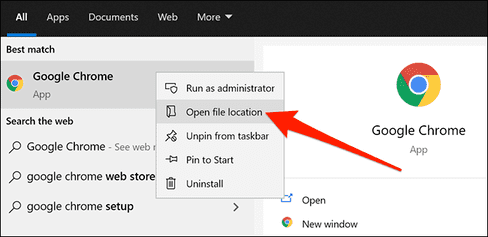
Create Guest Mode Shortcut on Google Chrome

In File Explorer, right-click the “Chrome” shortcut and select “Open file location”. Until you find Chrome’s executable (chrome.exe). then right click on “chrome.exe” and select Send to > Desktop to create a shortcut on the Desktop.
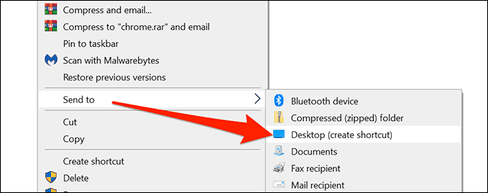
Open file location

Right-click the newly created shortcut and select “Properties.”
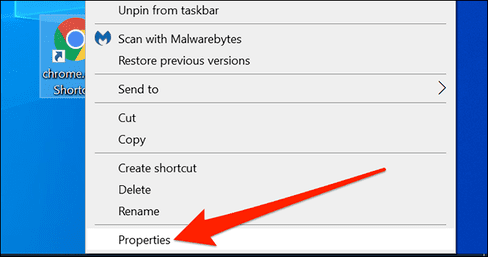
Properties

In Properties, click the “Shortcut” tab. In the “Target” field, enter this command:

--guest
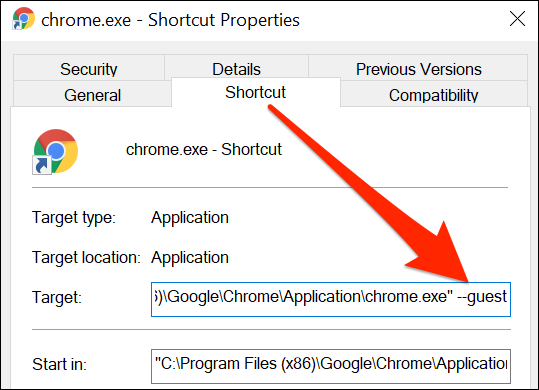
Shortcut

Click “Apply” and then select “OK” at the bottom to save your changes.

You should rename this shortcut for easy identification. Right click on the shortcut and select “Rename”. Enter a meaningful name like “Chrome Guest Mode” and press “Enter”.
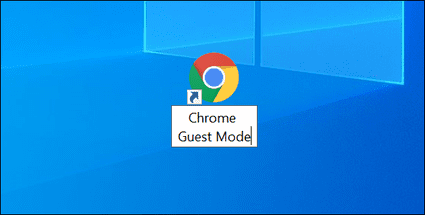
Chrome Guest Mode

Create a guest mode shortcut on Microsoft Edge

The process of creating a guest mode shortcut for Edge is quite similar to Chrome.

First, open the Start Menu and look for “Microsoft Edge”. Right click on Edge and select “Open file location”.
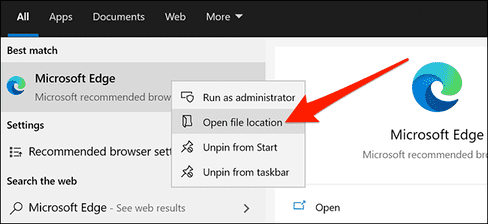
Create a guest mode shortcut on Microsoft Edge

You should now see the Edge shortcut in File Explorer. Right click on this shortcut and select “Open file location”.

When you see “msedge.exe”, right click on it and select Send to > Desktop. This will add the Edge shortcut to your Desktop.
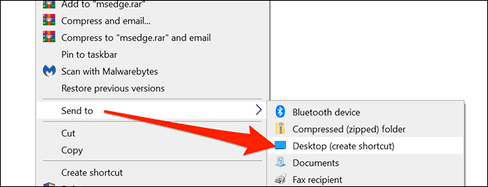
msedge.exe

Right-click the new shortcut on the Desktop and select “Properties”.
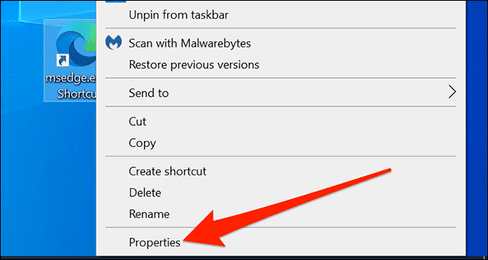
Properties

Click the “Shortcut” tab in the Properties window. In the “Target” field, type the following command:

--guest

Target

Click “Apply” and select “OK” to save your changes. It’s done.

So you can safely lend your computer to others to browse the Web without fear of them affecting the browser you are using. When turning off Guest mode – Other mode, the browser will return to its original state and not save any data to the computer.


The article achieved: 5/5 – (100 votes)

Tags: ChromecreateEdgeGuestModeShortcut
Previous Post

Instructions for creating a free 6-month Tinder Plus account

Next Post

SVScanner – Website security vulnerability scanning tool

AnonyViet

AnonyViet

Related Posts

Instructions for receiving Lovable Pro 12 months for free
Tips

Instructions for receiving Lovable Pro 12 months for free

May 29, 2026
Instructions for receiving 1 month of ElevenLabs Creator for free worth
Tips

Instructions for receiving 1 month of ElevenLabs Creator for free worth $22

May 25, 2026
How to create beautiful studio-like preschool graduation photos for your child
Tips

How to create beautiful studio-like preschool graduation photos for your child

May 21, 2026
Instructions on how to change iPhone fonts beautifully with Lara
Tips

Instructions on how to change iPhone fonts beautifully with Lara

May 20, 2026
Create images of guardian mascots using AI according to year of birth
Tips

Create images of guardian mascots using AI according to year of birth

May 20, 2026
Try the Shopee Profit Calculator now, avoid the risk of selling at a loss
Tips

Try the Shopee Profit Calculator now, avoid the risk of selling at a loss

May 19, 2026
Next Post
SVScanner – Website security vulnerability scanning tool

SVScanner - Website security vulnerability scanning tool

0 0 votes
Article Rating
Subscribe
Login
Notify of
guest

guest

0 Comments
Oldest
Newest Most Voted
Inline Feedbacks
View all comments

Recent News

How to turn off Gemini Nano on Chrome to free up 4GB of memory

How to turn off Gemini Nano on Chrome to free up 4GB of memory

May 30, 2026
Instructions for receiving Lovable Pro 12 months for free

Instructions for receiving Lovable Pro 12 months for free

May 29, 2026
How to extract text from photos using Zalo is super simple

How to extract text from photos using Zalo is super simple

May 29, 2026
HONOR 600 in hand – High-end design, 200MP camera, not cheap price

HONOR 600 in hand – High-end design, 200MP camera, not cheap price

May 28, 2026
How to turn off Gemini Nano on Chrome to free up 4GB of memory

How to turn off Gemini Nano on Chrome to free up 4GB of memory

May 30, 2026
Instructions for receiving Lovable Pro 12 months for free

Instructions for receiving Lovable Pro 12 months for free

May 29, 2026
How to extract text from photos using Zalo is super simple

How to extract text from photos using Zalo is super simple

May 29, 2026
AnonyViet - English Version

AnonyViet

AnonyViet is a website share knowledge that you have never learned in school!

We are ready to welcome your comments, as well as your articles sent to AnonyViet.

Follow Us

Contact:

Email: anonyviet.com[@]gmail.com

Main Website: https://anonyviet.com

Recent News

How to turn off Gemini Nano on Chrome to free up 4GB of memory

How to turn off Gemini Nano on Chrome to free up 4GB of memory

May 30, 2026
Instructions for receiving Lovable Pro 12 months for free

Instructions for receiving Lovable Pro 12 months for free

May 29, 2026
No Result
View All Result
  • Home
  • News
  • Software
  • Knowledge
  • MMO
  • Tips
  • Security
  • Network
  • Office

wpDiscuz
0
0
Would love your thoughts, please comment.x
()
x
| Reply