• Home
  • News
  • Software
  • Knowledge
  • MMO
  • Tips
  • Security
  • Network
  • Office
AnonyViet - English Version
  • Home
  • News
  • Software
  • Knowledge
  • MMO
  • Tips
  • Security
  • Network
  • Office
No Result
View All Result
  • Home
  • News
  • Software
  • Knowledge
  • MMO
  • Tips
  • Security
  • Network
  • Office
No Result
View All Result
AnonyViet - English Version
No Result
View All Result

How to Compare the Contents of 2 Excel Files quickly

AnonyViet by AnonyViet
January 28, 2023
in Tips
0

There are many reasons you need to compare 2 Excel files. This can be a time-consuming and demanding task, but it can still be done more easily.

Join the channel Telegram of the AnonyViet 👉 Link 👈

How to Compare the Contents of 2 Excel Files quickly

How to Compare the Contents of 2 Excel Files

Excel makes it easy for users to compare 2 Excel files by following the steps below:

  1. First, open the file you need to compare.
  2. Next on View > Window > View Side by Side.

Compare 2 Excel files manually

Open Excel and select any files you want to compare. We can use the same technique to compare sheets in the same document or compare two different Excel files.

If there are multiple sheets in the same workbook (workbook), you need to split it first. To do so, navigate to View > Window > New Window.
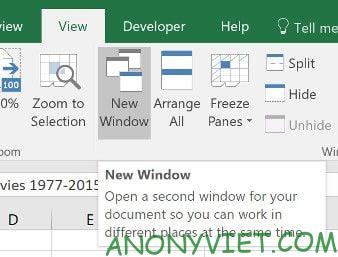
Compare 2 Excel files manually

This won’t split your sheets permanently, it simply opens a new document session.

Next, go to tab View And find View Side by Side in section window.
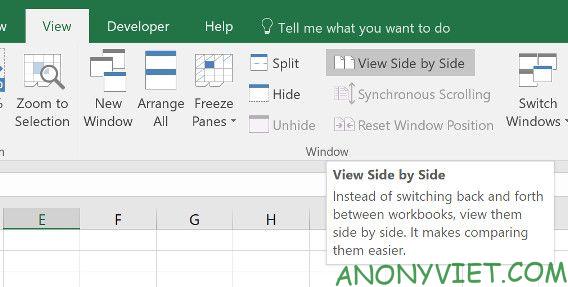
View Side by Side

This menu will list all the currently open workbooks. If you only have 2 worksheets, they will be selected automatically.
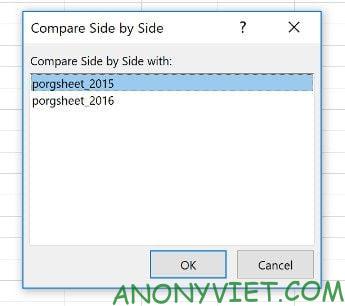
Compare the contents of 2 spreadsheets

After choosing, you press OK. You should see both worksheets appear on the screen.
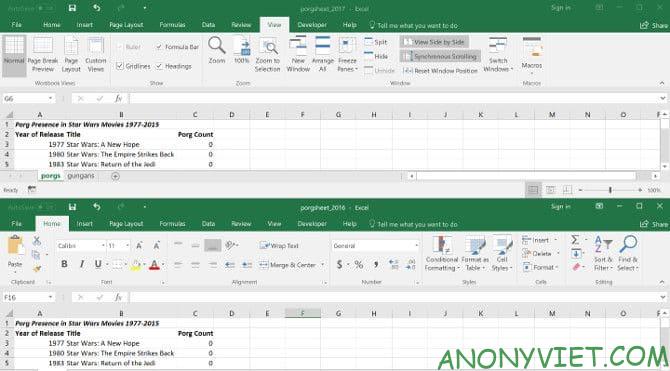
Compare 2 different excel files

For more convenience, you can use the . button Arrange All to switch between portrait and landscape.
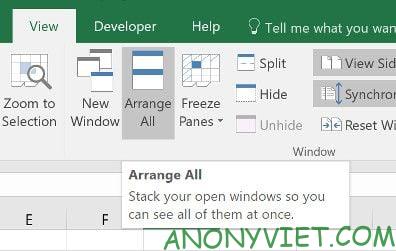
Arrange All

An important option to note is Synchronous Scrolling.
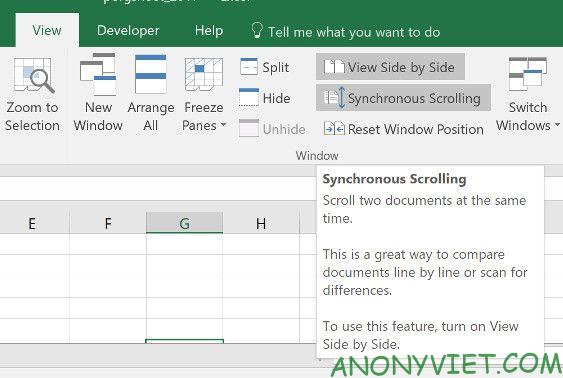
Synchronous Scrolling

Enabling this feature will ensure that when you scroll one window, the other will scroll with it. This feature is essential if you are working with a large spreadsheet and always check 2 worksheets together. If the two sheets are not aligned, just click Reset Window Position.

Compare 2 Excel files using conditional formatting

Using conditional formatting lets you check for any differences between two worksheets. This can save a lot of time if all you need to do is find the difference between two sheets.

For this method, you need to make sure the two worksheets are in the same workbook. To do so, right-click the name of the sheet you want and select Move or Copy.
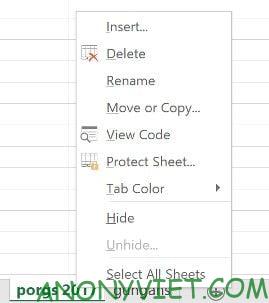
Compare 2 Excel files using conditional formatting

Here, you can use the drop-down menu to decide which workbook the sheet should be added to.
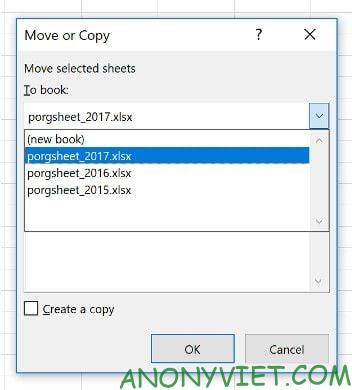
compare workbooks

Select all the data you want to compare in the worksheet. Click the cell in the top left corner to quickly select the data, then use the keyboard shortcut Ctrl + Shift + End.

Next on Home > Styles > Conditional Formatting > New Rule.
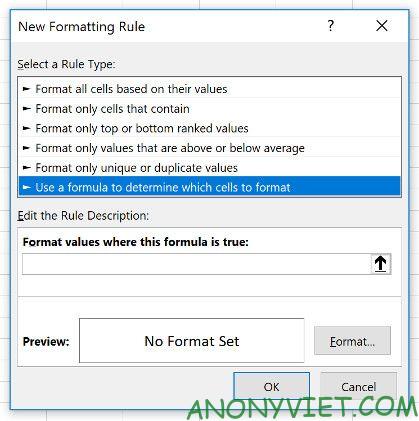
New Rule

Select Use a formula to determine which cells to format and enter the following formula: =A1<>sheet_name!A1

Change “sheet_name” to the sheet name you want to compare. This formula will check the data in 2 worksheets and mark the cell the way you want.

Next, click Format and select how you want to highlight the other data. I will highlight the cells with different data in red. Next, click OK.
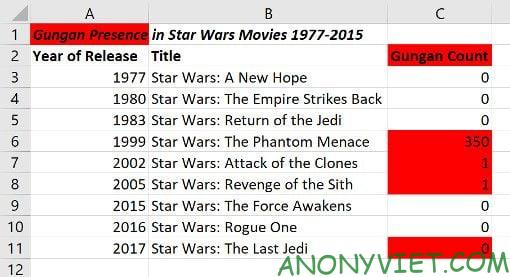
Format

You can see the results as shown above. Any cells with data differences are highlighted in red, making it faster and easier to compare two Excel files.

In addition, you can also become Learn Excel quickly with these 8 tips.

The article achieved: 5/5 – (100 votes)

Tags: CompareContentsExcelfilesQuickly
Previous Post

Instructions for Hacking Steam Account Play Temple Game Free

Next Post

How to lock Software with Password on Windows 10

AnonyViet

AnonyViet

Related Posts

3 OCR Tools Extract Text from Images without Retyping
Tips

3 OCR Tools Extract Text from Images without Retyping

November 8, 2025
Ways hackers use to hack your Facebook and how to fix it
Tips

Ways hackers use to hack your Facebook and how to fix it

November 7, 2025
Create your own Font using your Handwriting
Tips

Create your own Font using your Handwriting

November 6, 2025
Share White Hat Hacker Course – The Complete Ethical Hacking Course
Tips

Share White Hat Hacker Course – The Complete Ethical Hacking Course

November 5, 2025
Instructions on how to get 1 year of ChatGPT Go for free
Tips

Instructions on how to get 1 year of ChatGPT Go for free

November 4, 2025
Instructions for creating your own Chrome Extension using Scratch
Tips

Instructions for creating your own Chrome Extension using Scratch

November 4, 2025
Next Post
How to lock Software with Password on Windows 10

How to lock Software with Password on Windows 10

0 0 votes
Article Rating
Subscribe
Login
Notify of
guest

guest

0 Comments
Oldest
Newest Most Voted
Inline Feedbacks
View all comments

Recent News

Download training materials on Applying AI in teaching and learning in 2025

Download training materials on Applying AI in teaching and learning in 2025

November 8, 2025
How to pay health insurance on Momo online right at home

How to pay health insurance on Momo online right at home

November 8, 2025
How to create Flycam videos from photos to sell real estate

How to create Flycam videos from photos to sell real estate

November 8, 2025
3 OCR Tools Extract Text from Images without Retyping

3 OCR Tools Extract Text from Images without Retyping

November 8, 2025
Download training materials on Applying AI in teaching and learning in 2025

Download training materials on Applying AI in teaching and learning in 2025

November 8, 2025
How to pay health insurance on Momo online right at home

How to pay health insurance on Momo online right at home

November 8, 2025
How to create Flycam videos from photos to sell real estate

How to create Flycam videos from photos to sell real estate

November 8, 2025
AnonyViet - English Version

AnonyViet

AnonyViet is a website share knowledge that you have never learned in school!

We are ready to welcome your comments, as well as your articles sent to AnonyViet.

Follow Us

Contact:

Email: anonyviet.com[@]gmail.com

Main Website: https://anonyviet.com

Recent News

Download training materials on Applying AI in teaching and learning in 2025

Download training materials on Applying AI in teaching and learning in 2025

November 8, 2025
How to pay health insurance on Momo online right at home

How to pay health insurance on Momo online right at home

November 8, 2025
  • Home
  • Home 2
  • Home 3
  • Home 4
  • Home 5
  • Home 6
  • Next Dest Page
  • Sample Page

new88 trang chủ shbet trang chủ f168 trang chủ qq88 nhà cái 78win

No Result
View All Result
  • Home
  • News
  • Software
  • Knowledge
  • MMO
  • Tips
  • Security
  • Network
  • Office

new88 trang chủ shbet trang chủ f168 trang chủ qq88 nhà cái 78win

wpDiscuz
0
0
Would love your thoughts, please comment.x
()
x
| Reply