• Home
  • News
  • Software
  • Knowledge
  • MMO
  • Tips
  • Security
  • Network
  • Office
AnonyViet - English Version
  • Home
  • News
  • Software
  • Knowledge
  • MMO
  • Tips
  • Security
  • Network
  • Office
No Result
View All Result
  • Home
  • News
  • Software
  • Knowledge
  • MMO
  • Tips
  • Security
  • Network
  • Office
No Result
View All Result
AnonyViet - English Version
No Result
View All Result

How to check if your computer is being monitored

AnonyViet by AnonyViet
August 31, 2024
in Tips
0

In the digital age, ensuring the security of personal information has become extremely important. Have you ever wondered if your beloved computer is being monitored? Let's explore how check if computer is being monitored to protect your private data from prying eyes.

Join the channel Telegram belong to AnonyViet 👉 Link 👈

How to check if your computer is being monitored?

1. Check file open history

Checking your computer’s file history is the first step to detecting abnormalities. If the most recent files you opened were not opened by you, this could be a sign that your computer is being monitored. Here’s how to check:

Step 1: Go to This PC
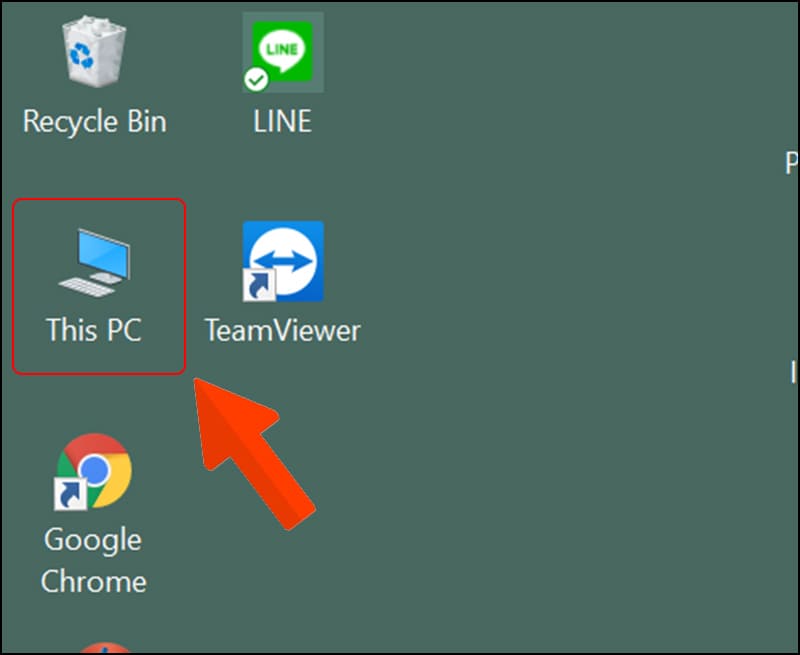
Go to This PC
Go to This PC

Step 2: Go to Quick access and check Recent files to see the files that have been recently opened.
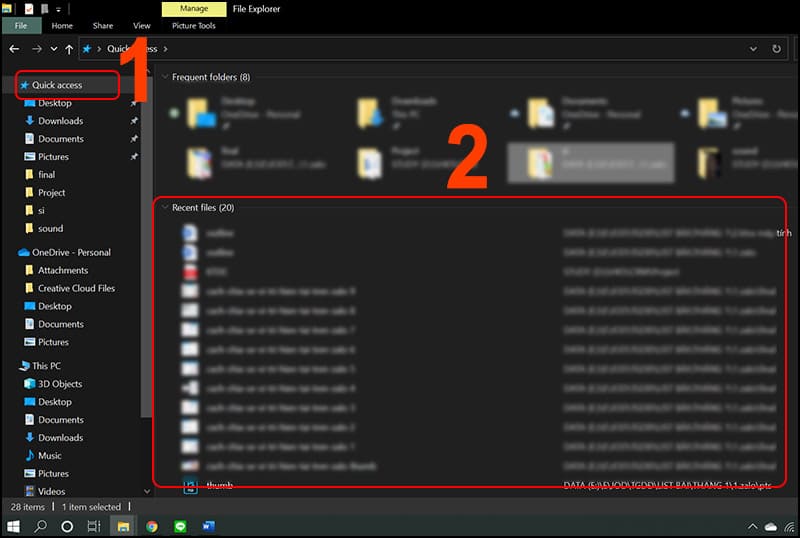
Go to Quick access and check Recent files

2. Check for strange logins

To check if your computer is being monitored, follow these steps:

Step 1: Open the search bar on the Taskbar, type “event viewer” and open the Event Viewer application.
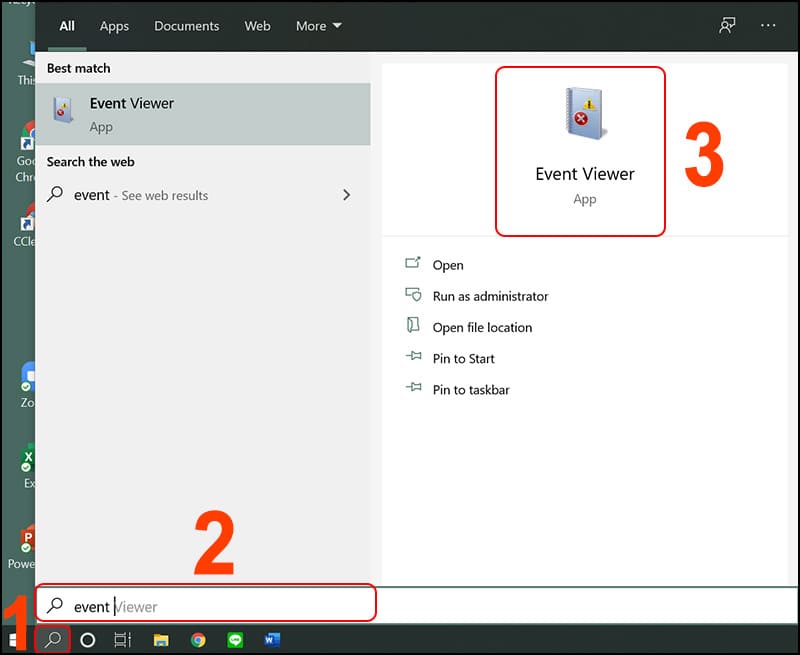
Open the Event Viewer application

Step 2: Go to Windows Logs, then select Security.
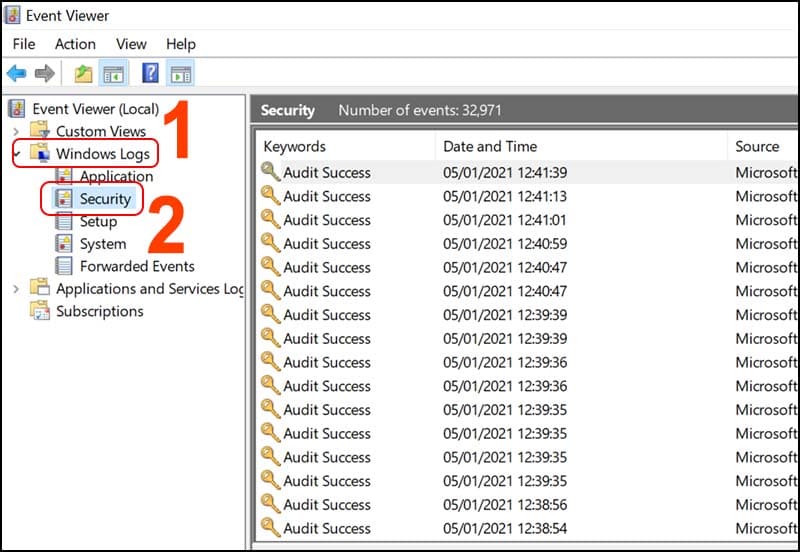
Go to Windows Logs, then select Security.

Step 3: Using the Find feature, enter “4672” and press Find Next to check if there are any inconsistent timestamps in Event ID 4672. This is a special log that indicates a remote login over the network.
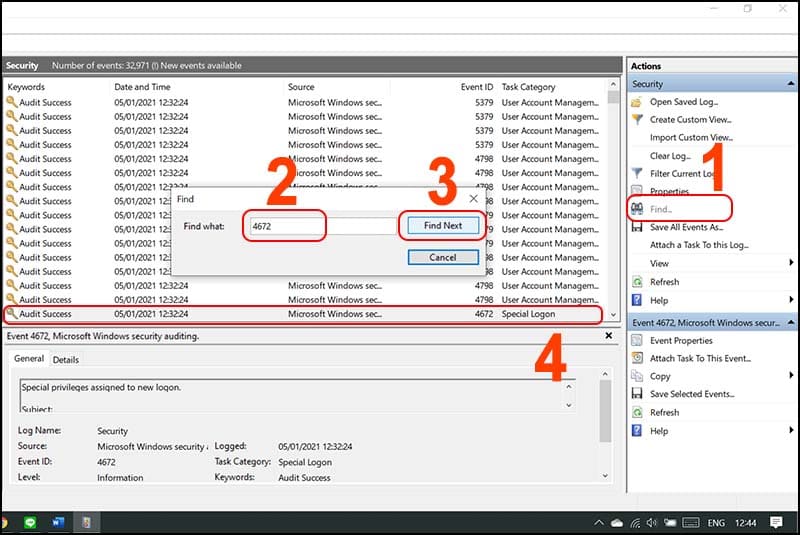
Enter “4672” and press Find Next

See also: How hide cookie notifications on browser computer

3. Check CPU

Step 1: Right click on the Taskbar and open Task Manager.
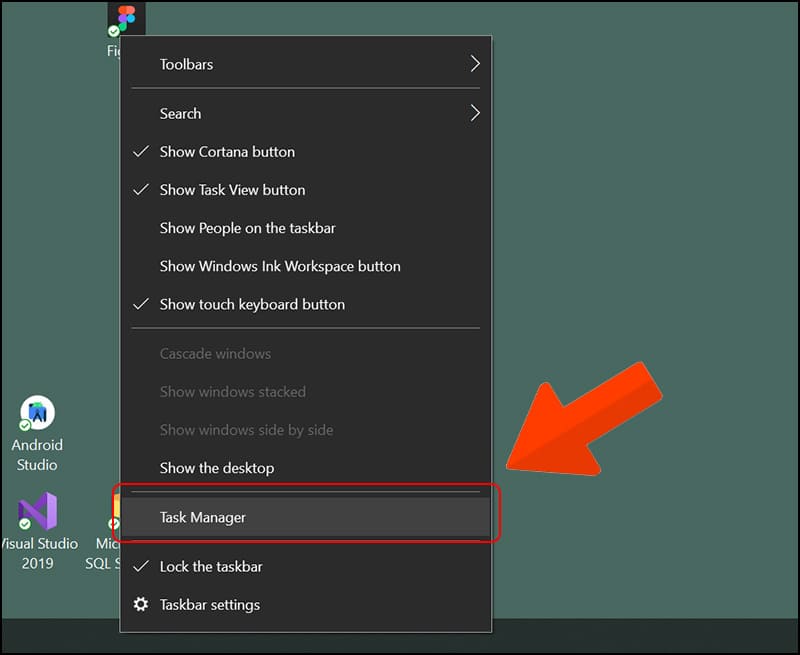
Open Task Manager
Open Task Manager

Step 2: Close all running applications and observe the CPU usage rate. If it is regularly at 85-100% with no applications open, there is a high chance that your computer is being monitored.
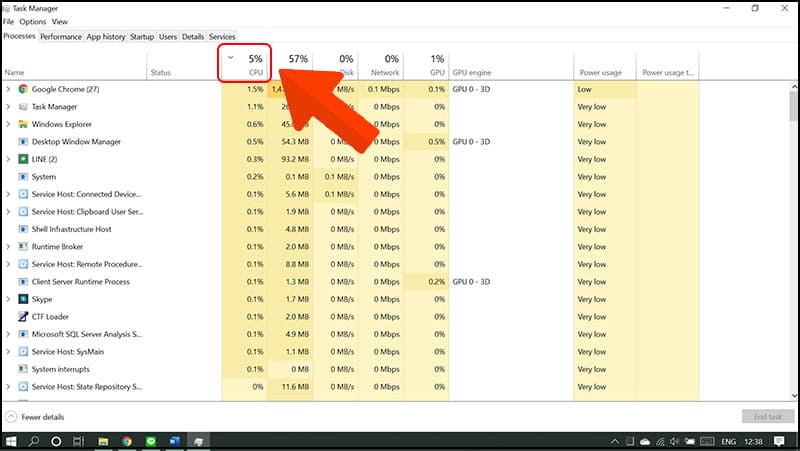
Observe CPU activity rate

4. Check Webcam

If you notice that the Webcam indicator light is on without any application being opened, it is possible that someone is accessing and monitoring through the Webcam. In this case, you should turn off the Webcam or restart your computer to ensure safety.
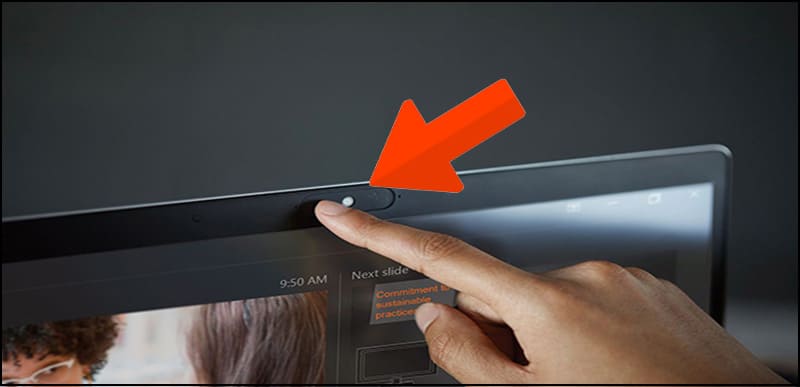
Webcam Test
Webcam Test

Measures to prevent computers from being tracked

  • Update your operating system regularly to improve security features.
  • Avoid visiting unsafe or unsecured websites.
  • Make sure to download software only from reputable websites.
  • Avoid opening emails from unfamiliar addresses or spam.
  • Move your mouse pointer over the link and check the destination before clicking.
  • Install and use reputable anti-virus software, scan your computer regularly, and don't ignore security warnings.
  • Back up your data to an external storage device and consider reinstalling your operating system if you suspect a problem with your computer.

Measures to prevent computers from being tracked

See also: Download IObit Malware Fighter 11 Full Key – Effective Malware removal software

Conclusion

Through this article, I hope you have gained the necessary knowledge to check if computer is being monitored or not, thereby protecting your computer from security risks. Don't forget to perform regular checks to ensure the safety of your device and personal data. Good luck!


Tags: checkcomputermonitored
Previous Post

Collection of beautiful Vietnamese flag wallpapers to use as background images

Next Post

Instructions for creating a .reg file to Hack Registry on Windows

AnonyViet

AnonyViet

Related Posts

How to see your email account creation date
Tips

How to see your email account creation date

November 11, 2025
Microsoft’s ranking of the 10 best Windows versions
Tips

Microsoft’s ranking of the 10 best Windows versions

November 11, 2025
Recover deleted data on Windows 10 with Windows File Recovery
Tips

Recover deleted data on Windows 10 with Windows File Recovery

November 10, 2025
Tips

Why hasn’t your computer been updated to Windows 10 2004?

November 9, 2025
3 OCR Tools Extract Text from Images without Retyping
Tips

3 OCR Tools Extract Text from Images without Retyping

November 8, 2025
Ways hackers use to hack your Facebook and how to fix it
Tips

Ways hackers use to hack your Facebook and how to fix it

November 7, 2025
Next Post
Instructions for creating a .reg file to Hack Registry on Windows

Instructions for creating a .reg file to Hack Registry on Windows

0 0 votes
Article Rating
Subscribe
Login
Notify of
guest

guest

0 Comments
Oldest
Newest Most Voted
Inline Feedbacks
View all comments

Recent News

How to create an order on Shopee to send items to relatives

How to create an order on Shopee to send items to relatives

November 12, 2025
How to install Anh Hai’s Pho Shop on MacBook is super easy

How to install Anh Hai’s Pho Shop on MacBook is super easy

November 11, 2025
How to turn off ads on Yoosee app in just 1 minute

How to turn off ads on Yoosee app in just 1 minute

November 11, 2025
Windows 11 and MS Office 2021 lifetime license, genuine from  during Keysoff’s 11.11 sale

Windows 11 and MS Office 2021 lifetime license, genuine from $14 during Keysoff’s 11.11 sale

November 11, 2025
How to create an order on Shopee to send items to relatives

How to create an order on Shopee to send items to relatives

November 12, 2025
How to install Anh Hai’s Pho Shop on MacBook is super easy

How to install Anh Hai’s Pho Shop on MacBook is super easy

November 11, 2025
How to turn off ads on Yoosee app in just 1 minute

How to turn off ads on Yoosee app in just 1 minute

November 11, 2025
AnonyViet - English Version

AnonyViet

AnonyViet is a website share knowledge that you have never learned in school!

We are ready to welcome your comments, as well as your articles sent to AnonyViet.

Follow Us

Contact:

Email: anonyviet.com[@]gmail.com

Main Website: https://anonyviet.com

Recent News

How to create an order on Shopee to send items to relatives

How to create an order on Shopee to send items to relatives

November 12, 2025
How to install Anh Hai’s Pho Shop on MacBook is super easy

How to install Anh Hai’s Pho Shop on MacBook is super easy

November 11, 2025
  • Home
  • Home 2
  • Home 3
  • Home 4
  • Home 5
  • Home 6
  • Next Dest Page
  • Sample Page

new88 trang chủ shbet trang chủ f168 trang chủ qq88 nhà cái 78win

No Result
View All Result
  • Home
  • News
  • Software
  • Knowledge
  • MMO
  • Tips
  • Security
  • Network
  • Office

new88 trang chủ shbet trang chủ f168 trang chủ qq88 nhà cái 78win

wpDiscuz
0
0
Would love your thoughts, please comment.x
()
x
| Reply