• Home
  • News
  • Software
  • Knowledge
  • MMO
  • Tips
  • Security
  • Network
  • Office
AnonyViet - English Version
  • Home
  • News
  • Software
  • Knowledge
  • MMO
  • Tips
  • Security
  • Network
  • Office
No Result
View All Result
  • Home
  • News
  • Software
  • Knowledge
  • MMO
  • Tips
  • Security
  • Network
  • Office
No Result
View All Result
AnonyViet - English Version
No Result
View All Result

How to check CPU power with Excel File

AnonyViet by AnonyViet
January 24, 2023
in Tips
0

If you often use Excel files for calculations, you will find that opening a large Excel file will cause the computer to lag, slow down, and sometimes restart the computer. The reason is that Excel needs CPU to process spreadsheets, if the data in the excel file is too much, it will overload the CPU and lead to the above situation. And taking advantage of this feature, you can Test CPU power with an Excel file by calculating the time to open the file and run the function to see how long the CPU takes to process. This is also a way for business or IT owners to buy computers for their accountants according to their needs so as not to slow down when working with Excel.

Join the channel Telegram of the AnonyViet 👉 Link 👈

Test CPU power with a large Excel file

This is a real-time CPU performance testing tool using Excel.

The Excel file will contain formulas that businesses use to calculate orders, user accounts, and business related matters. It uses as much CPU Core and as much RAM as it can. There are 13 lines of business in a company. There are 50,000 accounts that are randomly sorted into 250,000 rows along with the associated line of business. The formula in the Excel File will calculate all the rows and give the results according to the available data.

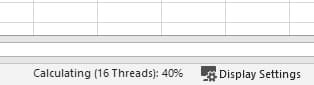
I tried opening this file with a laptop using an AMD 5600H chip, the file opening time was up to 3 minutes and the CPU was at 96%. You can try Download the file here and open it up to check your CPU time and speed.

If your computer File cannot be opened then try File at Next part dental.
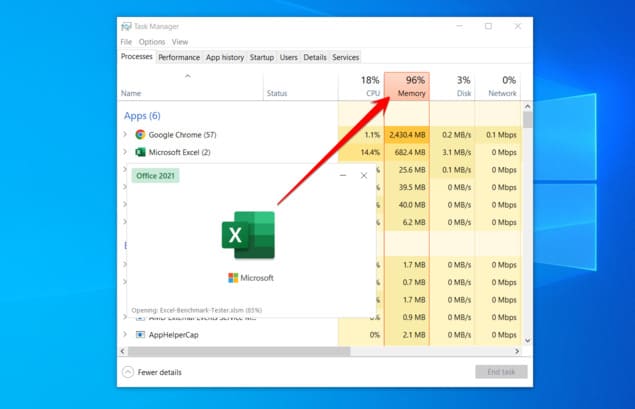
test cpu excel

After downloading, open Excel-Benchmark-Tester.xlsm and turn on Task manager to check CPU. The first time you will have to enable tap Enable Editing to edit File or . You also remember Enable Marco to run the time formula in Excel.

Next Click “Calculate Formula Time”. You will see the CPU processing time displayed. You need to click 3 times on the button “Calculate Formula Time” to give the most accurate results.

After you have 3 results, click the . button “Refresh Average” to see the average CPU time processing the Excel File.
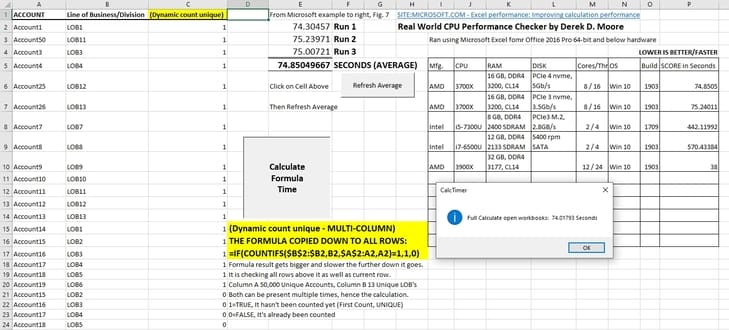
How to check CPU power with Excel 4 File

Please share this file with your friends and see who has the shortest time and that person’s CPU will be the fastest. You can refer to some tweaks in the image below:

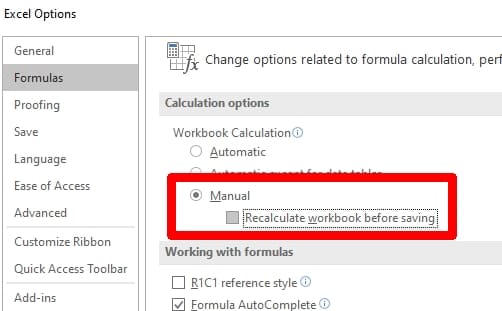
select calculator when working with excel select CPU when working with excel check excel cpu

Use Excel Benchmark to check CPU power

The Excel Benchmark file below will be lighter than the file I introduced in the past, if you use a 12 Core CPU, it can be opened more easily.

Download File Excel Benchmark Test CPU

After downloading the file, right-click on the file benchmarked_randomized_data2.xlxs and select Properties -> Check the button Unblock

unblock macro excel

Then open Excel and select Enable Editing and press the . button Benchmark!!!. Maybe the computer will be a bit slow and Lag, depending on the CPU power you will see the Excel File displaying the File processing time to know if the computer configuration is suitable for you to use as an Accountant.

For accurate results, you should try 3 times, each time Benchmark is done, turn off and open the Excel File again, don’t press Benchmark!!! 2 times because at this time Excel still caches.
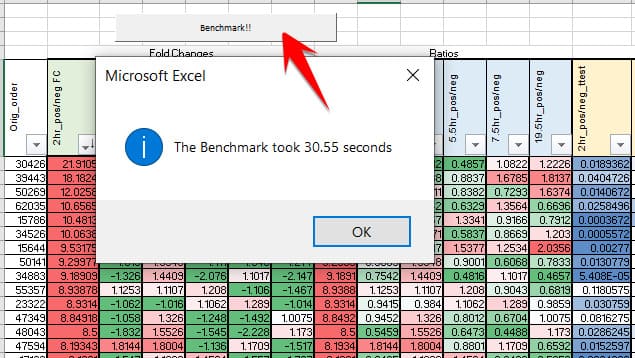
test cpu in excel

And the child result of my AMD AMD 5600H CPU 30 seconds. What about yours? Leave the results in the comments below.


The article achieved: 5/5 – (100 votes)

Tags: checkCPUExcelfilePower
Previous Post

Lesson 186: Calculate the average test score in Excel

Next Post

Lesson 190: Reduce decimals in Excel

AnonyViet

AnonyViet

Related Posts

How to change the default font on Windows 10
Tips

How to change the default font on Windows 10

April 13, 2026
5 tips for using a Browser to replace an App (helps save RAM, time and money)
Tips

5 tips for using a Browser to replace an App (helps save RAM, time and money)

April 13, 2026
How to make funny MeMe photos without Photoshop within 10 seconds
Tips

How to make funny MeMe photos without Photoshop within 10 seconds

April 11, 2026
How to quickly design your own Logo without Photoshop
Tips

How to quickly design your own Logo without Photoshop

April 10, 2026
How to convert Website into App on Windows
Tips

How to convert Website into App on Windows

April 9, 2026
Instructions for getting 3 months of Adobe Express Pro for free
Tips

Instructions for getting 3 months of Adobe Express Pro for free

April 9, 2026
Next Post
Lesson 190: Reduce decimals in Excel

Lesson 190: Reduce decimals in Excel

0 0 votes
Article Rating
Subscribe
Login
Notify of
guest

guest

0 Comments
Oldest
Newest Most Voted
Inline Feedbacks
View all comments

Recent News

How to intercept traffic using Burp Suite to analyze HTTP/HTTPS

How to intercept traffic using Burp Suite to analyze HTTP/HTTPS

April 18, 2026
How to avoid Adblock detection on Youtube with 4 good tips

How to avoid Adblock detection on Youtube with 4 good tips

April 17, 2026
How to transfer ChatGPT data to Claude is extremely simple

How to transfer ChatGPT data to Claude is extremely simple

April 16, 2026
How to authenticate the owner’s SIM on VNeID from April 15

How to authenticate the owner’s SIM on VNeID from April 15

April 15, 2026
How to intercept traffic using Burp Suite to analyze HTTP/HTTPS

How to intercept traffic using Burp Suite to analyze HTTP/HTTPS

April 18, 2026
How to avoid Adblock detection on Youtube with 4 good tips

How to avoid Adblock detection on Youtube with 4 good tips

April 17, 2026
How to transfer ChatGPT data to Claude is extremely simple

How to transfer ChatGPT data to Claude is extremely simple

April 16, 2026
AnonyViet - English Version

AnonyViet

AnonyViet is a website share knowledge that you have never learned in school!

We are ready to welcome your comments, as well as your articles sent to AnonyViet.

Follow Us

Contact:

Email: anonyviet.com[@]gmail.com

Main Website: https://anonyviet.com

Recent News

How to intercept traffic using Burp Suite to analyze HTTP/HTTPS

How to intercept traffic using Burp Suite to analyze HTTP/HTTPS

April 18, 2026
How to avoid Adblock detection on Youtube with 4 good tips

How to avoid Adblock detection on Youtube with 4 good tips

April 17, 2026
No Result
View All Result
  • Home
  • News
  • Software
  • Knowledge
  • MMO
  • Tips
  • Security
  • Network
  • Office

wpDiscuz
0
0
Would love your thoughts, please comment.x
()
x
| Reply