• Home
  • News
  • Software
  • Knowledge
  • MMO
  • Tips
  • Security
  • Network
  • Office
AnonyViet - English Version
  • Home
  • News
  • Software
  • Knowledge
  • MMO
  • Tips
  • Security
  • Network
  • Office
No Result
View All Result
  • Home
  • News
  • Software
  • Knowledge
  • MMO
  • Tips
  • Security
  • Network
  • Office
No Result
View All Result
AnonyViet - English Version
No Result
View All Result

How to change the Taskbar color on Windows 11

AnonyViet by AnonyViet
July 21, 2025
in Tips
0

Have you ever felt the working space on your computer is somewhat monotonous and boring with the default color? Taskbar, where we interact every day, are often overlooked in the “refurbishment” of the interface. Don’t worry if you think this is complicated. In this article, Anonyviet will guide you How to change the Taskbar bar color One in detail, easy to understand and intuitive.

Join the channel Telegram belong to Anonyviet 👉 Link 👈

Instructions on how to change the Taskbar color on Windows 11

Step 1: Right -click on any space on the desktop and select Personalize.

Or you can click on the menu Start, select Settings > Find and select items Personalization In the left menu bar.
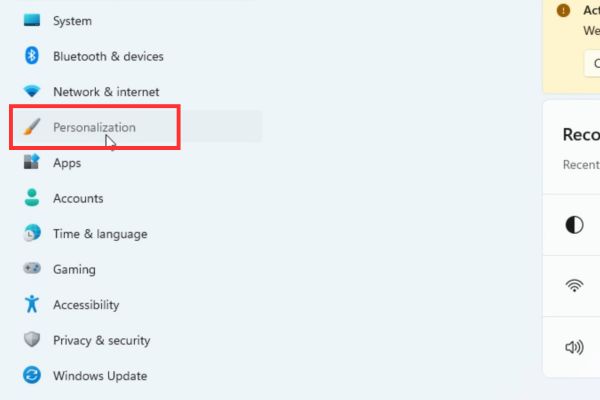
Find and select Personalization

Step 2: In the Personalization interface, you will see a list of options such as Background, Themes, Lock Screen, … Find and click on the item Colors.

Step 3: According to Microsoft’s design, how to change color Thanh Taskbar Only available when your system is in dark mode, so you need to activate this feature first:

At the top of the Colors page, you will see item Choose your mode > Click the drop down box> Select Dark From the list.

Immediately, the entire Windows interface, including the Settings window, will move to the dark background.
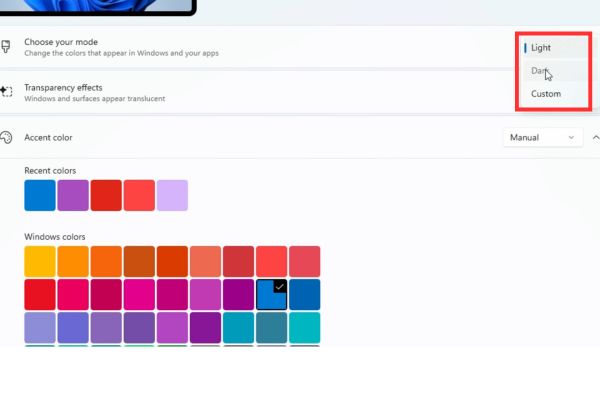
Select Dark from the list

Step 4: After you have moved to Dark Mode, pull the mouse down to the bottom of the Colors page. You will see an option called Show Accent Color on Start and Taskbar. Click the switch button to transfer it to the state ON.
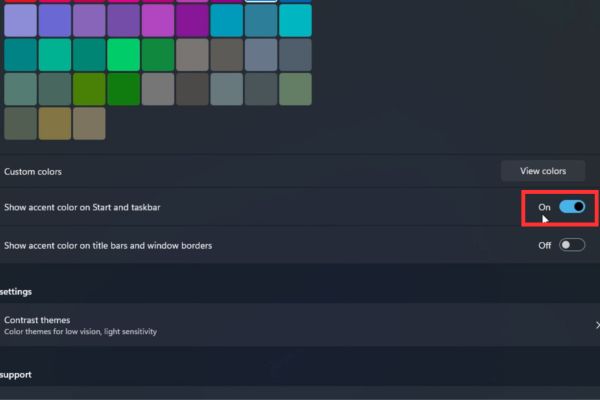
Turn on the Accent Color on Start and Taskbar show

Step 5: Pull the mouse up a bit, to the part Accent Color. Here, you can unleash your creativity:

  • Windows Colors: Microsoft offers a diverse palette with many beautiful tones. You only need to click on any color box. Immediately, you will see the Taskbar and Start menu I changed to that color. Test with different colors to find the best color.
  • Recent Colors: This area will save the colors you have just used recently, making it easy to switch back and forth.
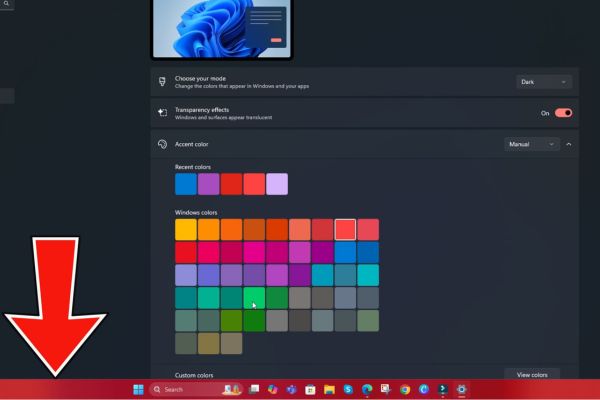
How to change the Taskbar bar color

What if the favorite color is not in the palette?

If the colorful color palette of Windows has not satisfied you, you can completely create a color to your liking. How to do the following:

Right below the Accent Color section, find the item Custom Colors and click the button View Colors. A detailed color selection window will appear, allowing you:

  • Drag to choose color on the spectrum.
  • Adjust the darkness.
  • Enter the correct color code (RGB or HEX) if you are a professional user or want to sync color with your logo and brand.

After selecting, press Done And your custom color will be applied.

Answer common questions

1. Why is my “show color on start and taskbar option?

The reason is because your computer is in light mode. Perform step 3 in the tutorial: Transferring the system to Dark Mode and this option will be available.

2. Can I change the Taskbar color in light mode?

With the default tools of Windows 11, the answer is Are not. This feature is okay Microsoft Design to operate on a dark background to ensure the contrast and readable of symbols. However, there are some third -party software that can intervene deeper, but I recommend that you follow the original settings to ensure the stability of the system.

3. How to bring the Taskbar back to the default color?

Very simple. You just need to go back Settings> Personalization> Colorsscroll down and switch the switch in the show Accent Color on Start and Taskbar on the location Off. The Taskbar will immediately return to the typical black of Dark Mode.

Conclusion

With detailed instructions on How to change the Taskbar bar color Above, hope you can “wear a new shirt” for your Windows 11 computer. Do not hesitate to test with different colors to find the most perfect combination for you. A small change may bring a big difference. Wishing you success and great experiences with a new interface!


Tags: changecolorTaskbarWindows
Previous Post

How to use hackers use Splitfus to execute PowerShell malicious code

Next Post

How to detect toxic QR codes to avoid fraud

AnonyViet

AnonyViet

Related Posts

How to see your email account creation date
Tips

How to see your email account creation date

November 11, 2025
Microsoft’s ranking of the 10 best Windows versions
Tips

Microsoft’s ranking of the 10 best Windows versions

November 11, 2025
Recover deleted data on Windows 10 with Windows File Recovery
Tips

Recover deleted data on Windows 10 with Windows File Recovery

November 10, 2025
Tips

Why hasn’t your computer been updated to Windows 10 2004?

November 9, 2025
3 OCR Tools Extract Text from Images without Retyping
Tips

3 OCR Tools Extract Text from Images without Retyping

November 8, 2025
Ways hackers use to hack your Facebook and how to fix it
Tips

Ways hackers use to hack your Facebook and how to fix it

November 7, 2025
Next Post
How to detect toxic QR codes to avoid fraud

How to detect toxic QR codes to avoid fraud

0 0 votes
Article Rating
Subscribe
Login
Notify of
guest

guest

0 Comments
Oldest
Newest Most Voted
Inline Feedbacks
View all comments

Recent News

How to install Anh Hai’s Pho Shop on MacBook is super easy

How to install Anh Hai’s Pho Shop on MacBook is super easy

November 11, 2025
How to turn off ads on Yoosee app in just 1 minute

How to turn off ads on Yoosee app in just 1 minute

November 11, 2025
Windows 11 and MS Office 2021 lifetime license, genuine from  during Keysoff’s 11.11 sale

Windows 11 and MS Office 2021 lifetime license, genuine from $14 during Keysoff’s 11.11 sale

November 11, 2025
How to see your email account creation date

How to see your email account creation date

November 11, 2025
How to install Anh Hai’s Pho Shop on MacBook is super easy

How to install Anh Hai’s Pho Shop on MacBook is super easy

November 11, 2025
How to turn off ads on Yoosee app in just 1 minute

How to turn off ads on Yoosee app in just 1 minute

November 11, 2025
Windows 11 and MS Office 2021 lifetime license, genuine from  during Keysoff’s 11.11 sale

Windows 11 and MS Office 2021 lifetime license, genuine from $14 during Keysoff’s 11.11 sale

November 11, 2025
AnonyViet - English Version

AnonyViet

AnonyViet is a website share knowledge that you have never learned in school!

We are ready to welcome your comments, as well as your articles sent to AnonyViet.

Follow Us

Contact:

Email: anonyviet.com[@]gmail.com

Main Website: https://anonyviet.com

Recent News

How to install Anh Hai’s Pho Shop on MacBook is super easy

How to install Anh Hai’s Pho Shop on MacBook is super easy

November 11, 2025
How to turn off ads on Yoosee app in just 1 minute

How to turn off ads on Yoosee app in just 1 minute

November 11, 2025
  • Home
  • Home 2
  • Home 3
  • Home 4
  • Home 5
  • Home 6
  • Next Dest Page
  • Sample Page

new88 trang chủ shbet trang chủ f168 trang chủ qq88 nhà cái 78win

No Result
View All Result
  • Home
  • News
  • Software
  • Knowledge
  • MMO
  • Tips
  • Security
  • Network
  • Office

new88 trang chủ shbet trang chủ f168 trang chủ qq88 nhà cái 78win

wpDiscuz
0
0
Would love your thoughts, please comment.x
()
x
| Reply