• Home
  • News
  • Software
  • Knowledge
  • MMO
  • Tips
  • Security
  • Network
  • Office
AnonyViet - English Version
  • Home
  • News
  • Software
  • Knowledge
  • MMO
  • Tips
  • Security
  • Network
  • Office
No Result
View All Result
  • Home
  • News
  • Software
  • Knowledge
  • MMO
  • Tips
  • Security
  • Network
  • Office
No Result
View All Result
AnonyViet - English Version
No Result
View All Result

How to change the size of the Taskbar on Windows 11 without software

AnonyViet by AnonyViet
February 19, 2024
in Tips
0

How to change the taskbar size is one of the simple operations you can do to customize the computer interface according to your preferences. The taskbar is a toolbar located at the bottom of the screen, displaying icons of running programs. You can resize the taskbar to make it larger or smaller, depending on your needs.

Join the channel Telegram belong to AnonyViet 👉 Link 👈

How to change the taskbar size is extremely simple

The only way to change the size of the taskbar is to use Registry Editor. However, we recommend that you be careful when adjusting the Registry because if anything goes wrong, you may experience performance problems on your computer.

Step 1: Open the Run dialog box by pressing Windows key + R

Step 2: Type regedit and press Enter.

Step 3: Then, click Yes on the User Account Control confirmation window to launch Registry Editor.

Step 4: Copy and paste the link below into the address bar and press Enter:

HKEY_CURRENT_USER\Software\Microsoft\Windows\CurrentVersion\Explorer\Advanced

Step 5: In the Advanced key, look for a value named TaskbarSi. If not found, right-click Advanced, select New > DWORD (32-bit) Value, and name the value TaskbarSi.
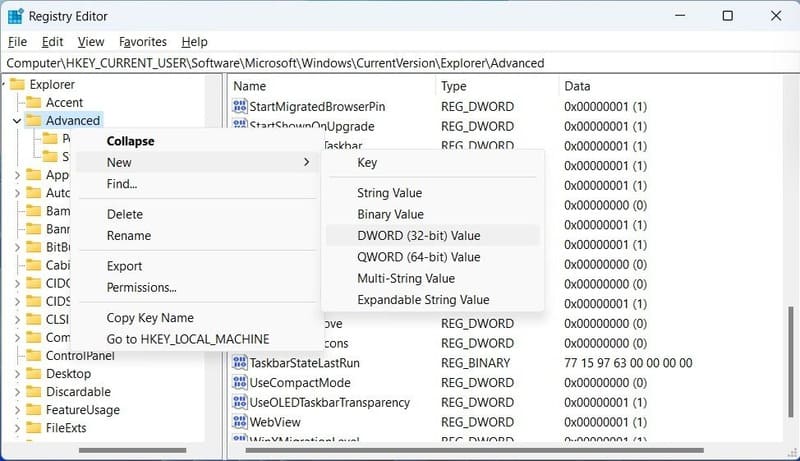
How to change the taskbar size
Create TaskbarSi if it doesn't exist yet

Step 6: Double-click TaskbarSi > Enter 2 in the Value data box and click OK to make the taskbar larger.
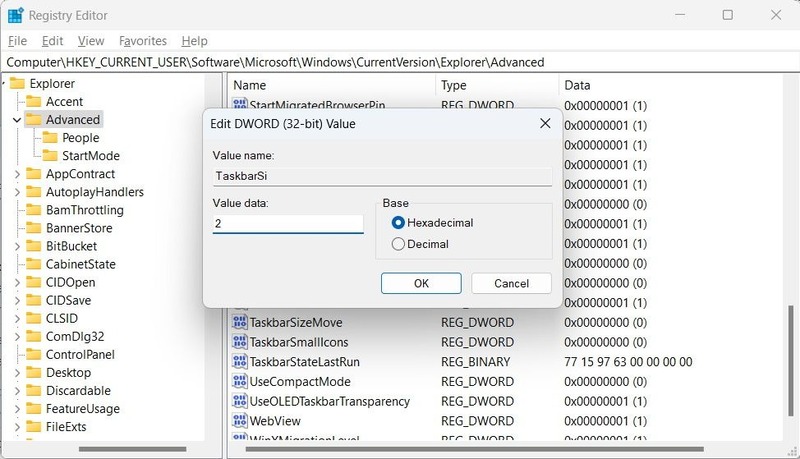
How to change the taskbar size
Enter 2 in the Value data box

Step 7: After you restart your computer, you will see the result of a larger taskbar than before.
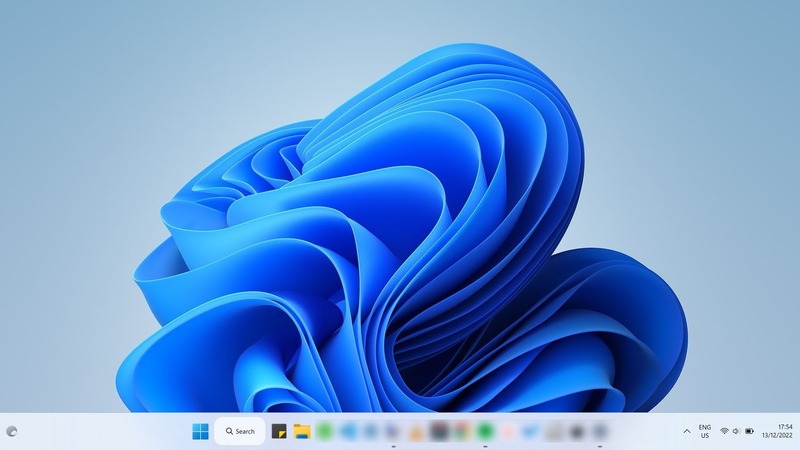
How to change the taskbar size
How to resize the taskbar larger

To make the taskbar smaller, enter 0 in the Value data box, click OK, and then restart the computer. You will see the taskbar minimized.
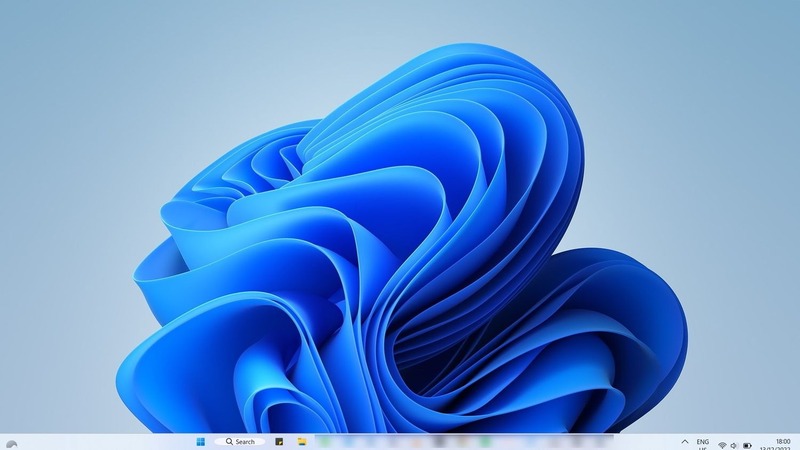
How to change the taskbar size
Enter 0 in the Value data box to make the taskbar smaller

If you decide to go back to the default size of the taskbar, you can easily set the Value data to 1 or simply remove the TaskbarSi value.

Epilogue

How to change the taskbar size is a simple way for you to customize the look and feel of your computer. You just need to follow some simple steps that we have instructed above, you will get a taskbar that suits your wishes. Wishing you a successful application!


The article scored: 5/5 – (100 votes)

Tags: changesizesoftwareTaskbarWindows
Previous Post

Sora: Awesome text-based video creation AI tool from OpenAI

Next Post

How to activate Windows 10 with the latest permanent license

AnonyViet

AnonyViet

Related Posts

Windows 7/8.1/10 users will be upgraded to Windows 11 for free
Tips

Windows 7/8.1/10 users will be upgraded to Windows 11 for free

July 30, 2026
Instructions for receiving ChatGPT Plus for 1 month for free in 2026
Tips

Instructions for receiving ChatGPT Plus for 1 month for free in 2026

July 28, 2026
Some reasons I don’t like Windows 11
Tips

Some reasons I don’t like Windows 11

July 27, 2026
Instructions on how to get free Facebook white ticks
Tips

Instructions on how to get free Facebook white ticks

July 27, 2026
Collection of Windows 11 wallpapers for computers and phones
Tips

Collection of Windows 11 wallpapers for computers and phones

July 26, 2026
Don’t install leaked Windows 11
Tips

Don’t install leaked Windows 11

July 25, 2026
Next Post
How to activate Windows 10 with the latest permanent license

How to activate Windows 10 with the latest permanent license

0 0 votes
Article Rating
Subscribe
Login
Notify of
guest

guest

0 Comments
Oldest
Newest Most Voted

Recent News

Windows 7/8.1/10 users will be upgraded to Windows 11 for free

Windows 7/8.1/10 users will be upgraded to Windows 11 for free

July 30, 2026
Instructions for receiving the free Certified LLM Security Expert certificate

Instructions for receiving the free Certified LLM Security Expert certificate

July 30, 2026
MSI laptops are not just for gamers: Which line is suitable for students, office workers and creative people?

MSI laptops are not just for gamers: Which line is suitable for students, office workers and creative people?

July 29, 2026
What is quantum resistant cryptography? Why must the Internet change?

What is quantum resistant cryptography? Why must the Internet change?

July 29, 2026
Windows 7/8.1/10 users will be upgraded to Windows 11 for free

Windows 7/8.1/10 users will be upgraded to Windows 11 for free

July 30, 2026
Instructions for receiving the free Certified LLM Security Expert certificate

Instructions for receiving the free Certified LLM Security Expert certificate

July 30, 2026
MSI laptops are not just for gamers: Which line is suitable for students, office workers and creative people?

MSI laptops are not just for gamers: Which line is suitable for students, office workers and creative people?

July 29, 2026
AnonyViet - English Version

AnonyViet

AnonyViet is a website share knowledge that you have never learned in school!

We are ready to welcome your comments, as well as your articles sent to AnonyViet.

Follow Us

Contact:

Email: anonyviet.com[@]gmail.com

Main Website: https://anonyviet.com

Recent News

Windows 7/8.1/10 users will be upgraded to Windows 11 for free

Windows 7/8.1/10 users will be upgraded to Windows 11 for free

July 30, 2026
Instructions for receiving the free Certified LLM Security Expert certificate

Instructions for receiving the free Certified LLM Security Expert certificate

July 30, 2026
  • Home
  • Home 2
  • Home 3
  • Home 4
  • Home 5
  • Home 6
  • Next Dest Page
  • Sample Page

say88 tỷ lệ kèo nhà cái kèo nhà cái 5 febet

No Result
View All Result
  • Home
  • News
  • Software
  • Knowledge
  • MMO
  • Tips
  • Security
  • Network
  • Office

say88 tỷ lệ kèo nhà cái kèo nhà cái 5 febet

wpDiscuz
0
0
Would love your thoughts, please comment.x
()
x
| Reply