Windows 10’s default font is Segoe UI, which looks pretty nice. However, if you are someone who does not like the classic but prefers another font and wants to replace the default font on Windows 10 system, then this article will be for you.
| Join the channel Telegram of the AnonyViet 👉 Link 👈 |

How to change the default font using Registry
At the time of writing, March 2021, neither Settings nor Control Panel have the option to change the system’s default font. Windows has blocked the above 2, but I can still use the registry to change fonts on Windows 10.
And luckily this is quite easy, all you need to do is create a registry hack file, add a new Font name and run that file to change the default font of Windows 10.
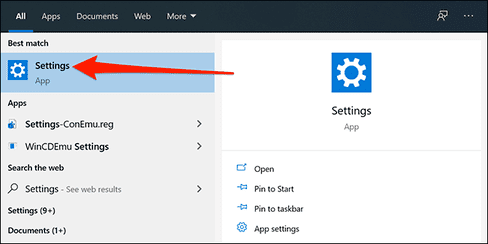
First, you need to know the exact font name that you will set as the default font. Open Start Menusearch for the keyword “Settings“, click on the first result. Or you can also use keyboard shortcuts Windows + I to quickly open the Settings window.
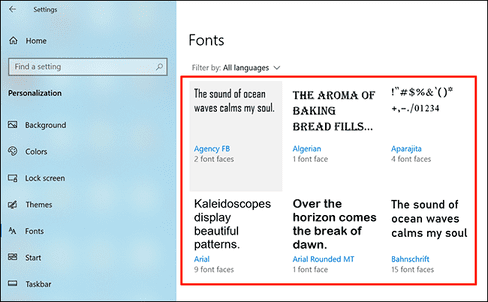
In Settings, select “Personalization“, then select “Font” on the left panel. Select the font that you want to set as the default font for the system.
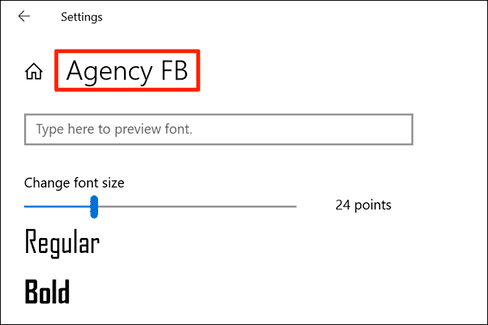
At the top of the screen, you’ll see the exact name of the font. Save the font name to use in the steps below.
Now, you need to create a registry hack to add this font to the Windows Registry. You can use text editors like Notepad to write registry hack scripts. If you do not know how to create registry hack script can read this paragraph Please.
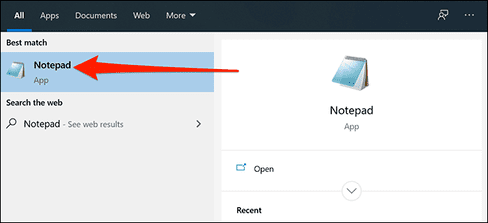
Hit the Start Menu, search for “notepad,” then select the first result.
Copy the following code and paste it into Notepad. Then, replace the word “NEW-FONT” with the name of the font you saved earlier. Remember to keep the double quotes.
Windows Registry Editor Version 5.00

[HKEY_LOCAL_MACHINE\SOFTWARE\Microsoft\Windows NT\CurrentVersion\Fonts]
"Segoe UI (TrueType)"=""
"Segoe UI Bold (TrueType)"=""
"Segoe UI Bold Italic (TrueType)"=""
"Segoe UI Italic (TrueType)"=""
"Segoe UI Light (TrueType)"=""
"Segoe UI Semibold (TrueType)"=""
"Segoe UI Symbol (TrueType)"=""

[HKEY_LOCAL_MACHINE\SOFTWARE\Microsoft\Windows NT\CurrentVersion\FontSubstitutes]

"Segoe UI"="NEW-FONT"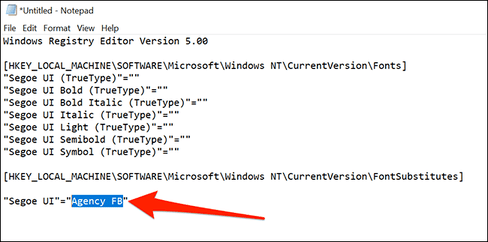
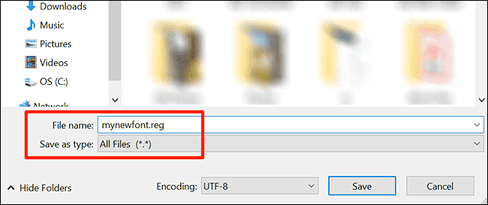
In Notepad, click File > Save As. Then, enter the file extension as “.reg” in the “File name. For example, to save a file named “mynewfont”, you must enter “mynewfont.reg”. Select “All Files” under “Save as type”, choose a location to save your file and click “Save”.
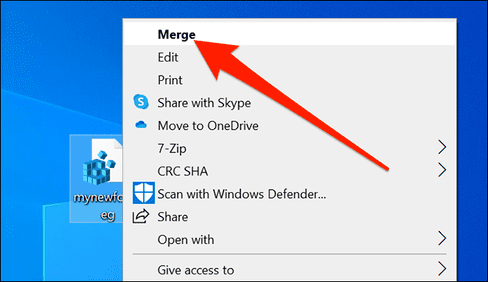
Open the folder where you saved the newly created Registry hack file. Right click on this file and select “Merge”. This will add the values in your file to the Windows Registry.
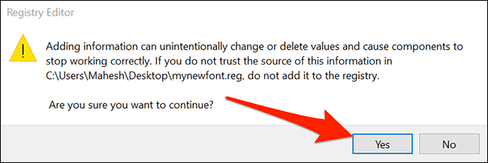
Click “Yes”, then click “Yes” again to add the new values to the Windows Registry.
Finally, click on the Start menu, select the power icon and select “Restart” to restart the computer. This makes your changes take effect.
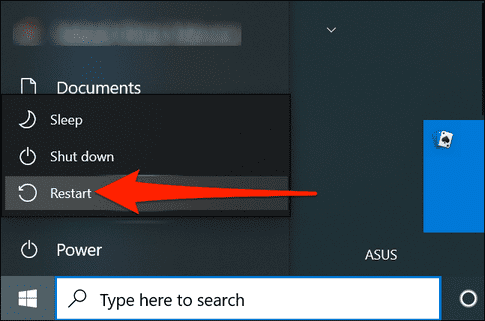
When your computer restarts, you’ll find that your selected font is now the default font for nearly all panels and tools on Windows.
To use another font as the default font, right click on the file Registry hack and select “Edit“. Replace your existing font name with the new font name and click File > Save to save the file.
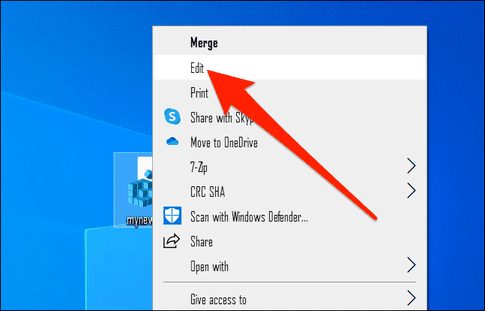
Then, right click on your file and select “Merge”, followed by “Yes” (twice) to change your default font.
How to return to the original default font on Windows 10
To reset your changes and use the original default font on your PC, simply create another Registry hack and enter the code below. Then just make a few clicks and you’re back to the default Windows font.
Open Notepad and copy the same code below into Note pad.
Windows Registry Editor Version 5.00

[HKEY_LOCAL_MACHINE\SOFTWARE\Microsoft\Windows NT\CurrentVersion\Fonts]
"Segoe UI (TrueType)"="segoeui.ttf"
"Segoe UI Black (TrueType)"="seguibl.ttf"
"Segoe UI Black Italic (TrueType)"="seguibli.ttf"
"Segoe UI Bold (TrueType)"="segoeuib.ttf"
"Segoe UI Bold Italic (TrueType)"="segoeuiz.ttf"
"Segoe UI Emoji (TrueType)"="seguiemj.ttf"
"Segoe UI Historic (TrueType)"="seguihis.ttf"
"Segoe UI Italic (TrueType)"="segoeuii.ttf"
"Segoe UI Light (TrueType)"="segoeuil.ttf"
"Segoe UI Light Italic (TrueType)"="seguili.ttf"
"Segoe UI Semibold (TrueType)"="seguisb.ttf"
"Segoe UI Semibold Italic (TrueType)"="seguisbi.ttf"
"Segoe UI Semilight (TrueType)"="segoeuisl.ttf"
"Segoe UI Semilight Italic (TrueType)"="seguisli.ttf"
"Segoe UI Symbol (TrueType)"="seguisym.ttf"
"Segoe MDL2 Assets (TrueType)"="segmdl2.ttf"
"Segoe Print (TrueType)"="segoepr.ttf"
"Segoe Print Bold (TrueType)"="segoeprb.ttf"
"Segoe Script (TrueType)"="segoesc.ttf"
"Segoe Script Bold (TrueType)"="segoescb.ttf"

[HKEY_LOCAL_MACHINE\SOFTWARE\Microsoft\Windows NT\CurrentVersion\FontSubstitutes]

"Segoe UI"=-
Click File > Save As to save the new registry hack file.
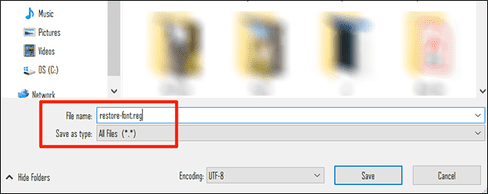
Right click on the newly created hack file and select “Merge”.
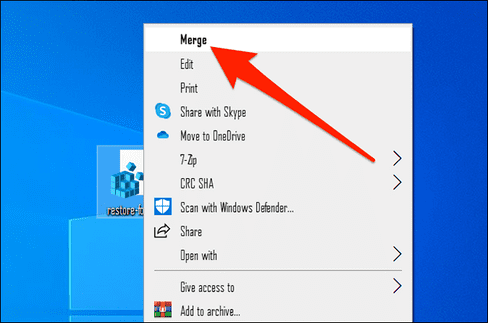
Click “Yes” twice to add the default font to the Registry.
Finally, restart your computer. Tada… your computer has already returned to the default font. By the way, you can also change default font on browser that more.