• Home
  • News
  • Software
  • Knowledge
  • MMO
  • Tips
  • Security
  • Network
  • Office
AnonyViet - English Version
  • Home
  • News
  • Software
  • Knowledge
  • MMO
  • Tips
  • Security
  • Network
  • Office
No Result
View All Result
  • Home
  • News
  • Software
  • Knowledge
  • MMO
  • Tips
  • Security
  • Network
  • Office
No Result
View All Result
AnonyViet - English Version
No Result
View All Result

How to change Power Mode on Windows 11

AnonyViet by AnonyViet
January 26, 2023
in Tips
0

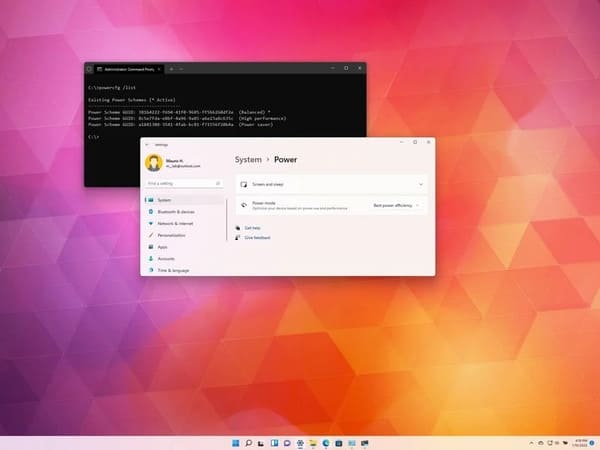
Above Windows 11, power modes (“power plans” or “power schemes”) are a set of settings for managing a device’s energy usage. By default, the system uses “balance” mode to optimize power for performance and battery. However, you can always change this setting to “best power efficiency” to extend the battery life as much as possible or “best performance” to get the most out of your device but increase power usage. .

Join the channel Telegram of the AnonyViet 👉 Link 👈

How to change Power Mode on Windows 11

In this article, I will guide you through the steps to change the power mode to improve performance or battery life on a Laptop or PC.

How to adjust power modes on Windows 11

To change the default power mode on Windows 11, use these steps:

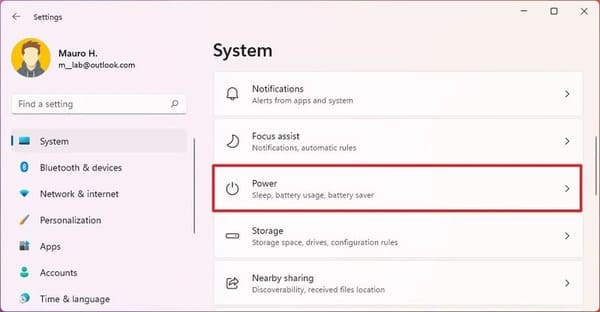
1. Open Settings.

2. Click System.

3. Click the page Power & battery on the right side.
How to change Power Mode on Windows 11 9

4. Quick Tip: If the device is not connected to the battery, the page will appear as “Power”.

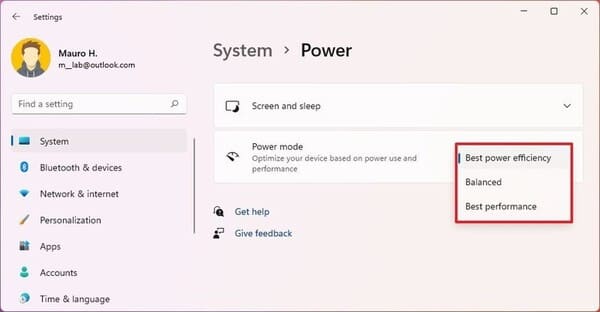
  • Best power efficiency: Most energy-saving reduces system performance. This option will give the best battery life if you use a laptop.
  • Balanced: Windows 11 automatically balances power and performance for an optimal experience.
  • Best performance: Use the most power to increase system performance.
How to change Power Mode on Windows 11 10

After you complete the steps above, the new power mode will apply to the computer.

On Windows 10, you have the option to cycle through power modes from the Taskbar, but starting in Windows 11, you can only do this from Power settings or Command Prompt.

How to adjust the power mode through Control Panel

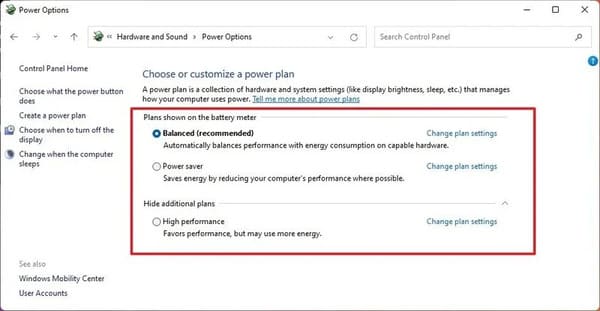
To change the power mode to increase battery life or focus on high performance, use these steps:

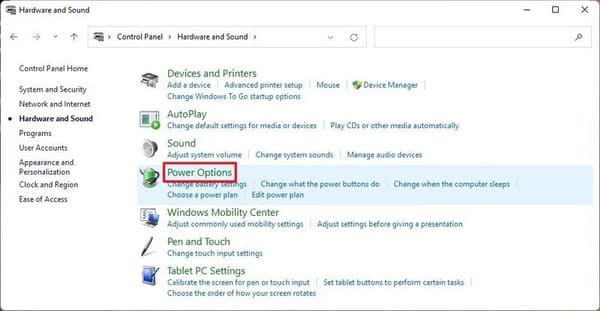
1. Open Control Panel.

2. Click Hardware and Sound.

3. Click Power Options.
How to change Power Mode on Windows 11 11

4. Select one of the following source modes:

  • Balanced: The system automatically balances power and performance for optimal experience.
  • Power Saver: Most energy efficient, reduce system performance. This option will give you the best battery life if you use a laptop.
  • High performance: Uses the most power but delivers the highest performance.
How to change Power Mode on Windows 11 12

Quick note: The modes above may vary as manufacturers may sometimes create or remove custom modes.

After you complete the steps above, your Windows 11 device will start using the power mode you specified to improve battery or performance.

How to adjust power modes using Command Prompt

To choose between balanced, high performance, or power saver modes with Command Prompt, use these steps:

1. Open Start.

2. Search for Command Prompt, right click on the top result and select Run as administrator.

3. Type the following command to determine all the power modes and which modes are active and press Enter: powercfg /list

4. Confirm the available power mode unique identifier (GUID). Quick note: Mode with an asterisk

is the active source mode. powercfg /setactive GUID

5. Type the following command to change the source mode and press Enter:

In the command, change the GUID to the unique identifier corresponding to the source mode you want to use. The number may be different on your computer. powercfg /setactive a1841308-3541-4fab-bc81-f71556f20b4a
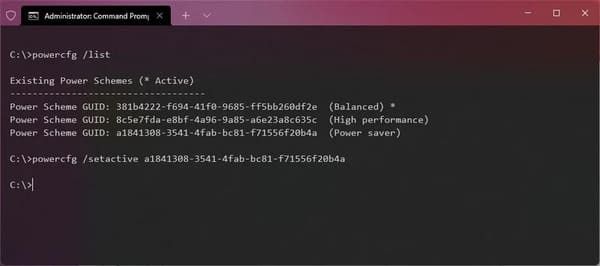
For example, this command sets the power mode to Power Saver to save battery life:

How to change Power Mode on Windows 11 16

While you can change the power mode in a variety of ways, when you set it to “High performance” or “Power Saver” using the Control Panel or Command Prompt, you won’t be able to change it from the Settings app. .

The article achieved: 5/5 – (100 votes)

Tags: changeModePowerWindows
Previous Post

Learn about the war between Hackers

Next Post

Lesson 81: How to display formulas in Excel

AnonyViet

AnonyViet

Related Posts

How to write Shell Script in Linux/Unix
Tips

How to write Shell Script in Linux/Unix

December 6, 2025
How to completely uninstall WSL on Windows 11?
Tips

How to completely uninstall WSL on Windows 11?

December 6, 2025
Kinh nghiệm mua Laptop cho sinh viên nhóm ngành kế toán, kinh tế, xã hội…
Tips

Kinh nghiệm mua Laptop cho sinh viên nhóm ngành kế toán, kinh tế, xã hội…

December 5, 2025
8 tips for more successful PowerPoint presentations
Tips

8 tips for more successful PowerPoint presentations

December 4, 2025
Chrome extensions to improve productivity in 2021
Tips

Chrome extensions to improve productivity in 2021

December 2, 2025
How to create photos that run KPIs while crying using Gemini for the 12 zodiac animals
Tips

How to create photos that run KPIs while crying using Gemini for the 12 zodiac animals

December 1, 2025
Next Post
Lesson 81: How to display formulas in Excel

Lesson 81: How to display formulas in Excel

0 0 votes
Article Rating
Subscribe
Login
Notify of
guest

guest

0 Comments
Oldest
Newest Most Voted
Inline Feedbacks
View all comments

Recent News

How to transfer music from other services to Apple Music, no app required

How to transfer music from other services to Apple Music, no app required

December 8, 2025
How to create Mind Map and Flowchart using ChatGPT is super simple

How to create Mind Map and Flowchart using ChatGPT is super simple

December 7, 2025
Free Gemini Google certification exam guide and Answers

Free Gemini Google certification exam guide and Answers

December 6, 2025
How to write Shell Script in Linux/Unix

How to write Shell Script in Linux/Unix

December 6, 2025
How to transfer music from other services to Apple Music, no app required

How to transfer music from other services to Apple Music, no app required

December 8, 2025
How to create Mind Map and Flowchart using ChatGPT is super simple

How to create Mind Map and Flowchart using ChatGPT is super simple

December 7, 2025
Free Gemini Google certification exam guide and Answers

Free Gemini Google certification exam guide and Answers

December 6, 2025
AnonyViet - English Version

AnonyViet

AnonyViet is a website share knowledge that you have never learned in school!

We are ready to welcome your comments, as well as your articles sent to AnonyViet.

Follow Us

Contact:

Email: anonyviet.com[@]gmail.com

Main Website: https://anonyviet.com

Recent News

How to transfer music from other services to Apple Music, no app required

How to transfer music from other services to Apple Music, no app required

December 8, 2025
How to create Mind Map and Flowchart using ChatGPT is super simple

How to create Mind Map and Flowchart using ChatGPT is super simple

December 7, 2025
  • Home
  • Home 2
  • Home 3
  • Home 4
  • Home 5
  • Home 6
  • Next Dest Page
  • Sample Page

trang chủ f168 nhà cái 78win https://www.qq8827.com/

No Result
View All Result
  • Home
  • News
  • Software
  • Knowledge
  • MMO
  • Tips
  • Security
  • Network
  • Office

trang chủ f168 nhà cái 78win https://www.qq8827.com/

wpDiscuz
0
0
Would love your thoughts, please comment.x
()
x
| Reply