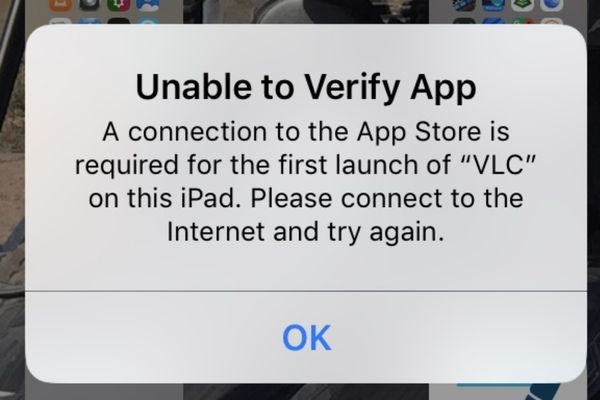
How to bypass Unable to Verify App It’s never been easier with the latest custom DNS method. Instead of temporary solutions, AnonyViet will show you a sustainable method to install and use the app comfortably. Let’s explore now!
| Join the channel Telegram belong to AnonyViet 👉 Link 👈 |
What is the purpose of bypassing the “Unable to Verify App” error?
Each application is installed externally App Store (sideload) all need a digital “signature” called business certificate.
When you open the app, iPhone automatically sends a request to Apple’s authentication server (addressed ppq.apple.com) to check if this signature is still valid or not. The “Unable to Verify App” error appears when:
- Revoked certificate (Revoked): Apple discovered the certificate was abused and put it on the “blacklist”. Your iPhone receives this information and refuses to run the app.
- No Internet connection: The device cannot contact Apple’s servers for verification.
Older methods often just completely block the ppq.apple.com server, but this causes errors right from the installation stage. That’s why we need a more sophisticated solution – a true way to bypass Unable to Verify App.
Bypass solution: Dual-mode DNS
The highlight of this method lies in a special DNS Profile from WSF Team. It does not simply block connections, but operates flexibly in two modes to “fool” Apple’s system perfectly.
- Installation Mode (Install Only): When enabled, this DNS will TEMPORARILY ALLOW iPhone to connect to ppq.apple.com. This is necessary for your iPhone to complete the initial verification process, allowing you to install the app successfully.
- Block Revoke mode: After installation is complete, you will switch to this mode. DNS will PERMANENTLY BLOCK all connection requests to ppq.apple.com. Thanks to that, iPhone can never check the certificate status again, so your app will be safe from revocation.
This is the essence of “bypassing” – we do not break the system but simply direct it according to our will.
Instructions on how to bypass Unable to Verify App on iPhone
Step 1: Install Profile DNS bypass
- Open the Safari browser and visit the website HERE
- Click the button WSF CFDNS > Press the “ buttonSkip” to get the final download link > Click Open.
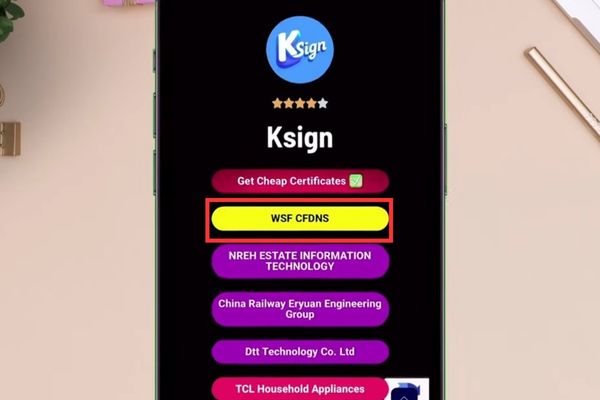
- When iPhone asks “This website is trying to download a configuration profile”, select it Allow.
- Enter Settings > General > VPN & Device Management. You will see the downloaded Profile in the “Downloaded Profile” section. Click on it, select Install in the upper right corner and enter your iPhone password to complete.
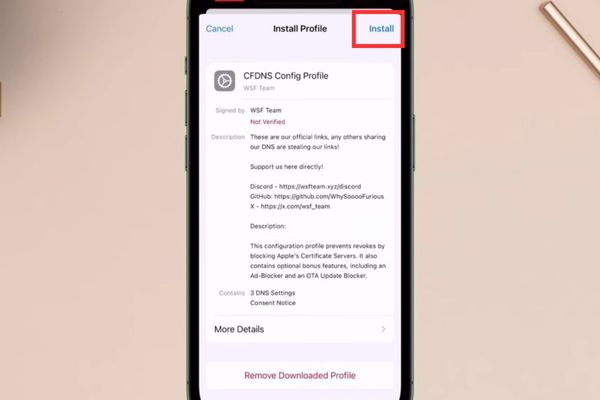
Step 2: Install IPA signing tool (KSign)
- Come back website in step 1 > Scroll down the list of enterprise certificates and select the active one (for example: TCL Household Appliances).
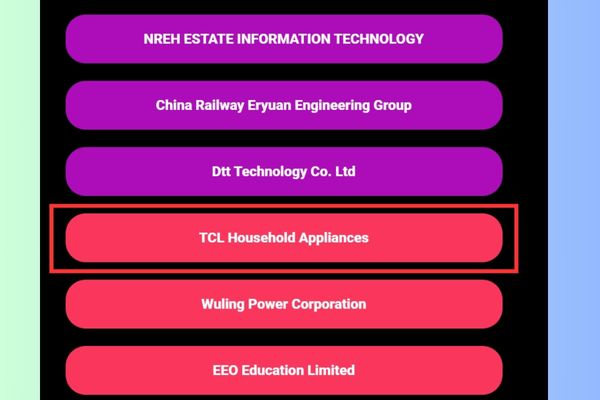
- Press Open > Install when the pop-up appears.
- Come back in Settings > General > VPN & Device Management. Under “Enterprise App”, click on the certificate name (eg: TCL…), select Trust… and confirm Allow & Restart.
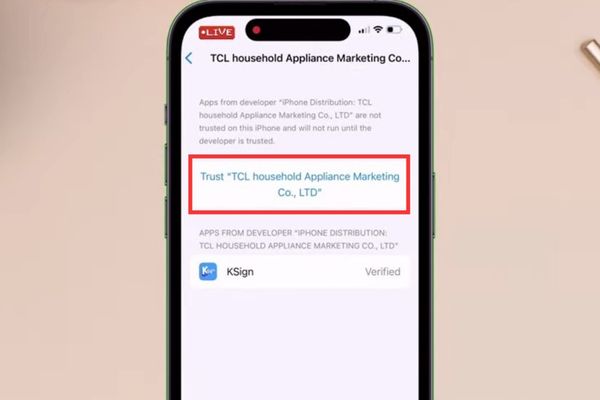
Step 3: Import the certificate into KSign
For KSign to sign the application, it needs “raw materials” which are certificate files.
- Find the zip file containing the certificate and extract it.
- Open KSign app, go to tab Settingsselect Certificates.
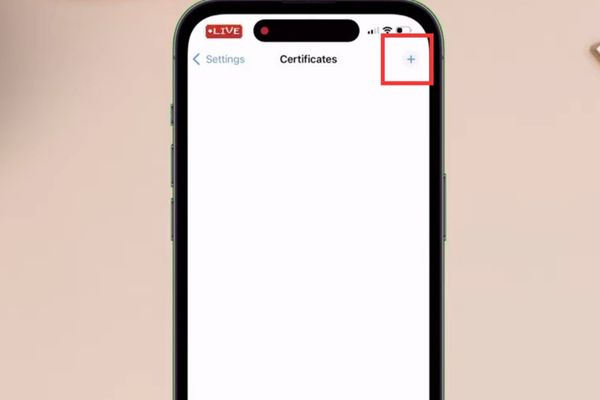
- Click on the mark +select Import Ksign File.
- Browse to the extracted folder and select the corresponding .ksign file.
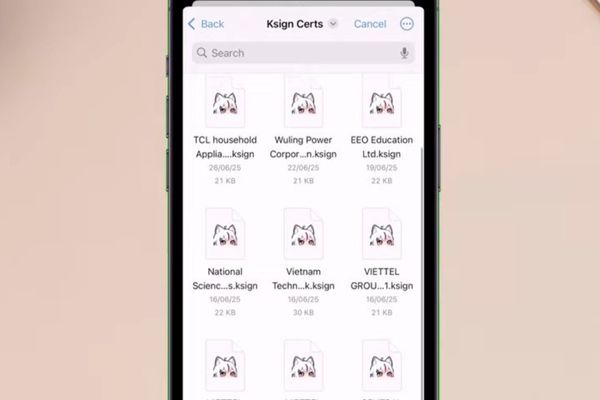
The certificate will be successfully imported into KSign.
Step 4: Sign and install the IPA application
- Download the .ipa file of the application you need and save it to the Files application.
- In KSign, go to tab Filespress the mark + and Import Files to insert the IPA file.
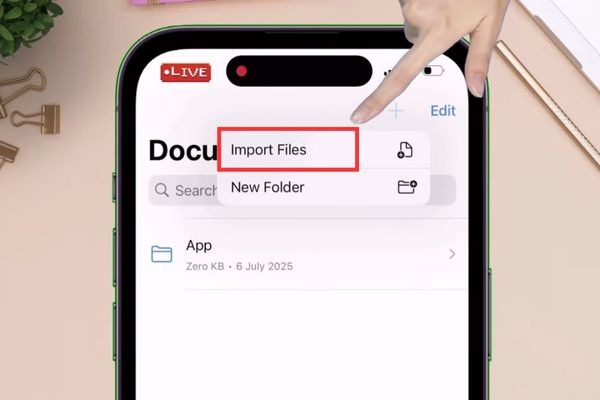
- Click on the IPA file you just imported and select Import to Library.
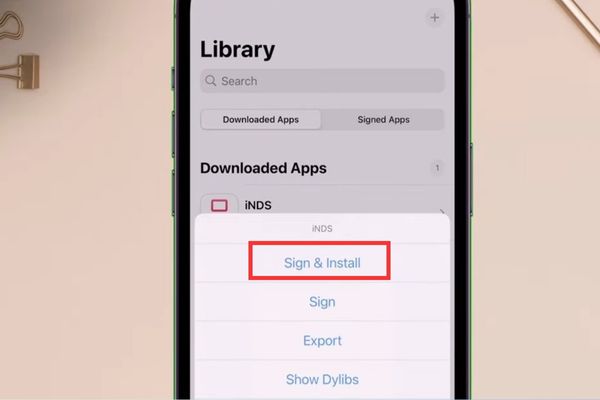
- Switch tabs Librarytap the app and select Sign & Install.
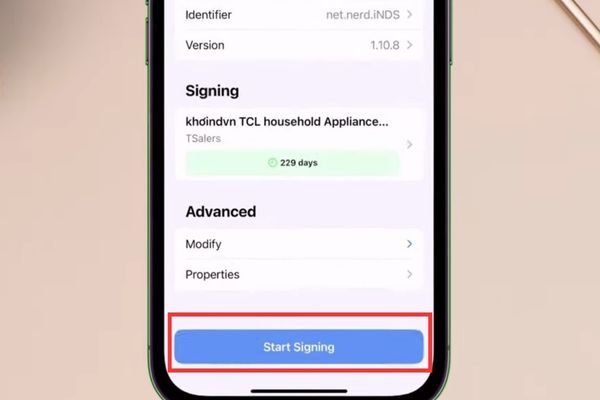
- Press Start Signing. When the settings pop-up appears, select Install.
Step 5: Activate permanent bypass mode
- Enter Settings > General > VPN & Device Management > DNS.
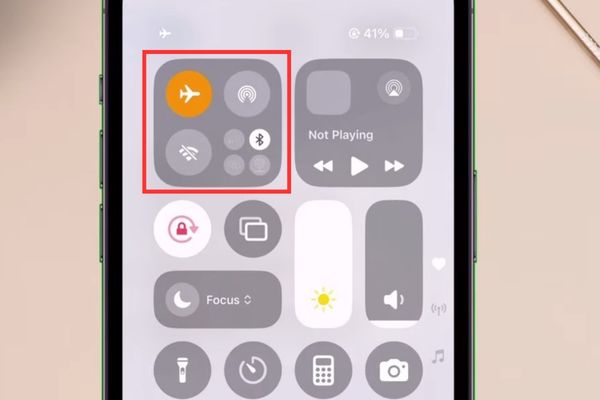
- Turn on Airplane Mode to completely disconnect from the network.
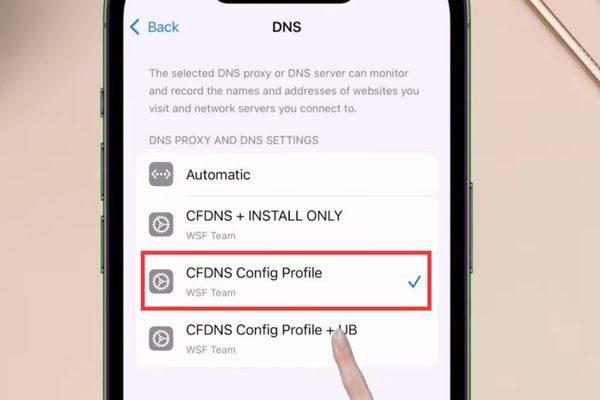
- In the DNS list, change the selection from CFDNS + INSTALL ONLY CFDNS Config Profile.
- Turn off airplane mode and reconnect to the network.
From now on, your app is completely protected from revocation.
What happens if DNS is not converted?
If you keep DNS in “Install Only” mode, Apple’s servers will still be accessible. When you open the app, the iPhone will check and detect that the certificate has been revoked, leading to the “Unable to Verify App” error.
When you switch DNS to blocking mode, all attempts to connect to Apple’s authentication server will fail. The iPhone receives no response, so it assumes the app is still valid and allows you to open it.
Process summary
To summarize how to bypass Unable to Verify App, remember 3 golden rules:
- When installing: Always make sure DNS is set to CFDNS + INSTALL ONLY mode.
- After installation: It is REQUIRED to switch DNS to another mode to prevent revocation.
- When switching DNS: Always enable Airplane Mode before switching to ensure no connections leak out.
Note that this method will not work if your device has been previously “blacklisted” by Apple. In that case, you may need to reset the device.
Conclusion
How to bypass Unable to Verify App Now it’s no longer a secret. With just a few simple steps, you can install any IPA application without any problems. Wish you success!