• Home
  • News
  • Software
  • Knowledge
  • MMO
  • Tips
  • Security
  • Network
  • Office
AnonyViet - English Version
  • Home
  • News
  • Software
  • Knowledge
  • MMO
  • Tips
  • Security
  • Network
  • Office
No Result
View All Result
  • Home
  • News
  • Software
  • Knowledge
  • MMO
  • Tips
  • Security
  • Network
  • Office
No Result
View All Result
AnonyViet - English Version
No Result
View All Result

How to automatically save Microsoft Word files to OneDrive

AnonyViet by AnonyViet
January 13, 2023
in Office
0

One of my most painful memories is shutting down my computer and forgetting to save the Word file after 2 hours of hard work (it’s still bitter when I think about it now). But now, you won’t need to worry about that anymore, because Microsoft Word already allows users to automatically save files to one drive.

Join the channel Telegram of the AnonyViet 👉 Link 👈

How to automatically save Microsoft Word files to OneDrive

If you have a subscription Microsoft 365, you’ll get 1TB of OneDrive storage for free along with the Microsoft Office suite. So you take advantage of OneDrive’s 1TB of space to automatically save your documents. Let’s get started.

Automatically save Word files to One Drive

Before we get started, I need you to meet a few requirements: This only works if you have a Microsoft 365 subscription. Includes both personal and family plans, but doesn’t work with single-use licenses. times for Office.

You’ll also need to open both the Word and OneDrive desktop apps and sign in with your Microsoft account. When you sign in to OneDrive, the app guides you through the quick setup process. Note that you need an internet connection to set up OneDrive and make sure documents are being saved and synced automatically.

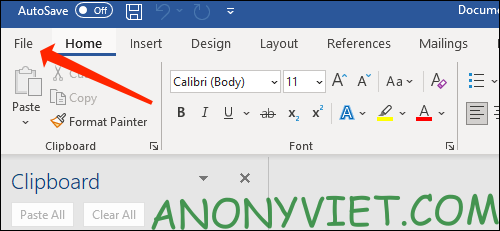
Once you have done these requirements, open Microsoft Word and create a new document by clicking the “File” button.
How to automatically save Microsoft Word files to OneDrive 16

Next, select “New” in the menu on the left.

How to automatically save Microsoft Word files to OneDrive

Now select “Blank Document” or any template from the list on the right side.

How to automatically save Microsoft Word files to OneDrive 18

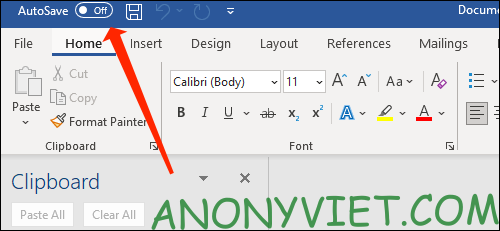
You should see a button named “AutoSave” at the top left of the Word window. Click the “AutoSave” button to switch to “On”.
How to automatically save Microsoft Word files to OneDrive 19

Word will prompt you to choose a folder to automatically save the file in. Select “OneDrive”.

How to automatically save Microsoft Word files to OneDrive

Name your file and Word will save it in OneDrive’s Documents folder.

You only need to save the file manually once at the start and Microsoft Word will take care of the rest. This method also allows you to continue your work on other devices, so you can easily work on your PC and then switch to your phone or laptop, as long as you use Office and OneDrive is synced. sync on other devices.

Save Word files to another folder in OneDrive

If you want to organize your Microsoft Word files neatly, you can create different folders in OneDrive and save files there. Here’s what you need to do.

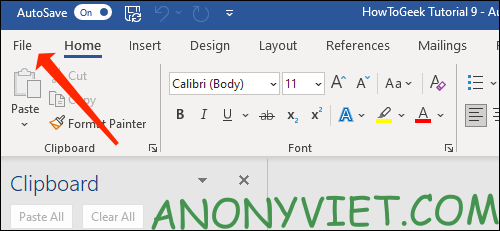
Open any Word file and then click “File”.
How to automatically save Microsoft Word files to OneDrive

Select “Save a Copy”.

How to automatically save Microsoft Word files to OneDrive 22

Select “OneDrive” in the Save a Copy section.

How to automatically save Microsoft Word files to OneDrive

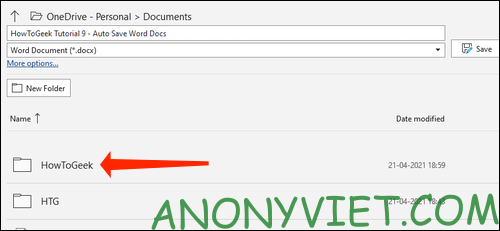
You will see where to save your file. To change the file location, click “New Folder” and give the new folder a name.

How to automatically save Microsoft Word files to OneDrive 24

Select the folder you just created.

How to automatically save Microsoft Word files to OneDrive

Click “Save”.

How to automatically save Microsoft Word files to OneDrive

If you want to go back to the previous folder, select the up arrow icon at the top.

How to automatically save Microsoft Word files to OneDrive

This is when Microsoft Word will start automatically saving your files every few seconds, so the risk of losing your files is minimized. As long as you are connected to the Internet, you don’t have to worry about anything.

To check where the file is saved, click the file’s name in the top bar in Microsoft Word.
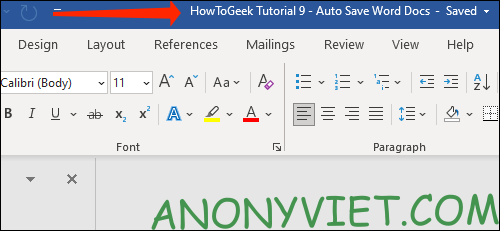
How to automatically save Microsoft Word files to OneDrive

You should now see the file name and location to save the file.
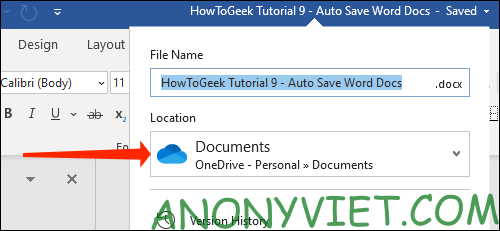
How to automatically save Microsoft Word files to OneDrive

So that’s it then. In addition, you can also attach viruses to Word files here.

The article achieved: 5/5 – (100 votes)

Tags: AutomaticallyfilesMicrosoftOneDrivesaveword
Previous Post

Download WorkinTool Data Recovery – Software to recover deleted data

Next Post

Vortimo: Extension to help you track information on the Internet

AnonyViet

AnonyViet

Related Posts

How to add Watermark to Google Docs to protect copyright
Office

How to add Watermark to Google Docs to protect copyright

April 19, 2026
Instructions on how to hide formulas in Excel to secure data
Office

Instructions on how to hide formulas in Excel to secure data

February 6, 2026
Top who creates the most beautiful presentation slide today
Office

Top who creates the most beautiful presentation slide today

September 23, 2025
Automatically check and correct spelling errors on Google Docs
Office

Automatically check and correct spelling errors on Google Docs

February 23, 2025
Instructions for downloading Google Docs files easily on any device
Office

Instructions for downloading Google Docs files easily on any device

December 18, 2024
Launching AI image creation feature on Google Docs
Office

Launching AI image creation feature on Google Docs

November 20, 2024
Next Post
Vortimo: Extension to help you track information on the Internet

Vortimo: Extension to help you track information on the Internet

0 0 votes
Article Rating
Subscribe
Login
Notify of
guest

guest

0 Comments
Oldest
Newest Most Voted
Inline Feedbacks
View all comments

Recent News

How to create a Face Sticker Collection using ChatGPT

How to create a Face Sticker Collection using ChatGPT

April 29, 2026
How to install the cute Bongo Cat mouse pointer for Windows

How to install the cute Bongo Cat mouse pointer for Windows

April 29, 2026
Tips for pinning the step counter to the iPhone screen to monitor your health

Tips for pinning the step counter to the iPhone screen to monitor your health

April 28, 2026
How to turn off password suggestions on iPhone: Prevent Safari from auto-filling passwords

How to turn off password suggestions on iPhone: Prevent Safari from auto-filling passwords

April 27, 2026
How to create a Face Sticker Collection using ChatGPT

How to create a Face Sticker Collection using ChatGPT

April 29, 2026
How to install the cute Bongo Cat mouse pointer for Windows

How to install the cute Bongo Cat mouse pointer for Windows

April 29, 2026
Tips for pinning the step counter to the iPhone screen to monitor your health

Tips for pinning the step counter to the iPhone screen to monitor your health

April 28, 2026
AnonyViet - English Version

AnonyViet

AnonyViet is a website share knowledge that you have never learned in school!

We are ready to welcome your comments, as well as your articles sent to AnonyViet.

Follow Us

Contact:

Email: anonyviet.com[@]gmail.com

Main Website: https://anonyviet.com

Recent News

How to create a Face Sticker Collection using ChatGPT

How to create a Face Sticker Collection using ChatGPT

April 29, 2026
How to install the cute Bongo Cat mouse pointer for Windows

How to install the cute Bongo Cat mouse pointer for Windows

April 29, 2026
No Result
View All Result
  • Home
  • News
  • Software
  • Knowledge
  • MMO
  • Tips
  • Security
  • Network
  • Office

wpDiscuz
0
0
Would love your thoughts, please comment.x
()
x
| Reply