• Home
  • News
  • Software
  • Knowledge
  • MMO
  • Tips
  • Security
  • Network
  • Office
AnonyViet - English Version
  • Home
  • News
  • Software
  • Knowledge
  • MMO
  • Tips
  • Security
  • Network
  • Office
No Result
View All Result
  • Home
  • News
  • Software
  • Knowledge
  • MMO
  • Tips
  • Security
  • Network
  • Office
No Result
View All Result
AnonyViet - English Version
No Result
View All Result

How to automatically save Excel files to OneDrive

AnonyViet by AnonyViet
January 13, 2023
in Office
0

Automatically saving Excel files to OneDrive will save you more time. But unlike Google Sheets, Microsoft Excel doesn’t have autosave enabled by default. You can fix this problem easily if you subscribe Microsoft 365. But at Anonyviet, a place that won’t spend money on any service will teach you how to automatically save Excel files to OneDrive for free.

Join the channel Telegram of the AnonyViet 👉 Link 👈

How to automatically save Excel files to OneDrive

You can also press Save or Ctrl + S every 1.2 minutes, but I don’t think anyone does that right. Not because it takes time, but because it bothers. You can’t be busy calculating the company’s financial file while clicking Save. Sometimes it even makes you forget what you’re doing, and with a job as precise as this, it only takes a little distraction to sell your house.

Automatically save Excel files to OneDrive

First, you need to open Excel and create a new Workbook by selecting “File”.
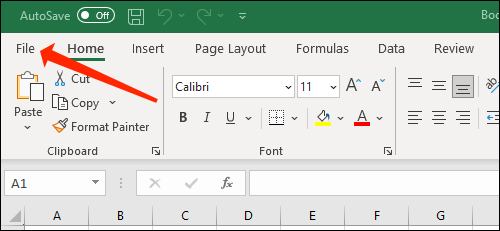
How to automatically save Excel files to OneDrive

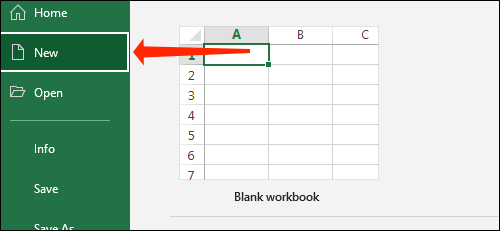
Press “new” in the menu on the left.

How to automatically save Excel files to OneDrive 21

Select “Blank workbook” or any other template from the list. So you have created a new workbook already.
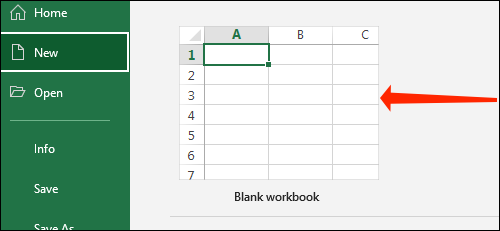
How to automatically save Excel files to OneDrive 22

You will see an option named “AutoSave” in the upper left corner. Click the switch next to AutoSave to switch to “On”.
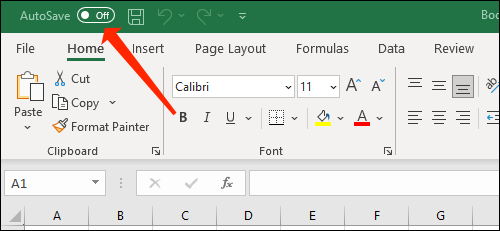
How to automatically save Excel files to OneDrive

You will see a window pop up asking where you want to save your workbook. Click “OneDrive.“
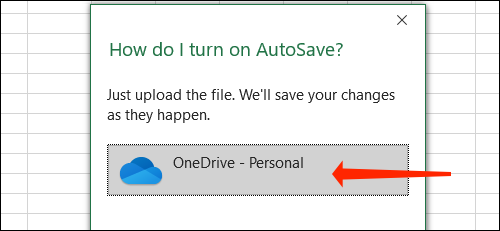
How to automatically save Excel files to OneDrive 24

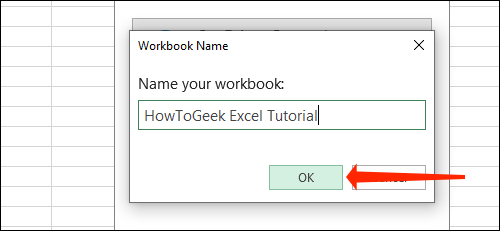
Enter the file name and press “OK“.

How to automatically save Excel files to OneDrive

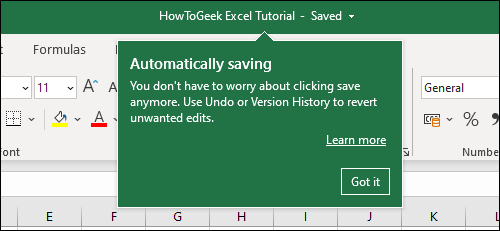
That’s all you need to do to enable the feature autosave. From now on, Excel will automatically save any modifications you make to this workbook. You only need to enable autosave once each time you start working on a new workbook and you won’t need to manually press save again. Note that you need an Internet connection for autosave to work properly and to synchronize these workbooks across devices.
How to automatically save Excel files to OneDrive

Change where to save Workbooks in OneDrive

By default, Microsoft Excel saves your workbook in the Documents folder in OneDrive. However, that’s also where all the other Office documents will be saved, which is a bit messy already. For better folder organization, you should create separate folders for different projects, or at least one folder for each Office application.

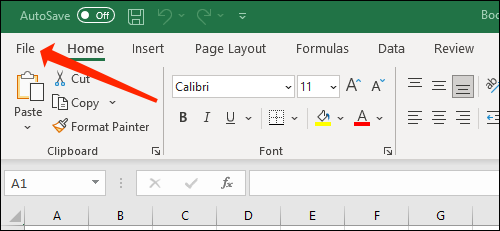
Open any workbook in Microsoft Excel and press “File”.
How to automatically save Excel files to OneDrive

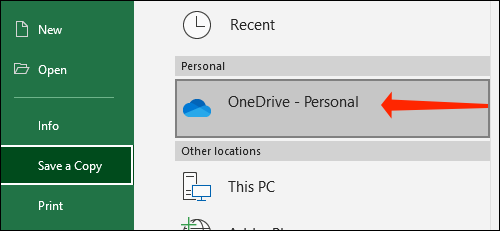
Now, select “Save a Copy” in the left menu.

How to automatically save Excel files to OneDrive

Select “OneDrive”.

How to automatically save Excel files to OneDrive

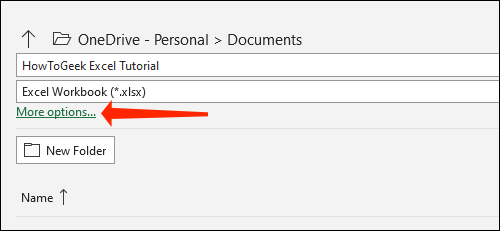
You have two options to create a new folder. The first option is to click “More options” and add the folders using Windows Explorer.
How to automatically save Excel files to OneDrive 30

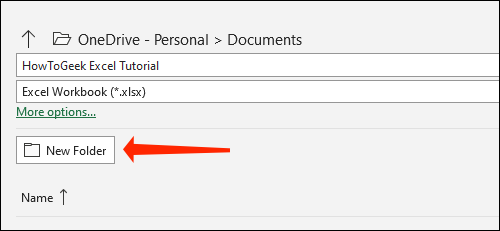
The second option is to click “New Folder” and create a folder in OneDrive from Microsoft Excel.
How to automatically save Excel files to OneDrive

When done, click on the newly created folder.

How to automatically save Excel files to OneDrive 32

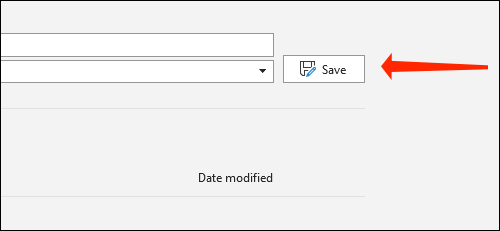
Click “Save”.

How to automatically save Excel files to OneDrive 33

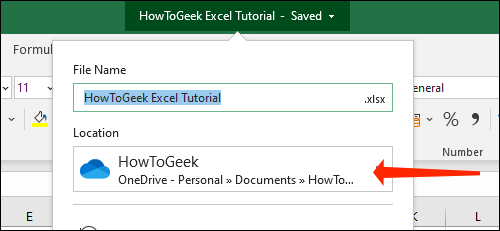
This will return you to the Excel workbook. You can click on your file name at the top to quickly check if the file is saved in the correct folder.
How to automatically save Excel files to OneDrive 34

So you just know how to automatically save Excel files to OneDrive. You can also learn more Excel tips like These 20 tips will make you an Excel expert.


The article achieved: 5/5 – (100 votes)

Tags: AutomaticallyExcelfilesOneDrivesave
Previous Post

Download Advanced SystemCare 16 Full Key – Best Windows Accelerator

Next Post

Learn about Command Injection attacks

AnonyViet

AnonyViet

Related Posts

Top who creates the most beautiful presentation slide today
Office

Top who creates the most beautiful presentation slide today

September 23, 2025
Automatically check and correct spelling errors on Google Docs
Office

Automatically check and correct spelling errors on Google Docs

February 23, 2025
Instructions for downloading Google Docs files easily on any device
Office

Instructions for downloading Google Docs files easily on any device

December 18, 2024
Launching AI image creation feature on Google Docs
Office

Launching AI image creation feature on Google Docs

November 20, 2024
Instructions for using Google Docs without internet
Office

Instructions for using Google Docs without internet

November 2, 2024
Share the link to the sample file to create QR codes in Google Sheets
Office

Share the link to the sample file to create QR codes in Google Sheets

September 30, 2024
Next Post
Learn about Command Injection attacks

Learn about Command Injection attacks

0 0 votes
Article Rating
Subscribe
Login
Notify of
guest

guest

0 Comments
Oldest
Newest Most Voted
Inline Feedbacks
View all comments

Recent News

Download training materials on Applying AI in teaching and learning in 2025

Download training materials on Applying AI in teaching and learning in 2025

November 8, 2025
How to pay health insurance on Momo online right at home

How to pay health insurance on Momo online right at home

November 8, 2025
How to create Flycam videos from photos to sell real estate

How to create Flycam videos from photos to sell real estate

November 8, 2025
3 OCR Tools Extract Text from Images without Retyping

3 OCR Tools Extract Text from Images without Retyping

November 8, 2025
Download training materials on Applying AI in teaching and learning in 2025

Download training materials on Applying AI in teaching and learning in 2025

November 8, 2025
How to pay health insurance on Momo online right at home

How to pay health insurance on Momo online right at home

November 8, 2025
How to create Flycam videos from photos to sell real estate

How to create Flycam videos from photos to sell real estate

November 8, 2025
AnonyViet - English Version

AnonyViet

AnonyViet is a website share knowledge that you have never learned in school!

We are ready to welcome your comments, as well as your articles sent to AnonyViet.

Follow Us

Contact:

Email: anonyviet.com[@]gmail.com

Main Website: https://anonyviet.com

Recent News

Download training materials on Applying AI in teaching and learning in 2025

Download training materials on Applying AI in teaching and learning in 2025

November 8, 2025
How to pay health insurance on Momo online right at home

How to pay health insurance on Momo online right at home

November 8, 2025
  • Home
  • Home 2
  • Home 3
  • Home 4
  • Home 5
  • Home 6
  • Next Dest Page
  • Sample Page

new88 trang chủ shbet trang chủ f168 trang chủ qq88 nhà cái 78win

No Result
View All Result
  • Home
  • News
  • Software
  • Knowledge
  • MMO
  • Tips
  • Security
  • Network
  • Office

new88 trang chủ shbet trang chủ f168 trang chủ qq88 nhà cái 78win

wpDiscuz
0
0
Would love your thoughts, please comment.x
()
x
| Reply