Github offers two ways to authenticate your repository: over HTTPS with a password and over SSH with a private key. While both work well, if you want to switch Github authentication with SSH, you’ll need to configure your repository to use the new credentials.
| Join the channel Telegram of the AnonyViet 👉 Link 👈 |

Configure Github Authentication with SSH
Github defaults to HTTPS authentication, using the password for your Github account. Whenever you clone a repo, you will have to manually select “SSH” as the option for URL cloning.
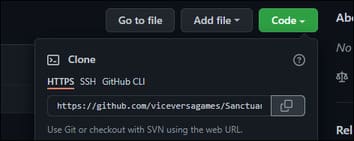
While SSH is generally best for authenticating connections to Linux servers, Github recommends HTTPS because it’s easier to use and less confusing. However, this is pretty bad for automation, isn’t technically as secure as an RSA key, and can be annoying having to type the password every time, even with credential caching.
Switching is pretty straightforward — you’ll need to generate a new SSH key if you don’t already have one, add it to your account, then swap your local repo to the new endpoint if you’ve already cloned.
First, check if you already have an SSH key. Your default key is usually stored here on Linux/macOS:
cat ~/.ssh/id_rsa.pub
On Windows, it depends on the program you are using. The key is sometimes stored in %HOMEDRIVE%%HOMEPATH%\.ssh\, but may be different based on how you are using Git. In most cases, I recommend using Windows Subsystem For Linux (WSL) acts like a virtual machine and stores the key in the Linux environment.
If you don’t have one, you can create one using ssh-keygen:
ssh-keygen -t rsa -f ~/.ssh/id_rsa
Once you have the key, go to Github settings under “SSH and GPG Keys” and paste the contents of id_rsa.pub into a new key.
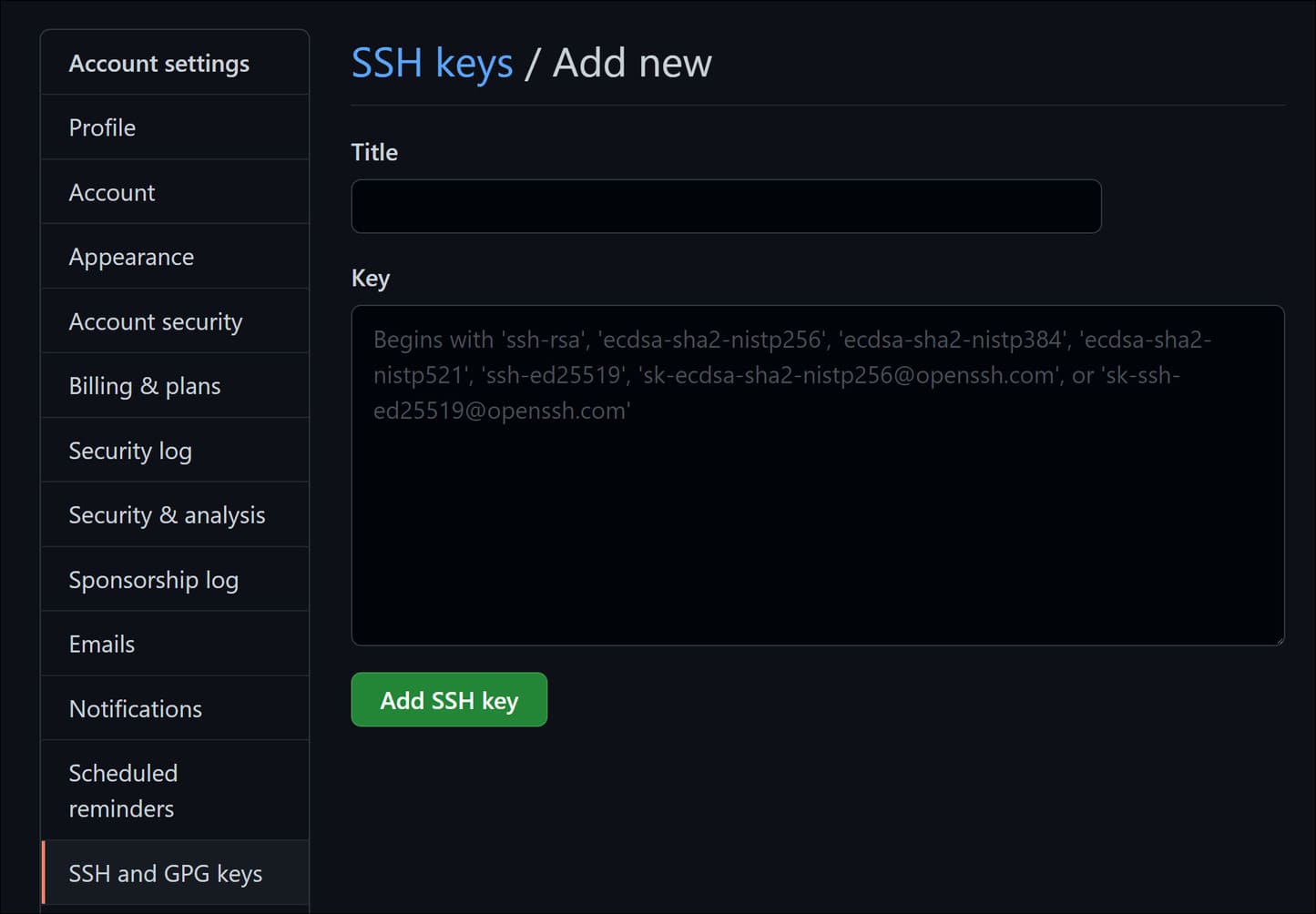
Once done, you will be authenticated, as long as Git is set up to use this key.
Switch HTTPS Repo to SSH Authentication
If you clone from Github using HTTPS, your repository will be linked to Github using that remote URL. To work around this issue, you’ll need to remove the HTTPS remote, commonly called origin, and re-add it with the appropriate git@github URI for SSH usage.
git remote rm origin
git remote add origin [email protected]:user/repo.git
Then push origin as usual:
git fetch origin
git push --set-upstream origin/master
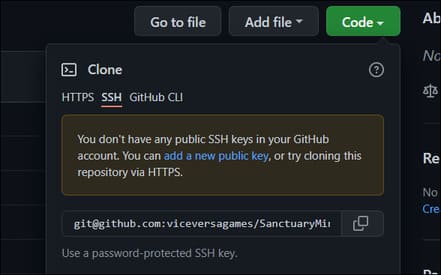
If you are cloning a new repo, you just need to make sure it is set to “SSH” in the future and that the URI is configured as [email protected].
Use a different SSH Key
However, if you have a lot of SSH keys to use, things can get complicated, which is why Github recommends passwords for newbies. Let’s say you clone the repo on your PC, but then want to work from your Laptop. You have to add a new key to your Github account or transfer the key to your Laptop.
If possible, you should add a new key. Github supports multiple keys for a number of reasons, and you can name them to sort the keys. However, sometimes, you will only have one key and need to fix everything on the client side.
If you just want to use the same key, you can transfer id_rsa and id_rsa.pub to the new machine. However, if that machine already has its own SSH key, you’ll need to use multiple keys.
You can do that by editing SSH’s server configuration file:
nano ~/.ssh/config
Add two blocks with different names. In this case, it is setting up different keys for personal and corporate accounts.
Host personal
  Hostname github.com
  IdentityFile ~/.ssh/githubpersonal
  IdentitiesOnly yes

Host work
  Hostname github.com
  IdentityFile ~/.ssh/githubwork
  IdentitiesOnly yes
You will need two keys named githubpersonal.pub and githubwork.pub or whatever name you choose to give them. Finally, you’ll need to remove the remote and re-add it, specifying the name of the block in the server config file (which may not match the key name):
git remote rm origin
git remote add origin git@personal:username/repository.git
In this command, “personal” will replace the hostname, github.com, in the URL. The reason this is necessary is that SSH’s configuration defaults to choosing the key based on the hostname, in both the personal and work blocks it’s just github.com. You have to specify it manually so that Git can pick the right one.