• Home
  • News
  • Software
  • Knowledge
  • MMO
  • Tips
  • Security
  • Network
  • Office
AnonyViet - English Version
  • Home
  • News
  • Software
  • Knowledge
  • MMO
  • Tips
  • Security
  • Network
  • Office
No Result
View All Result
  • Home
  • News
  • Software
  • Knowledge
  • MMO
  • Tips
  • Security
  • Network
  • Office
No Result
View All Result
AnonyViet - English Version
No Result
View All Result

How to adjust the Download bar on Chrome to the latest Taskbar

AnonyViet by AnonyViet
November 10, 2023
in Tips
0

How to restore the download bar Chrome returns to the Taskbar below in the browser Chrome is a frequently asked question by many users of this browser. Have you ever encountered a situation where when downloading a file on Chrome browser, you don’t see the download bar appear at the bottom of the screen? This is a new feature of Chrome, to help users have a smoother file download experience, without taking up screen space. However, many people still like to use the old download bar, because it allows them to easily monitor the progress of downloading files, opening files, or canceling files.

Join the channel Telegram belong to AnonyViet 👉 Link 👈

How to restore the Download bar on Chrome back to the Taskbar

Step 1: Press Windows + R > Type regedit in the empty box > Click OK
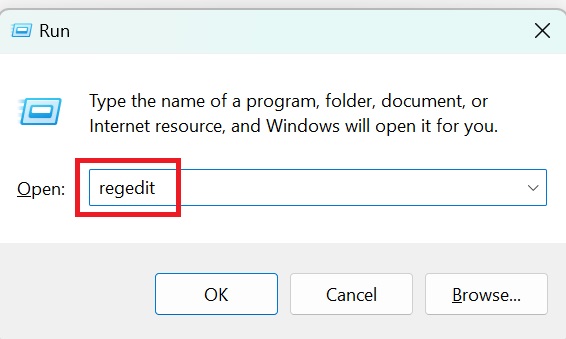
How to restore the download bar
Type regedit in the empty box

Step 2: Paste the following path into the address bar and press Enter:

Computer\HKEY_CLASSES_ROOT\ChromeHTML\shell\open\command

This is the path to the Registry key containing settings related to opening the Chrome browser. You will see a key named Default on the right side of the window.
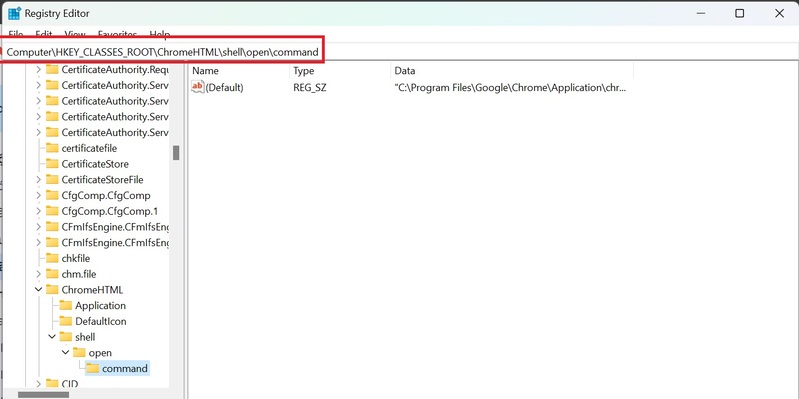
How to restore the download bar
Paste the following link into the address bar

Step 3: Double-click the Default key to open the Edit String dialog box. You will see a box called Value Data, containing the path to the chrome.exe file.

You need to add the following code at the end of the Value Data section, remember to separate it with a space:

–disable-features=DownloadBubble –single-argument %1

For example: “C:\Program Files\Google\Chrome\Application\chrome.exe” –disable-features=DownloadBubble –single-argument %1

If x86 version, it will be: C:\Program Files (x86)\Google\Chrome\Application\chrome.exe” –disable-features=DownloadBubble –single-argument %1

How to restore the download bar
Add the following code at the end of the Value Data section

Step 4: After changing the Registry, you need to change Chrome’s Shortcut on the Desktop. Right-click on the Chrome Shortcut icon on the Desktop > Select Properties > In the Target section, add: -disable-features=DownloadBubble to the end of the path:

For example: "C:\Program Files\Google\Chrome\Application\chrome.exe" -disable-features=DownloadBubble
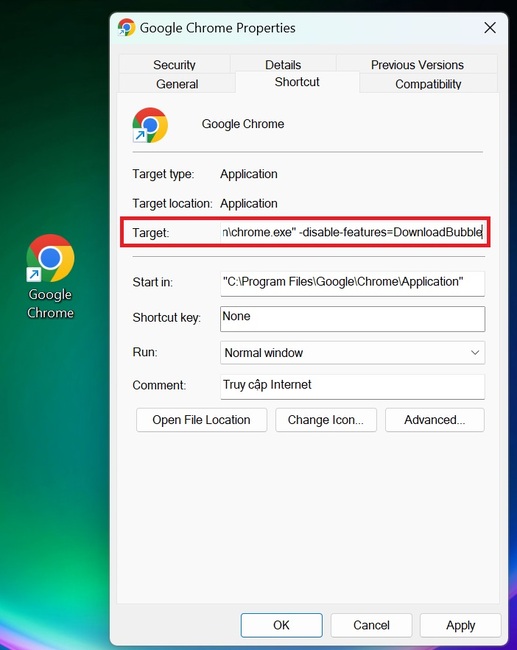
How to restore the download bar
Add the code snippet to the end of the Target section

Step 5: Click OK and restart Chrome. At this time, the download bar will reappear when downloading the file as before.
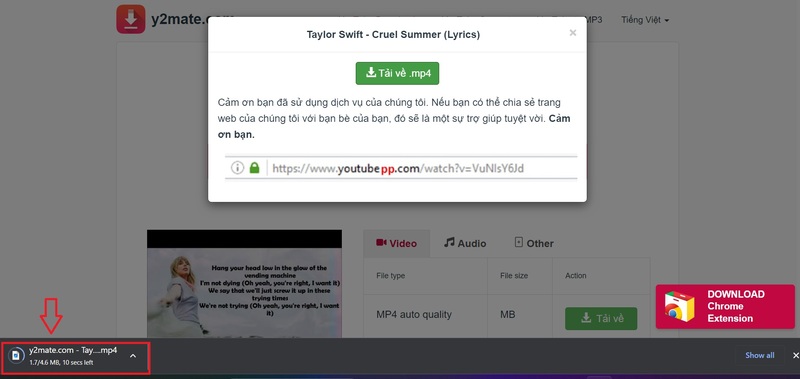
How to restore the download bar

Epilogue

So you know How to restore download bar on Chrome, return to the Taskbar through these articles. If you have any questions or suggestions, please leave a comment below. Good luck!


Rate this post

Tags: adjustbarChromeDownloadlatestTaskbar
Previous Post

Change the YouTube progress bar into a fun cartoon character

Next Post

How to install extensions on Chrome incognito mode

AnonyViet

AnonyViet

Related Posts

How to add sliders to Facebook Stories to easily rewind videos
Tips

How to add sliders to Facebook Stories to easily rewind videos

April 21, 2026
How to change the default font on Windows 10
Tips

How to change the default font on Windows 10

April 13, 2026
5 tips for using a Browser to replace an App (helps save RAM, time and money)
Tips

5 tips for using a Browser to replace an App (helps save RAM, time and money)

April 13, 2026
How to make funny MeMe photos without Photoshop within 10 seconds
Tips

How to make funny MeMe photos without Photoshop within 10 seconds

April 11, 2026
How to quickly design your own Logo without Photoshop
Tips

How to quickly design your own Logo without Photoshop

April 10, 2026
How to convert Website into App on Windows
Tips

How to convert Website into App on Windows

April 9, 2026
Next Post
How to install extensions on Chrome incognito mode

How to install extensions on Chrome incognito mode

0 0 votes
Article Rating
Subscribe
Login
Notify of
guest

guest

0 Comments
Oldest
Newest Most Voted
Inline Feedbacks
View all comments

Recent News

How to turn off password suggestions on iPhone: Prevent Safari from auto-filling passwords

How to turn off password suggestions on iPhone: Prevent Safari from auto-filling passwords

April 27, 2026
Instructions for looking up prescriptions on VNeID instead of paper medical books

Instructions for looking up prescriptions on VNeID instead of paper medical books

April 26, 2026
Tips to completely turn off CAPTCHA codes on iPhone and Mac are super simple

Tips to completely turn off CAPTCHA codes on iPhone and Mac are super simple

April 25, 2026
Compare Poco X8 Pro and Poco X7 Pro: A new step for the “king” of mid-range performance

Compare Poco X8 Pro and Poco X7 Pro: A new step for the “king” of mid-range performance

April 24, 2026
How to turn off password suggestions on iPhone: Prevent Safari from auto-filling passwords

How to turn off password suggestions on iPhone: Prevent Safari from auto-filling passwords

April 27, 2026
Instructions for looking up prescriptions on VNeID instead of paper medical books

Instructions for looking up prescriptions on VNeID instead of paper medical books

April 26, 2026
Tips to completely turn off CAPTCHA codes on iPhone and Mac are super simple

Tips to completely turn off CAPTCHA codes on iPhone and Mac are super simple

April 25, 2026
AnonyViet - English Version

AnonyViet

AnonyViet is a website share knowledge that you have never learned in school!

We are ready to welcome your comments, as well as your articles sent to AnonyViet.

Follow Us

Contact:

Email: anonyviet.com[@]gmail.com

Main Website: https://anonyviet.com

Recent News

How to turn off password suggestions on iPhone: Prevent Safari from auto-filling passwords

How to turn off password suggestions on iPhone: Prevent Safari from auto-filling passwords

April 27, 2026
Instructions for looking up prescriptions on VNeID instead of paper medical books

Instructions for looking up prescriptions on VNeID instead of paper medical books

April 26, 2026
No Result
View All Result
  • Home
  • News
  • Software
  • Knowledge
  • MMO
  • Tips
  • Security
  • Network
  • Office

wpDiscuz
0
0
Would love your thoughts, please comment.x
()
x
| Reply