In today's digital age, remote learning and working are becoming more and more popular. The need for tools to support online collaboration and interaction is also increasing. Understanding this, Google has launched Jamboard – an innovative solution that helps people easily connect, share ideas and work together to achieve common goals.
| Join the channel Telegram belong to AnonyViet 👉 Link 👈 |
Why Jamboard is the Ultimate Tool for Teamwork
Google Jamboard is a digital whiteboard developed by Google that allows users to collaborate and interact in real time. Like a traditional whiteboard, Jamboard allows you to take notes, draw, add images, and share ideas with others. However, Jamboard goes beyond that with powerful features like:
Available on Android and iOS
The application does not require opening a computer or laptop to access. You can easily use it directly on Android and iOS devices.
No matter where you are, as long as you have a mobile device and an internet connection, you can access Jamboard and interact with your team flexibly and conveniently. This allows you to collaborate quickly and effectively.
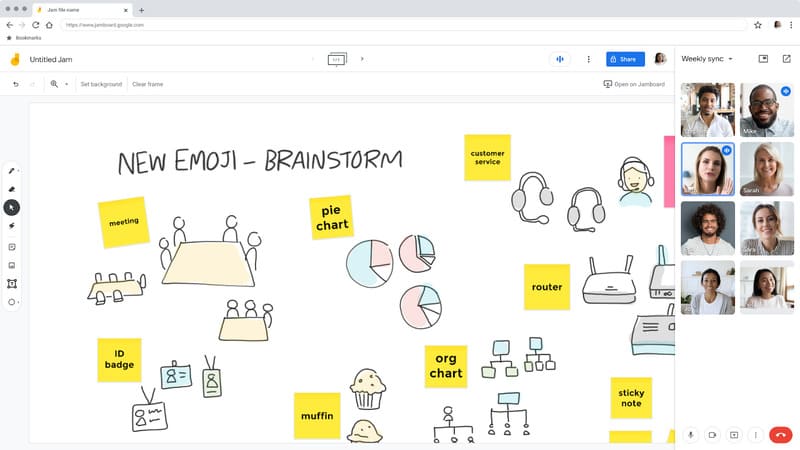
Take notes and present content effectively
Jamboard is a digital whiteboard that lets you present content and ideas to your colleagues and friends. With features like highlighters, customizable fonts, colors, and a variety of pens, the App helps you present your ideas vividly and easily.
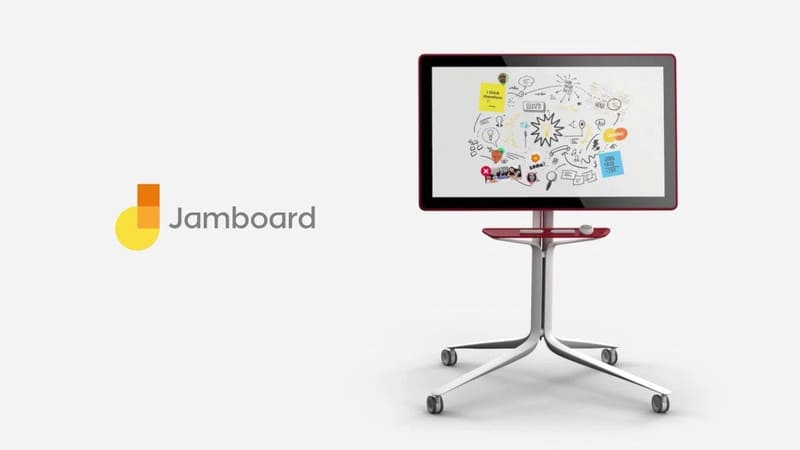
Upload or take a photo directly
The tool allows you to add photos from your library or take photos directly from your camera to your board. This feature is useful when you need to illustrate an idea or present content visually, without having to leave the app to share the image.
Download as PDF or image
Jamboard allows you to download notes and content to your computer as images or PDFs. This is useful when you need to store documents for use when you don't have an Internet connection, ensuring you always have access to important information wherever you are.
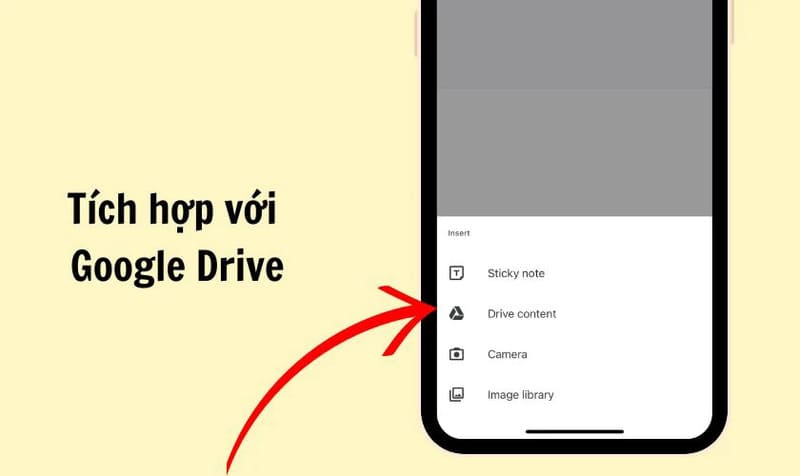
Integrates with Google Drive
Jamboard lets you easily connect and upload folders from Drive. With just a few simple steps, you can share content with friends and colleagues, ensuring everyone always has access to the documents they need.
Easy to use interface
Despite its powerful features, Jamboard has a very user-friendly interface. The categories and tools are arranged logically, making it easy for users to search and experience. You don't need to spend too much time getting used to this application, supporting direct note-taking and easy information retention.
See also: Instructions Upload Files to Google Drive using extension
Benefits of using Google Jamboard
Google Jamboard offers many benefits to users, including:
- Help teams work together more effectively, no matter where they are.
- Fuel creativity and out-of-the-box thinking with intuitive drawing and note-taking tools.
- Help manage projects, capture ideas, and hold meetings more effectively.
- Provides an interactive platform for teachers and students in an online learning environment.
- Replace traditional whiteboards, contributing to environmental protection.

How to use Google Jamboard
How to Create Your First Jamboard
You'll need to sign in to your Google account to start creating your first Jamboard. We recommend creating a new folder in Google Drive to make it easier to manage and find files later, avoiding loss or difficulty finding them.
How to use the notes feature
The notes feature on Jamboard is a useful tool to help you develop ideas and record important information. Here's how to use it:
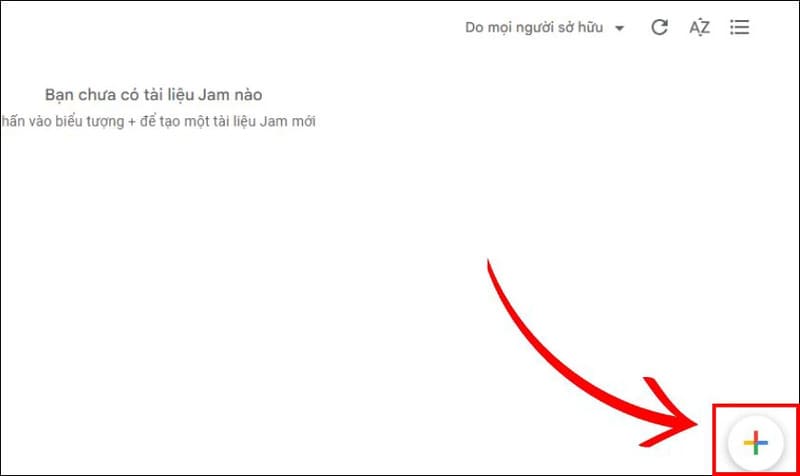
Step 1: Open Google Jamboard on your device and create a new Jam by clicking the plus sign (+).
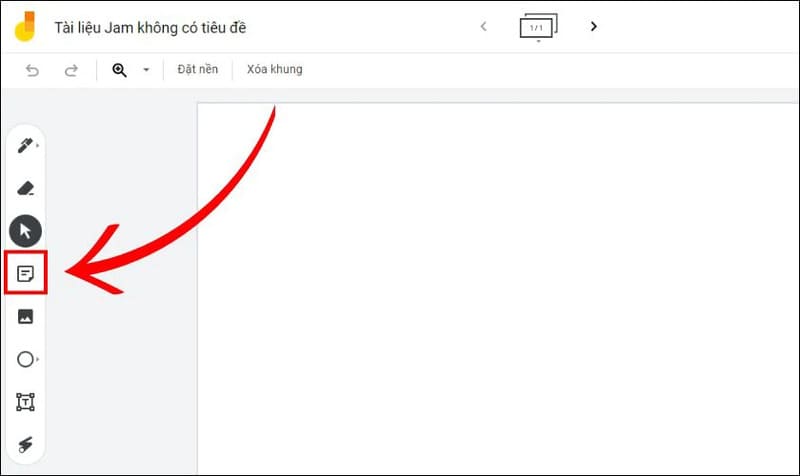
Step 2: On the toolbar on the left side of the screen (for computers) or the bottom of the screen (for mobile devices), select the notes icon.
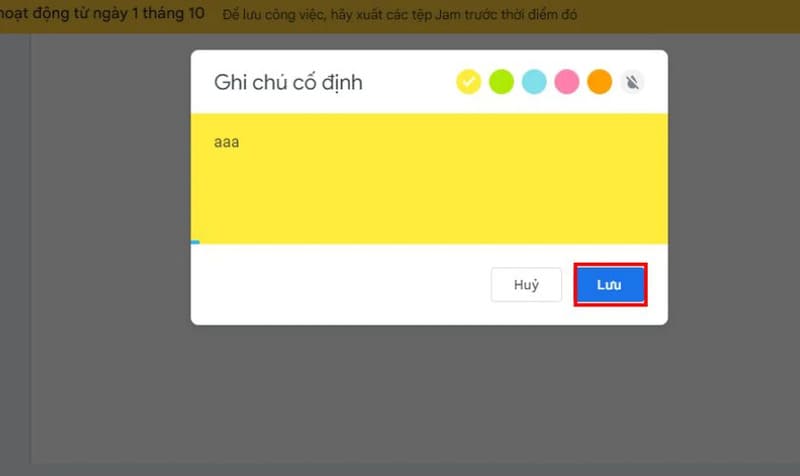
Step 3: Enter the text you want to add to your note, choose a color, and tap Save. You can move notes around to position them where you want them, and edit them by clicking on the note.
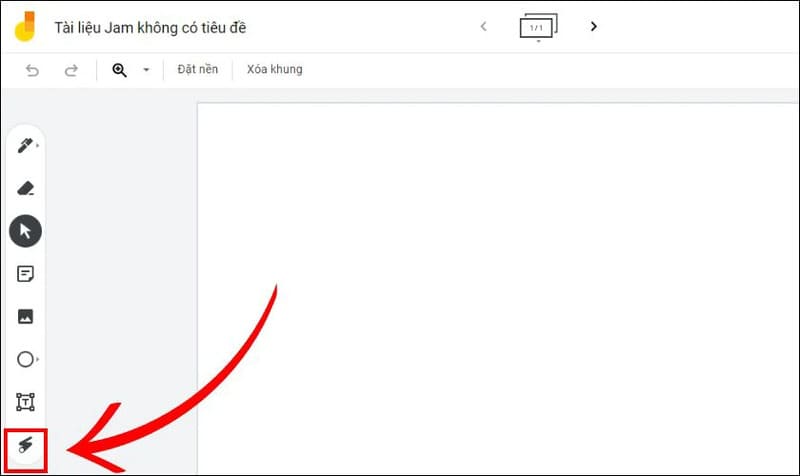
How to use laser mouse pointer to Highlight
To highlight important items on your Jamboard, you can use the Laser Pointer. This feature lets you use your finger, stylus, mouse, or trackpad to draw and emphasize important parts of the screen.
Select the Laser Pointer tool on the toolbar on the left side of the screen (for computers) or the bottom of the screen (for mobile devices). Use this tool to draw and highlight areas of interest.
How to share with colleagues and friends
To share your Jamboard with colleagues and friends, follow these steps:
Step 1: Tap the Share option at the top of the screen.
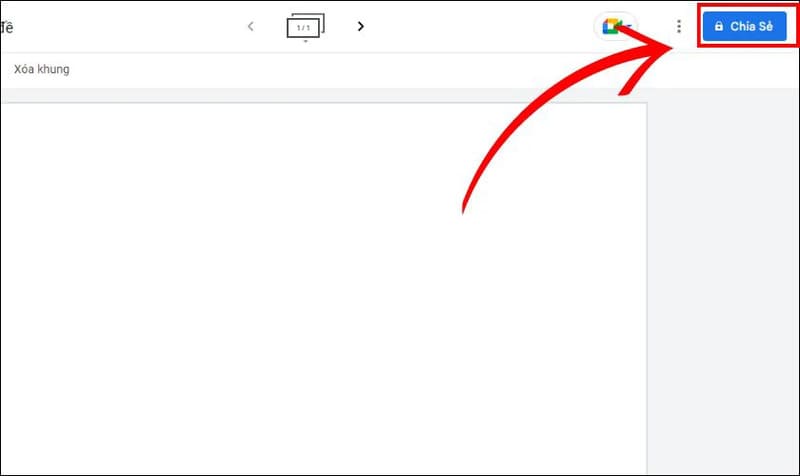
Step 2: Copy the link and share it with your work or study group. You can also enter recipients' email addresses to send the link directly to them.
How to share on Google Drive
Jamboard integrates seamlessly with Google Drive, making it easy to open and share files from Google Docs or Google Sheets. Here's how to share files from Google Drive to Jamboard:
Step 1: Click the pencil icon in the lower right corner of the Jamboard interface to activate edit mode. Next, select the plus (+) icon and select Drive Content from the list.
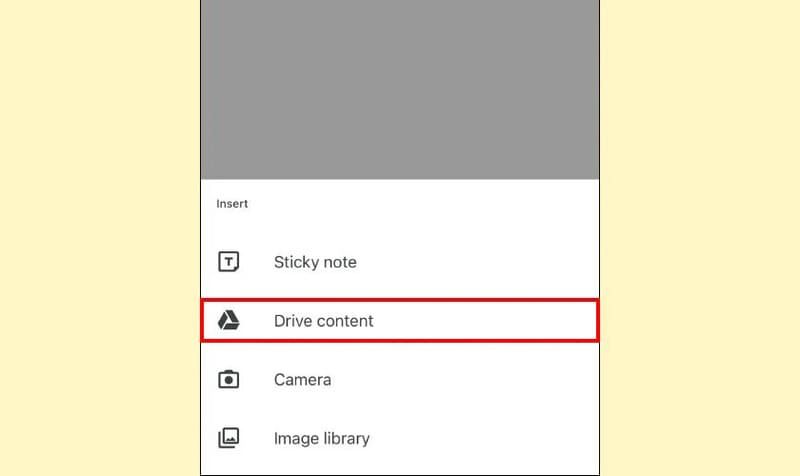
Step 2: Search for the file you want to insert into your Jamboard > Once you've located the file you want, click on it to select it > The selected file will automatically be inserted into your Jamboard, allowing you to edit and resize it as desired.
See more: How to add Google Drive to File Explorer on Windows 11
Epilogue
Google Jamboard is a powerful and flexible tool for collaboration and creativity. With many useful features and an easy-to-use interface, it will be an ideal choice for workgroups, students, teachers and anyone who wants to improve their work and study efficiency.



![[Lập trình game] Lesson 11: Raycast2D Enemy in Godot – Part 2](https://anonyviet.com/wp-content/uploads/2020/04/cimage001.png "[Lập trình game] Lesson 11: Raycast2D Enemy in Godot – Part 2")