Flyoobe has emerged as a lifeline for those who want to experience Windows 11 but are blocked by Microsoft’s strict hardware requirements. Since the launch of Windows 11, barriers such as TPM 2.0, Secure Boot or compatible processors have caused many fully powerful computers to “stand out of the game”. AnonyViet will introduce in detail Flyoobe, a powerful tool that not only helps you install Windows 11 but also allows deep customization of the operating system from the beginning.
| Join the channel Telegram belong to AnonyViet 👉 Link 👈 |
Flyoobe: More improved version of Flyby11
If you have ever known Flyby11you will feel very familiar with Flyoobe. Developed by Belmin Hasanovic, a passionate programmer famous for compact yet useful tools such as CrapFixer or NAppClean, Flyoobe is the successor version, much more powerful and comprehensive.
Flyoobe no longer stops at removing Windows 11 installation hurdles. It now offers a complete set of tools so you can configure, clean, and optimize Windows 11 right from the first boot.

Flyoobe’s interface is divided into 10 items Clearly, each item takes on a distinct role. Here is an overview of the main features that Flyoobe offers:
Install Windows 11
This is a core feature, allowing you to upgrade directly from Windows 10 to Windows 11 even if your computer does not meet TPM 2.0, Secure Boot or CPU requirements.

Set name and language
After installation is complete, this section helps you easily set up the user name, computer name and language for the system.

Customize the interface
This section allows you to customize the interface of Windows 11 to your liking, including:
- Choose from light or dark themes for both Windows and applications.
- Turn transparency effects on or off.
- Customize system accent colors.
- Change wallpaper quickly.

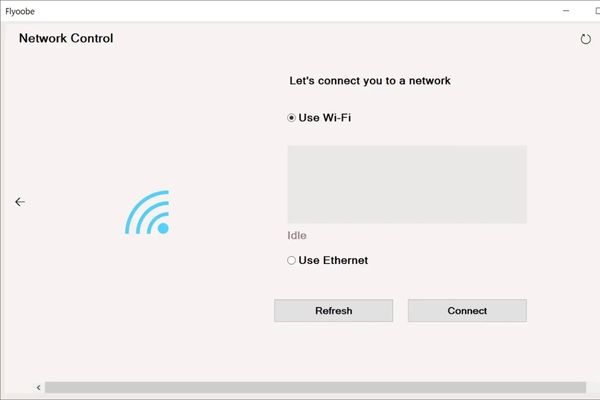
Network setup
Here, you can configure your computer’s network connection, whether it’s a Wi-Fi network or an Ethernet wired network.
Create a local account
An extremely useful feature is that it allows you to create a local account (Local Account) without having to log in to your Microsoft account, an option that Microsoft is increasingly hiding.

Uninstall the application
Flyoobe provides an intuitive interface for you to remove unnecessary applications that come pre-installed with Windows 11, making the system neater and cleaner.

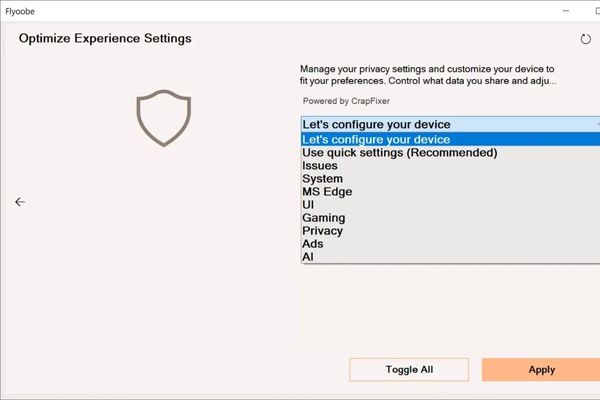
System Tweaks (powered by CrapFixer)
This section will help you:
- Disable user data collection (telemetry).
- Remove annoying ads in the interface.
- Turn off AI-related features.
- Enable/disable other system options.
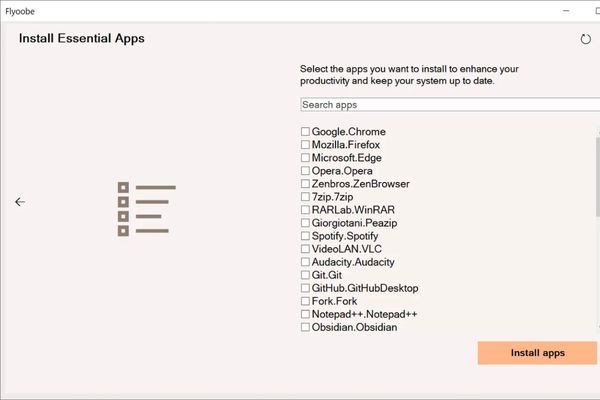
Install essential software
You can quickly install popular software such as browsers (Chrome, Firefox), utilities (7-Zip, PowerToys), multimedia (VLC, Spotify), photo editors (GIMP) and more.
Windows Update
A simple interface to check and install Windows updates directly from Flyoobe.

Additional tools
The last item includes other convenience functions such as launch WinUtil (ChrisTitusTech’s comprehensive optimization tool), create a system restore point, or completely uninstall OneDrive.

Instructions for installing Windows 11 on a PC that is not compatible with Flyoobe
If your computer is still running Windows 10 and is not officially eligible for Windows 11, Flyoobe will help you do this in just a few simple steps.
Step 1: First, please visit Official GitHub page of the tool to download the latest version of Flyoobe.

After downloading, extract the ZIP file and run the Flyoobe.exe file.
Note: Windows Defender may mistakenly identify this tool as dangerous. This is a documented case of false alarms, and the developer has also reported the issue to Microsoft.
Step 2: When Flyoobe starts, you will see the main interface. The first thing to do is prepare an ISO file of Windows 11.
If you don’t have it yet, Flyoobe provides it for you three options To download directly right in the interface: download from the Microsoft homepage, via Media Creation Tool, or use Fido script. You can choose any method.

Step 3: Once you have the ISO, you just need to drag and drop the file into Flyoobe’s interface.
The tool will automatically recognize and launch the Windows installer. Don’t worry when you see it running in server mode, this is just a trick to pass the test, the installed version of Windows 11 is still the regular version (Home, Pro,…) depending on the version you are using.
Step 4: From here, the installation process will proceed similarly to a regular Windows installation, except that you will no longer be blocked by hardware requirements. You just need to follow the on-screen instructions and wait for the installation to complete.

Next steps after installation?
Once Windows 11 has been successfully installed, you just need to Relaunch Flyoobe. At this point, you can access all the remaining sections to start customizing your system, creating local accounts, removing junk apps, and installing your favorite software, all in a single interface.

Conclusion
With Flyoobeinstalling Windows 11 on an incompatible PC is now easier than ever. This tool not only helps you overcome Microsoft barriers but also provides a powerful set of tools to customize and optimize the system right after installation. Since Flyoobe is still under continuous development, we can expect even more features in the future.